
Table of Contents
MFA and Exchange Online
The Managed Folder Assistant (MFA) is an important component in the application of data governance policies for Exchange Online mailboxes. Not only does MFA apply Exchange mailbox policies to mailboxes, it also applies Microsoft 365 retention policies and DLP policies. And it makes sure that Teams compliance records are cleaned up according to the Teams-only retention policies.
MFA Workcycle
Exchange Online uses a workcycle policy to run MFA. The goal is to process mailboxes at least once weekly. Experience is that MFA usually performs better than this and that you can expect to have mailboxes processed twice a week.
However, apart from noticing that some messages have been moved from a folder (perhaps to the Deleted Items folder), there’s no obvious outward sign that MFA has processed a mailbox. Unless that is you look at the mailbox properties, which is where Exchange notes the progress of MFA.
Run diagnostics on archive mailboxes
You can run an automated diagnostic check on a user’s archive mailbox to identify any problems and suggested resolutions.
1️⃣ To run the diagnostic check, visit https://aka.ms/PillarArchiveMailbox then sign-in using a global admin account.
2️⃣ A flyout page opens in the Microsoft 365 admin center. Enter the email address of the mailbox you want to check and click Run Tests.

3️⃣ Once done, you can see last time the Managed Folder Assistant ran on the mailbox.
If you want to force the Managed Folder Assistant runs immediately, please read this article.

Check Last Time the MFA runs using PowerShell
Another way, you can using PowerShell to get user mailbox and extract information about MFA processing for the mailbox.
1️⃣ Connect to Exchange Online PowerShell.
Or you can right click on the Windows Start icon then open Windows PowerShell Admin ( or Windows Terminal Admin in Windows 11). Then copy then paste all below commands into PowerShell window at once to install modules and connect to EXO PowerShell.
Set-ExecutionPolicy -ExecutionPolicy RemoteSigned -Scope LocalMachine -Force;
Install-PackageProvider -Name NuGet -Force;
Set-PSRepository -Name "PSGallery" -InstallationPolicy Trusted;
Install-Module -Name ExchangeOnlineManagement;
Import-Module ExchangeOnlineManagement;
Connect-ExchangeOnline;
2️⃣ Copy then paste all below command into PowerShell window at once to check last time MFA ran on a single mailbox.
$logProps = Export-MailboxDiagnosticLogs [email protected] -ExtendedProperties
$xmlprops = [xml]($logProps.MailboxLog)
$xmlprops.Properties.MailboxTable.Property | ? {$_.Name -like "ELC*"}
3️⃣ In the result, check ELCLastSuccessTimestamp, this value is the last time MFA ran on the mailbox.
Name                                    Value
----                                    -----
ElcLastRunTotalProcessingTime           2474202
ElcLastRunSubAssistantProcessingTime    2467599
ElcLastRunUpdatedFolderCount            40
ElcLastRunTaggedFolderCount             1
ElcLastRunUpdatedItemCount              0
ElcLastRunTaggedWithArchiveItemCount    0
ElcLastRunTaggedWithExpiryItemCount     0
ElcLastRunDeletedFromRootItemCount      0
ElcLastRunDeletedFromDumpsterItemCount  0
ElcLastRunArchivedFromRootItemCount     5520
ElcLastRunArchivedFromDumpsterItemCount 0
ELCLastSuccessTimestamp                 7/30/2022 1:34:19 AM
ElcLastRunSkippedNoTagItemCount         0
ElcLastRunSkippedWithTagItemCount       0
ElcLastRunSkippedNotExcludedItemCount   0
ElcFaiSaveStatus                        SaveSucceeded
ElcFaiDeleteStatus                      DeleteNotAttempted
Check last time MFA ran for all accounts
If you want to check last time MFA ran on all Exchange online mailboxes on your organization. Let’s connect to Exchange Online PowerShell then run the below script.
$mailboxes = Get-Mailbox -RecipientTypeDetails UserMailbox -ResultSize Unlimited
$report = @()
$i = 0
ForEach ($mailbox in $mailboxes) {
    $i++
    $LastProcessed = $Null
    Write-Progress -Activity "Scanning Mailbox $($mailbox.DisplayName)" -Status "Scanned: $i of $($mailboxes.Count)"
    $Log = Export-MailboxDiagnosticLogs -Identity $mailbox.UserPrincipalName -ExtendedProperties
    $xml = [xml]($Log.MailboxLog)
    $LastProcessed = ($xml.Properties.MailboxTable.Property | ? {$_.Name -like "*ELCLastSuccessTimestamp*"}).Value
    $ItemsDeleted  = $xml.Properties.MailboxTable.Property | ? {$_.Name -like "*ElcLastRunDeletedFromRootItemCount*"}
    If ($LastProcessed -eq $Null) {
        $LastProcessed = "Not processed"}

    $reportLine = [PSCustomObject]@{
            User          = $mailbox.DisplayName
            LastProcessed = $LastProcessed
            ItemsDeleted  = $ItemsDeleted.Value}
        $report += $reportLine
    }
$report | Select User, LastProcessed, ItemsDeleted
#$report | Export-CSV C:\Scripts\Inboxsizes.csv
#$report | Out-GridViewLastProcessed: Show the last time Managed Folder Assistant ran on the mailbox.
No Processing for Small Mailboxes: MFA never processes a mailbox if it holds less than 10 MB of content or Online Archiving are not enable for the mailboxes. The result will returns Not processed.
User      LastProcessed         ItemsDeleted
----      -------------         ------------
Bon Ben   Not processed
Chris     7/30/2022 12:05:29 AM 0
Anna      Not processed
Tom       Not processed
Tonny     Not processed
Maria     7/30/2022 3:07:17 AM  0
May       7/30/2022 1:34:19 AM  0
David     7/30/2022 1:34:36 AM  0
Tommy Luk Not processed
Bonus: In case you don’t want to do it manually. We’ve created a PowerShell script to do it automatically. You just need to connect to Exchange Online PowerShell then run the below command:
irm bonguides.com/exo/ELCLastSuccessTimestamp | iex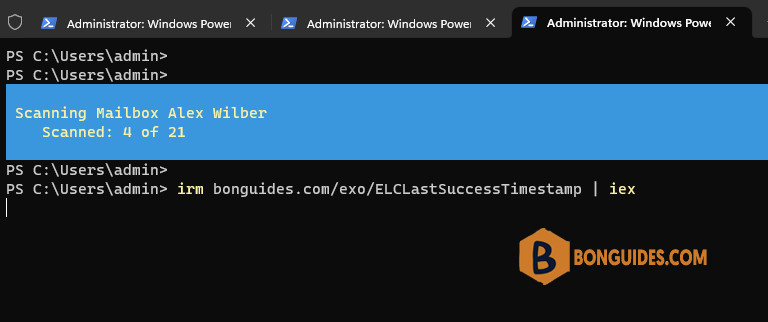
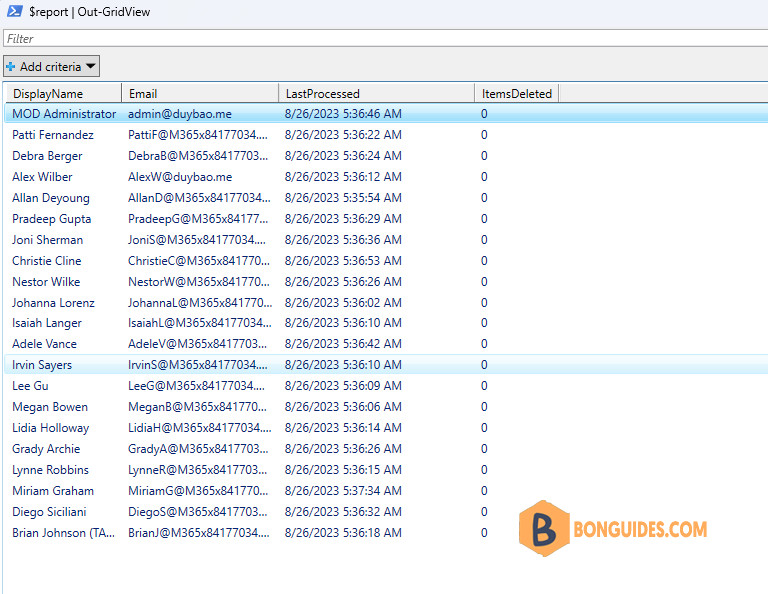
The output would be redirected to a new PowerShell window as below:


Hello, Thanks for this info, How many mails can Folder Assistant Process?
I think has no limitation on it except the quota of the archiving mailbox. (50GB for plan 1 and 1,5 TB for plan 2).
Can this same command would work for exchange 2016 on-premises mailbox as well
Yes, read more https://learn.microsoft.com/en-us/powershell/module/exchange/export-mailboxdiagnosticlogs?view=exchange-ps