
Table of Contents
Running Hyper-V and VMware Workstation on The Same Machine
Running VMware Workstation on a Hyper-V enabled host can be challenging because Hyper-V and VMware Workstation both need to use the hardware-assisted virtualization features of your CPU.
For example, we must enable the nested virtualization on an Ubuntu VM on VMware Workstation to install Docker. When starting the VM, you would get the following error, and the VM cannot be started.
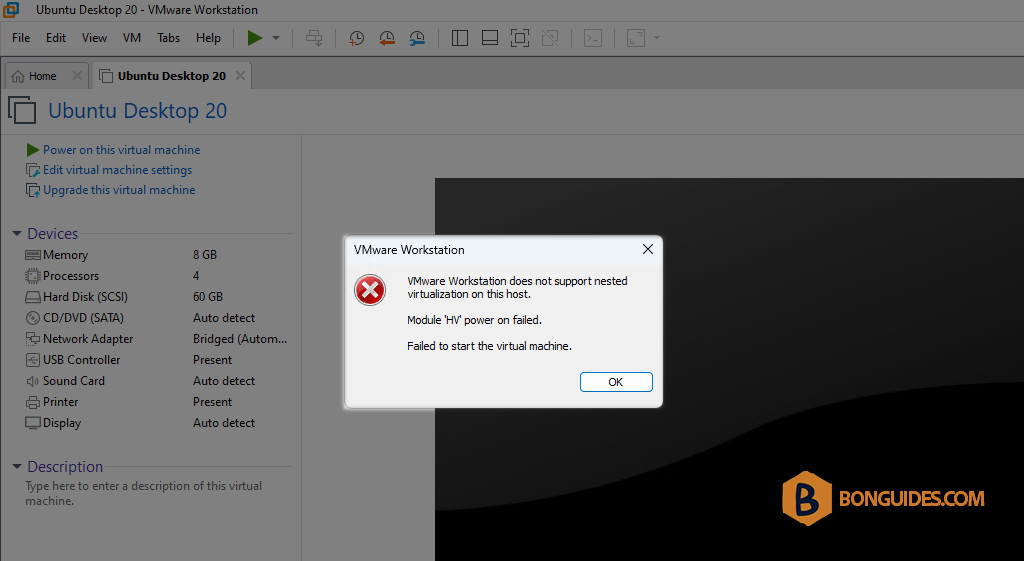
If you don’t want nested virtualization on VMware VMs, it works without any problems. You can run Hyper-V or Windows Sandbox on the same computer with VMware Workstation.
You need to remove Hyper-V or Windows Sandbox in order to run VMware with nested virtualization. But instead of uninstalling Hyper-V every time you would want to run a nested VM inside VMware Workstation, you could play with the following options:
- Disable Hyper-V (without uninstall): bcdedit /set hypervisorlaunchtype off
- Enable Hyper-V (no VMware nested virtualization): bcdedit /set hypervisorlaunchtype auto
Switching between these two commands should prevent the launch of Hyper-V when you want to run a nested VM inside Workstation temporarily and allow you to run Hyper-V when you don’t need nested VMs inside Workstation.
Disable Hyper-V (without uninstall)
In this mode, you:
- Can run VMware with nested virtualization.
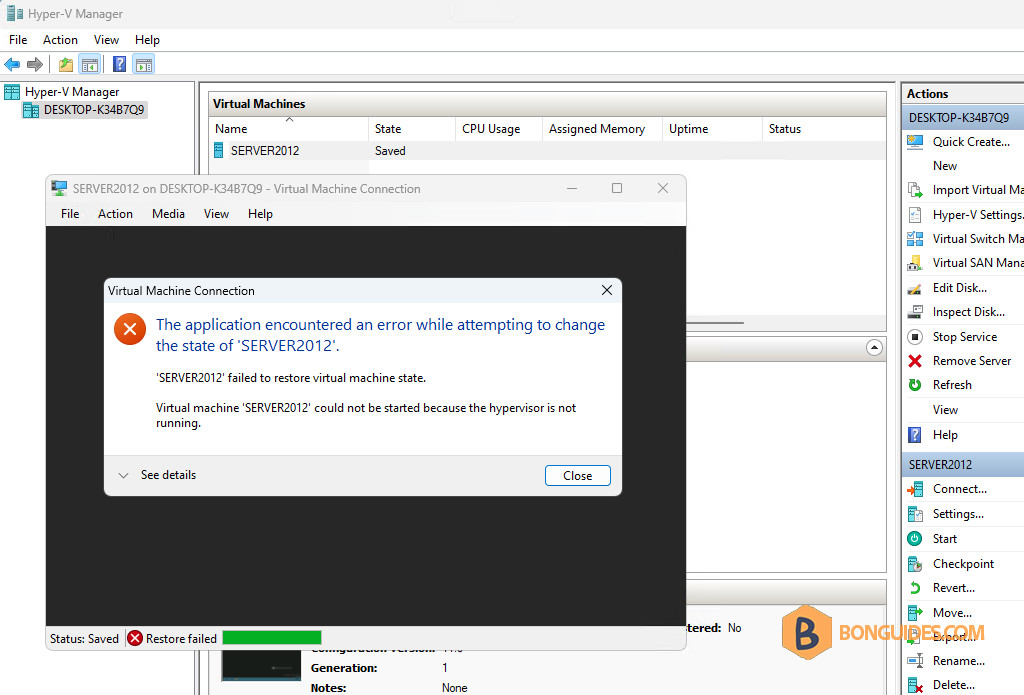
- Cannot run any Hyper-V VM.
- Cannot start Windows Sandbox because it’s based on Hyper-V.
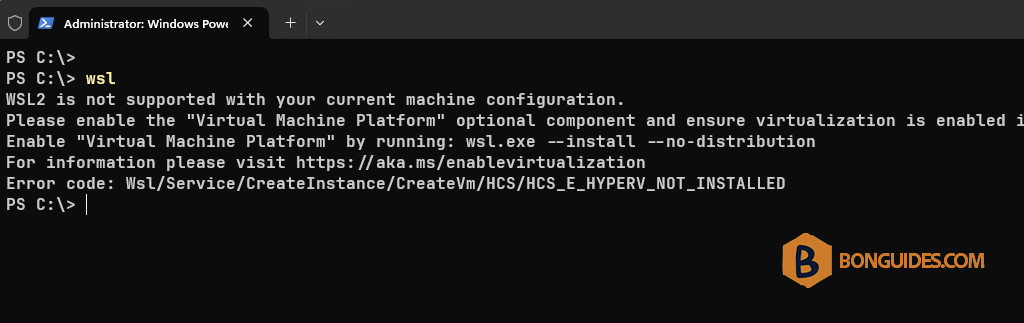
- Cannot start WSL 2 (based on Virtual Machine Platform).
Steps to enter this mode:
1. Right click on the Windows Start icon then open PowerShell (Terminal) as administrator.
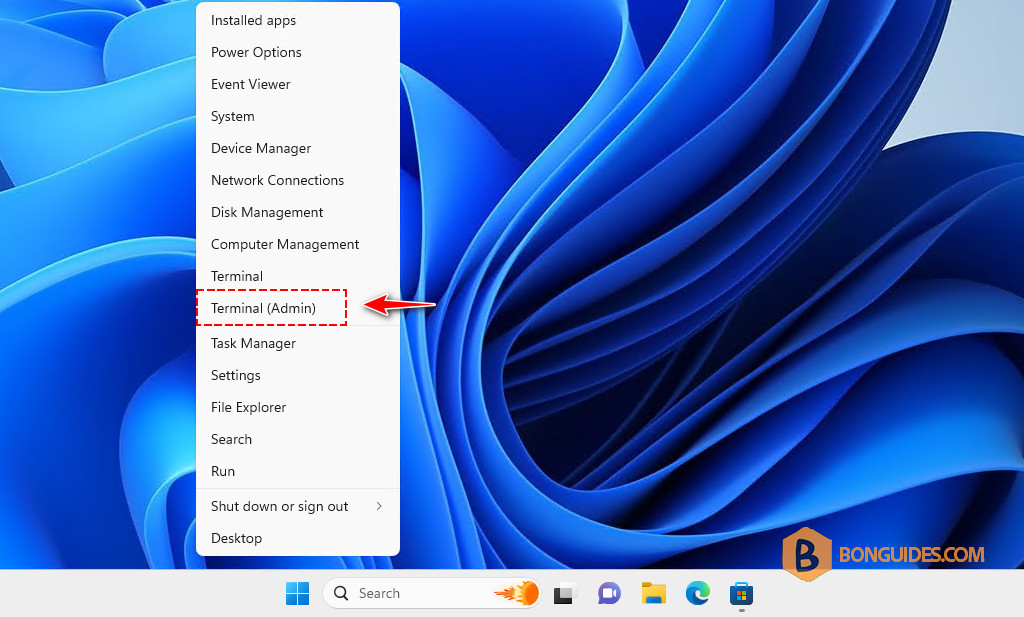
2. Run the below command to disable Hyper-V without uninstall it.
bcdedit /set hypervisorlaunchtype off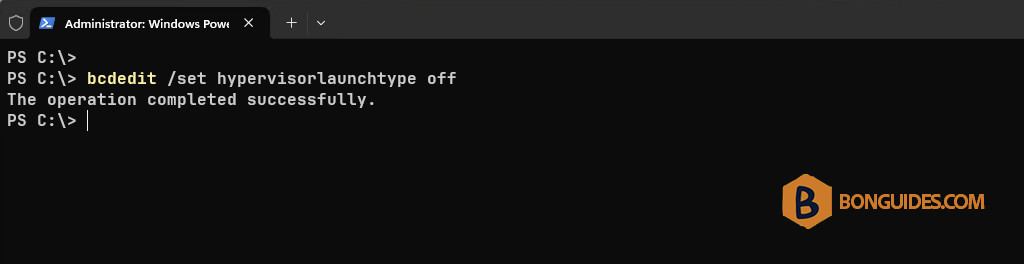
3. Restart the computer.
Restart-ComputerAfter the computer restarted, you can run VMware VMs with the nested virtualization enabled.
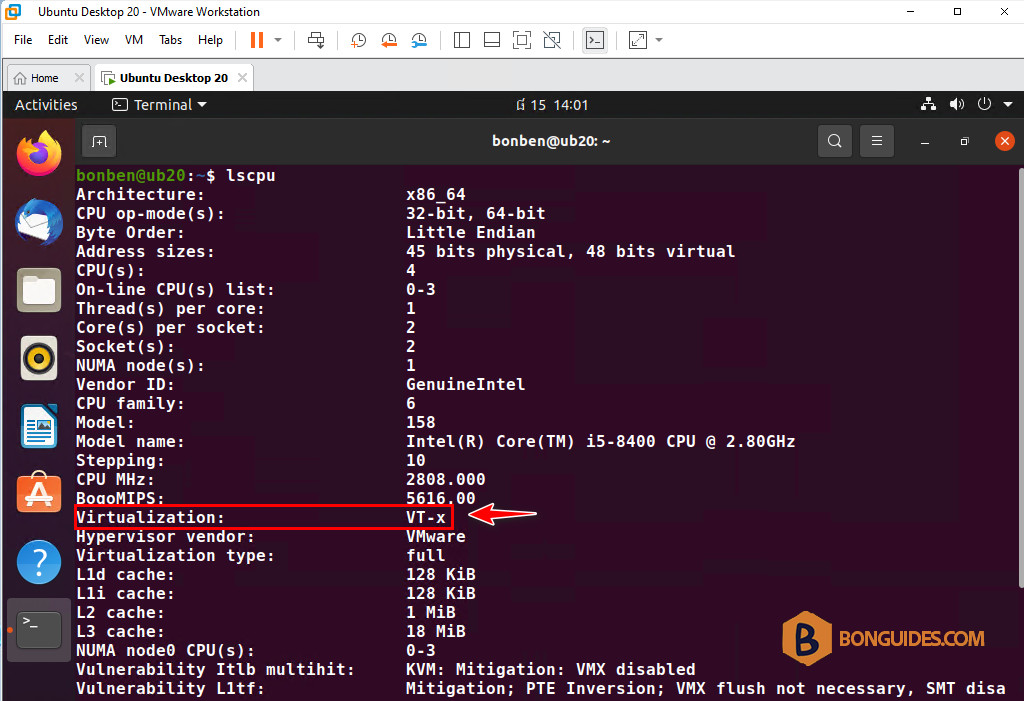
But you cannot run Hyper-V VM or start WSL 2.
Enable Hyper-V (no VMware nested virtualization)
In case you finish testing with VMware, you can switch back to the Hyper-V enabled mode.. In this mode, you:
- Can run VMware VM without nested virtualization.
- Can run Hyper-V VM.
- Can start WSL 2.
- Can start Windows Sandbox.
- Cannot start VMware VM with nested virtualization enabled.
Steps to enter this mode:
1. Right click on the Windows Start icon then open PowerShell (Terminal) as administrator.
2. Run the below command to disable Hyper-V without uninstall it.
bcdedit /set hypervisorlaunchtype auto3. Restart the computer.
Restart-ComputerCreate a batch file
You need to frequently switch between two modes, so you can create a batch file to do it more quickly. Anytime you need to switch to another mode, simply run the batch file as administrator.
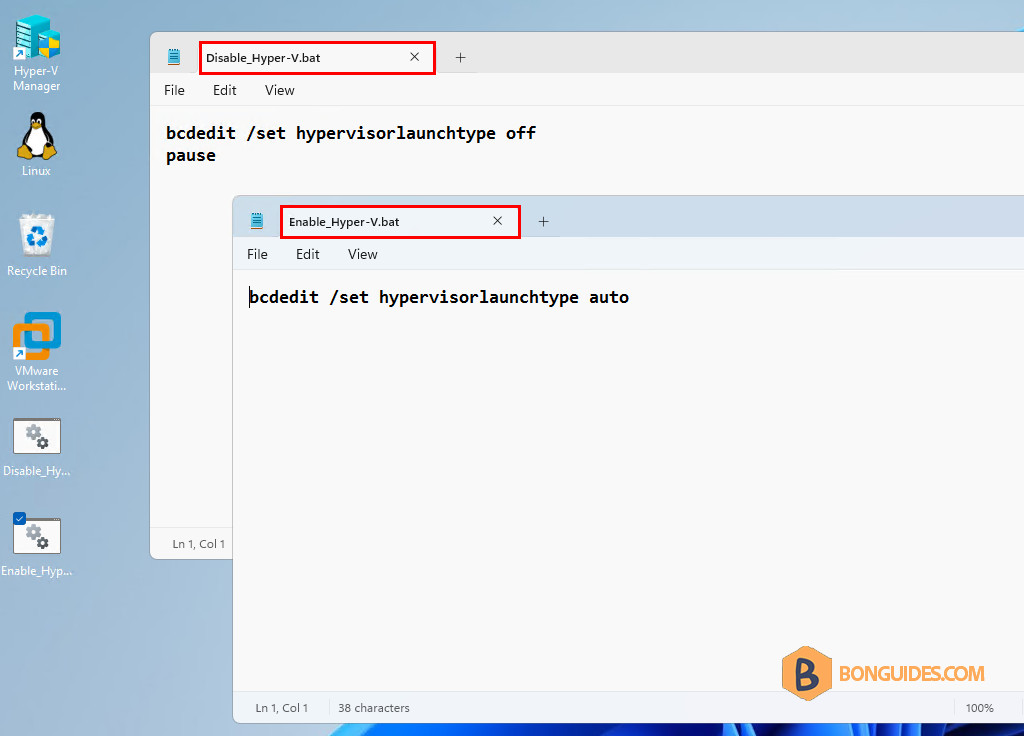
If you want to restart the computer automatically, you can add the below command into your batch file.
shutdown /r /t 1Conclusion
The VMware Workstation does not support running with nested virtualization enabled on top of other hypervisors. The downside of this method is that you need to restart your computer every time you switch to another mode.

