Table of Contents
Sometimes, you might have to uninstall the Autodesk Genuine Service. While most applications can be uninstalled using the Add or Remove Programs feature in Windows, uninstalling this specific application requires you to delete a few files first.
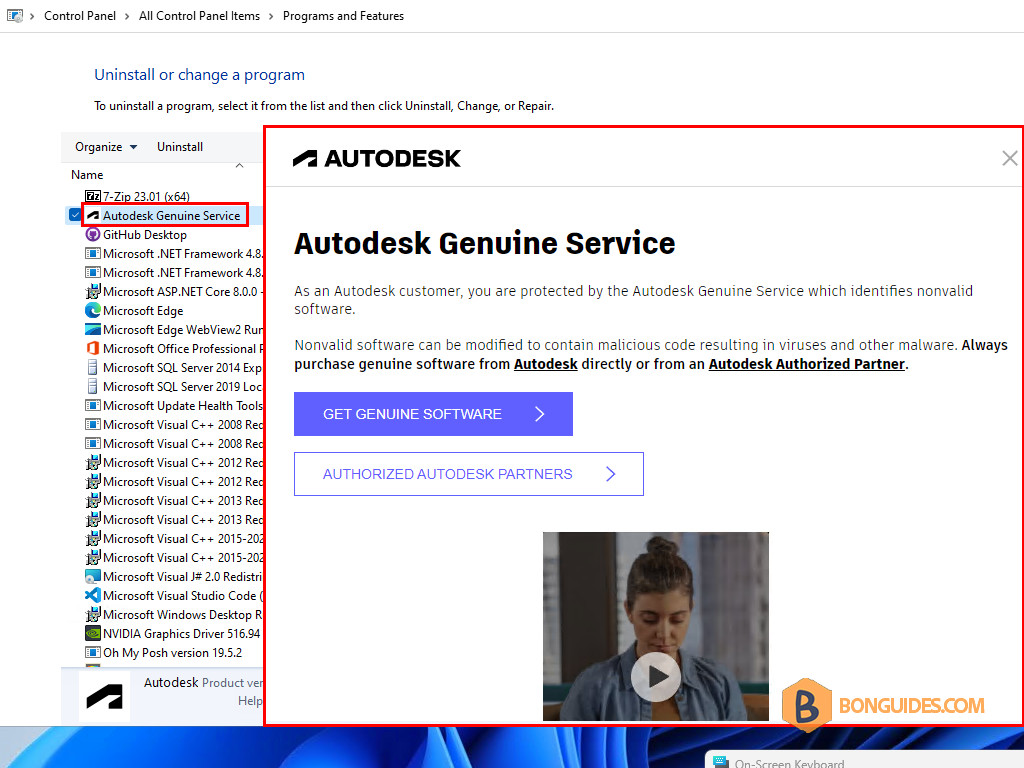
Uninstall the Autodesk Genuine Service from Control Panel
Before you can uninstall the Autodesk Genuine Service, you’ll need to delete the following two files from your computer:
- C:\ProgramData\Autodesk\Adlm\ProductInformation.pit
- C:\Users\<username>\AppData\Local\Autodesk\Genuine Autodesk Service\id.dat
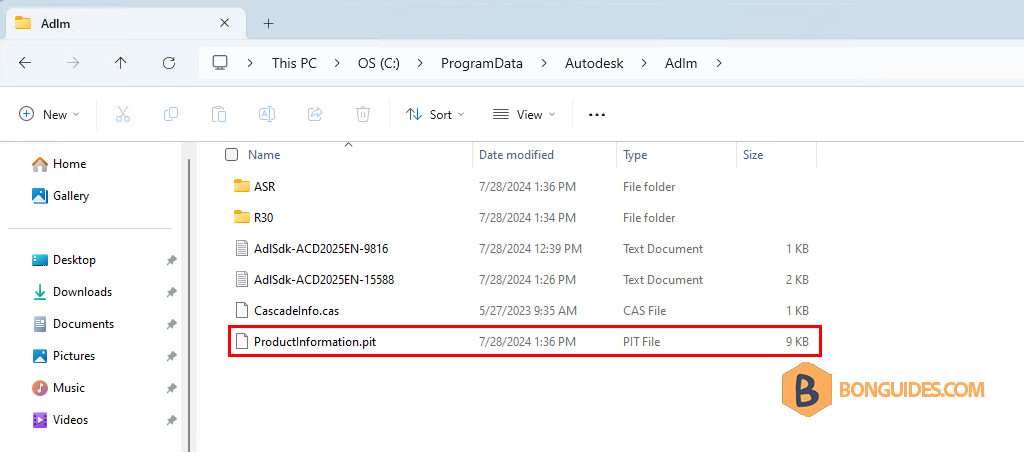
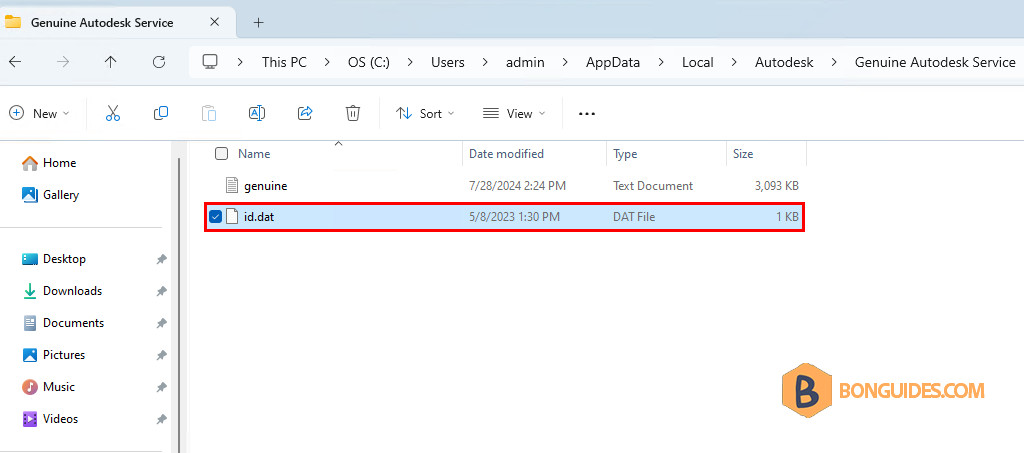
1. These files are hidden from the File Explorer. So, you’ll need to turn on your hidden files and folders to see and delete these files.
Related: Turn on hidden files and folders on Windows.
2. Once the files are deleted, uninstall the app from the Control Panel to see it works.
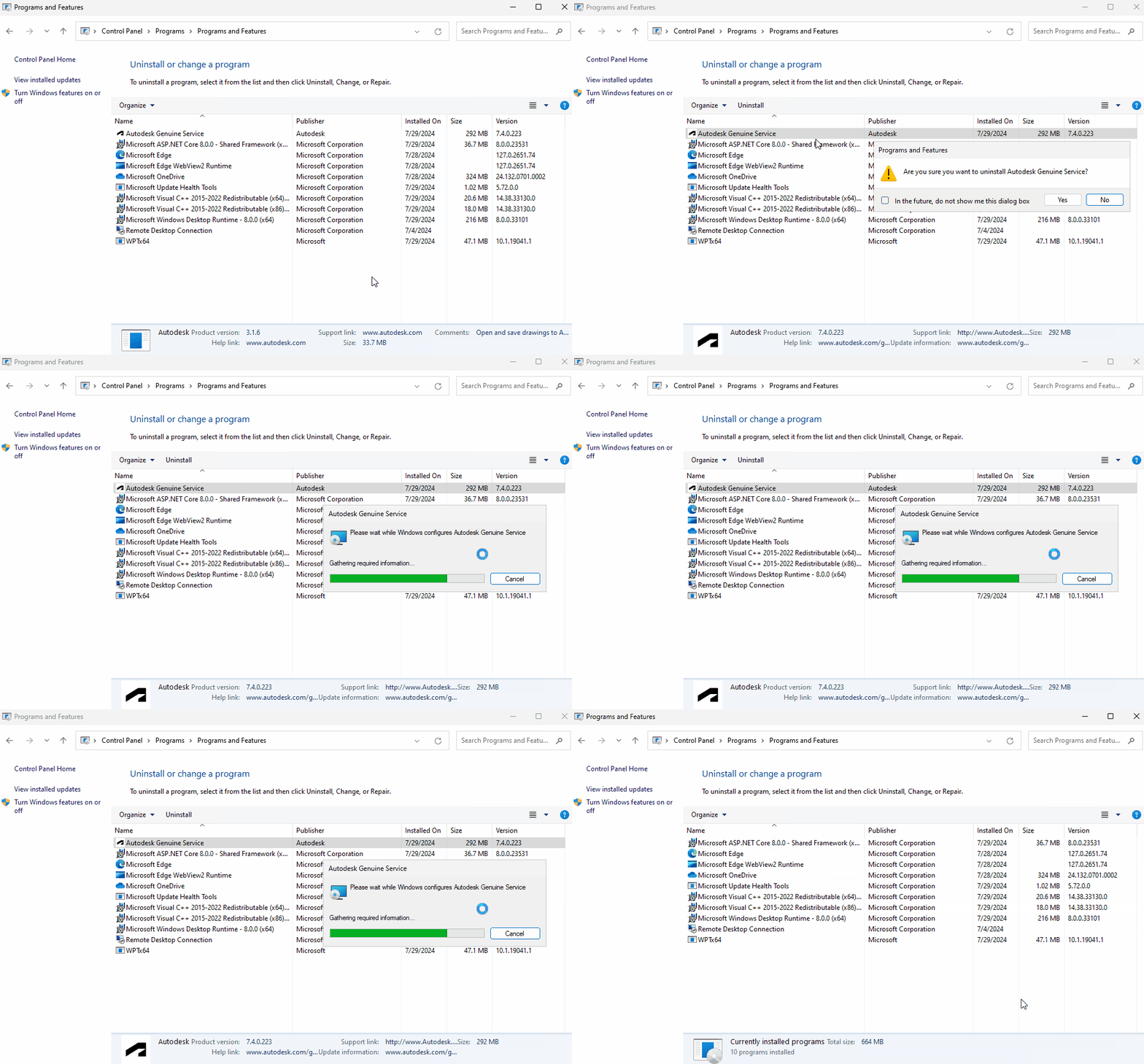
Uninstall the Autodesk Genuine Service using PowerShell
The second way is if you want to remove Autodesk Genuine Service from remote computers using Group Policy or MDM solutions such as SCCM, Intune…You can use a PowerShell.
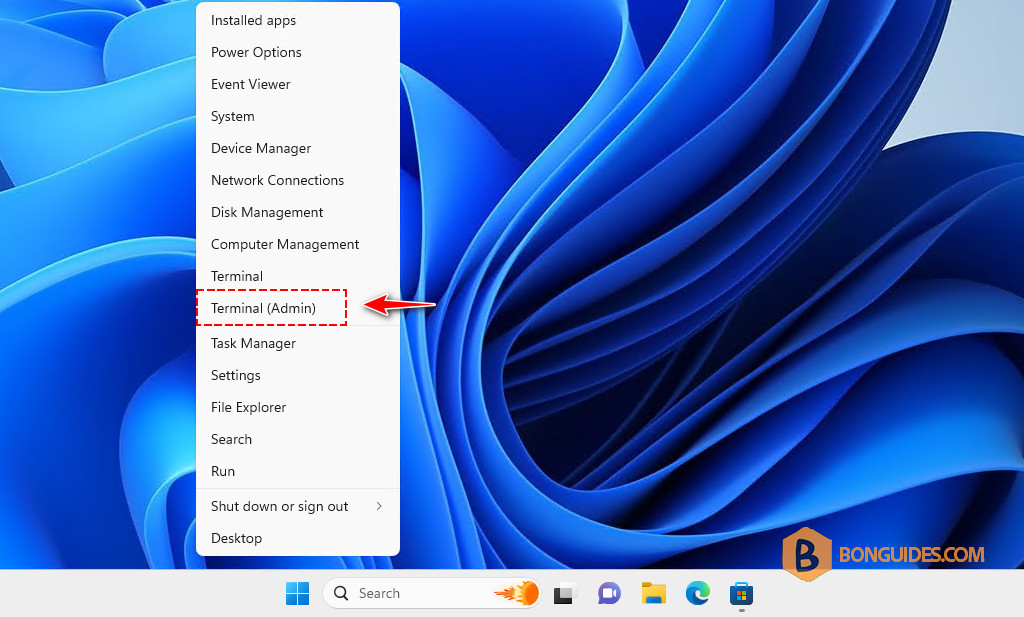
1. Right click on the Windows Start icon then open PowerShell (Terminal) as administrator.
2. Run the following command to delete the files, and then uninstall the app automatically. You can also copy the code snippet and create your own PowerShell script to do it with GPO and MDM.
Remove-Item "$Env:ALLUSERSPROFILE\Autodesk\Adlm\ProductInformation.pit" -Force
Remove-Item "$Env:userprofile\AppData\Local\Autodesk\Genuine Autodesk Service\id.dat" -Force
msiexec.exe /x "{21DE6405-91DE-4A69-A8FB-483847F702C6}" /qn
Uninstall the app using Uninstall Troubleshooter
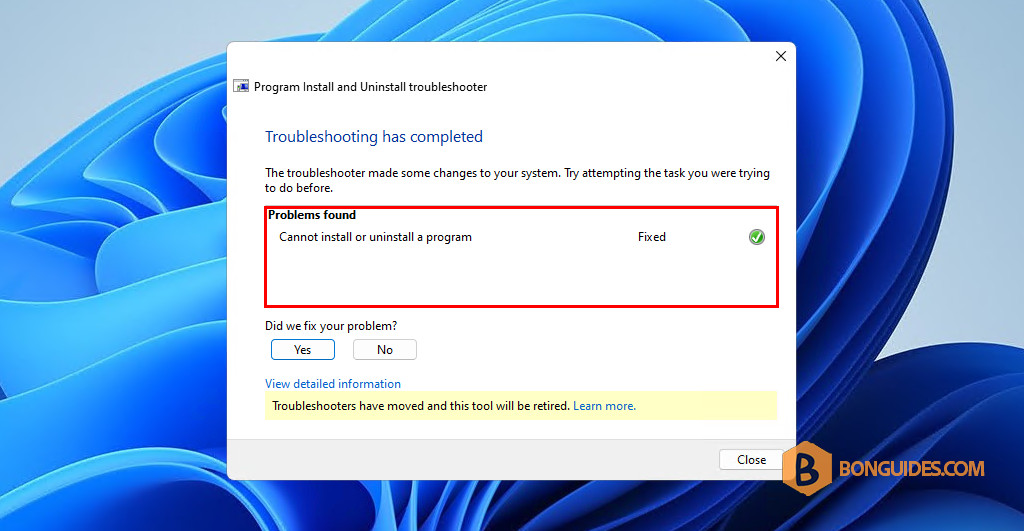
The last way, the app can be removed is by using the Microsoft Uninstall Troubleshooter Tool.
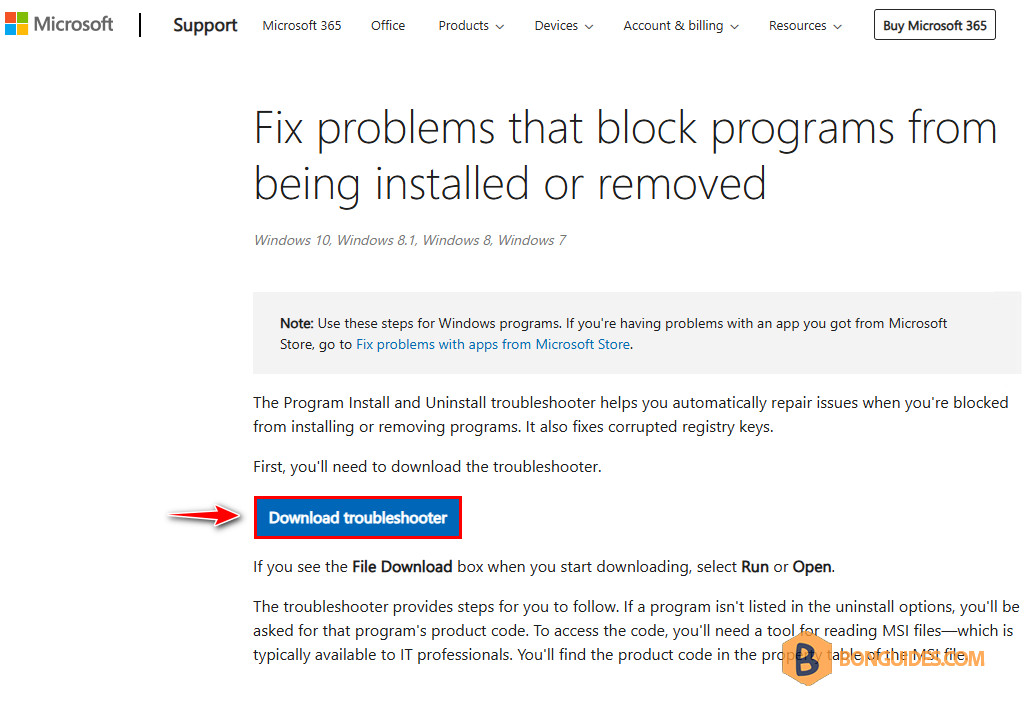
1. Download the Tool from the link below.
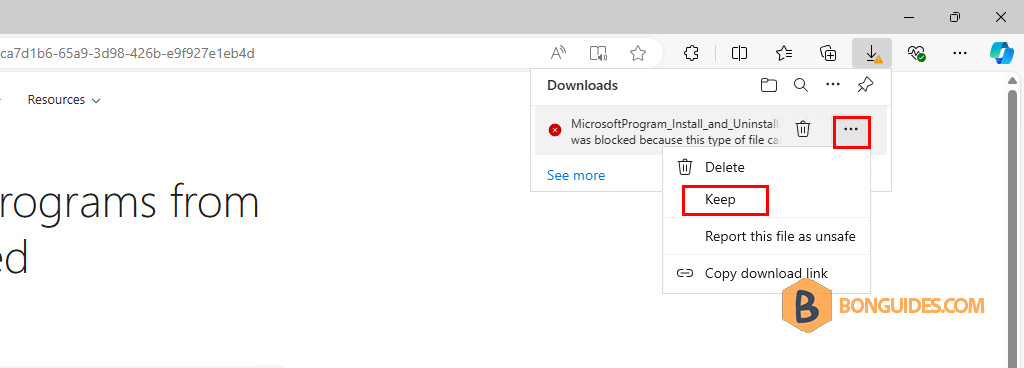
2. Some browsers block the tool, so select Keep to download the file.
3. Open the downloaded file, then follow the wizard.
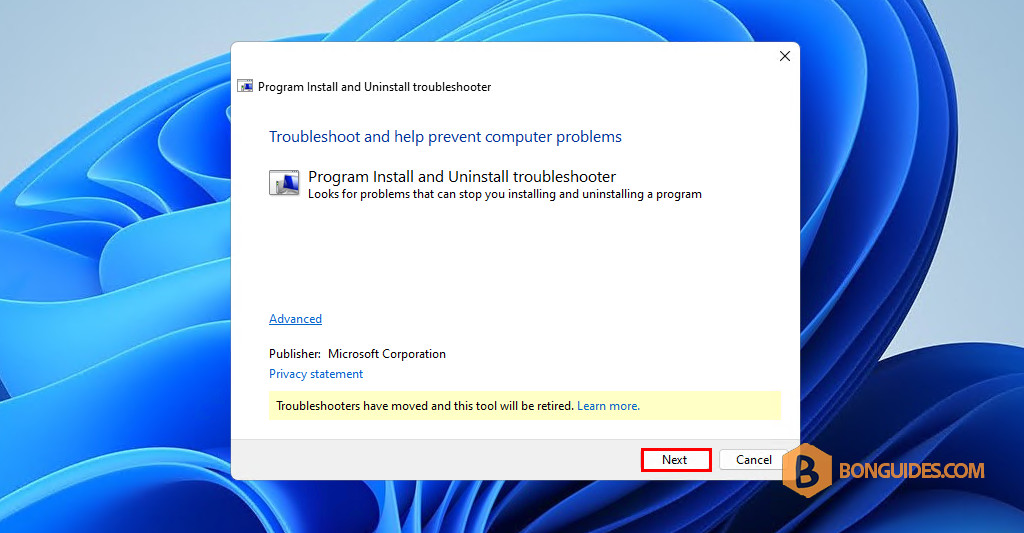
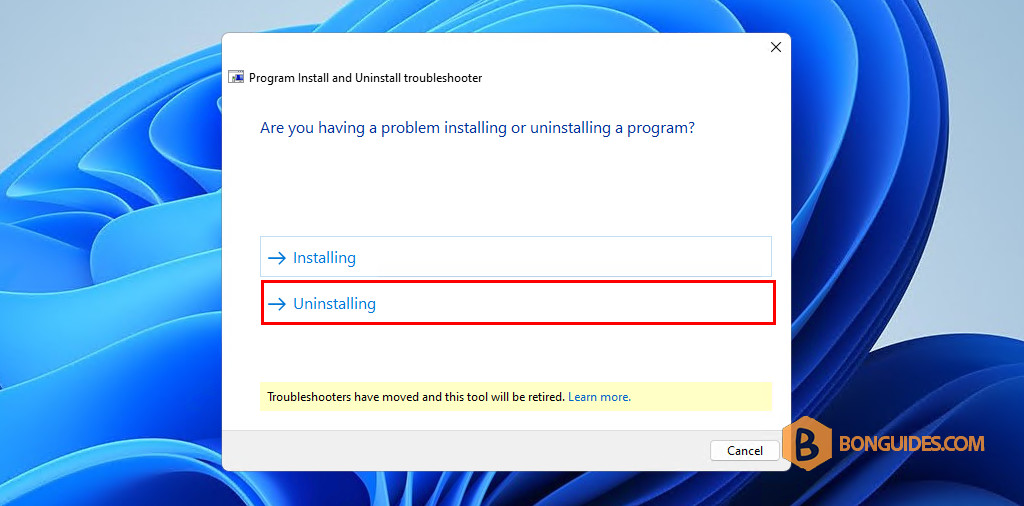
4. Select → Uninstalling.
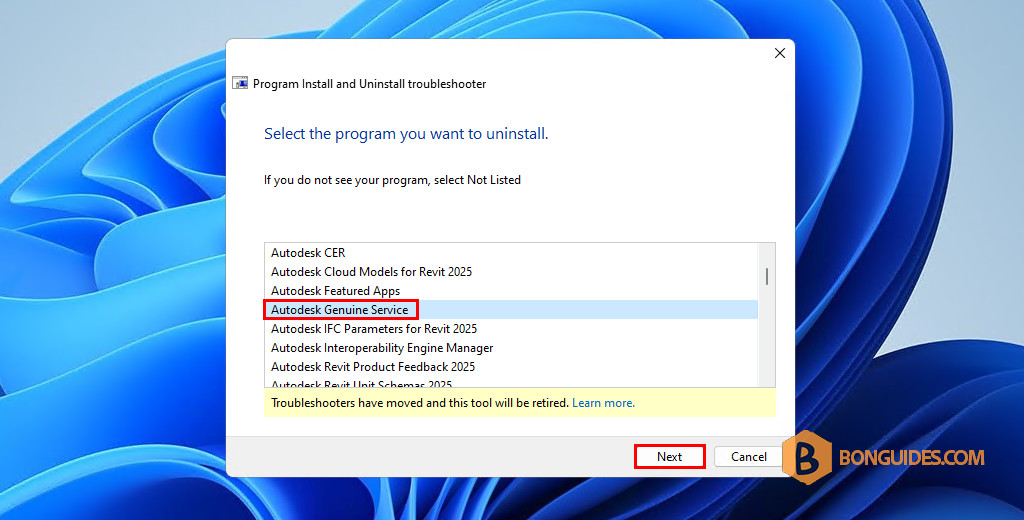
4. The tool will list the apps you need to uninstall. Select Autodesk Genuine Service from the list, then click Next.
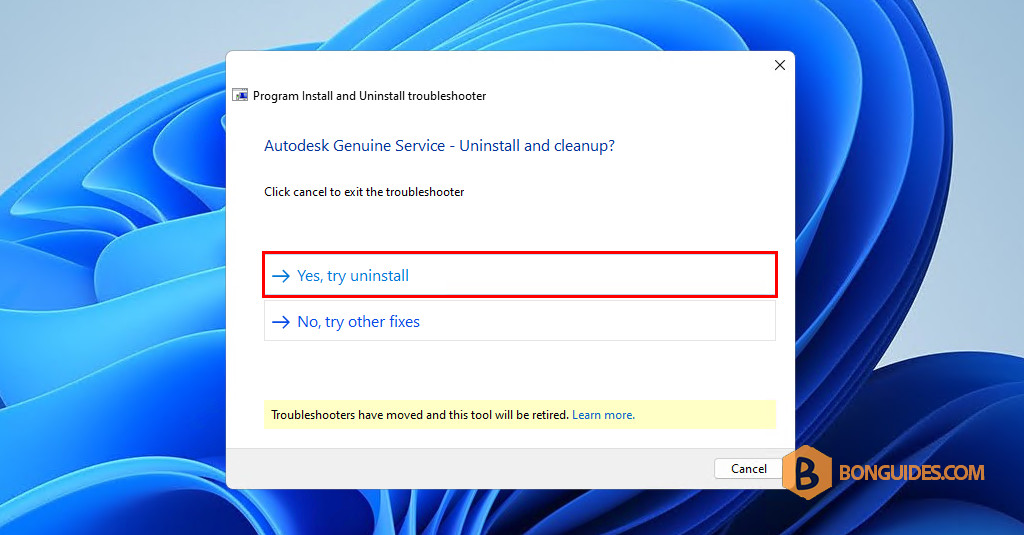
5. Select → Yes, try uninstall.
6. It could take a while to uninstall. Once done, go back to the Control Panel to see if the app has been removed successfully.