
Table of Contents
Outlook 2013 Continually Prompts for Password
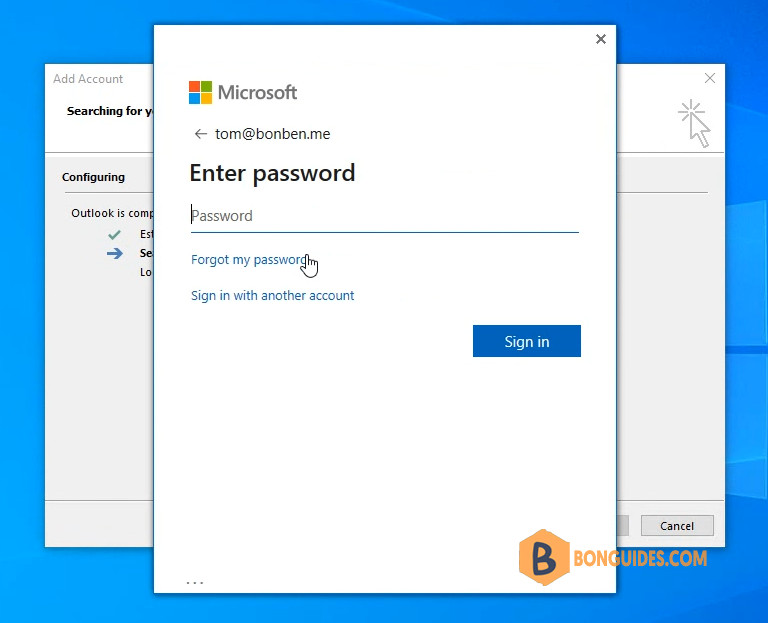
When you add a Microsoft 365 account into Microsoft Outlook 2013. You would get the password prompt loop and cannot to login to Exchange Online.
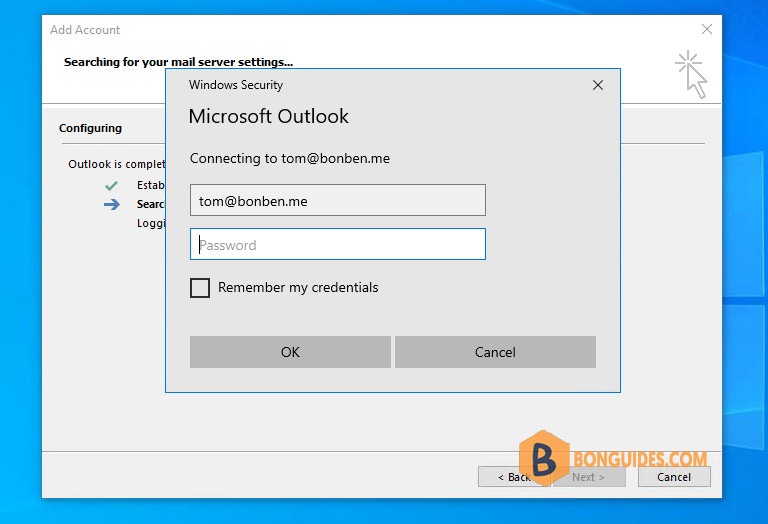
Basic authentication is turned off for Exchange Online mailboxes on Microsoft 365. This means that if Outlook 2013 is not configured to use modern authentication, it loses the ability to connect. For more information, see Basic authentication in exchange online.
Microsoft Office 2013 on Microsoft Windows computers supports Modern authentication. But it is not turn on by default, so you must enable it manually.
Note
Modern authentication is already enabled in Office 2016 or later. You don’t need to set these registry keys for later versions of Office.
Update requirements
To enable MFA for Office 2013 client apps, you must have the following software installed. Use the link in the Download column to update it.
Note
You must install these updates in the given order. When install the updates, you may ask to restart your computer. Let’s restart it then install the next one.
| Order | Updates | Outlook 32-bit | Outlook 64-bit | Reboot Required |
|---|---|---|---|---|
| 1 | KB4475607 | Download | Download | |
| 2 | KB3172545 | Download | Download | |
| 3 | KB3085565 | Download | Download | |
| 4 | KB4484096 | Download | Download | 🔴 |
| 5 | KB4484156 | Download | Download | 🔴 |
| 6 | KB4022226 | Download | Download | 🔴 |
Alternatively: If you don’t want to download the updates one by one, I’ve created download links for all update and put them in order to easy install. Download for Office 32-bit. Download for Office 64-bit.
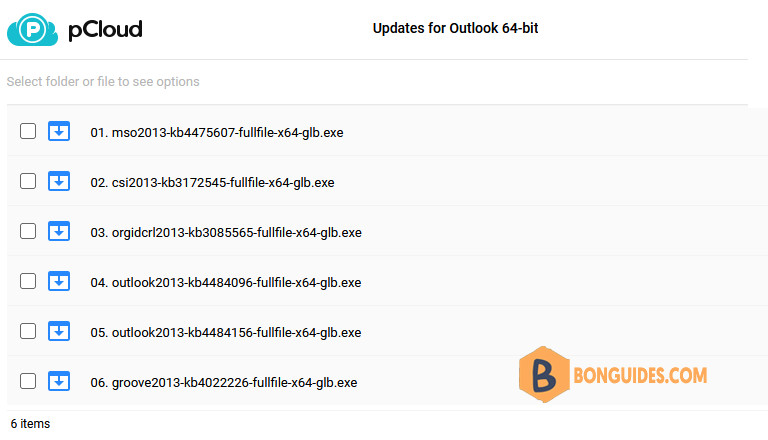
Once the requirement updates were installed, we’ll enable Modern Authentication for Outlook 2013. We’re two methods to achieve that goal.
Method 1: Enable Modern Authentication for Office 2013 by Registry
1. Close Outlook then copy and paste the following text into Notepad.
Windows Registry Editor Version 5.00

[HKEY_CURRENT_USER\Software\Microsoft\Exchange]
"AlwaysUseMSOAuthForAutoDiscover"=dword:00000001

[HKEY_CURRENT_USER\Software\Microsoft\Office\15.0\Common]

[HKEY_CURRENT_USER\Software\Microsoft\Office\15.0\Common\Identity]
"EnableADAL"=dword:00000001
"Version"=dword:00000001
2. Save the file with the file extension .reg instead of .txt.
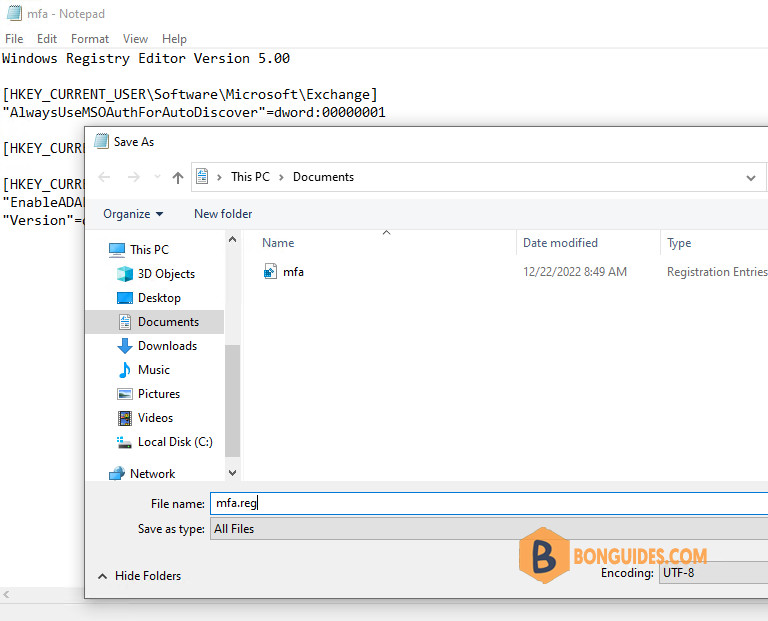
3. Browse to the location of the .reg file you just saved, and then double-click it. In the Registry Editor warning dialog that appears, click Yes to accept the changes.
Once you’ve set the registry keys, you can set Office 2013 apps to use multifactor authentication (MFA) with Microsoft 365.
Method 2: Enable Modern Authentication for Office 2013 by Command
You can create the key in Registry Editor manually. But in this post, we will show you how to create value in the Registry Editor quickly using command line.
1. Open an elevated PowerShell or Terminal window then run the following command at once to create the registry key and values:
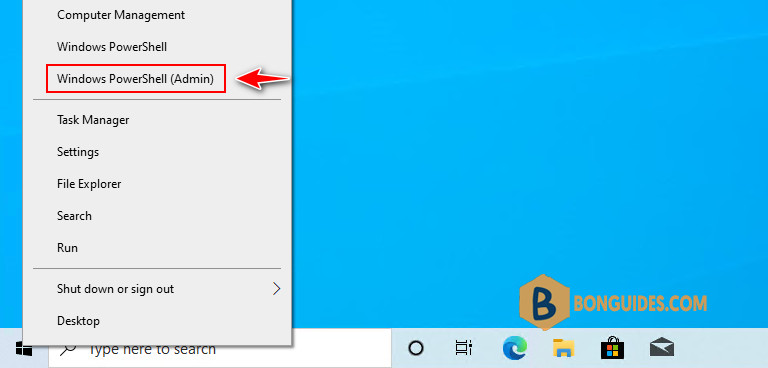
The below registry following the Microsoft documentation.
# The two entries below enable modern authentication in Outlook 2013
Set-ItemProperty -Path HKCU:\\Software\\Microsoft\\Office\\15.0\\Common\\Identity -Name EnableADAL -Value 1 -Force
Set-ItemProperty -Path HKCU:\\Software\\Microsoft\\Office\\15.0\\Common\\Identity -Name Version -Value 1 -Force

# Create the HKCU:\\Software\\Microsoft\\Exchange\\AlwaysUseMSOAuthForAutoDiscover registry entry.
# This value forces Outlook to always use modern authentication.
New-Item -Path HKCU:\\Software\\Microsoft -Name 'Exchange' -Force
New-ItemProperty -Path HKCU:\\Software\\Microsoft\\Exchange -Name 'AlwaysUseMSOAuthForAutoDiscover' -Value 1 -PropertyType DWORD -Force
Once you’ve set the registry keys, you can set Office 2013 apps to use multifactor authentication (MFA) with Microsoft 365.
Latest update for Outlook 2010 or Outlook 2013
In cases the above updates cannot resolve the issue, you can try to update the Microsoft Outlook 2013 to the latest update from Update history for Office 2013.


