Table of Contents
The registry editor beholds a slew of crucial data files and configuration settings related to various OS components as well as user and system apps.
In this post, we will show you the steps to add or delete registry keys and values using Command Prompt.
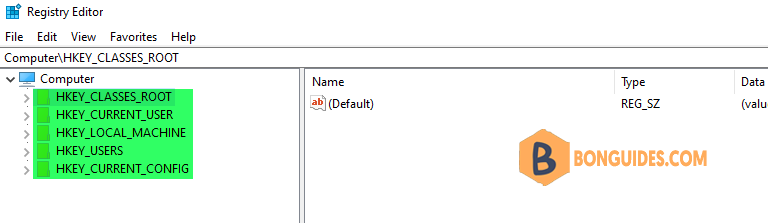
Before you begin, let’s take a look about the root keys otherwise known as:
- HKEY_CLASSES_ROOT = HKCR
- HKEY_CURRENT_USER = HKCU
- HKEY_LOCAL_MACHINE = HKLM
- HKEY_USERS = HKU
- HKEY_CURRENT_CONFIG = HKCC
So, instead of HKEY_LOCAL_MACHINE, you will have to use it short form HKLM.
The Syntax
reg add <keyname> [{/v valuename | /ve}] [/t datatype] [/s separator] [/d data] [/f]Note
If the registry key name, value name and data contains a space, enclose the key name in quotes.
Note
/ve Specifies that the added registry entry has a null value.
Here’s the list of all the datatype that you could refer to and use the one that corresponds to your registry file type.
- REG_SZ
- REG_MULTI_SZ
- REG_DWORD_BIG_ENDIAN
- REG_DWORD
- REG_BINARY
- REG_DWORD_LITTLE_ENDIAN
- REG_LINK
- REG_FULL_RESOURCE_DESCRIPTOR
- REG_EXPAND_SZ
How to Add a Key or Subkey using Command Prompt
The parent key: ComputerHKEY_LOCAL_MACHINESOFTWAREPoliciesGoogle
For example, we want to add a subkey named DriveFS inside the parent key. So, we ran below command:
reg add "HKLM\SOFTWARE\Policies\Google\DriveFS" /f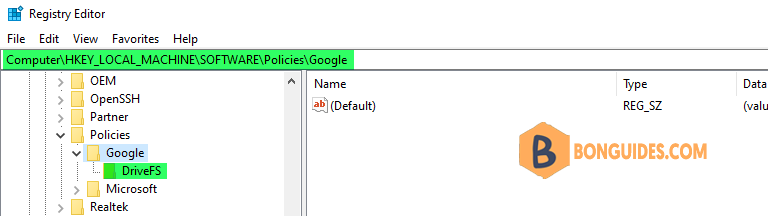
To delete the subkey, we use the reg delete command:
reg delete "HKLM\SOFTWARE\Policies\Google\DriveFS" /fHow to add a Registry entry using Command Prompt
Once the subkey was created, we will create a new DWORD (32-bit) entry named Show and assign it 1 as its Value Data to enable it.
reg add "HKLM\SOFTWARE\Policies\Google\DriveFS" /v "Show" /t REG_DWORD /d "1" /f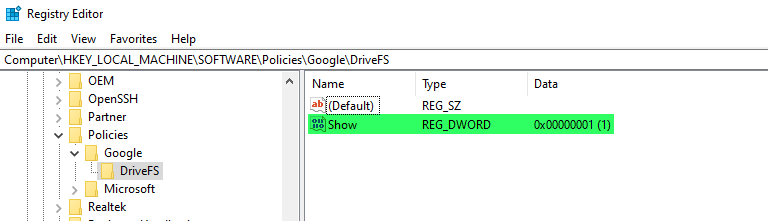
To delete a Registry entry, run reg detete command. for example, we’ll delete the above DWORD value entry:
reg delete "HKLM\SOFTWARE\Policies\Google\DriveFS" /v "Show" /fWe can run the following command to create a String Value (REG_SZ):
reg add "HKLM\SOFTWARE\Policies\Google\DriveFS" /v "MountPoint" /t REG_SZ /d "C:\GDrive" /f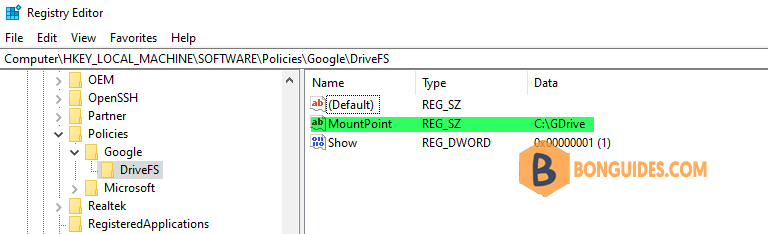
To edit the Default entry in a key, you must run reg add command wit switch and don't need to specify the value name into the command.
reg add "HKLM\SOFTWARE\Policies\Google\DriveFS" /ve /d "100" /f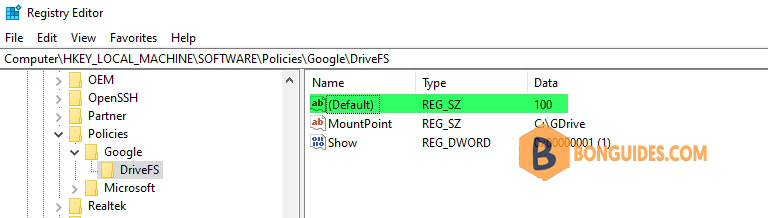
How to add a Registry entry using batch file
In some cases, you want to add or delete Registry keys or entries automatically instead of executing the commands manually. To achieve that goal, you need create a batch file.
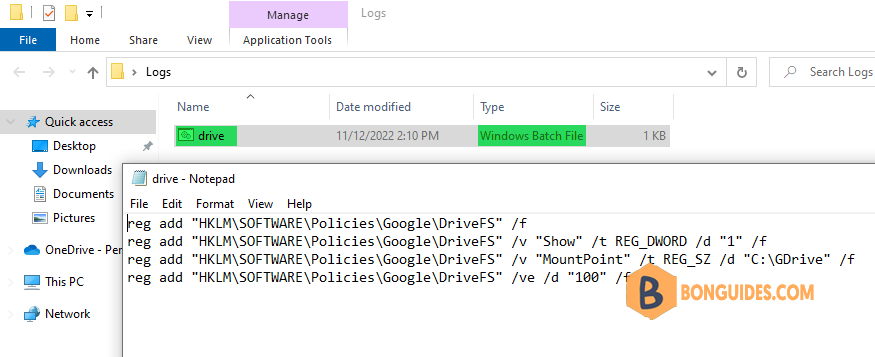
For example, we’ll create a batch file then put all commands into it at once.
reg add "HKLM\SOFTWARE\Policies\Google\DriveFS" /f
reg add "HKLM\SOFTWARE\Policies\Google\DriveFS" /v "Show" /t REG_DWORD /d "1" /f
reg add "HKLM\SOFTWARE\Policies\Google\DriveFS" /v "MountPoint" /t REG_SZ /d "C:\GDrive" /f
reg add "HKLM\SOFTWARE\Policies\Google\DriveFS" /ve /d "100" /f