
Table of Contents
If you’ve recently updated your Windows 11 system, you’ve probably noticed a new weather widget button on the taskbar. It’s a lot like the News and Interests widget on Windows 10. However, this one appears in the left corner of the Windows 11 taskbar.
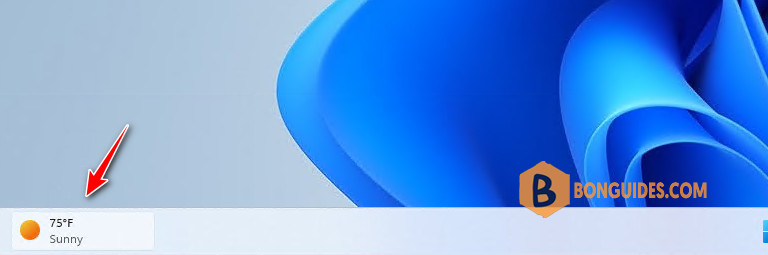
You only need to hover over the icon for it to appear, and it can conflict with your workflow, especially if you move the Start button to the left corner. The good news is you can remove the weather widget on Windows 11. Here’s how.
Remove the Weather Widget from Settings
The easiest ways to get rid of the weather widget is by disabling it in Settings.
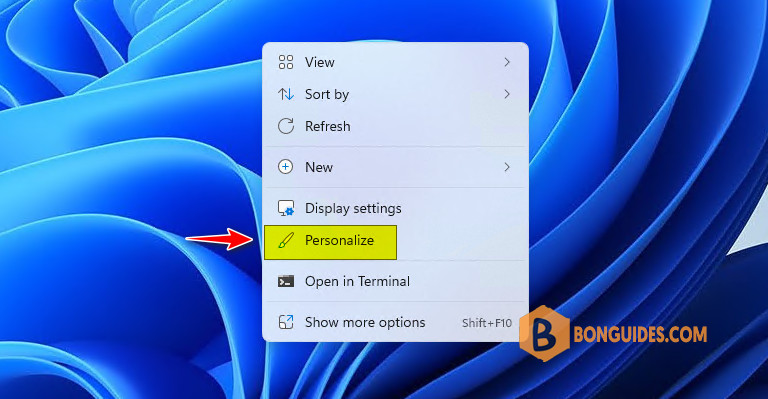
1. Right click on the Desktop then select Personalize from the context menu.
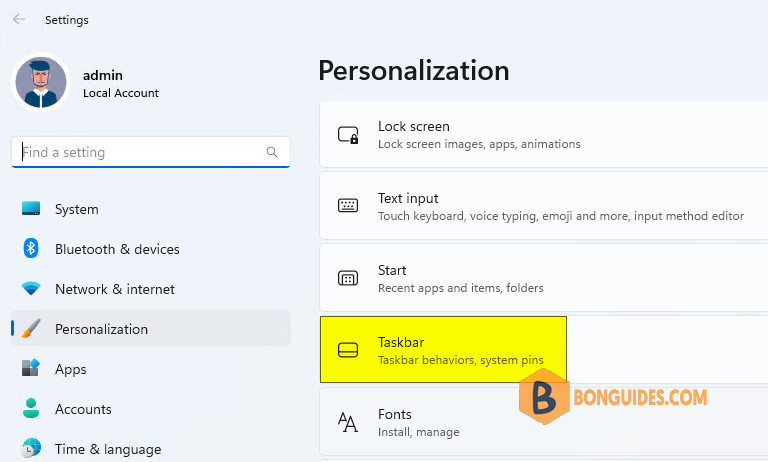
2. Under Personalization, scroll down then select the Taskbar option.
3. Expand the Taskbar items section and turn the Widgets switch off.
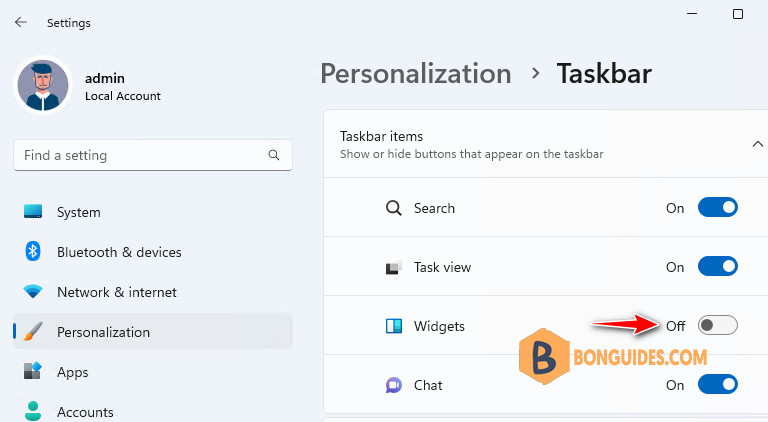
The weather widget will disappear from the taskbar when you toggle the switch off. If you want to reenable it, go back to Start > Settings > Personalization > Taskbar and toggle the Widgets switch back on.
Remove the Weather Widget on Windows 11 via Group Policy
The second way, you can disable the weather widget if you’re running Windows 11 by using Group Policy.
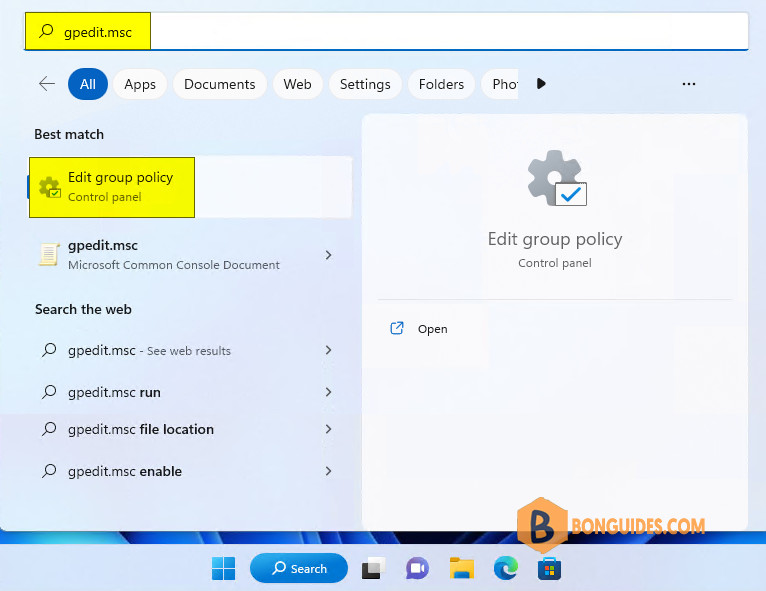
1. Press on your keyboard to bring up the search bar then type gpedit.msc in the search box and click Edit group policy.
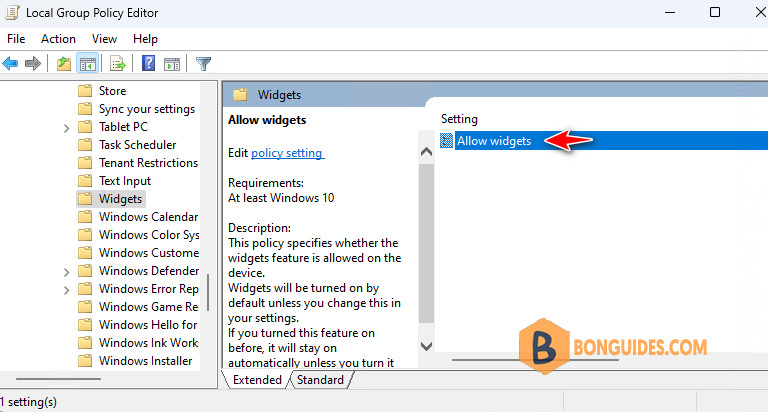
2. When the Group Policy Editor opens, navigate to the following path:
Computer Configuration -> Administrative Templates -> Windows Components -> Widgets3. Double-click Allow widgets in the right pane.
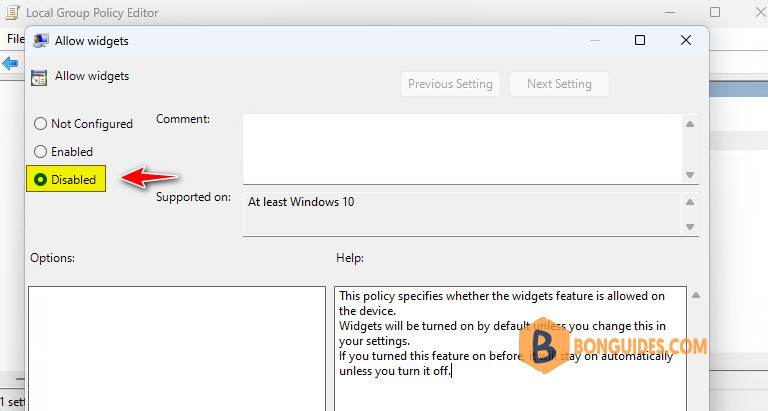
4. Select the Disabled option at the top and click Apply and OK at the bottom of the screen.
Note
After following the steps above, the weather widget will no longer display. However, if you go to Taskbar options in Settings, you’ll notice the Widgets toggle switch is grayed out. To enable it again, you’ll need to go through Group Policy again and set it to Not Configured.
Disable the Windows 11 Weather Widget using Registry
Windows 11 Home doesn’t include Group Policy, but if you don’t want to use Settings to disable the weather widget, you can edit the Registry instead.
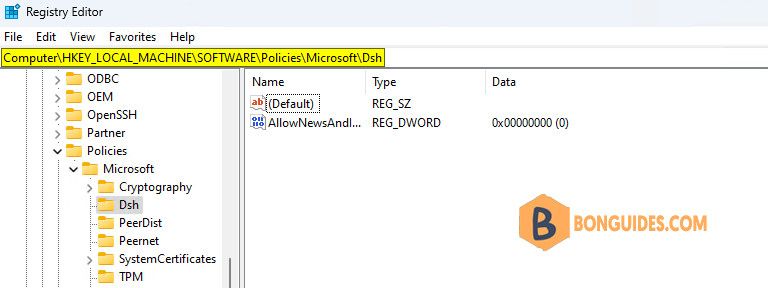
You can create the key in Registry Editor manually. But in this post, we will show you how to create value in the Registry Editor quickly using command line.
1. Open an elevated Command Prompt or PowerShell window then run the following command at once:
reg add "HKLM\SOFTWARE\Policies\Microsoft\Dsh" /f
reg add "HKLM\SOFTWARE\Policies\Microsoft\Dsh" /v "AllowNewsAndInterests" /t REG_DWORD /d "0" /f
2. Restart your computer or you can restart Windows Explorer using below command:
taskkill /im explorer.exe /f & explorer.exe    [Using Command Prompt]
stop-process -Name "explorer" –force           [Using PowerShell]
If you want to show the weather icon again, let’s execute the following command:
reg delete "HKLM\SOFTWARE\Policies\Microsoft\Dsh" /f
