
Table of Contents
This post describes how to check Server Message Block (SMB) version 1 (SMBv1) is enabled or disabled on your Windows machine.
Check SMBv1 using command line
Open an elevated PowerShell window then run the following command:
Get-WindowsOptionalFeature -Online -FeatureName SMB1ProtocolThe output shows that the SMBv1 is disabled in this machine.
PS C:\Windows\system32> Get-WindowsOptionalFeature -Online -FeatureName SMB1Protocol

FeatureName      : SMB1Protocol
DisplayName      : SMB 1.0/CIFS File Sharing Support
Description      : Support for the SMB 1.0/CIFS file sharing protocol.
RestartRequired  : Possible
State            : Disabled
CustomProperties :
                   ServerComponent\Description : Support for the SMB 1.0/CIFS sharing protocol.
                   ServerComponent\DisplayName : SMB 1.0/CIFS File Sharing Support
                   ServerComponent\Id : 487
                   ServerComponent\Type : Feature
                   ServerComponent\UniqueName : FS-SMB1
ServerComponent\Deploys\Update\Name : SMB1ProtocolAlternatively, you can run the below command in Command Prompt (cmd) or Windows PowerShell to check SMBv1 is enabled or not:
Dism /online /Get-Features /format:table | find "SMB1Protocol"C:\Windows\system32>Dism /online /Get-Features /format:table | find "SMB1Protocol"
SMB1Protocol-Deprecation | Disabled
SMB1Protocol | Disabled
SMB1Protocol-Client | Disabled
SMB1Protocol-Server | Disabled
Check SMBv1 state using GUI
If you don’t want to use command line, you can check the SMBv1 status using Windows Features in Windows 10/11.
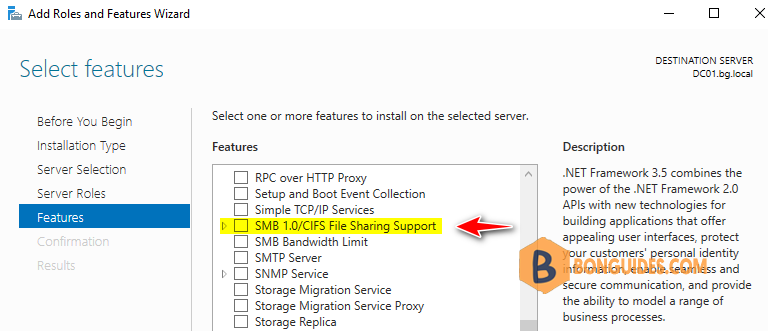
Search then open Turn Windows Features on or off through Windows search. If you see the checkbox SMB 1.0/CIFS File Sharing Support is uncheck, it means the SMBv1 is disabled.

In Windows Server editions, you can check it via the Server Manger console.
How to enable SMBv1 in Windows
Note
While disabling or removing SMBv1 might cause some compatibility issues with old computers or software, SMBv1 has significant security vulnerabilities, and we strongly encourage you not to use it.
To enable SMBv1 let’s run the following command in an elevated PowerShell window:
Enable-WindowsOptionalFeature -Online -FeatureName SMB1ProtocolPS C:\Windows\system32> Enable-WindowsOptionalFeature -Online -FeatureName SMB1Protocol
Do you want to restart the computer to complete this operation now?
[Y] Yes [N] No [?] Help (default is "Y"): yC:\Windows\system32>Dism /online /Get-Features /format:table | find "SMB1Protocol"
SMB1Protocol-Deprecation | Enabled
SMB1Protocol | Enabled
SMB1Protocol-Client | Enabled
SMB1Protocol-Server | EnabledReference: How to detect, enable and disable SMBv1, SMBv2, and SMBv3 in Windows.


