
The Computer Browser Service is no longer exist in new version of Windows 10, Windows 11 and Windows Server 2019 and higher. Because SMBv1 is disabled by default.
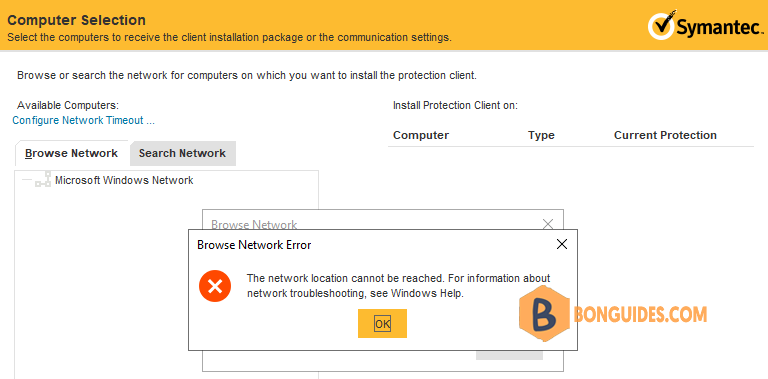
In my case, I got the following error when remote push a Symantec Endpoint package to clients.
The Computer Browser service is no longer available for Windows Server 2019 and higher editions, which is a required service for remote installation using the web console.
Enable the Computer Browser Service on Windows
To enable that service, you need to enable SMBv1 to enable the Computer Browser Service for the old apps.
Note
While disabling or removing SMBv1 might cause some compatibility issues with old computers or software, SMBv1 has significant security vulnerabilities, and we strongly encourage you not to use it.
1. Open an elevated PowerShell window.
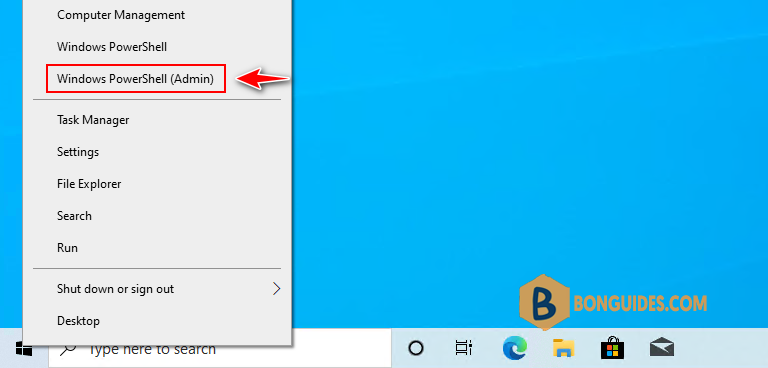
2. Run the following command then restart your machine to enable SMBv1:
Enable-WindowsOptionalFeature -Online -FeatureName SMB1ProtocolPS C:\Users\Administrator> Get-WindowsOptionalFeature -Online -FeatureName SMB1Protocol
FeatureName : SMB1Protocol
DisplayName : SMB 1.0/CIFS File Sharing Support
Description : Support for the SMB 1.0/CIFSl, and the Computer Browser protocol.
RestartRequired : Possible
State : Enabled
CustomProperties :
ServerComponent\Description : Support for the SMB 1.0/CIFS , and the Computer
Browser protocol.
ServerComponent\DisplayName : SMB 1.0/CIFS File Sharing Support
ServerComponent\Id : 487
ServerComponent\Type : Feature
ServerComponent\UniqueName : FS-SMB1
ServerComponent\Deploys\Update\Name : SMB1Protocol3. Once the machine restarted, you can check the Computer Browers service status using PowerShell.
PS C:\Users\Administrator> Get-Service -Name "*browser*"

Status   Name               DisplayName
------   ----               -----------
Running  Browser            Computer Browser
Or you can get the status of the service using Services (services.msc).

Remote Push without SMBv1
SMBv1 has significant security vulnerabilities, so you should use the following method to remote push without enable SMBv1.
1. Open Windows Services (services.msc) then turn of the following services:
- Function Discovery Provider Host
- Function Discovery Resource Publication
- Remote Procedure Call (RPC)
- Remote Registry
$services = @("fdPHost","FDResPub","RpcSs","RemoteRegistry")
foreach ($service in $services) { Set-Service $service -StartupType Automatic }
foreach ($service in $services) { Start-Service $service }
Note
If you get the error cannot be configured due to the following error: Access is denied. The service startup type is disabled, you must enable it first using this command Start-Service -Name service_name.
Check status of the services and be sure all services are running.
ForEach ($service in $services) { Get-Service $service}

----------------------------------------------------------------
Status   Name               DisplayName
------   ----               -----------
Running  fdPHost            Function Discovery Provider Host
Running  FDResPub           Function Discovery Resource Publica...
Running  RpcSs              Remote Procedure Call (RPC)
Running  RemoteRegistry     Remote Registry
2. Turn on Network Discovery:
On the Services applet, turn on the following:
- SSDP Discovery
- UPnP Device Host
- DNS Client
$services = @("SSDPSRV","upnphost","Dnscache")
foreach ($service in $services) { Set-Service $service -StartupType Automatic }
foreach ($service in $services) { Start-Service $service }
Status Name DisplayName
------ ---- -----------
Running SSDPSRV SSDP Discovery
Running upnphost UPnP Device Host
Running Dnscache DNS Client3. Turn on File and Printer Sharing using PowerShell.
Set-NetFirewallRule -DisplayGroup "File And Printer Sharing" -Enabled True -Profile Any
Go to Control Panel | Network and Sharing Center | Change Advanced Sharing Settings. to verify the changes, go into effect.

Finally, I tried to remote push again and the error was gone.

