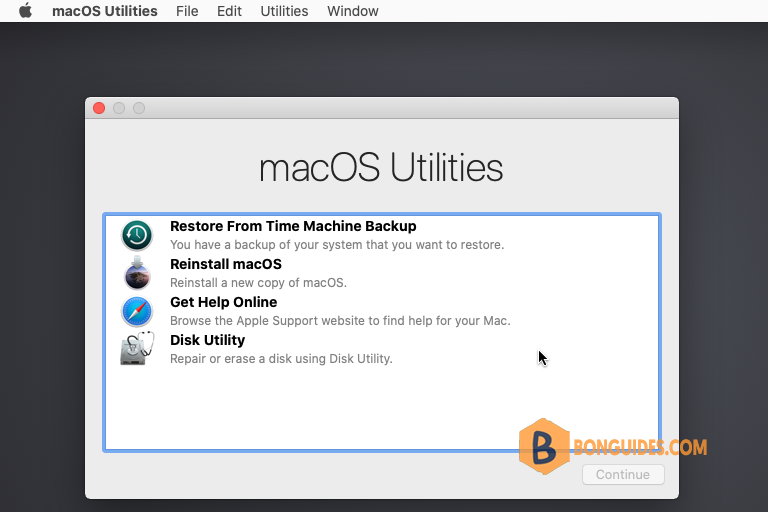
It’s easy enough to boot an actual Mac into Recovery Mode, but it’s significantly more difficult when using a Mac VM with an application like VMware Workstation. In this post, we will show you how to boot a Mac VM into recovery mode in VMware Workstation.
1. Shutdown the macOS virtual machine.
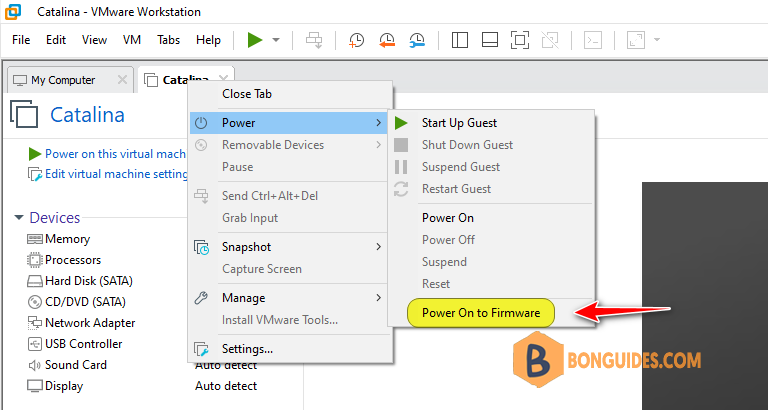
2. Right-click on the VM tab and hover on Power option then select Power On to Firmware.
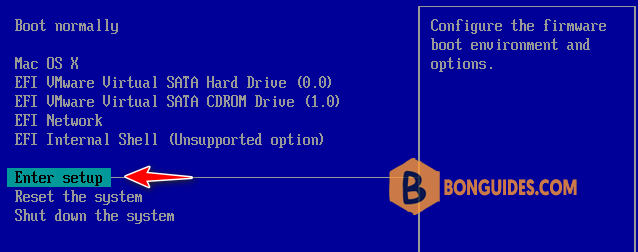
3. The Mac VM would be booted into Boot Manager. Using your keyboard to move the highlight to Enter setup option then hit Enter.
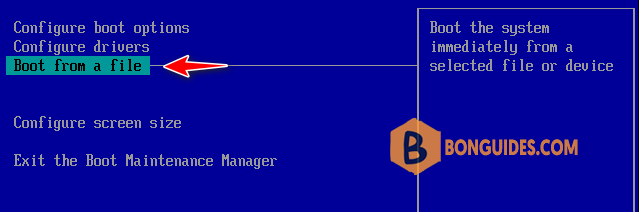
4. Next, move the highlight to Boot from a file then hit Enter.
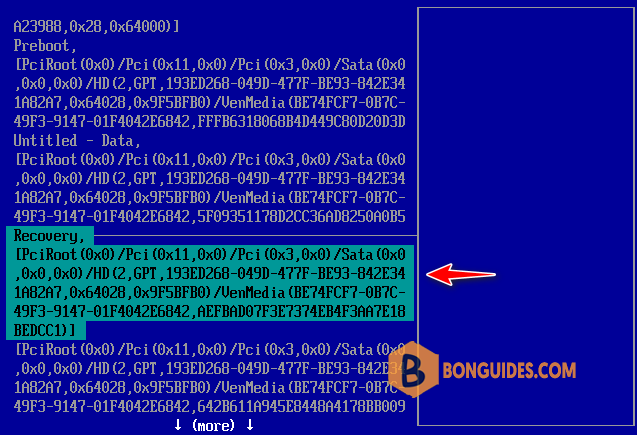
5. Now, move the highlight then select the Recovery partition as follows and hit Enter.
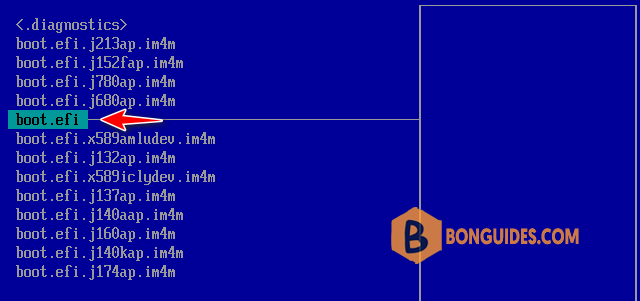
6. Press Enter until you get this screen. Move the highlight then press Enter to boot form the file boot.efi.
7. Once done, after a few minutes, you would get the below screen. You can choose any of the available options in the window or the menu bar in the macOS Recovery mode.