Table of Contents
Start up from macOS Recovery
Determine whether you’re using a Mac with Apple silicon, then follow the appropriate steps to start up from macOS Recovery:
- Apple silicon: Turn on your Mac and continue to press and hold the power button until you see the startup options window. Select the gear icon labeled Options, then click Continue.
- Intel processor: Turn on your Mac and immediately press and hold until you see an Apple logo or other image.
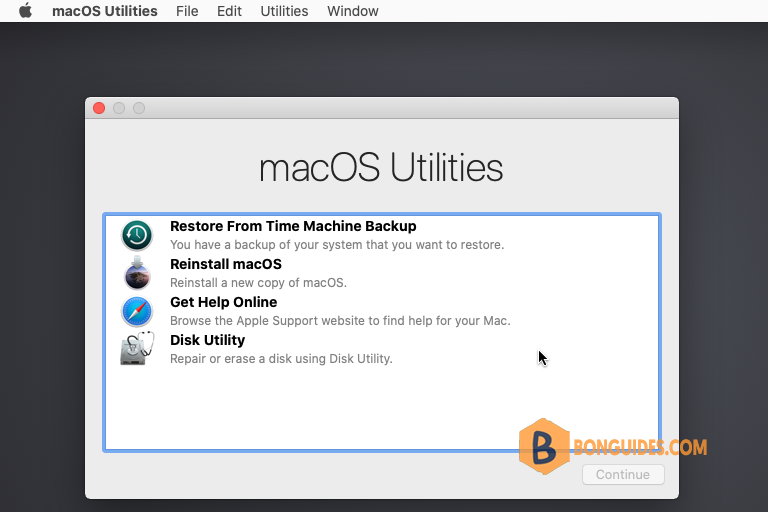
You should now see the utilities window, which shows options such as restoring from Time Machine, reinstalling macOS, and using Disk Utility.
Use the Reset Password assistant to reset your Mac password
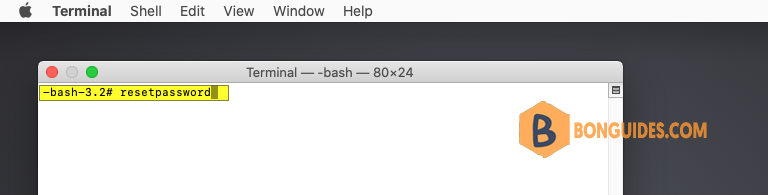
1. From the Utilities menu in the menu bar, choose Terminal.

2. In the Terminal window, type , then press to open the Reset Password assistant.
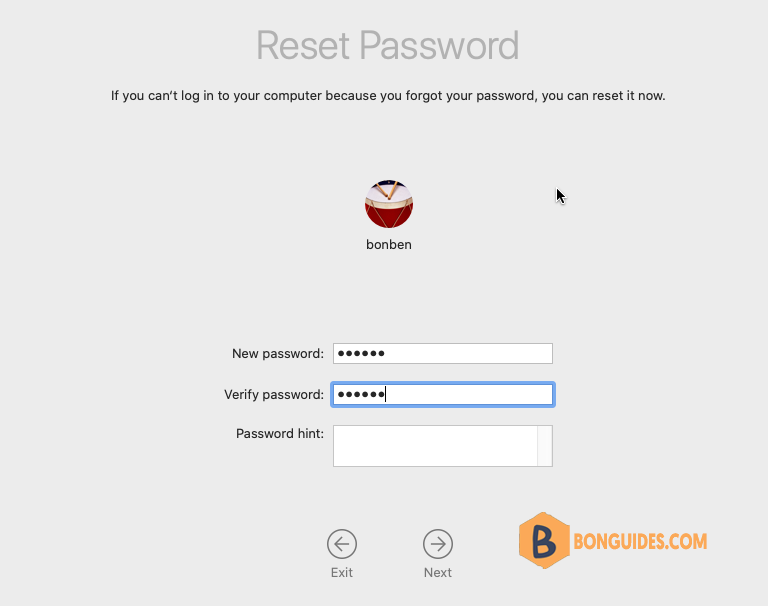
3. At the Reset Password window, enter your new password information, then click Next.
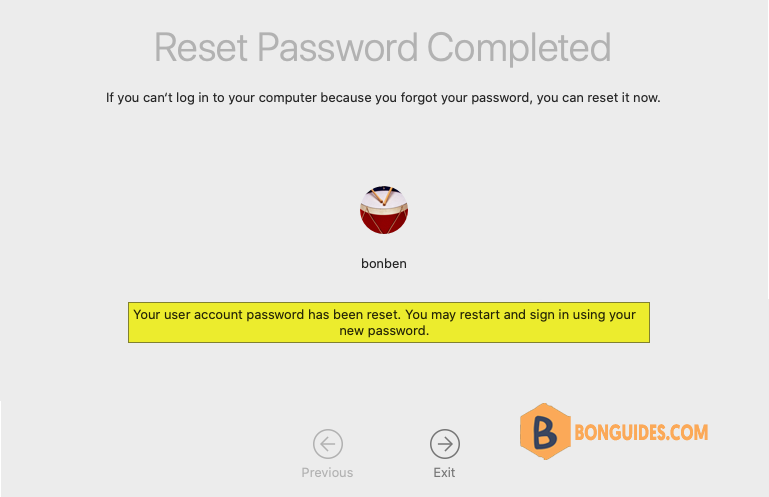
4. When the password reset is completed, click Exit. Choose Apple menu > Restart, then log in with your new password.