
Table of Contents
You use SSH Putty from your Windows PC to login to multiple remote Linux servers. So, you usually have multiple PuTTY windows on your desktop. But, by default, it shows username@hostname only.
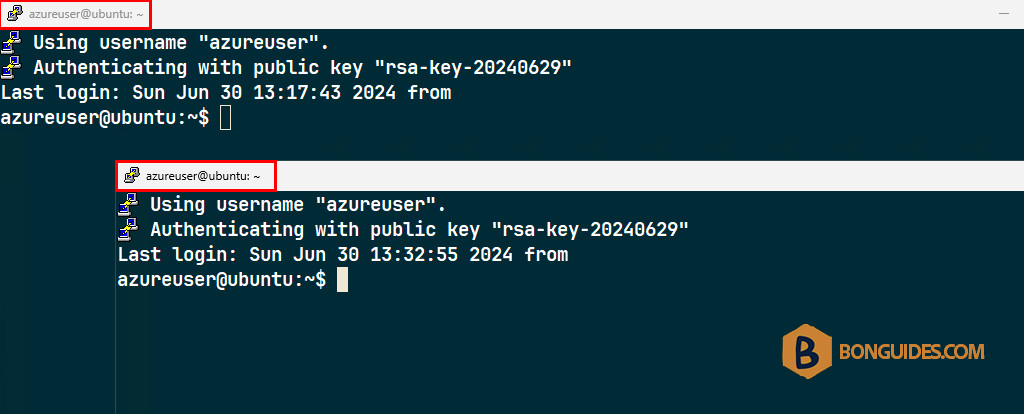
In this post, we will show you how to set PuTTY to display the hostname or IP Address of the server in the title bar. So, it’d be easy for you to choose the right PuTTY Window.
Set SSH PuTTY Title As IP Address or Hostname
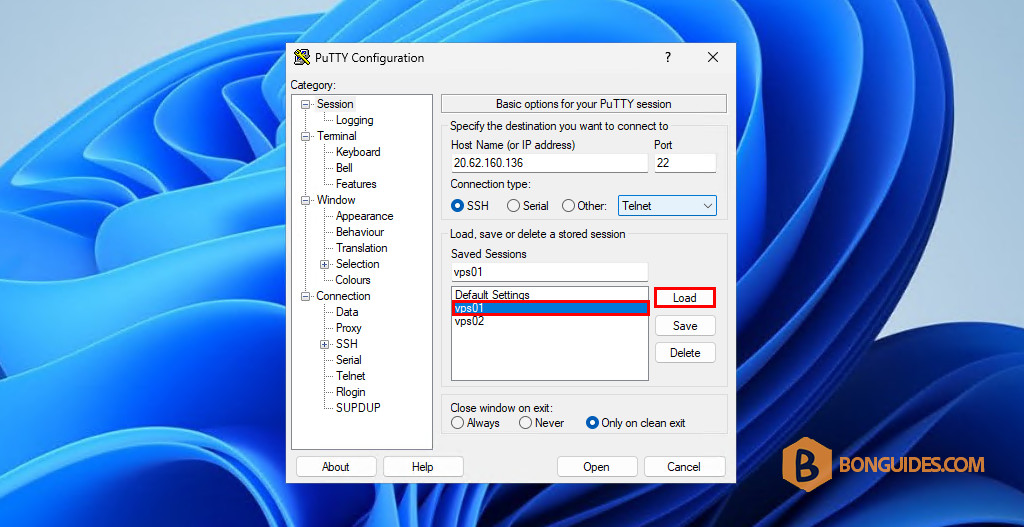
1. First, open PuTTY then load a saved session.
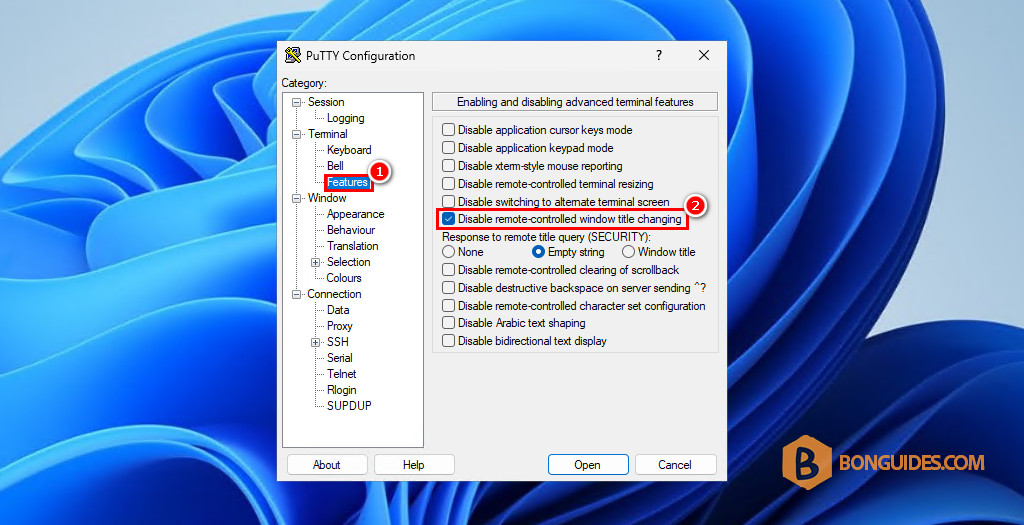
2. Next, select the Features option under the Terminal category.
3. Select the checkbox “Disable remote-controlled window title changing” to show PuTTY title as IP address or hostname.
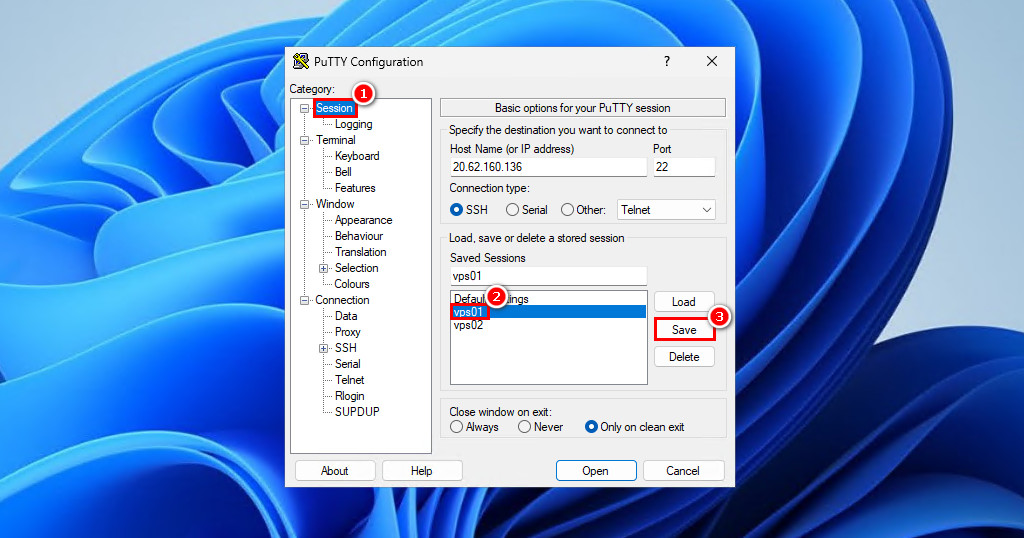
4. After changing the configuration, you need to:
- Select the Session category.
- Select the saved session in the saved session list. For example, select the vps01 session.
- Select the Save button in the right side.
Note
This step is very important, if you don’t select the session and click Save. The changes won’t save and the next time when you open a remote connection, everything will be reverted by default.
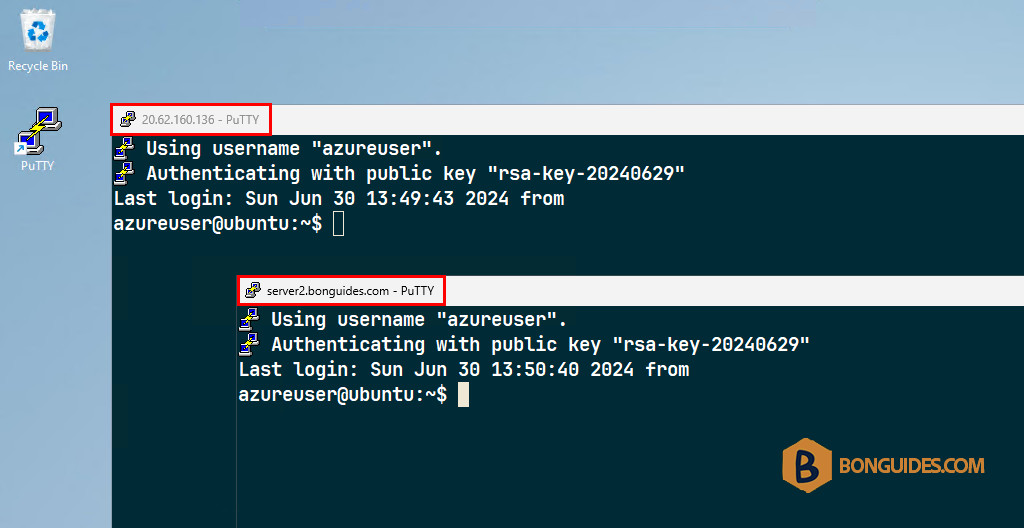
As you can see, this time, PuTTY shows hostname or IP address of the Linux systems instead of username@hostname by default.
Using Registry Editor
Alternatively, PuTTY saves its settings in Registry. So, we can change it from the Registry Editor.
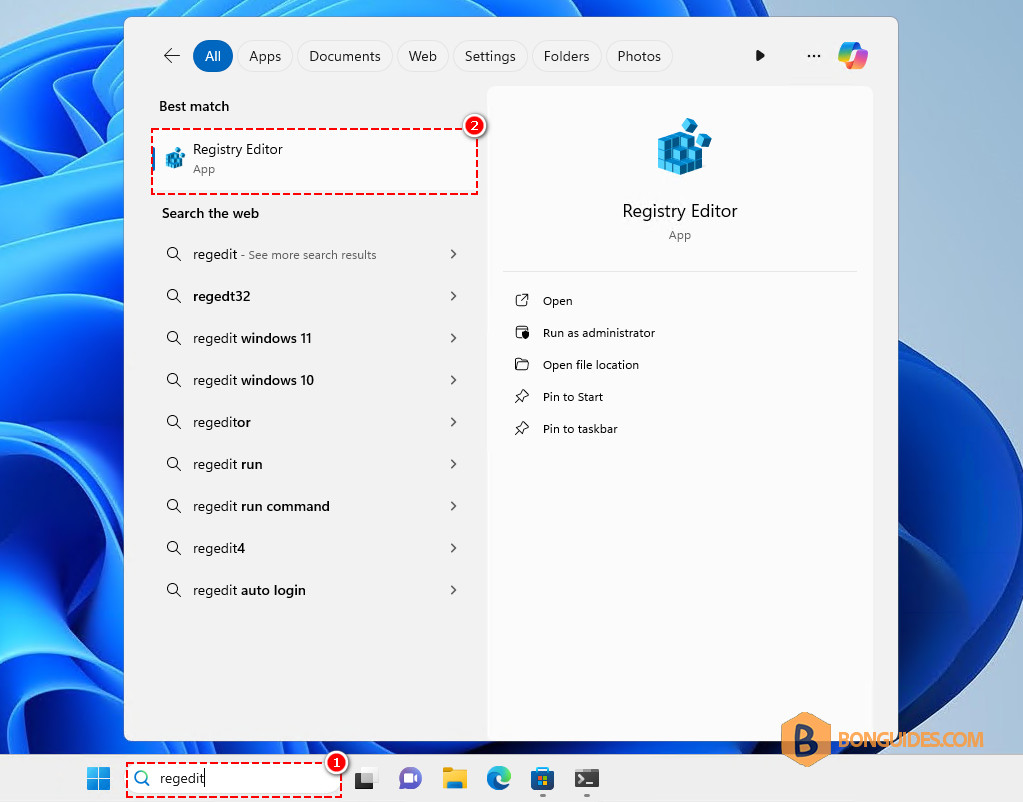
1. Search for regedit then open Registry Editor.
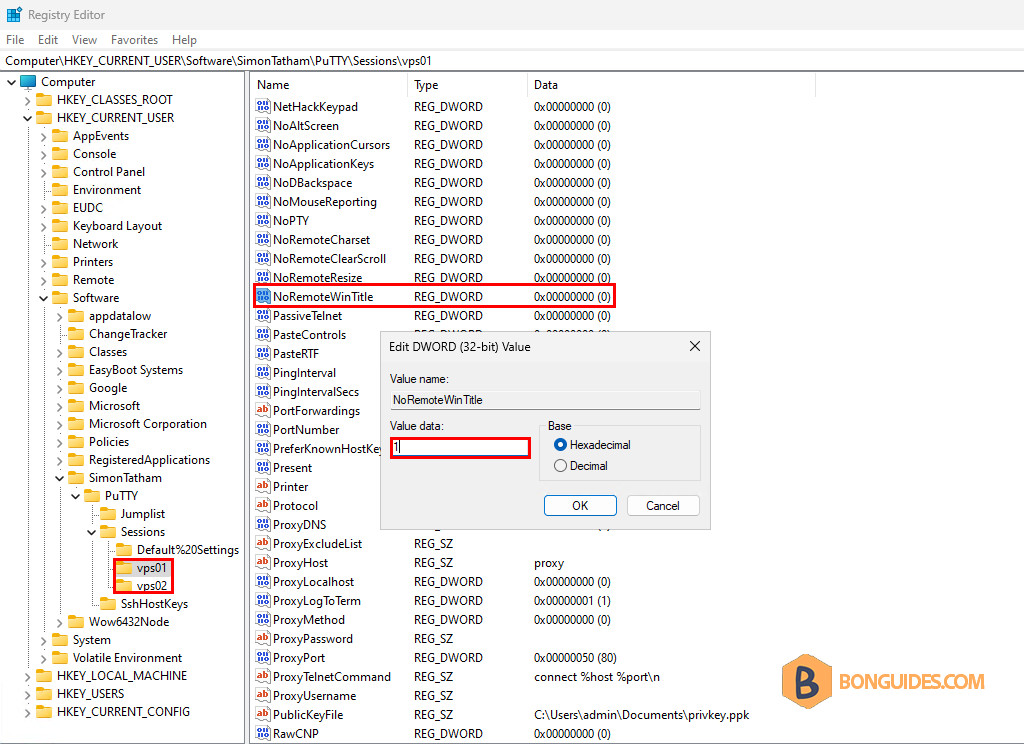
2. Navigate to the following location in Registry Editor.
HKEY_CURRENT_USER\Software\SimonTatham\PuTTY\Sessions3. You should see your PuTTY sessions in the left. Select on them then change the NoRemoteWinTitle DWORD value from 0 to 1.
4. Once you change the value for all your sessions. Close the Registry Editor then open PuTTY and connect to a remote session to verify it works.


