
Table of Contents
Before installing Exchange Online V2 module, we need to install the PowerShellGet module. The problem is that we are unable to install NuGet provider and a couple of errors are showing. Warning unable to download from URI, unable to download the list of available providers. After the errors, it did not install. In this article, we will show why this is happening and the solution for installing NuGet provider for PowerShell.
Unable to install NuGet provider for PowerShell
We run the below command to install Exchange Online PowerShell module in our Windows Server 2016:
Install-Module -Name ExchangeOnlineManagementAnd we got the following warnings and errors:
- WARNING: Unable to download from URI.
- WARNING: Unable to download the list of available providers. Check your internet connection.
- Unable to find package provider ‘NuGet’. It may not be imported yet.
- Install-Module : NuGet provider is required to interact with NuGet-based repositories. Please ensure that ‘2.8.5.201’or newer version of NuGet provider is installed.
PS C:\Users\Administrator> Install-Module -Name ExchangeOnlineManagement

NuGet provider is required to continue
PowerShellGet requires NuGet provider version '2.8.5.201' or newer to interact with NuGet-based repositories. The NuGet
 provider must be available in 'C:\Program Files\PackageManagement\ProviderAssemblies' or
'C:\Users\Administrator\AppData\Local\PackageManagement\ProviderAssemblies'. You can also install the NuGet provider by
 running 'Install-PackageProvider -Name NuGet -MinimumVersion 2.8.5.201 -Force'. Do you want PowerShellGet to install
and import the NuGet provider now?
[Y] Yes  [N] No  [S] Suspend  [?] Help (default is "Y"):
WARNING: Unable to download from URI 'https://go.microsoft.com/fwlink/?LinkID=627338&clcid=0x409' to ''.
WARNING: Unable to download the list of available providers. Check your internet connection.
PackageManagement\Install-PackageProvider : No match was found for the specified search criteria for the provider
'NuGet'. The package provider requires 'PackageManagement' and 'Provider' tags. Please check if the specified package
has the tags.
At C:\Program Files\WindowsPowerShell\Modules\PowerShellGet\1.0.0.1\PSModule.psm1:7405 char:21
+ ...     $null = PackageManagement\Install-PackageProvider -Name $script:N ...
+                 ~~~~~~~~~~~~~~~~~~~~~~~~~~~~~~~~~~~~~~~~~~~~~~~~~~~~~~~~~
    + CategoryInfo          : InvalidArgument: (Microsoft.Power...PackageProvider:InstallPackageProvider) [Install-Pac
   kageProvider], Exception
    + FullyQualifiedErrorId : NoMatchFoundForProvider,Microsoft.PowerShell.PackageManagement.Cmdlets.InstallPackagePro
   vider

PackageManagement\Import-PackageProvider : No match was found for the specified search criteria and provider name
'NuGet'. Try 'Get-PackageProvider -ListAvailable' to see if the provider exists on the system.
At C:\Program Files\WindowsPowerShell\Modules\PowerShellGet\1.0.0.1\PSModule.psm1:7411 char:21
+ ...     $null = PackageManagement\Import-PackageProvider -Name $script:Nu ...
+                 ~~~~~~~~~~~~~~~~~~~~~~~~~~~~~~~~~~~~~~~~~~~~~~~~~~~~~~~~~
    + CategoryInfo          : InvalidData: (NuGet:String) [Import-PackageProvider], Exception
    + FullyQualifiedErrorId : NoMatchFoundForCriteria,Microsoft.PowerShell.PackageManagement.Cmdlets.ImportPackageProv
   ider

WARNING: Unable to download from URI 'https://go.microsoft.com/fwlink/?LinkID=627338&clcid=0x409' to ''.
WARNING: Unable to download the list of available providers. Check your internet connection.
PackageManagement\Get-PackageProvider : Unable to find package provider 'NuGet'. It may not be imported yet. Try
'Get-PackageProvider -ListAvailable'.
At C:\Program Files\WindowsPowerShell\Modules\PowerShellGet\1.0.0.1\PSModule.psm1:7415 char:30
+ ... tProvider = PackageManagement\Get-PackageProvider -Name $script:NuGet ...
+                 ~~~~~~~~~~~~~~~~~~~~~~~~~~~~~~~~~~~~~~~~~~~~~~~~~~~~~~~~~
    + CategoryInfo          : ObjectNotFound: (Microsoft.Power...PackageProvider:GetPackageProvider) [Get-PackageProvi
   der], Exception
    + FullyQualifiedErrorId : UnknownProviderFromActivatedList,Microsoft.PowerShell.PackageManagement.Cmdlets.GetPacka
   geProvider

Install-Module : NuGet provider is required to interact with NuGet-based repositories. Please ensure that '2.8.5.201'
or newer version of NuGet provider is installed.
At line:1 char:1
+ Install-Module -Name ExchangeOnlineManagement
+ ~~~~~~~~~~~~~~~~~~~~~~~~~~~~~~~~~~~~~~~~~~~~~
    + CategoryInfo          : InvalidOperation: (:) [Install-Module], InvalidOperationException
    + FullyQualifiedErrorId : CouldNotInstallNuGetProvider,Install-Module
The root cause of the problem
By default, earlier PowerShell versions use SSL 3.0 and TLS 1.0 to establish secure HTTPS connections to repositories. As of April 2020, the PowerShell Gallery no longer supports Transport Layer Security (TLS) versions 1.0 and 1.1. Client must use TLS 1.2 or higher to establish a connection to the repository.
First, we will check the PowerShell version that is running on the system. We are going to use the Get-Host cmdlet in Windows Server 2016.
PS C:\> Get-Host | Select-Object Version

Version
-------
5.1.14393.1884
PowerShell 5.1 enables SSL 3.0 and TLS 1.0 for secure HTTP connections by default. Let’s confirm that with the next step. Check the supported security protocols on the system:
PS C:\> [Net.ServicePointManager]::SecurityProtocol
Ssl3, Tls
As we can see, the security protocols defined in the system are SSL 3.0 and TLS 1.0. Both of the security protocols are deprecated. See a list of the security protocols and when they are published including the current status. At the moment of writing, only TLS 1.2 and TLS 1.3 are approved.
Protocol    Published    Status
--------    ---------    ------
SSL 2.0     1995         Deprecated in 2011
SSL 3.0     1996         Deprecated in 2015
TLS 1.0     1999         Deprecated in 2020
TLS 1.1     2006         Deprecated in 2020
TLS 1.2     2008
TLS 1.3     2018
TLS protocol version support
🟢 = Enabled by default | ❌ = Not enabled by default
| Windows OS | TLS 1.0 | TLS 1.1 | TLS 1.2 | TLS 1.3 |
|---|---|---|---|---|
| Windows Vista / Windows Server 2008 | 🟢 | ❌ | ❌ | ❌ |
| Windows Server 2008 with Service Pack 2 (SP2) | 🟢 | ⚪ | ❌ | ❌ |
| Windows 7 / Windows Server 2008 R2 | 🟢 | ⚪ | ❌ | ❌ |
| Windows 8 / Windows Server 2012 | 🟢 | 🟢 | 🟢 | ❌ |
| Windows 8.1 / Windows Server 2012 R2 | 🟢 | 🟢 | 🟢 | ❌ |
| Windows 10 / Windows Server 2016 | 🟢 | 🟢 | 🟢 | ❌ |
| Windows Server 2019 | 🟢 | 🟢 | 🟢 | ❌ |
| Windows 11 / Windows Server 2022 | 🟢 | 🟢 | 🟢 | 🟢 |
How to install NuGet provider for PowerShell
Now that we gathered all the information, we are going to enable TLS 1.2 on the system.
1️⃣ Before you begin, make sure you have installed the latest version of .NET Framework on your system. The latest version of Net framework can be downloading form Microsoft.
2️⃣ Run both cmdlets to set .NET Framework strong cryptography registry keys. Please note, you must run the command with PowerShell as administrator.
Set-ItemProperty `
    -Path 'HKLM:\SOFTWARE\Wow6432Node\Microsoft\.NetFramework\v4.0.30319' `
    -Name 'SchUseStrongCrypto' -Value '1' -Type DWord

Set-ItemProperty `
    -Path 'HKLM:\SOFTWARE\Microsoft\.NetFramework\v4.0.30319' `
    -Name 'SchUseStrongCrypto' -Value '1' -Type DWord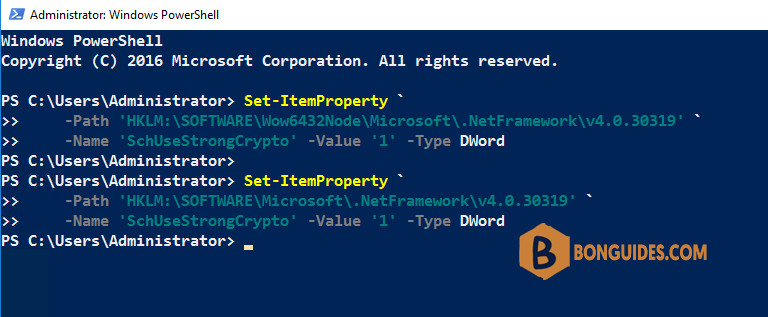
3️⃣ After that, restart PowerShell and check if the security protocol TLS 1.2 is added.
PS C:\> [Net.ServicePointManager]::SecurityProtocol
Tls, Tls11, Tls12, Tls13
4️⃣ Now run the command Install-Module -Name ExchangeOnlineManagement to install EXO v2, follow with Enter.
PS C:\Users\Administrator> Install-Module -Name ExchangeOnlineManagement

NuGet provider is required to continue
PowerShellGet requires NuGet provider version '2.8.5.201' or newer to interact with NuGet-based repositories. The NuGet
 provider must be available in 'C:\Program Files\PackageManagement\ProviderAssemblies' or
'C:\Users\Administrator\AppData\Local\PackageManagement\ProviderAssemblies'. You can also install the NuGet provider by
 running 'Install-PackageProvider -Name NuGet -MinimumVersion 2.8.5.201 -Force'. Do you want PowerShellGet to install
and import the NuGet provider now?
[Y] Yes  [N] No  [S] Suspend  [?] Help (default is "Y"):

Untrusted repository
You are installing the modules from an untrusted repository. If you trust this repository, change its
InstallationPolicy value by running the Set-PSRepository cmdlet. Are you sure you want to install the modules from
'PSGallery'?
[Y] Yes  [A] Yes to All  [N] No  [L] No to All  [S] Suspend  [?] Help (default is "N"): A
5️⃣ Once done, you can use Get-PackageProvider and Get-InstalledModule to verify it works.
PS C:\> Get-PackageProvider
Name                     Version          DynamicOptions
----                     -------          --------------
msi                      3.0.0.0          AdditionalArguments
msu                      3.0.0.0
NuGet                    2.8.5.208        Destination, ExcludeVersion, Scope, SkipDependencies,
PowerShellGet            1.0.0.1          PackageManagementProvider, Type, Scope, AllowClobber,
Programs                 3.0.0.0          IncludeWindowsInstaller, IncludeSystemComponent

PS C:\> Get-InstalledModule
Version                  Name                                Repository
-------                  ----                                ----------
3.0.0                    ExchangeOnlineManagement            PSGallery
1.1.183.66 MSOnline PSGallery 


thank you very much, my issue has been resolved
Glad it helped.