Table of Contents
RAW Flash Drive Error on Windows 10/11
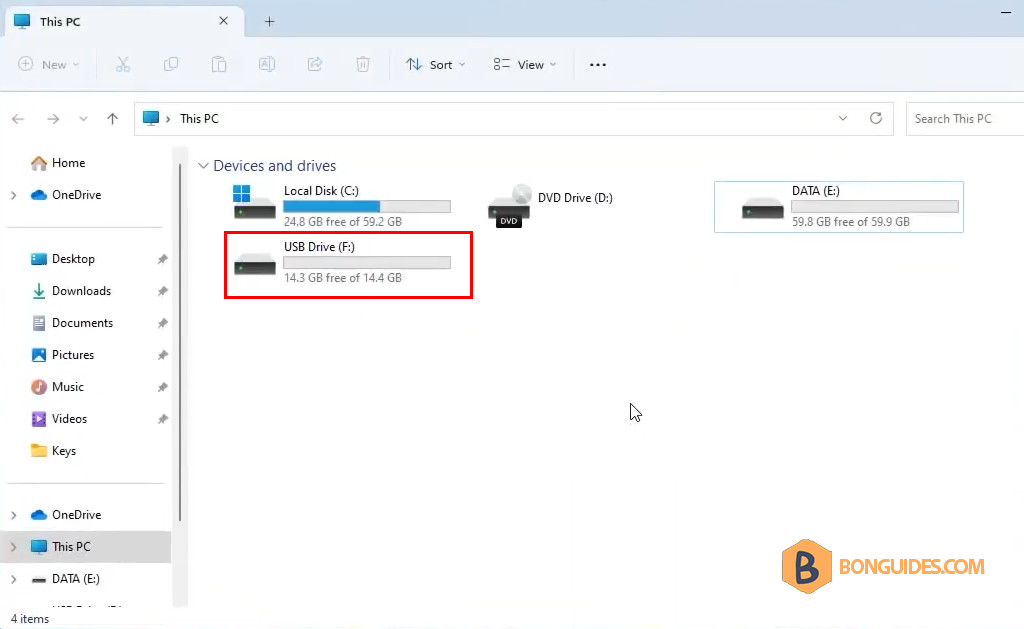
Sometimes, you get the following error when connecting a USB flash drive to a Windows 10/11 computer.
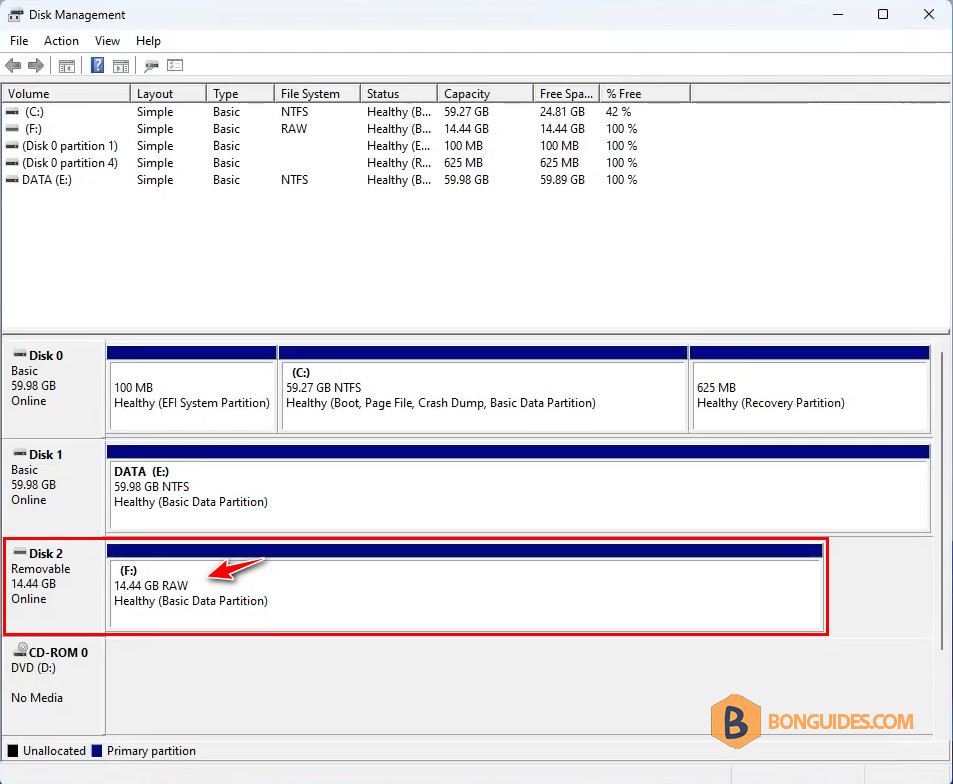
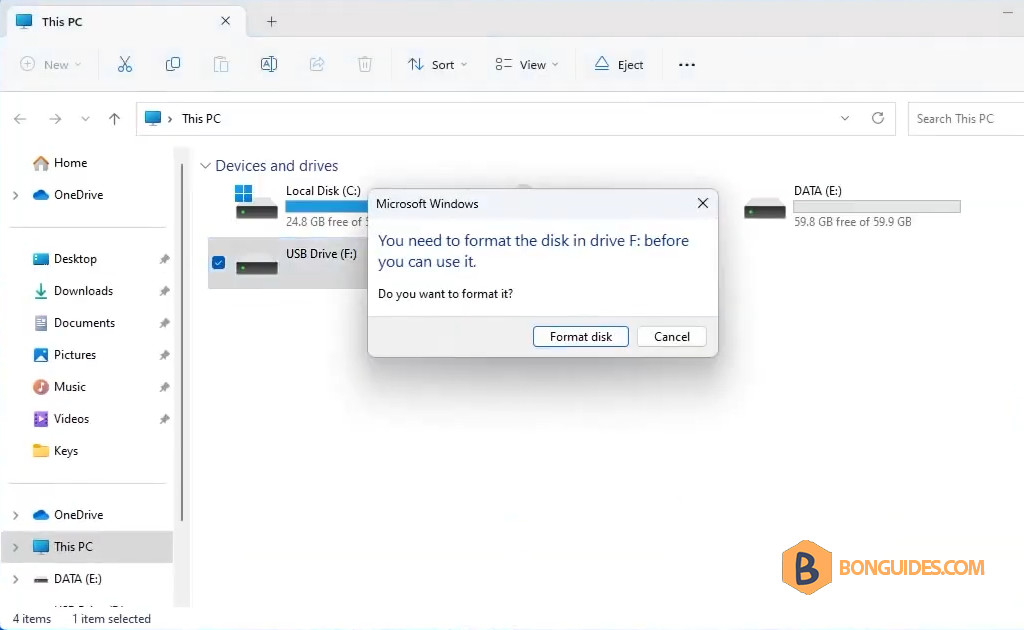
In Windows Explorer, the disk is inaccessible. When double-clicking on it, Windows is required to format it before using it normally.
When you check the disk using the command line, the output is unavailable because it is a RAW drive.
PS C:\> chkdsk F:/f
The type of the file system is RAW.
CHKDSK is not available for RAW drives.
To fix it, you can follow the below steps:
1. Open PowerShell or Command Prompt as administrator.
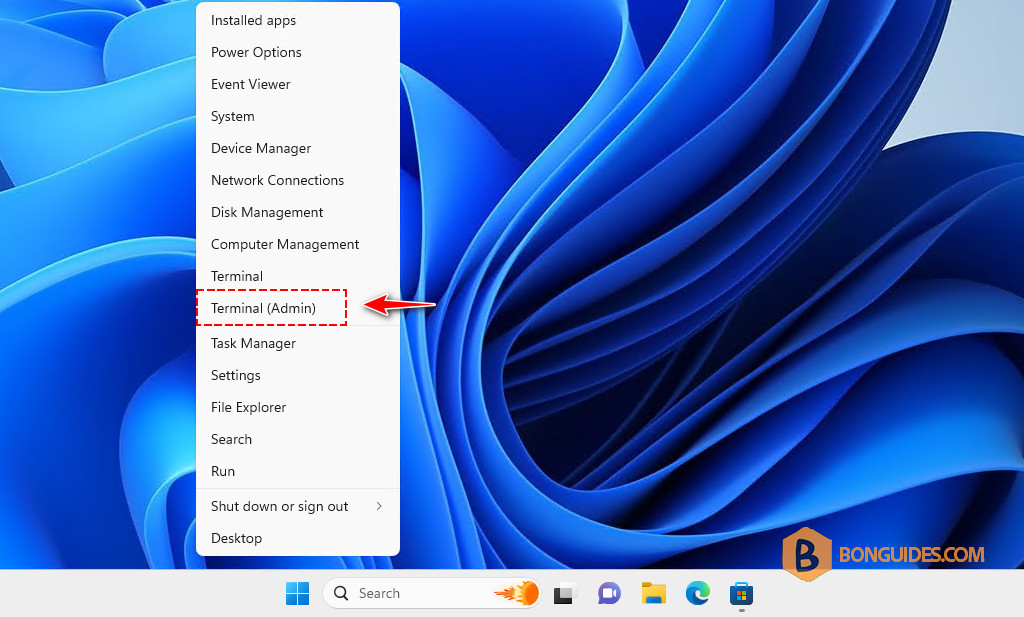
2. Run this DiskPart tool.
diskpart3. Get the list of disk in your computer.
list diskYou can recognize the USB drive by size in the disk list. In our case, the USB drive is Disk 2.
  Disk ###  Status         Size     Free     Dyn  Gpt
  --------  -------------  -------  -------  ---  ---
  Disk 0    Online           60 GB  1024 KB        *
  Disk 1    Online           60 GB  1024 KB        *
  Disk 2    Online           14 GB      0 B        *
4. Select the disk 2. It could be different on your computer.
select disk 25. Once the disk is selected, let’s clean the disk.
clean6. Create a partition in the USB drive.
create partition primary7. Format the partition as NTFS.
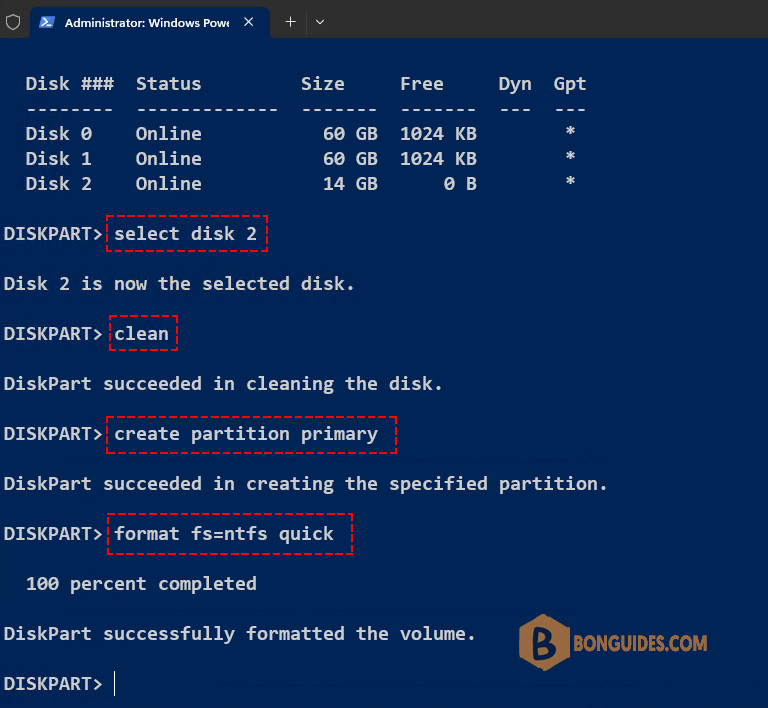
format fs=ntfs quickPlease refer to the screenshot below for the steps mentioned above.
Once done, close the command prompt, then open the Windows Explorer to verify it works.