
Table of Contents
Secure Boot Option Grayed out in BIOS in HP Laptop
If the Secure Boot option is grayed out in the BIOS on your HP laptop, it typically means that the option is not available for modification due to certain conditions or settings. Here’s a step-by-step guide to troubleshoot and potentially fix this issue:
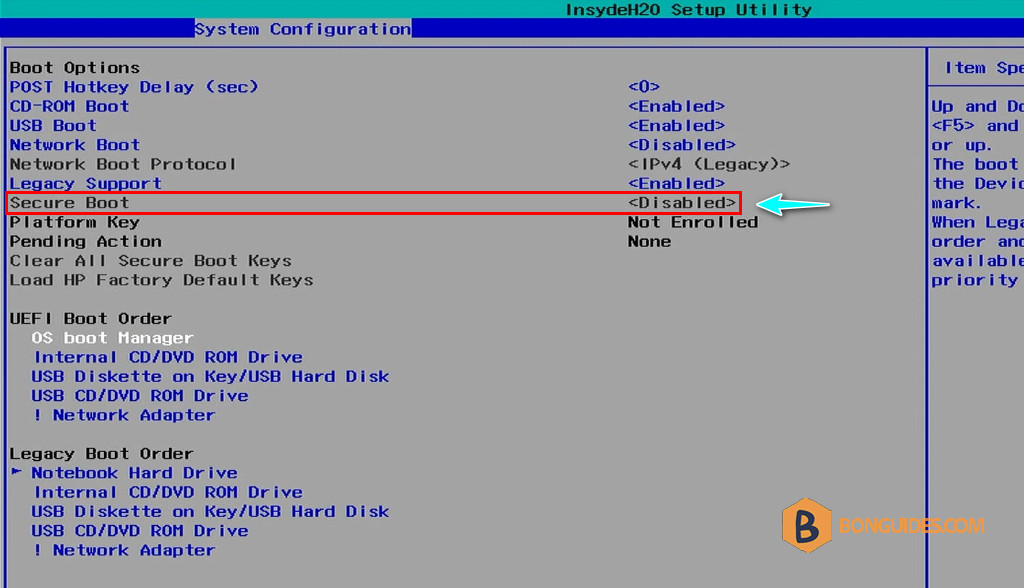
1. Press Esc, then go to the Security tab.
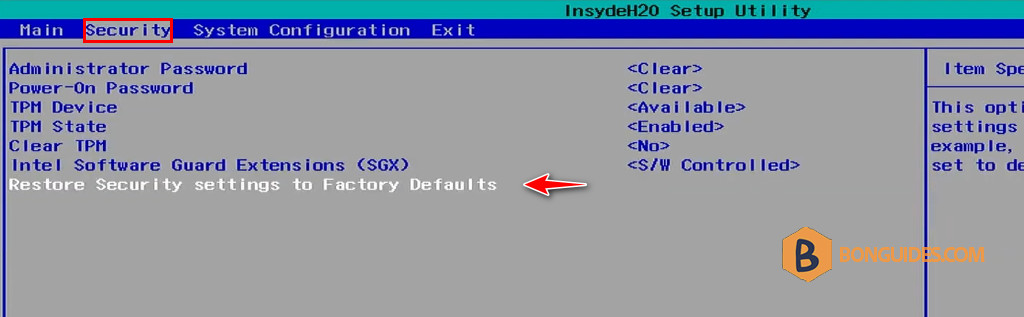
2. Restore Security settings to Factory Defaults.
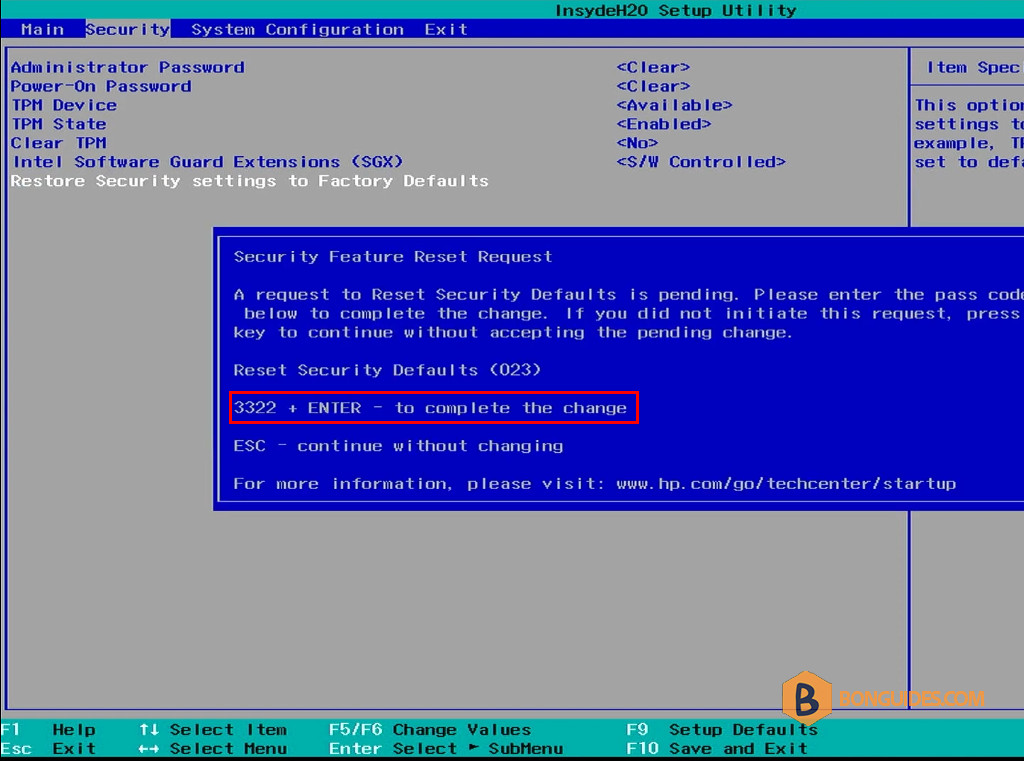
3. Type the number, then hit Enter to make the change go into effect. Just type the number normally, and it will now show on the screen.
4. Once done, go to the System Configuration tab again, then disable the Legacy Support.
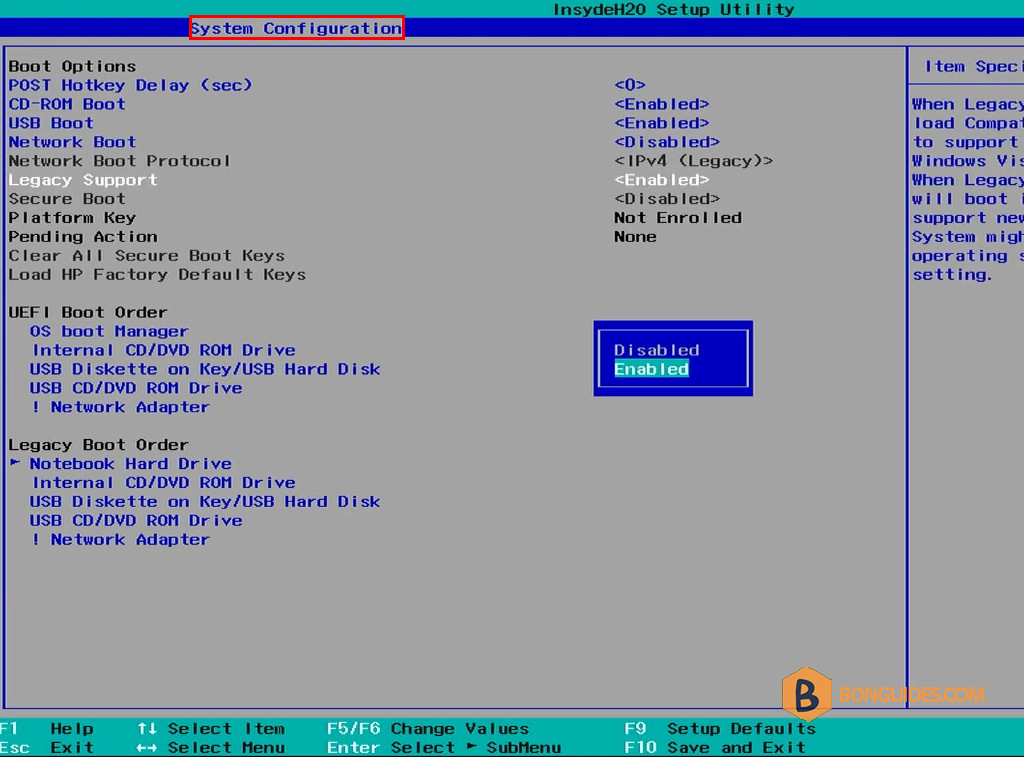
5. When the Legacy Support is disabled → Load HP Factory Default Keys.
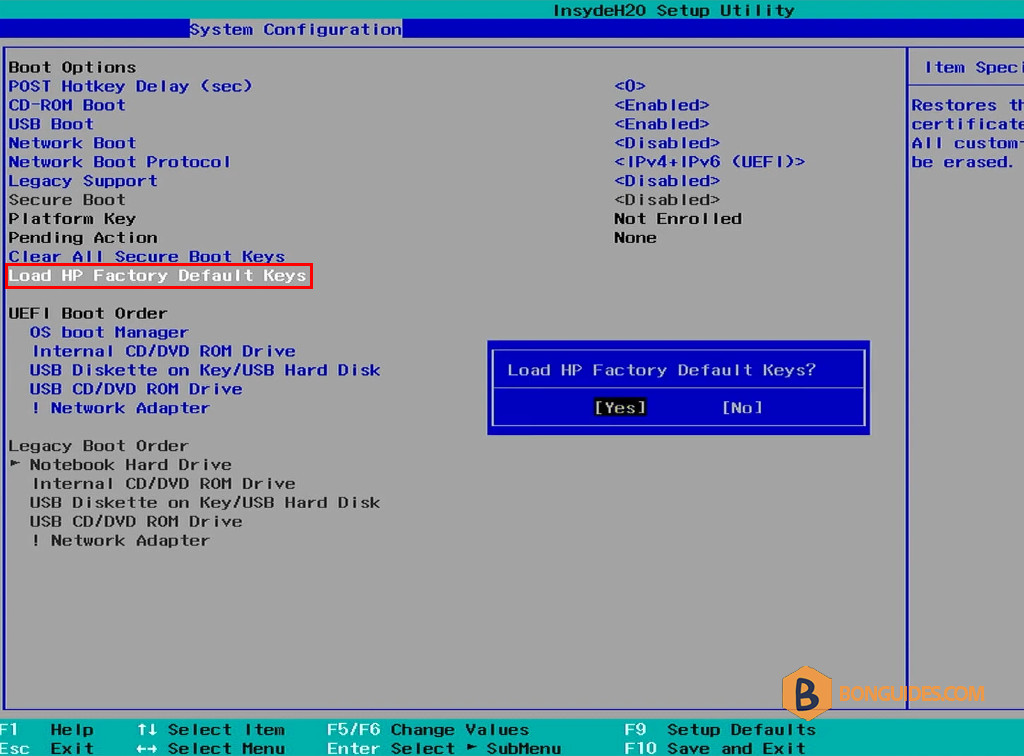
6. The Secure Boot option is available now once the keys are loaded. Then, you should be able to enable it.
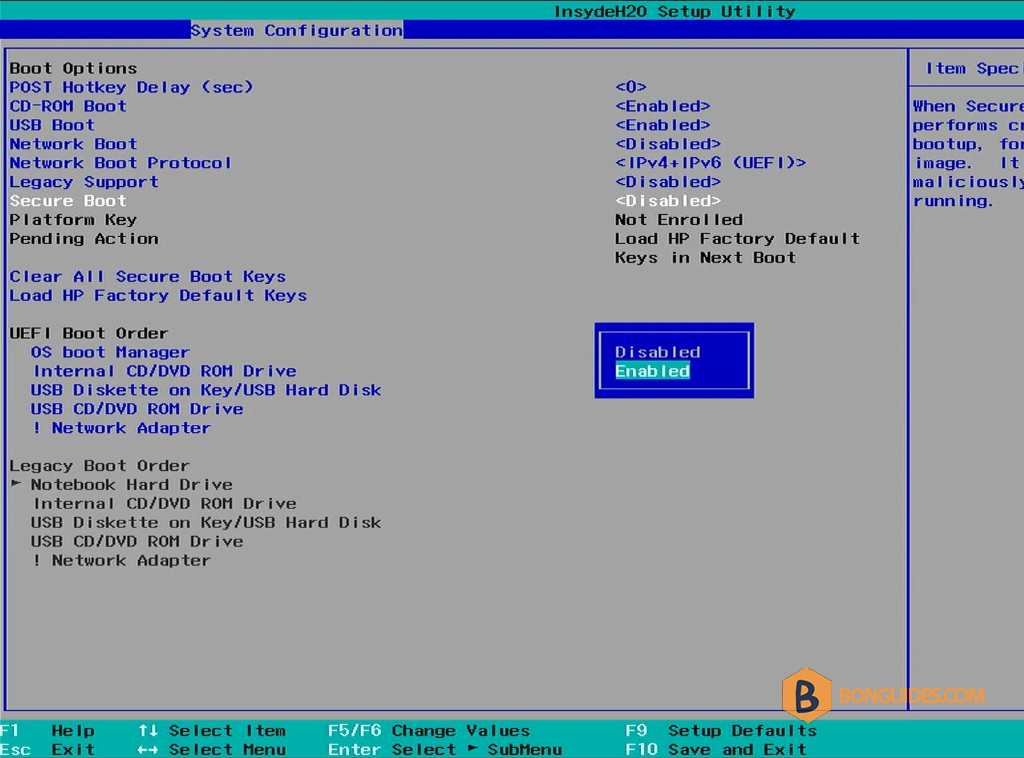
As you can see in the below screenshot, the secure boot is enabled.
Don’t forget to press F10 to save the changes and restart your computer.


