
Table of Contents
The View in File Explore feature in SharePoint Online
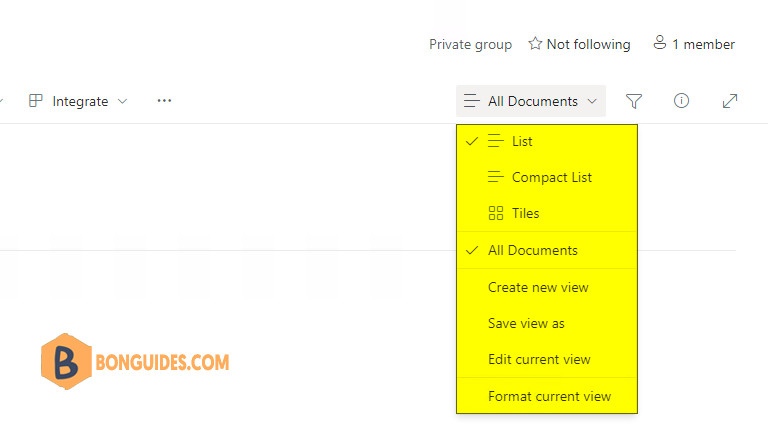
The Explorer View or View in File Explore feature in SharePoint Online provides an easy File Explorer-like interface to manage files in your SharePoint document libraries. In some cases, you’re missing the View in File Explorer option when you open a library on a SharePoint Online site.
In this post, we’ll walk you through how to fix the View in File Explorer option, so you can use it to quickly access, copy, paste your files and folders in SharePoint Online.
Browsers Supported
- The View in File Explorer command doesn’t work in Google Chrome, Mozilla Firefox, or on the Mac platform. It supports Microsoft Edge only.
- Verify that devices are on Microsoft Edge build 93 or later
Enable View in File Explorer Feature for the SharePoint Online Tenant
There are chances you may have this feature disabled at the tenant level. Use this PowerShell script to check if it’s enabled. If not, you can enable it.
1. Install the SharePoint Online PowerShell module. If it’s already installed, you can skip this step and moving to step 2. Let’s open an elevated PowerShell windows and run below commands at once.
Set-ExecutionPolicy -ExecutionPolicy RemoteSigned -Scope LocalMachine -Force;
Install-PackageProvider -Name NuGet -Force;
Set-PSRepository -Name "PSGallery" -InstallationPolicy Trusted;
Install-Module -Name Microsoft.Online.SharePoint.PowerShell;
Import-Module Microsoft.Online.SharePoint.PowerShell -DisableNameChecking;
Update-Module -Name Microsoft.Online.SharePoint.PowerShell;
2. Connect to SharePoint Online PowerShell and check the current status. Don’t forget change the bbguides-admin.sharepoint.com with your tenant URL.
#Connect to SharePoint Online
Connect-SPOService -Url "https://bbguides-admin.sharepoint.com"

#Check the current status of View in Explorer Feature
Get-SPOTenant | Select ViewInFileExplorerEnabled
3. As you can see, it’s not enabled at tenant level. So, you need to enable it to fix the error the View in File Explorer Feature Missing in SharePoint Online.
PS C:\Windows\system32> Get-SPOTenant | Select ViewInFileExplorerEnabled

ViewInFileExplorerEnabled
-------------------------
                    False
4. You can enable it using the following command:
Set-SPOTenant -ViewInFileExplorerEnabled $truePS C:\Windows\system32> Set-SPOTenant -ViewInFileExplorerEnabled $true
PS C:\Windows\system32> Get-SPOTenant | Select ViewInFileExplorerEnabled
ViewInFileExplorerEnabled
-------------------------
TrueFinally, close and re-open the Edge browser, and the View in File Explorer option should start working now.
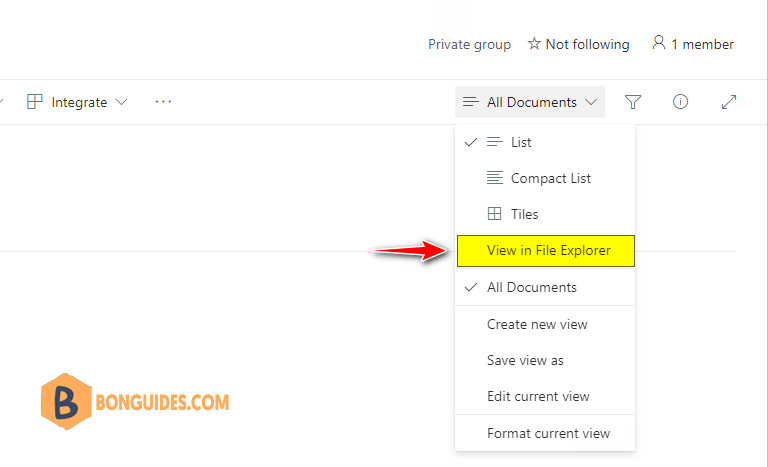
Additional: In order this feature working, you need to do an extra step Enable View in File Explorer in SharePoint Online in Microsoft Edge.
If you want to disable view in file explorer in SharePoint Online, use:
#Disable View in File Explorer
Set-SPOTenant -ViewInFileExplorerEnabled $False
You can map Sharepoint Online libraries to a network drive as an alternate solution: How to Map a SharePoint Online Document Library to a Network Drive?


