
Table of Contents
OneDrive is Missing from the Windows Context Menu
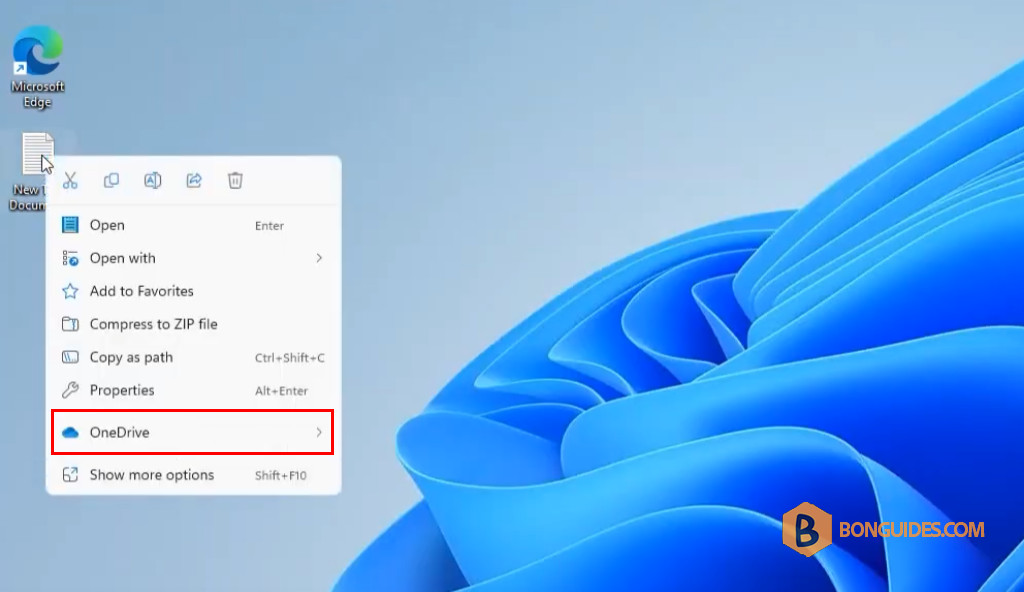
In some cases, you ran into an issue with OneDrive context menu on a Windows 11 computer. Normally when the OneDrive sync client installed, you can control file behaviors via the Windows Explorer context menu.

However, on the PC you logged into, those OneDrive menu items were not there when you selected a file or folder. Even the sync app was installed and synchronizing normally.
The Reason
The issue surfaced because you was logged into the PC with the default admin account – the one created when Windows was configured before provisioning. This means that Explorer was in elevated mode and OneDrive was running in per-user mode.
1. To check it, let’s right click on the Windows Taskbar and select Task Manager.
2. Select the Details tab.
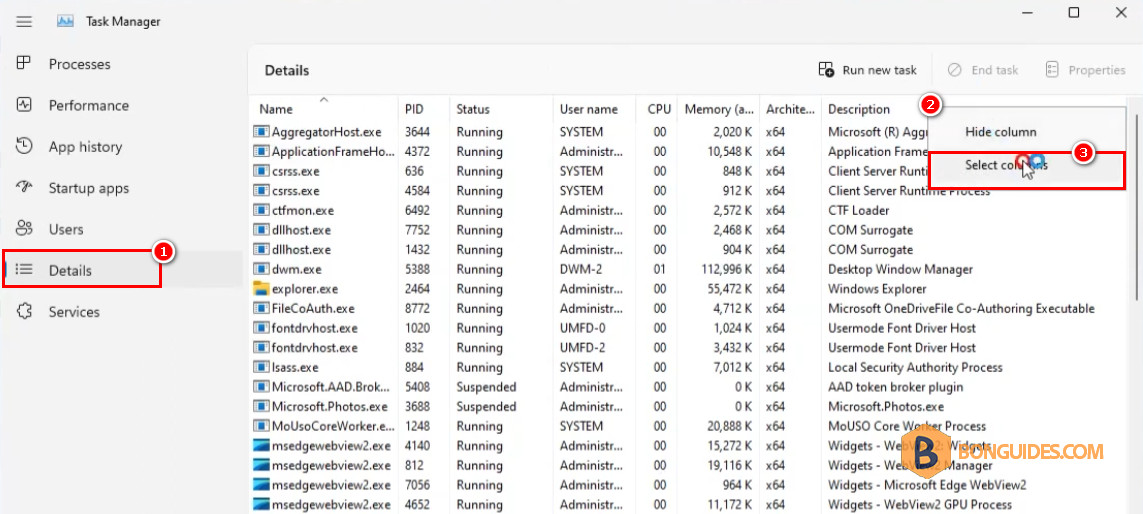
3. Add an Elevated column by right-clicking on top of an existing column and using the Select columns option.
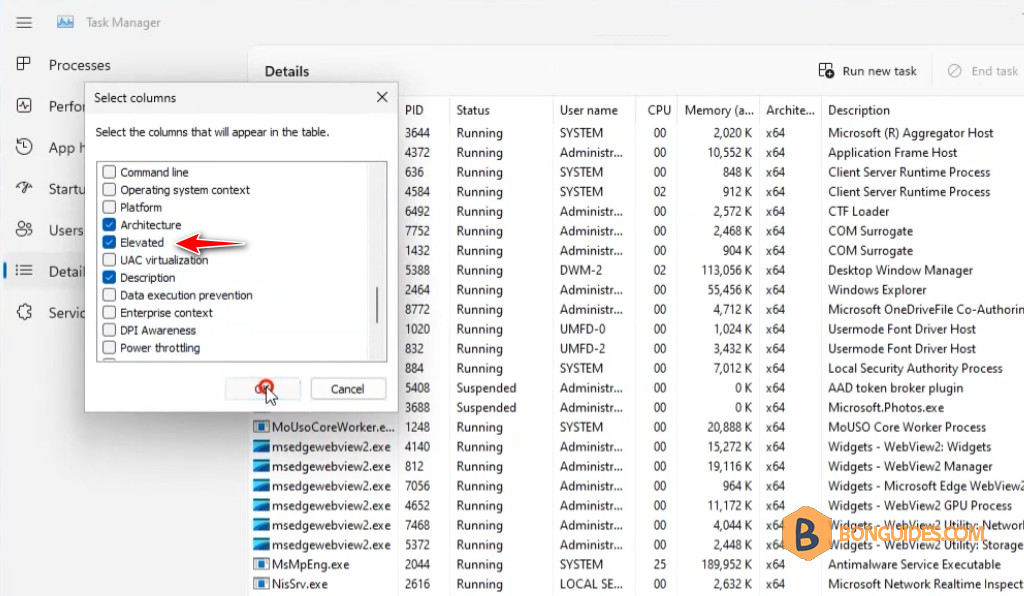
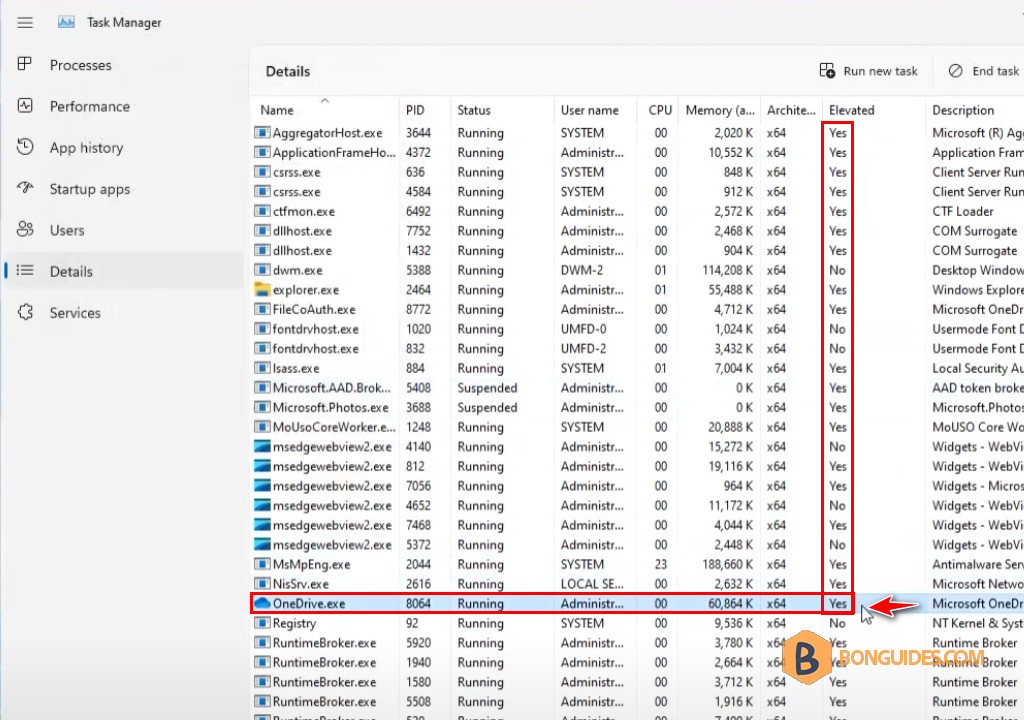
4. Check the Elevated column for the OneDrive.exe and Explorer.exe processes.
If the Elevated status is Yes, you’ve installed OneDrive using the per machine installation option. By default, the OneDrive sync app should be installed per user. Read more OneDrive per machine installation.
The Solution
1. Find the directory of the OneDrive app (OneDriveSetup.exe). It may be helpful to open this folder in Windows Explorer just to find the sub directory you will need.
The possible location of the OneDrive.exe file:
- C:\Users\<username>\AppData\Local\Microsoft\OneDrive\xxxx.xxxx.xxx
- C:\Program Files\Microsoft OneDrive

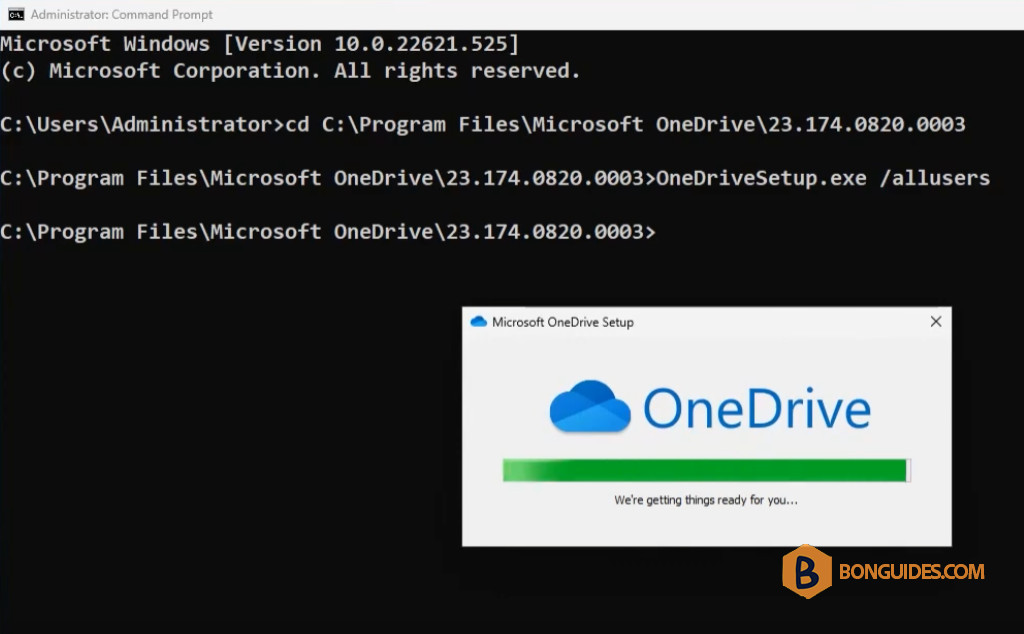
2. Open a Windows Command Prompt (run as Administrator) on the affected computer.

3. Naviagte to the location of OneDriveSetup.exe.


4. Then run the following command to install the OneDrive using allusers scope.
OneDriveSetup.exe /allusers5. If you have done the steps correctly, the OneDrive installation process will run. Once it is finished, your context menu should include the OneDrive options!
Finally, right click on a file then the OneDrive option should be available form the context menu.


I followed the steps exactly as written and it didn’t work.