
Table of Contents
Microsoft Office 365 has stopped working on Windows 7
In some cases, when you install Microsoft Office 365 apps from your Microsoft account using Click to Run technology on Windows 7. You got this error then the installer was stopped.
The cause is the latest version of Office 365 apps which will run on Windows 7 is version 2002 and the latest version of Office Deployment Tool (ODT) seems no longer works in Windows 7.

Looking at the supported builds, it seems the Semi-Annual Enterprise Channel (Preview) build 12527.20880 is the appropriate version I can get away with. https://docs.microsoft.com/en-us/officeupdates/update-history-microsoft365-apps-by-date

Before you begin
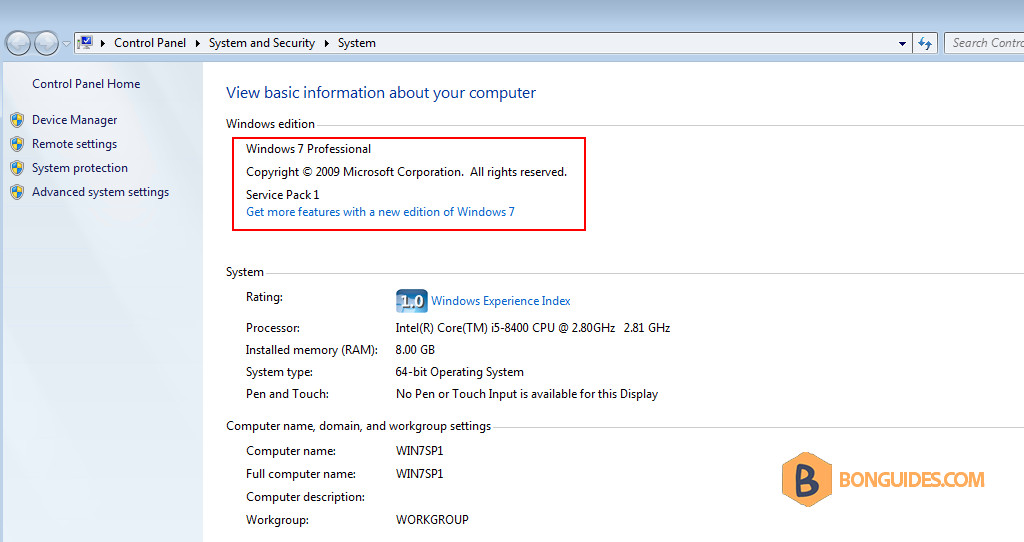
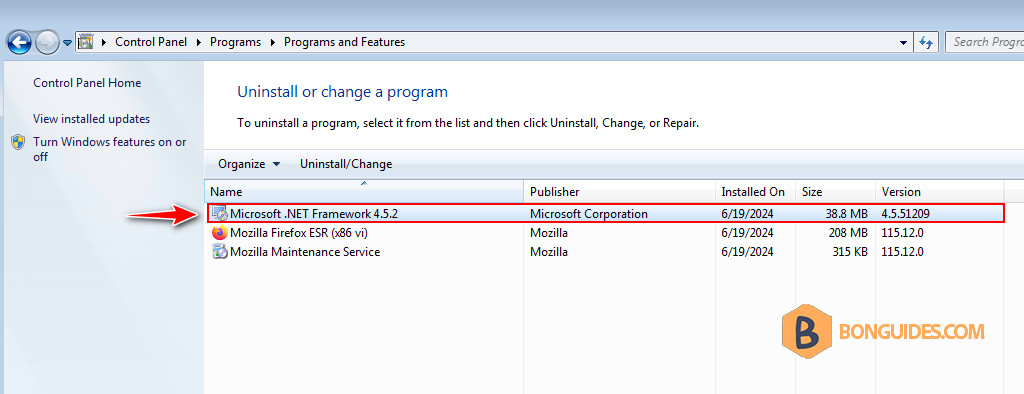
Before you begin, make sure you’re running Windows 7 SP1 with the .NET framework 4.5+ installed.
Download and Install Office 365 on Windows 7
1. Download the file below then extract the downloaded file into your computer.
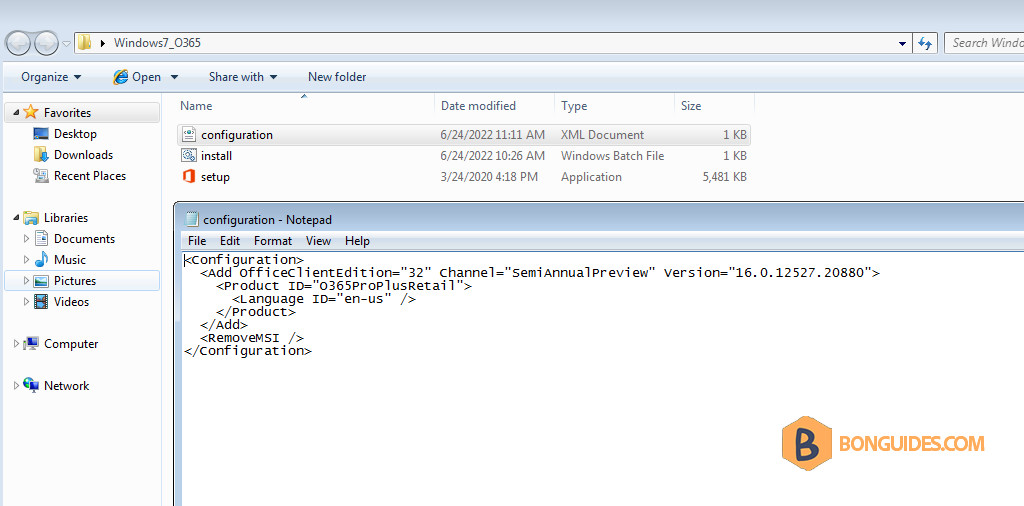
The contents of the extracted folder:
- configuration.xml: The configuration file, we’ve configured with the right channel and version.
- install.bat: The batch file to install Office instead of running in the command prompt.
- setup.exe: The old version of the Office Deployment Tool that still supports Windows 7.
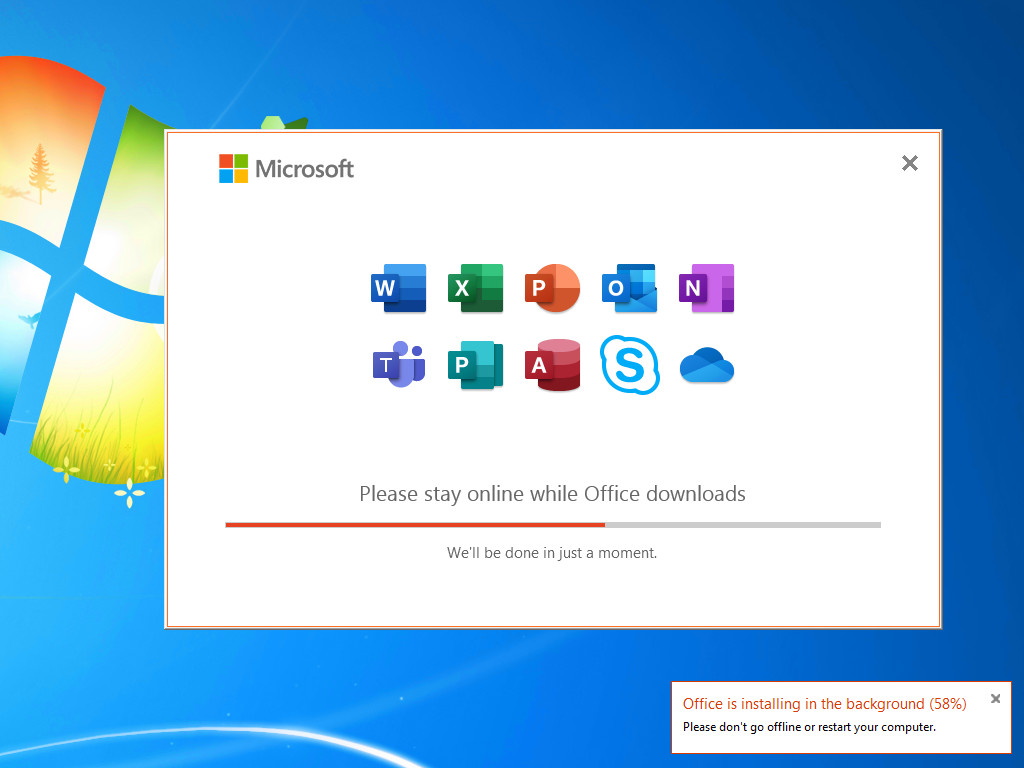
2. Open the install.bat file to install Office 365. The installation will start automatically.
3. The installation was successful, click button.
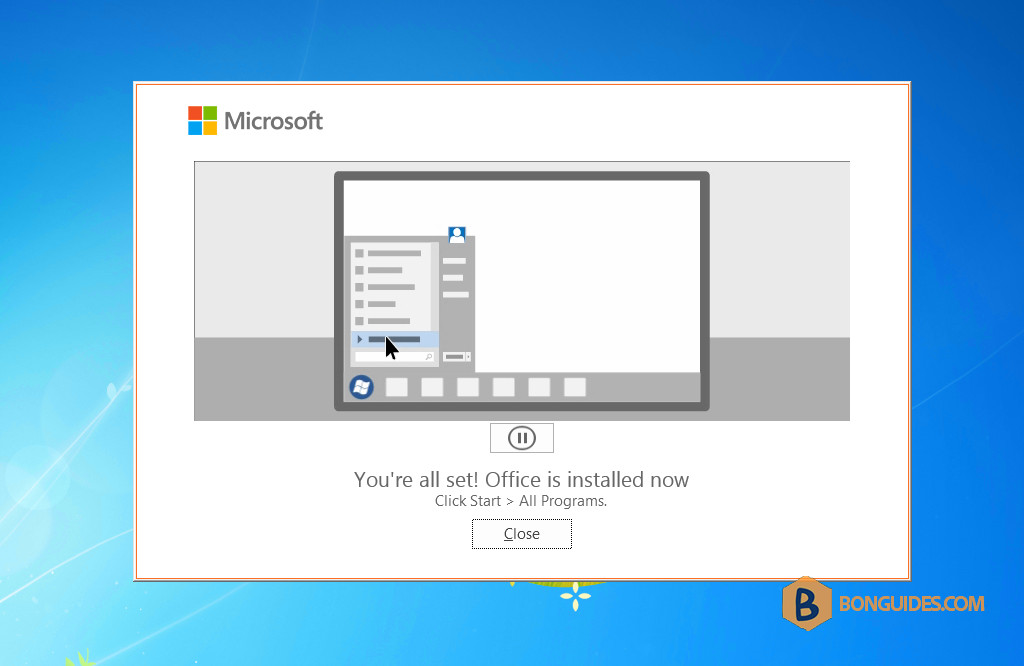
4. Open any Microsoft Office app to verify it was installed.

Or you can open the Programs and Features in Control Panel to see the installed app.

Disable Office Updates
You should disable Office Updates to prevent update Office apps to higher version that no longer supports for Windows 7.
Go to Word (or any Microsoft Office apps) > File > Account > Update options > select Disable Updates as shown below:


