
Table of Contents
Disable Notification Panel on the Right in VirtualBox 7
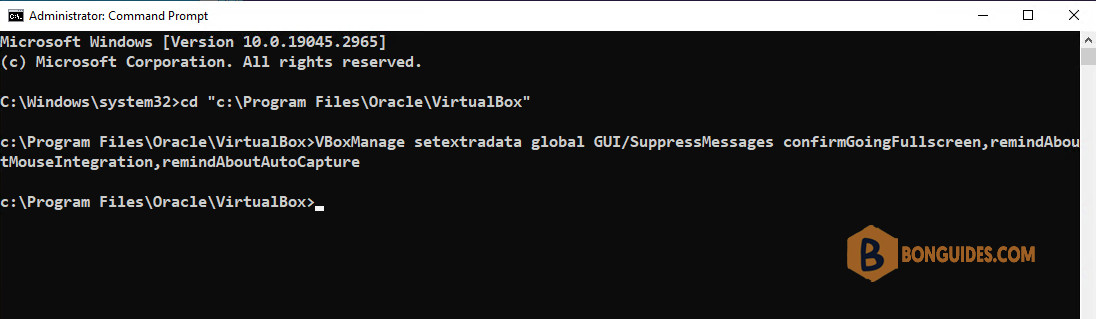
1️⃣ Open Windows Command Prompt (CMD) as administrator.
2️⃣ Navigate to the installation location of VirtualBox.
cd "C:\Program Files\Oracle\VirtualBox"3️⃣ Run the following command to disable the message box on the right panel when VMs start.
VBoxManage setextradata global GUI/SuppressMessages confirmGoingFullscreen,remindAboutMouseIntegration,remindAboutAutoCapture
Disable Notification Panel using VBox configuarition file
Alternatively, you can disable Notification Panel using the VirtualBox’s global configuration file. By default, the file is located in C:\Users\<username>\.Virtualbox\VirtualBox.xml.
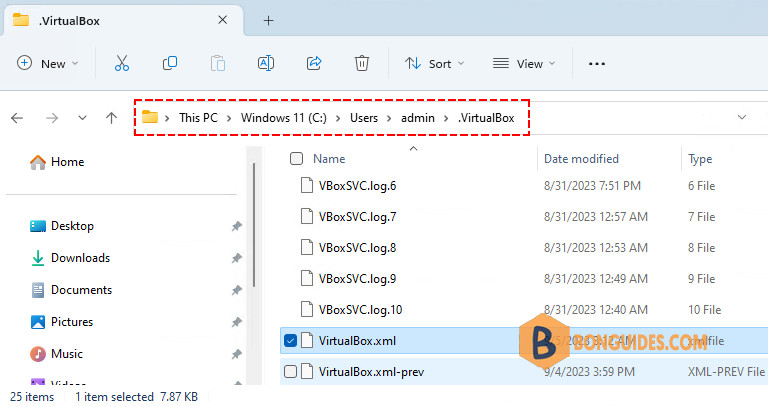
1️⃣ We recommend powering off all running VMs and close the VirtualBox Manager console before you start.
2️⃣ Open that file using any text editor. In our case, we used the VS Code Editor.
3️⃣ Find the line <ExtraDataItem name=”GUI/SuppressMessages” value=”confirmGoingFullscreen”/> then change the value as follows:
<ExtraDataItem name="GUI/SuppressMessages" value="confirmGoingFullscreen,remindAboutMouseIntegration,remindAboutAutoCapture"/>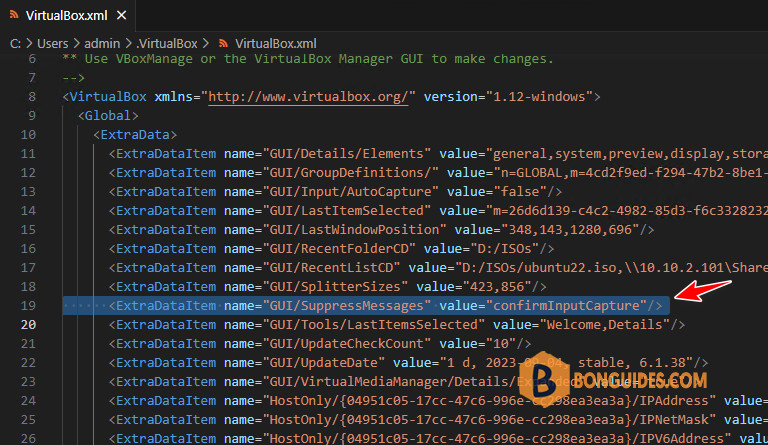
4️⃣ Save the file then reopen VirtualBox Manager to verify it works.


