
Table of Contents
Description
In the Microsoft datacenters, certain objects are consolidated to save space. When you use Exchange Online PowerShell or the Exchange admin center to modify one of these objects for the first time, you may encounter an error message that tells you to run the Enable-OrganizationCustomization cmdlet.
Here are some examples of when you might see this:
- Creating a new role group or creating a new management role assignment.
- Creating a new role assignment policy or modifying a built-in role assignment policy.
- Creating a new Outlook on the web mailbox policy or modifying a built-in Outlook on the web mailbox policy.
- Creating a new sharing policy or modifying a built-in sharing policy.
- Creating a new retention policy or modifying a built-in retention policy.
- Enabling preset security policies in the Microsoft 365 Security Center.
Connect to Exchange Online Powershell
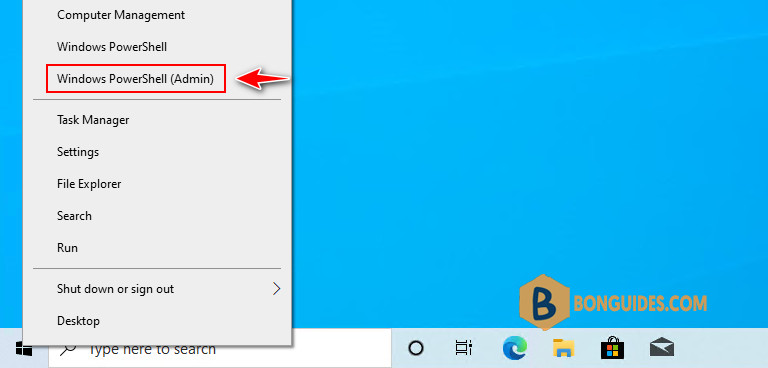
1. You need to connect to Exchange Online PowerShell to run the cmdlet. Right click on the button then open Windows PowerShell Admin.
Note
In Windows 11, select instead of Windows PowerShell (Admin)
2. Copy then paste all below commands into PowerShell window to install required modules and connect to Exchange Online PowerShell.
Set-ExecutionPolicy -ExecutionPolicy RemoteSigned -Scope LocalMachine -Force;
Install-PackageProvider -Name NuGet -Force;
Set-PSRepository -Name "PSGallery" -InstallationPolicy Trusted;
Install-Module -Name ExchangeOnlineManagement;
Import-Module ExchangeOnlineManagement;
Connect-ExchangeOnline;
Enable-OrganizationCustomization
Once you connected to Exchange Online, run below command to check the IsDehydrated property:
Get-OrganizationConfig | Select-Object IsDehydrated- False ($false) = the command has already been run;
- True ($true) = the command has never been run.
PS C:\Users\mpnadmin> Get-OrganizationConfig | Select-Object IsDehydrated

IsDehydrated
------------
       False
If the IsDehydrated property is set to True, you can run below command to enable it.
Enable-OrganizationCustomizationPS C:\Users\mpnadmin> Enable-OrganizationCustomization
PS C:\Users\mpnadmin> Get-OrganizationConfig | Select-Object IsDehydrated
IsDehydrated
------------
FalseNote
Note that you are only required to run the Enable-OrganizationCustomization cmdlet once in your Exchange Online organization. If you attempt to run the cmdlet again, you’ll get an error.
PS C:\Users\mpnadmin> Enable-OrganizationCustomization
This operation is not required. Organization is already enabled for customization.
    + CategoryInfo          : NotSpecified: (:) [Enable-OrganizationCustomization], InvalidOperationException
    + FullyQualifiedErrorId : [Server=TY0PR0101MB4466,RequestId=da7b6c5a-6369-4032-9d2b-c8f36e6d0835,TimeStamp=5/24/20
   22 8:16:17 AM] [FailureCategory=Cmdlet-InvalidOperationException] 2198EFBD,Microsoft.Exchange.Management.Deploymen
  t.EnableOrganizationCustomizationTask
    + PSComputerName        : outlook.office365.com

