
Table of Contents
In my case, I got the following error when remote push a Symantec Endpoint package to clients.
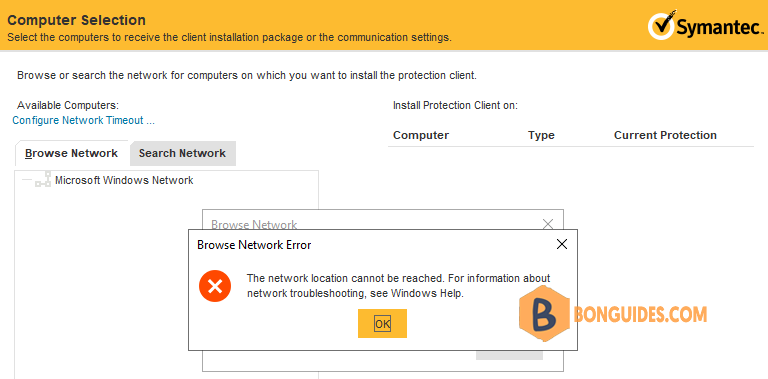
The root of the issue is Symantec uses the Computer Browser Service for remote push installation. But it is no longer available for Windows Server 2019 and higher editions since Microsoft has removed it. And you cannot find that service in Services (services.msc).
Note
We need to enable SMBv1 to bypass that error. But we recommend you should enable it on limited time for deployment only because SMBv1 is not safe.
Enable SMBv1 for Computer Browser Service
You can enable it through Server Manager (GUI) | Add Roles and Features Wizard.
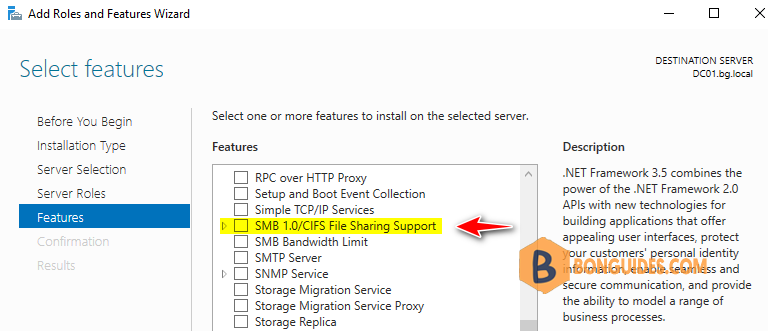
Or you can open an elevated PowerShell window then run the following command.
Enable-WindowsOptionalFeature -Online -FeatureName SMB1ProtocolYou need to restart your server to take the changes go into effect. Once done, let’s check if the SMBv1 is enable and the Computer Browser Service is available.
C:\Windows\system32>Dism /online /Get-Features /format:table | find "SMB1Protocol"
SMB1Protocol-Deprecation                    | Enabled
SMB1Protocol                                | Enabled
SMB1Protocol-Client                         | Enabled
SMB1Protocol-Server                         | Enabled

PS C:\Users\Administrator> Get-Service -Name "*browser*"

Status   Name               DisplayName
------   ----               -----------
Running  Browser            Computer Browser
Next, Open Symantec Endpoint Manager then trying to create a remote push installation again. The error should be gone, and you can install SEP remotely.
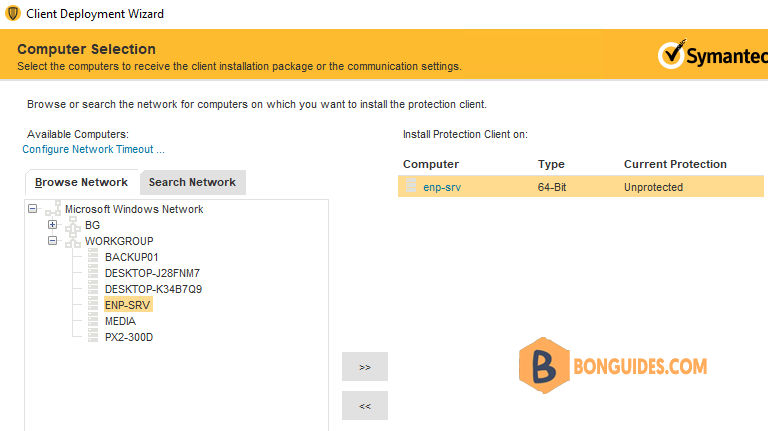
Disable SMBv1 and Computer Browser Service
Once the mass deployment is finished, you should disable it for security purpose.
You can simply remove it by uncheck the option in the Server Manger or run the following PowerShell command:
Remove-WindowsFeature FS-SMB1PS C:\> Remove-WindowsFeature FS-SMB1
Success Restart Needed Exit Code Feature Result
------- -------------- --------- --------------
True Yes SuccessRest... {SMB 1.0/CIFS File Sharing Support}
WARNING: You must restart this server to finish the removal process.Conclusion
This post is a part of the Symantec Endpoint Protection series. You can click on the hyperlink to read more guides.


