
Table of Contents
File and printer sharing is the ability of a computer running Windows to share a folder or attached printer with other computers on a network.
- File sharing allows you to make files and folders in a shared folder accessible to others on the network to view, copy, or modify.
- Printer sharing allows you to make an attached printer available to other computer users on the network.
If you are connected to a public network location (ex: café or library), then you may wish to turn off file and printer sharing until you are connected to a private network location (ex: home or work). This tutorial will show you how to turn on or off file and printer sharing on your Windows 10/11 PC.
To Turn On or Off File and Printer Sharing in Network and Sharing Center
1. Open the Control Panel (icons view) and click on the Network and Sharing Center icon.
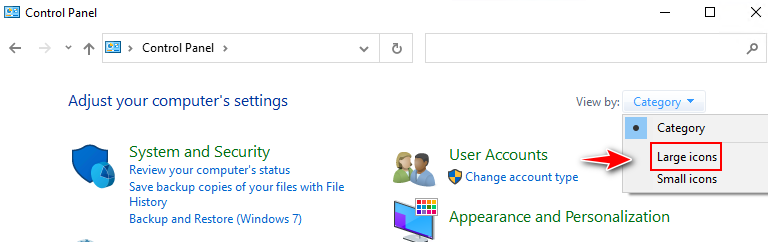
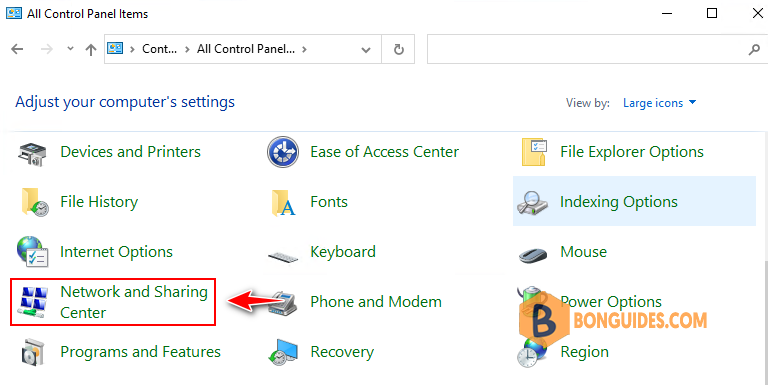
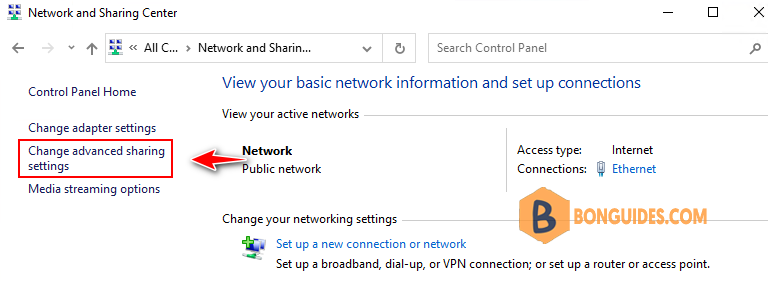
2. Click on the Change advanced sharing settings link on the left side.
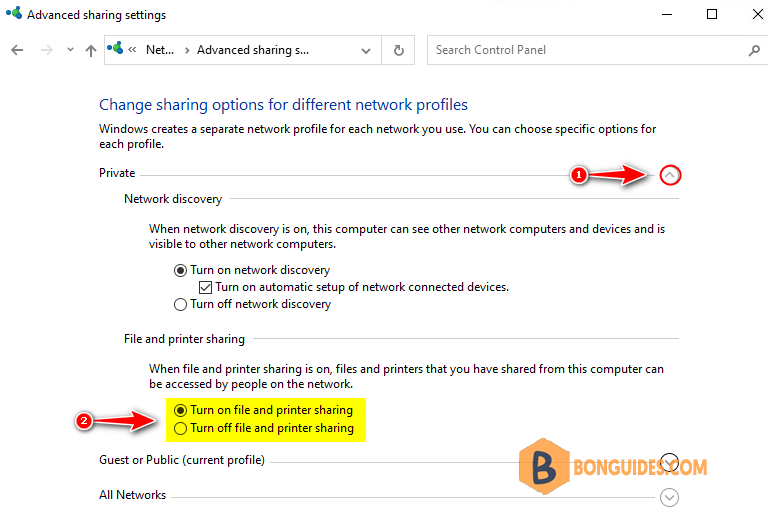
3. Expand to open Turn on or Off File and Printer Sharing of the Private or Guest or Public network profile for the one you want to turn on or off file and printer sharing.
4. Select the radio button to turn on file and printer sharing or turn off file and printer sharing for what you want to do and click on Save changes.
To Turn On or Off File and Printer Sharing for All Network Profiles in Command Prompt
1. Open an elevated command prompt window.
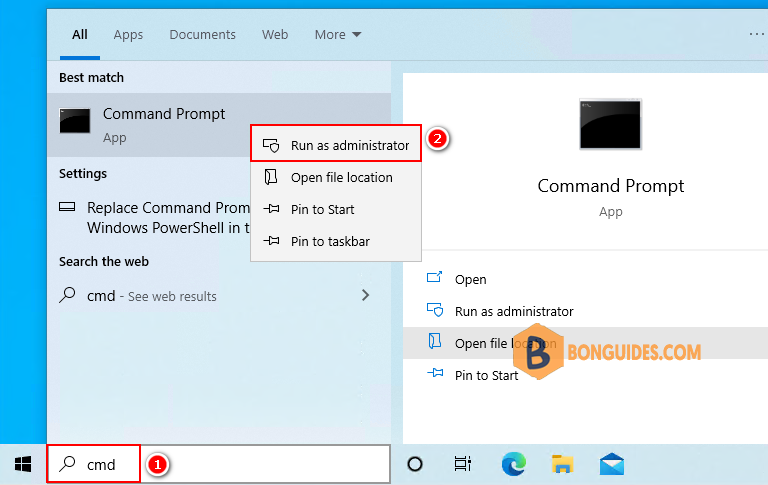
2. To Turn on File and Printer Sharing for All Network Profiles. Let’s copy and paste the command below into the elevated command prompt then press .
Note
To turn ot off, let’s replace to in the below command.
netsh advfirewall firewall set rule group="File and Printer Sharing" new enable=Yes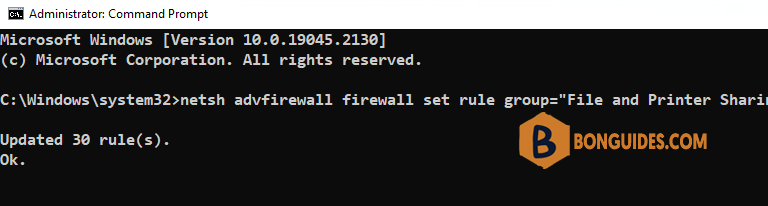
Turn On or Off File and Printer Sharing in PowerShell
1. Open an elevated PowerShell window.
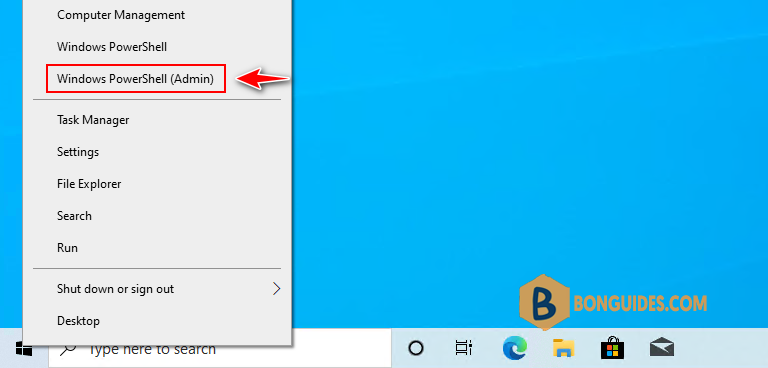
2. Copy and paste the command below you want to use into the elevated PowerShell then press Enter.
Note
To turn ot off, let’s replace to in the below command.
###Apply to all network profiles
Set-NetFirewallRule -DisplayGroup "File And Printer Sharing" -Enabled True -Profile Any

###Apply to "Domain" network profile
Set-NetFirewallRule -DisplayGroup "File And Printer Sharing" -Enabled True -Profile Domain

###Apply to "Private" network profile
Set-NetFirewallRule -DisplayGroup "File And Printer Sharing" -Enabled True -Profile Private

###Apply to "Public" network profile
Set-NetFirewallRule -DisplayGroup "File And Printer Sharing" -Enabled True -Profile Public
To Turn On or Off File and Printer Sharing for Microsoft Networks in Network Properties
1. Open the Control Panel (icons view) and select the Network and Sharing Center icon.
2. Click on the Change adapter settings link on the left side.
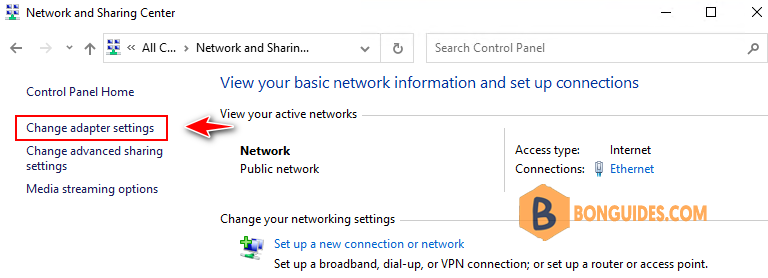
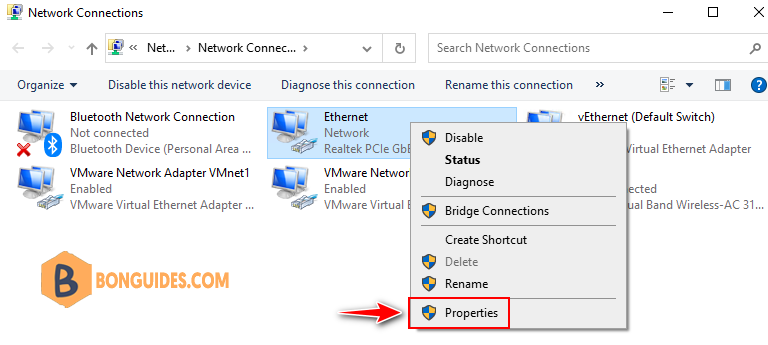
3. Right click or press and hold on the network adapter (ex: Ethernet in my case) you want to turn on or off file and printer sharing for Microsoft networks and select Properties.
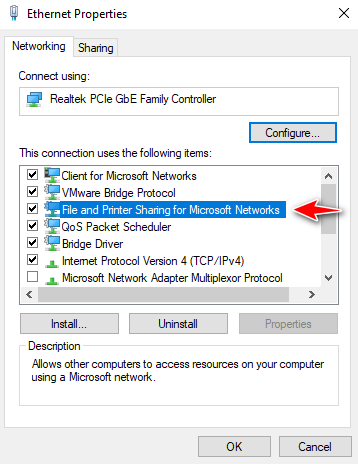
4. Check (turn on – default) or uncheck (turn off) File and Printer Sharing for Microsoft Networks for what you want and click OK.
Turn On or Off File and Printer Sharing for Microsoft Networks in PowerShell
This option uses Enable-NetAdapterBinding and Disable-NetAdapterBinding commads.
1. Open an elevated PowerShell window.
2. Execute the command below in the elevated PowerShell. Take a note of the network adapter name (ex: “Ethernet“) you want to turn on or off file and printer sharing for Microsoft networks.
Get-NetAdapter | Select Name, Status, MacAddress, LinkSpeed | Format-TablePS C:\Windows\system32> Get-NetAdapter | Select Name, Status, MacAddress, LinkSpeed | Format-Table
Name Status MacAddress LinkSpeed
---- ------ ---------- ---------
VMware Network Adapter VMnet1 Up 00-50-56-C0-00-01 100 Mbps
vEthernet (Default Switch) Up 00-15-5D-A6-CF-19 10 Gbps
Ethernet Up 50-9A-4C-BD-F0-93 1 Gbps
VMware Network Adapter VMnet8 Up 00-50-56-C0-00-08 100 Mbps
Wi-Fi Disconnected AC-ED-5C-A0-9E-CA 0 bps
Bluetooth Network Connection Disconnected AC-ED-5C-A0-9E-CE 3 Mbps3. Type command below into the elevated PowerShell then press Enter to Turn on File and Printer Sharing for Microsoft Networks.
Enable-NetAdapterBinding -Name "Ethernet" -ComponentID ms_serverNote
Don’t forget change in the command above with the actual network adapter name.
To disable it, let’s using Disable-NetAdapterBinding cmdlet instead.
Disable-NetAdapterBinding -Name "Ethernet" -ComponentID ms_server
