
Table of Contents
Sometimes, you may face issues like Windows desktop freeze, and you can’t use the start menu, quick access pinned programs, or switch between windows. When this happens, the quick resolution is to restart Windows Explorer. There are many ways to restart Windows Explorer.
Restart Explorer from Task Manager
1. The Task Manager offers the traditional way to restart Windows Explorer. It was overhauled for Windows 8, 10, and 11. The best way to open the Task Manager in Windows 10 is to hit Ctrl+Shift+Esc combination keys.
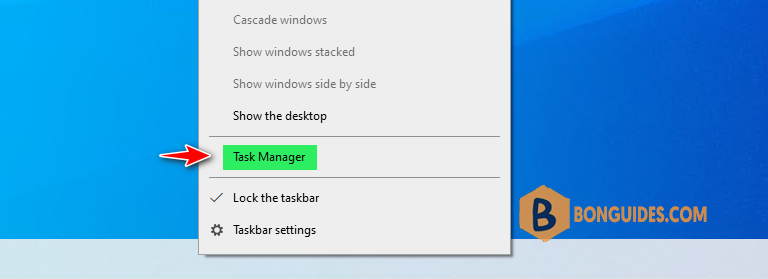
Or you can simply right-click on the Windows Taskbar the select Task Manager.
2. Click the Processes tab in the Task Manager. Find the process named Windows Explorer. Right-click on it then click Restart in the context menu.
Note
If you don’t see it, click More Details at the bottom of the window to reveal more options.
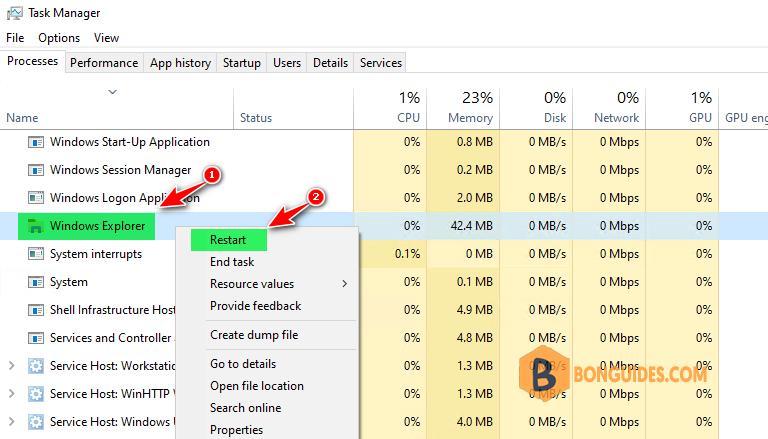
That’s all you should have to do. It may take a few seconds and things like your taskbar and Start menu may disappear momentarily, but when it restarts, things should behave better and you can exit Task Manager.
Restart Explorer from the Taskbar or Start Menu in Windows 10
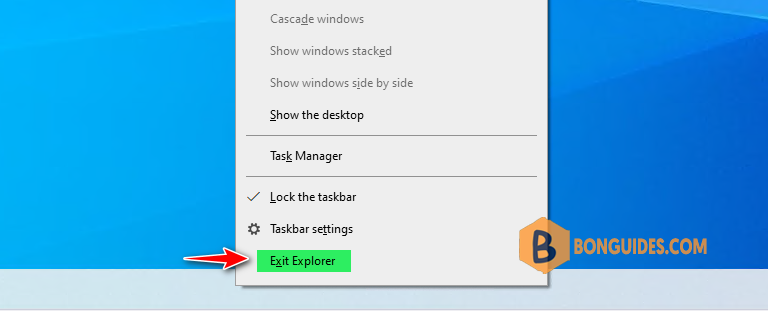
There is also a handy little shortcut for ending the Windows Explorer process. In Windows 10, you can hold Ctrl+Shift while right clicking any empty area of the taskbar. On the modified context menu, click the Exit Explorer command.
Restart Explorer using a Batch File
If you’d prefer being able to restart Windows Explorer more quickly and avoid using Task Manager altogether, you can put together a simple batch file to do the job.
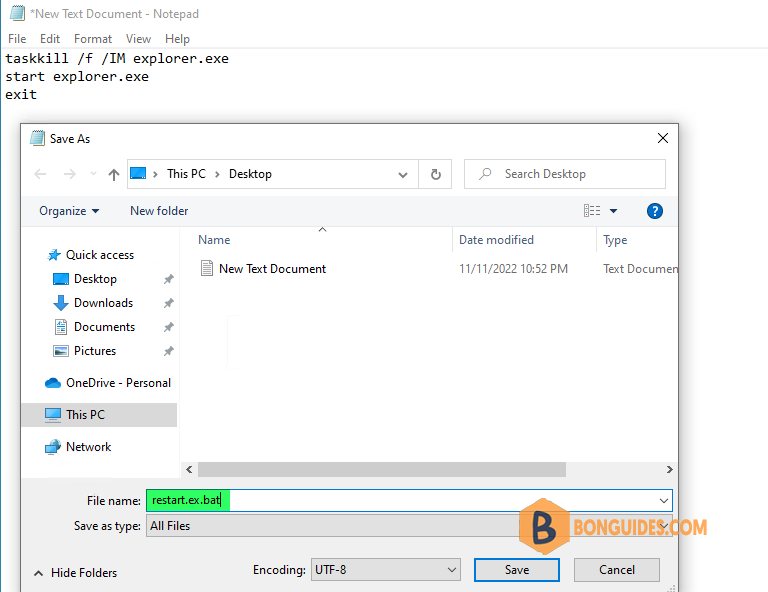
1. Open Notepad then copy the following text and paste it into three separate lines in your blank text document.
taskkill /f /IM explorer.exe
start explorer.exe
exit
2. Next, you’ll need to save the file with the instead of extension.
3. Click on the File menu and then click Save as. In the Save As window:
- Choose your location to store the batch file.
- On the Save as type drop-down menu, choose All files.
- Name your file whatever you want, followed by the .bat extension and then click Save.
Restart Windows Explorer using Command Prompt
1. Search then open cmd Command Prompt.

2. Run the below command to restart Windows Explorer. This command will stop the Windows Explorer service and then start the Explorer again.
taskkill /im explorer.exe /f & explorer.exeWhen finished, explorer.exe has been refreshed, you should be able to use your PC normally.

Alternatively, it can be restarted from PowerShell.
Restart Windows Explorer using PowerShell
1. Right-click on the Windows Start icon then open Windows PowerShell.

2. Run the following command.
Stop-Process -Name 'explorer' -Force
Restart Windows Explorer using command line
In case the Command Prompt or PowerShell cannot be opened because everything is frozen. They must be opened from the Run box or Task Manager using the keyboard shortcuts.
Using the Run box
1. Open the Run box by pressing the Windows + R combination keys.
2. Type cmd or powershell then hit Enter to open them from the Run box.
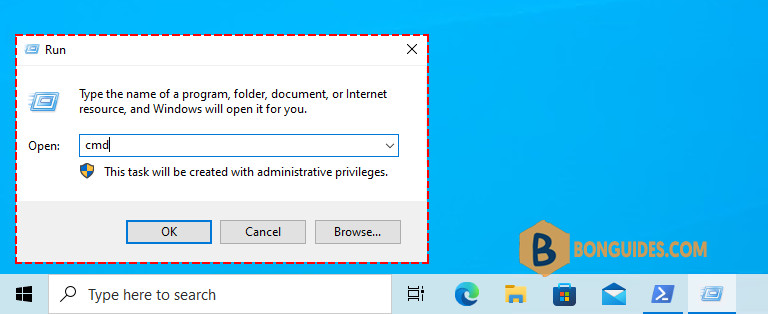
3. Run the corresponding command to restart the File Explorer.
Using the Task Manager.
1. Open the Task Manager by pressing the Ctrl + Shift + Esc combination keys.
2. Navigate to the File menu | Run new task.
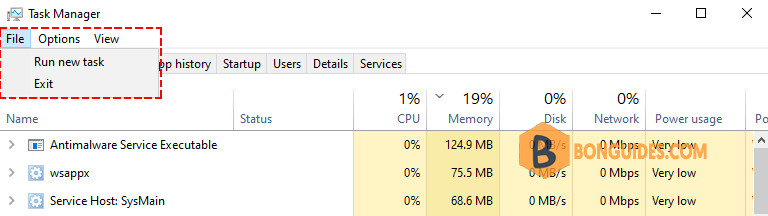
3. Type cmd or powershell then hit Enter to open them from the Run box.
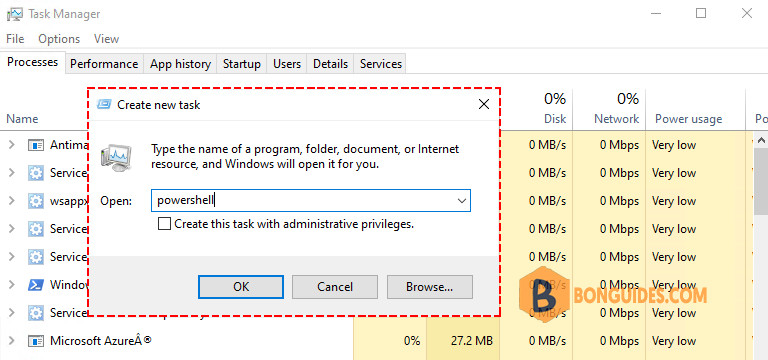
4. Run the corresponding command to restart the File Explorer.
Conclusion
With that done, you should have all you need to restart explorer.exe in Windows 10 using command-line to fix common issues like a frozen taskbar, desktop, or Start Menu.

