Table of Contents
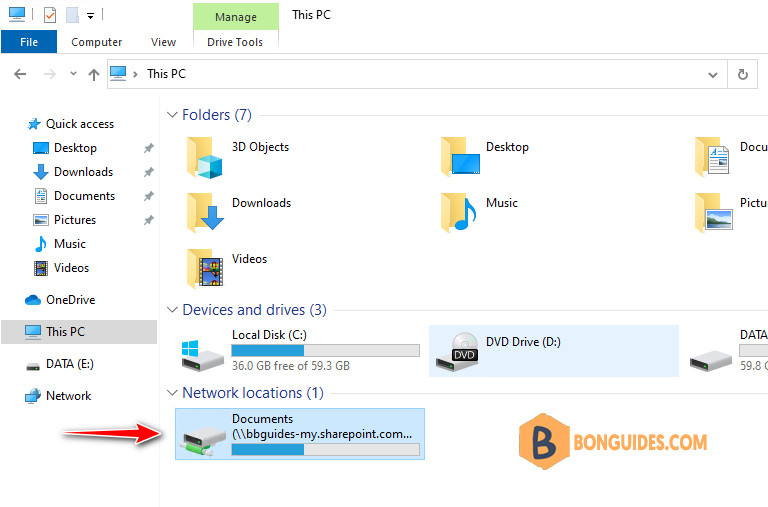
In some cases, you want to map your OneDrive for Business account as a network drive into your Windows computer instead of installing and using the OneDrive sync app.
Add Trusted Sites to Internet Options
Microsoft Edge by default doesn’t support trusted websites feature, but you can add trusted websites from Internet Options and that should affect Edge as well.
1. Open the Internet Options by search internet options then open it.
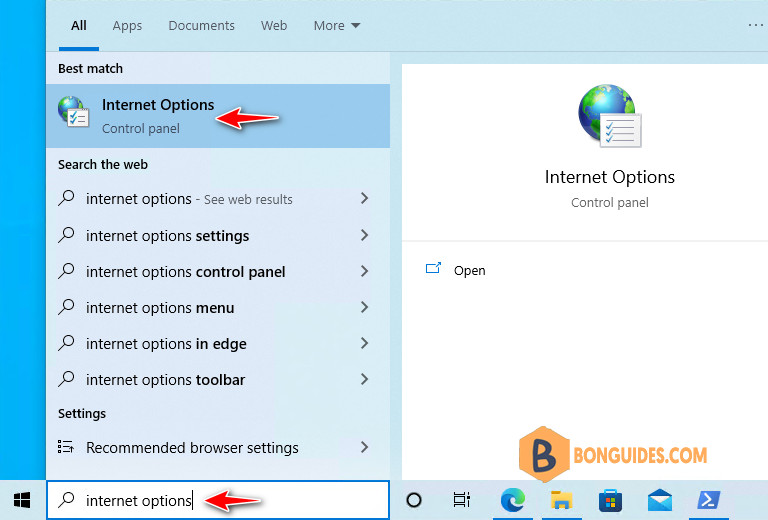
Alternatively, you can open the Internet Options window by doing the following:
- Press to open the Run window.
- Enter inetcpl.cpl and press Enter or click OK.
- Internet Properties window will now appear.
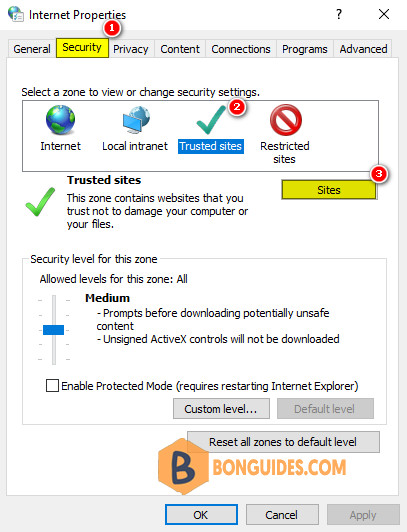
2. Select the Security tab, select Trusted sites, and then select Sites.
3. In the Add this website to the zone box, type the URL for the site that you want to add to the Trusted sites zone, and then select Add.
Add the Url https://*.sharepoint.com as per below screenshot:
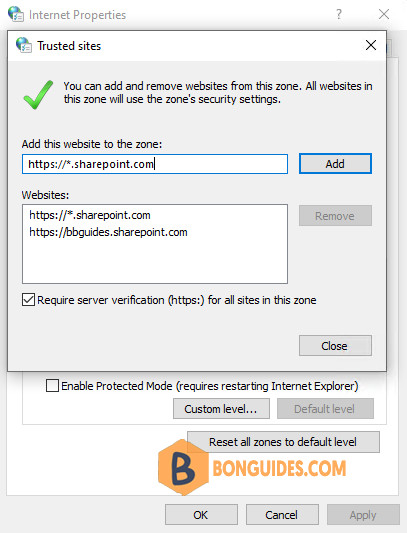
4. After you have added each site to the Websites list, select Close, and then select OK.
Alternatively, if you don’t want to do it manually. You can open an elevated PowerShell window then execute the following commands at once to add a trusted site automatically:
Set-Location "HKCU:\Software\Microsoft\Windows\CurrentVersion\Internet Settings"
Set-Location ZoneMap\Domains
New-Item *.sharepoint.com
Set-Location *.sharepoint.com
New-ItemProperty . -Name https -Value 2 -Type DWORD
Get the URL for the OneDrive for Business
Note
This feature doesn’t work in Google Chrome, Mozilla Firefox, or on the Mac platform. You must use Microsoft Edge or Internet Explorer to login and map a network drive.
1. Open Microsoft Edge then sign-in into https://onedrive.com.
2. Sign in with your email address and password. Once you have logged in, go to the address bar and copy the address up to the forward slash after your_domain_name/.
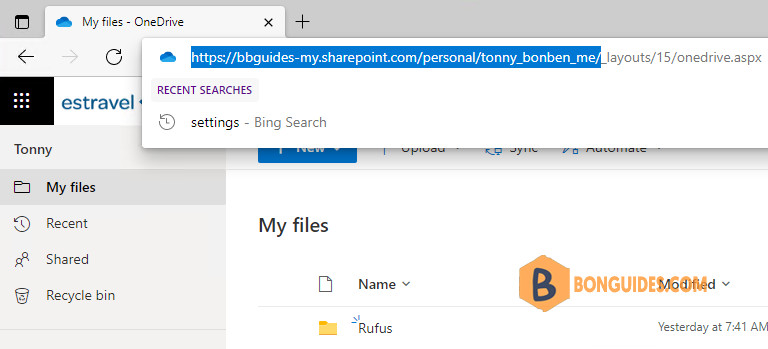
You should have copied something like this (but with your ID):
https://bbguides-my.sharepoint.com/personal/tonny_bonben_me/Add credential into Internet Explorer
1. Right-click on the Windows Start icon then select Windows PowerShell (Admin).
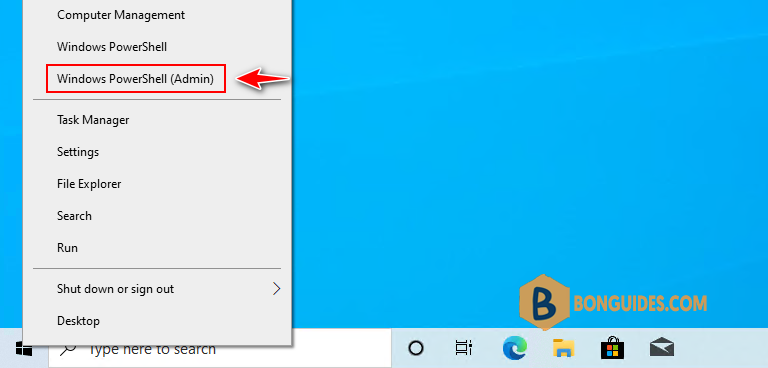
2. Copy and run the commands below to login into OneDrive for Business using Internet Explorer browser. Don’t forget change the $Path by your OneDrive for Business link.
$Path = "https://bbguides-my.sharepoint.com/personal/tonny_bonben_me/"
Start-Process -File "C:\Program Files\Internet Explorer\iexplore.exe" -arg $Path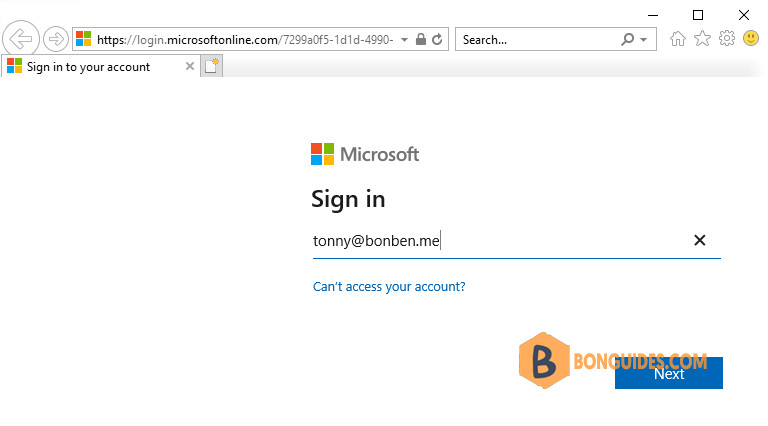
3. Sign in with your email address and password. Then don’t forget check the box that says, Don’t show this again and click Yes button in the Stay signed in window.
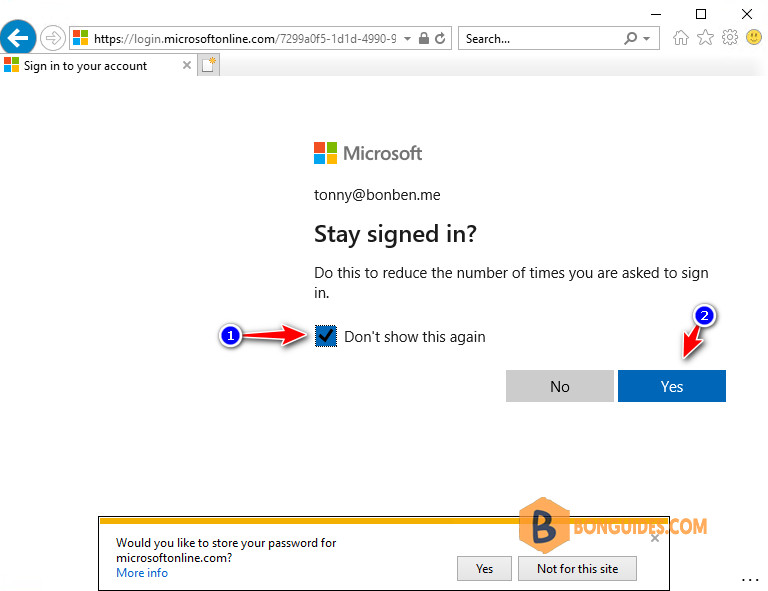
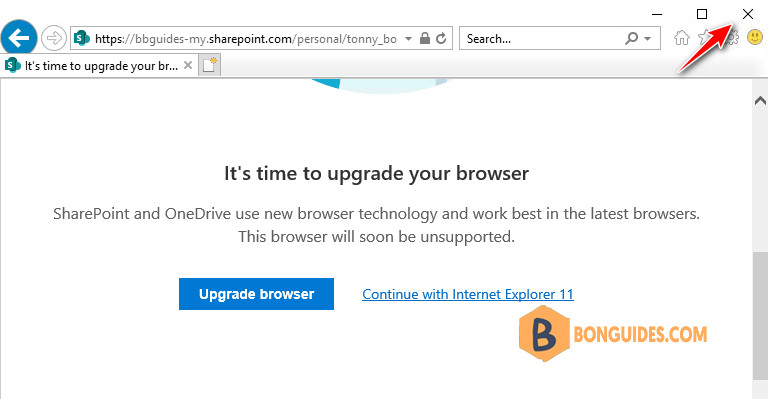
4. One done, you would get this screen, just simple close Internet Explorer. We don’t need it anymore.
Map the OneDrive for Business into a network drive in Windows
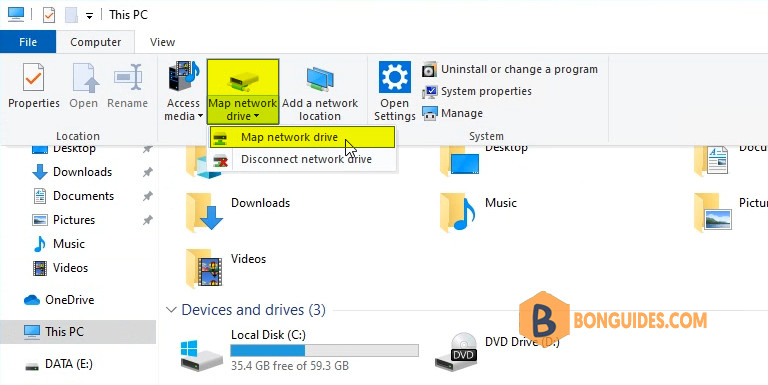
1. Open the File Explorer on your system. In the File Explorer window, click on Map network drive to map OneDrive into your Windows.
2. In the folder box, paste the URL from your clipboard, and adding the word Documents/ to the end.
https://bbguides-my.sharepoint.com/personal/tonny_bonben_me/Documents/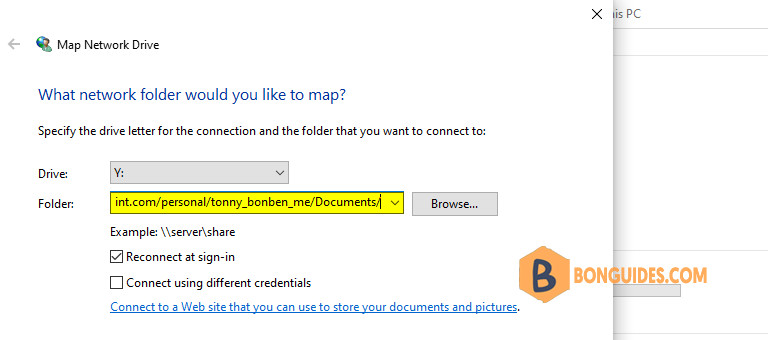
4. OneDrive will be opened in a new File Explorer window. You have successfully mapped OneDrive for Business as a drive on your system.
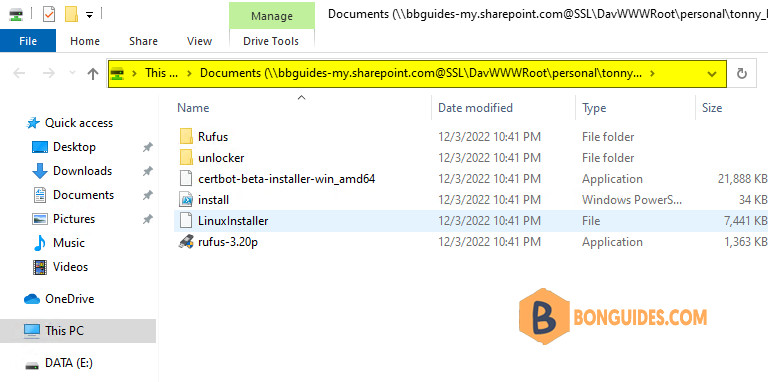
5. As you have added OneDrive as a new network drive. You can rename it to anything you prefer.