Table of Contents
OneDrive Quick Access
SharePoint is great but keeping track of document libraries that matter to you can be source of frustration. These two simples, but excellent features will help get you to your key documents faster and easier.
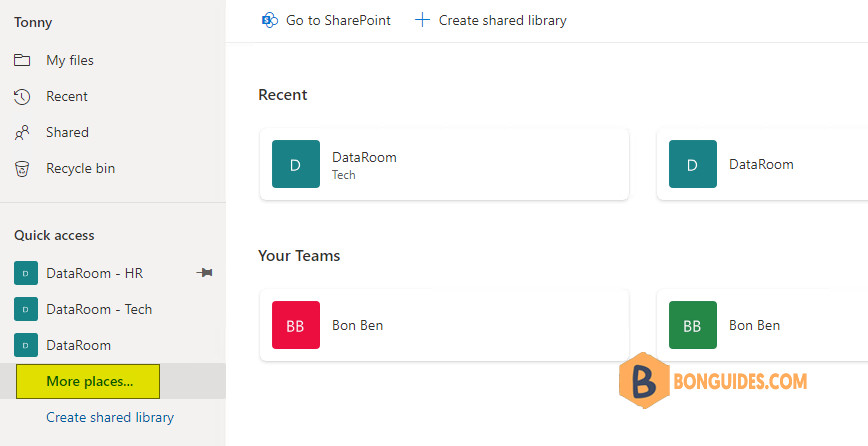
Microsoft are adding the capability to pin shared document libraries to the Quick Access section in OneDrive on the web to easily find and access the places where you regularly work.
Pin SharePoint Libraries to OneDrive for Business Quick Access
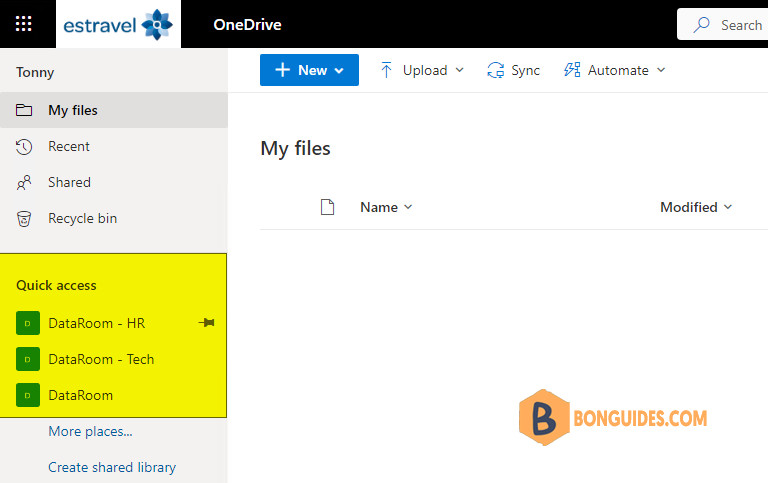
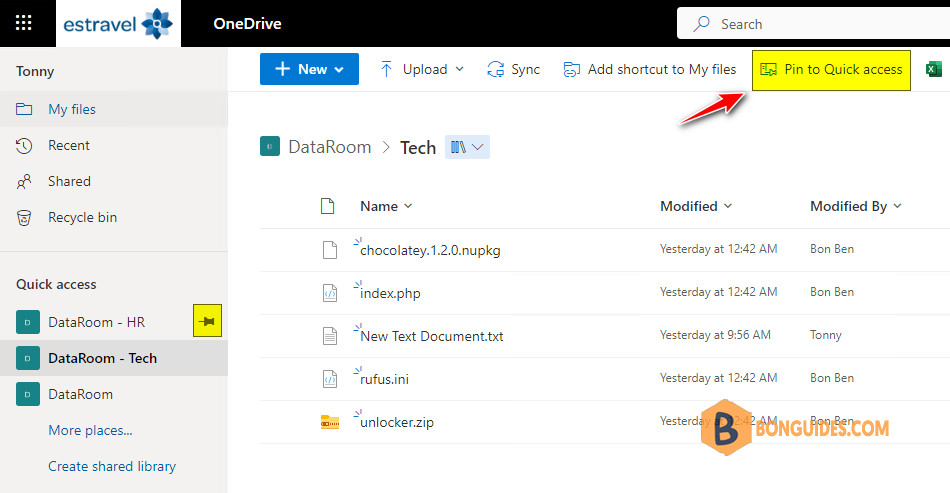
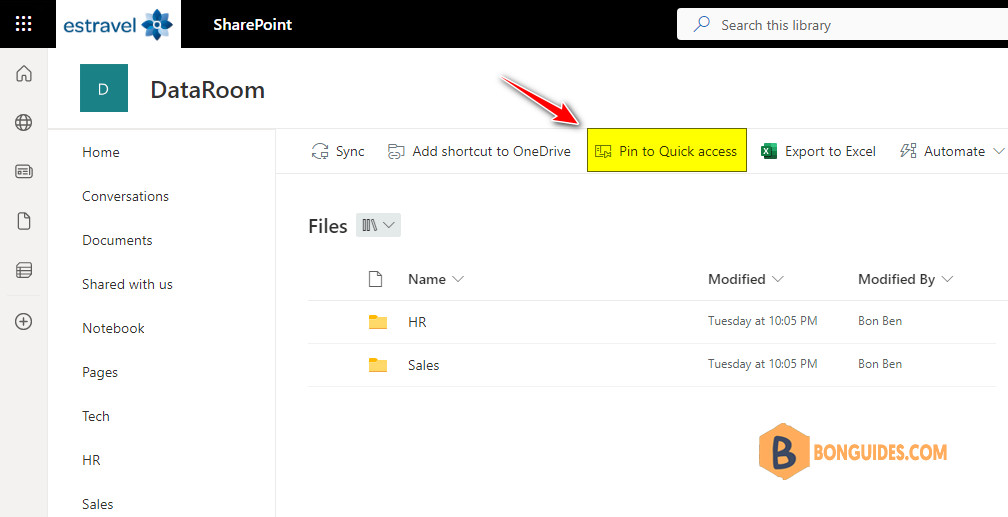
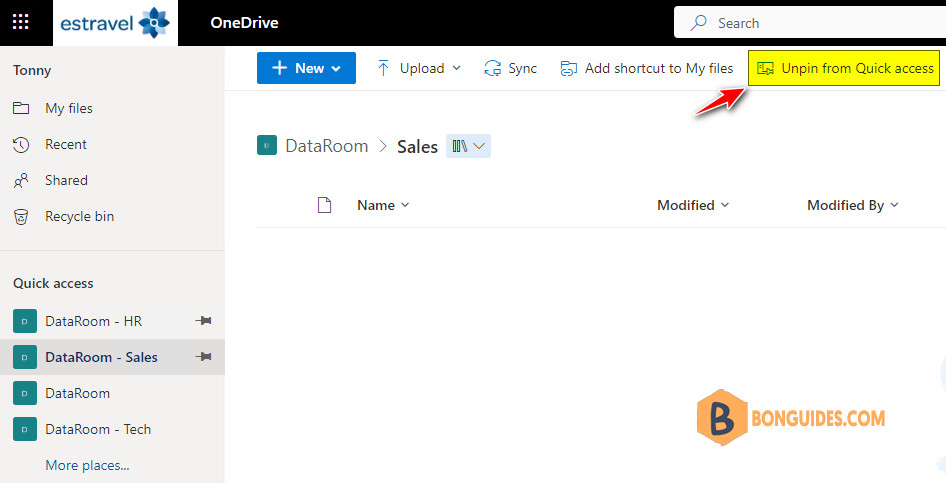
You will be able to pin shared libraries to the Quick Access section in the left nav of your OneDrive, using the Pin to Quick Access command for document libraries within OneDrive and SharePoint (at the document library level).
Note
This will not be available once you navigate into a folder or subfolder in a site
Pin SharePoint Libraries to OneDrive in OneDrive:
Pin SharePoint Libraries to OneDrive in SharePoint:
Alternatively, because you will also see a recent list of document libraries that have been recently used in the OneDrive left nav. So, you can hover on it then select Pin to Quick Access icon quicker.
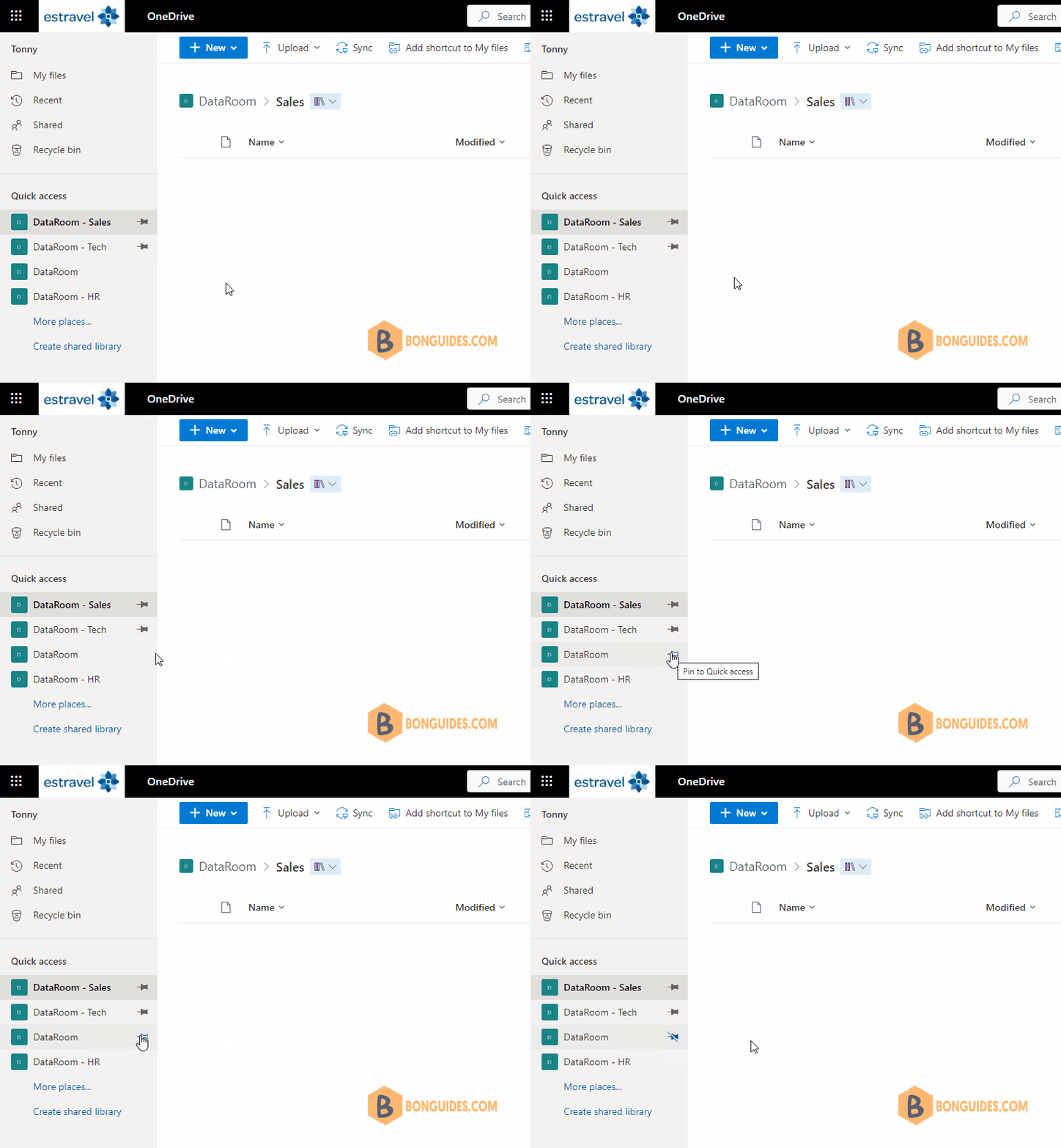
The pined document libraries will show on the top of Quick Access section. You can of course un-pin document libraries from the Quick Access section too.
They are also surfacing a list of your recently used shared libraries on the More Places page within OneDrive to help you find the places that you’ve recently opened files from.