Table of Contents
Add Trusted Sites using Internet Options
Microsoft Edge by default doesn’t support trusted websites feature, but you can change trusted websites from Internet Explorer and that should affect Edge as well.
If there are specific websites that you trust, you can place individual URLs or entire domains in the Trusted sites zone.
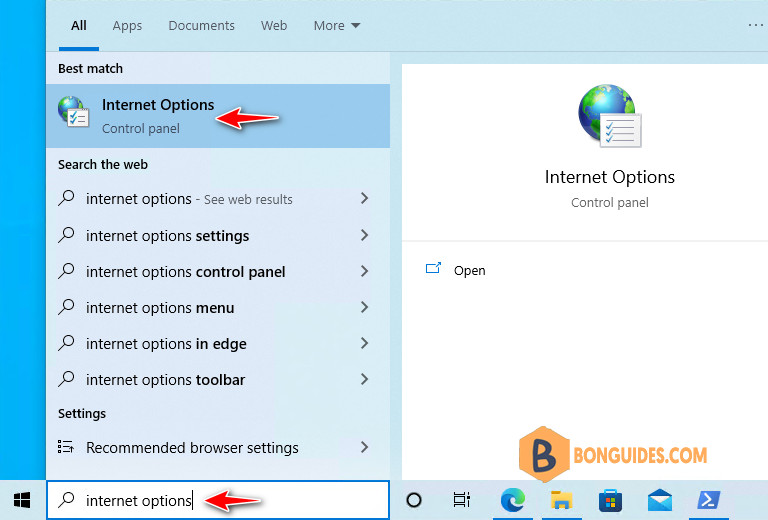
1. Open the Internet Options by search internet options then open it.
Alternatively, you can open the Internet Options window by doing the following:
- Press to open the Run window.
- Enter inetcpl.cpl and press Enter or click OK.
- Internet Properties window will now appear.
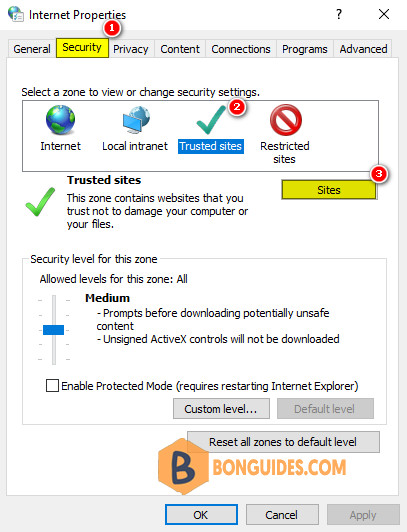
2. Select the Security tab, select Trusted sites, and then select Sites.
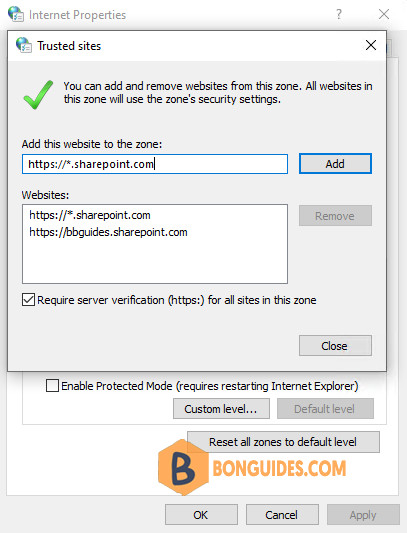
3. In the Add this website to the zone box, type the URL for the site that you want to add to the Trusted sites zone, and then select Add.
For example, type https://bbguides.sharepoint.com. Repeat this step for any additional sites that you want to add to this zone. If you want to include all subdomains (sites) that are part of a site, you can use wildcard like this https://*.sharepoint.com.
Note
Tip: If you want to add sites that do not require an encrypted channel, click to clear the Require server verification (https:) for all sites in this zone check box.
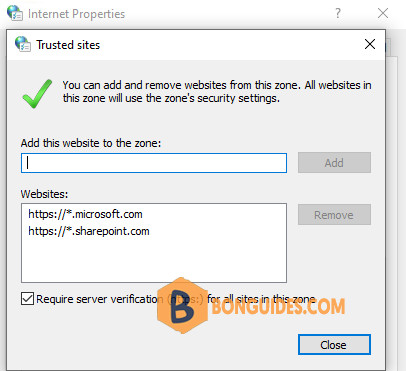
4. After you have added each site to the Websites list, select Close, and then select OK.
Add Trusted Sites using PowerShell
Alternatively, you can add a site using Windows PowerShell.
1. Right-click on the Windows Start icon then select Windows PowerShell (Admin).
Note
In Windows 11, select instead of Windows PowerShell (Admin)
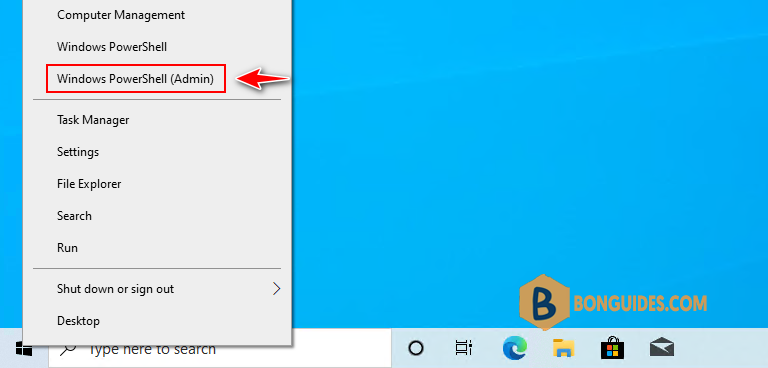
2. Run the following command at once to add sites into Trusted Sites zone.
Set-Location "HKCU:\Software\Microsoft\Windows\CurrentVersion\Internet Settings"
Set-Location ZoneMap\Domains
New-Item *.microsoft.com
Set-Location *.microsoft.com
New-ItemProperty . -Name https -Value 2 -Type DWORD
Set-Location "HKCU:\Software\Microsoft\Windows\CurrentVersion\Internet Settings"
Set-Location ZoneMap\Domains
New-Item *.sharepoint.com
Set-Location *.sharepoint.com
New-ItemProperty . -Name https -Value 2 -Type DWORD