
Table of Contents
Putty is a tool for connecting to remote computers (Linux or Windows) through SSH or telnet protocols. When we open new connection to a remote computer using putty software, we need to provide username and password.
This can be avoided by using SSH private and public keys. Below explained how to generate these SSH keys and how to use them in PuTTY.
Generate Keys
1. We start the configuration at the client windows computer. Download the latest version of Putty.exe and Puttygen.exe from the below links:
- PuTTY: https://the.earth.li/~sgtatham/putty/latest/w64/putty.exe
- PuTTYGen: https://the.earth.li/~sgtatham/putty/latest/w64/puttygen.exe
Note
In the recent version, when you download and install PuTTY, it includes PuTTY Gen, so you don’t need download them separately.
2. Using the Puttygen tool we have to generate an authentication key. This key will serve as a substitute for the password that will be entered during login.

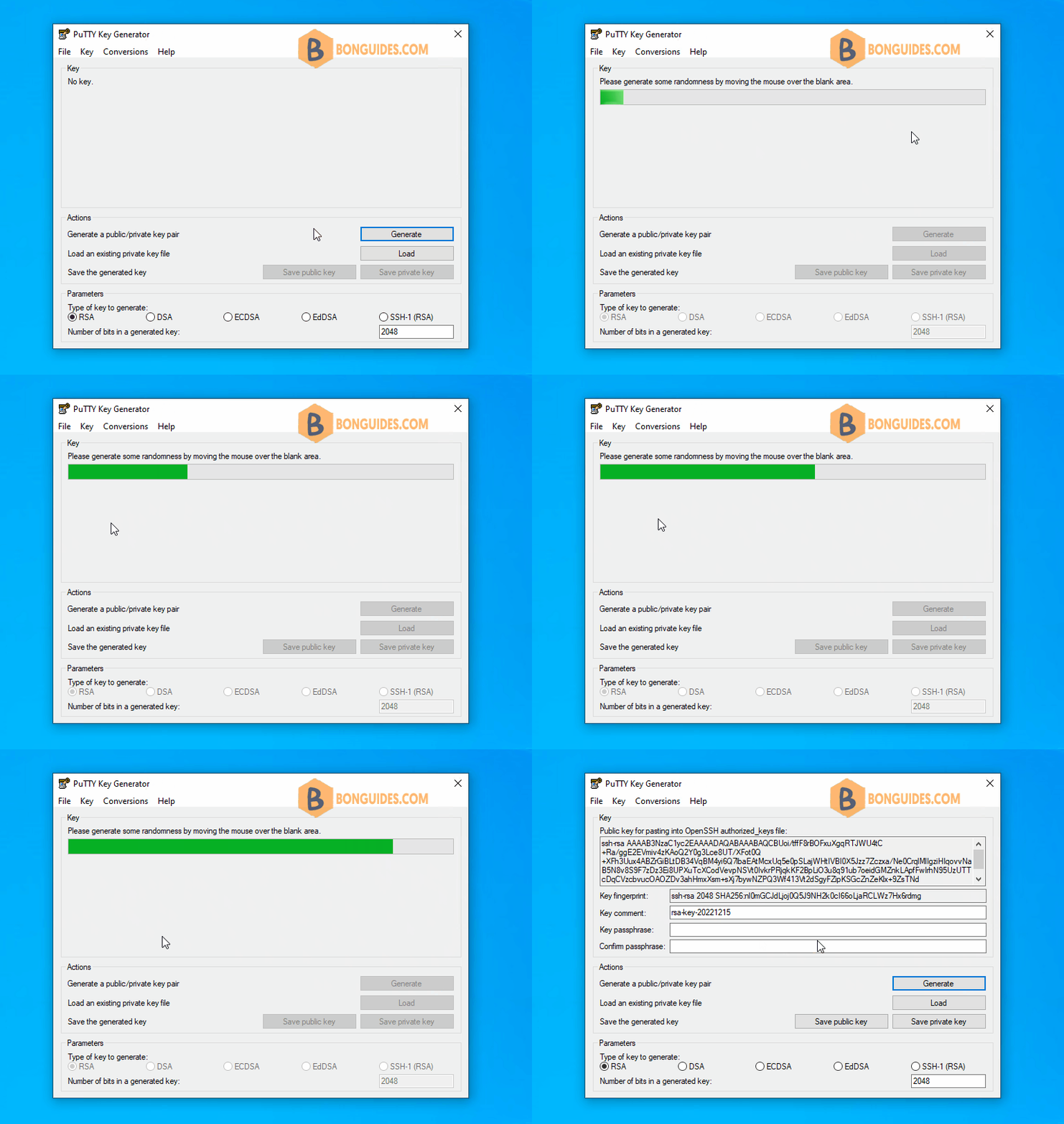
3. Leave the default selections and click on the button. The following window opens. Move mouse randomly over the empty space below the progress bar to create some randomness in the generated key.
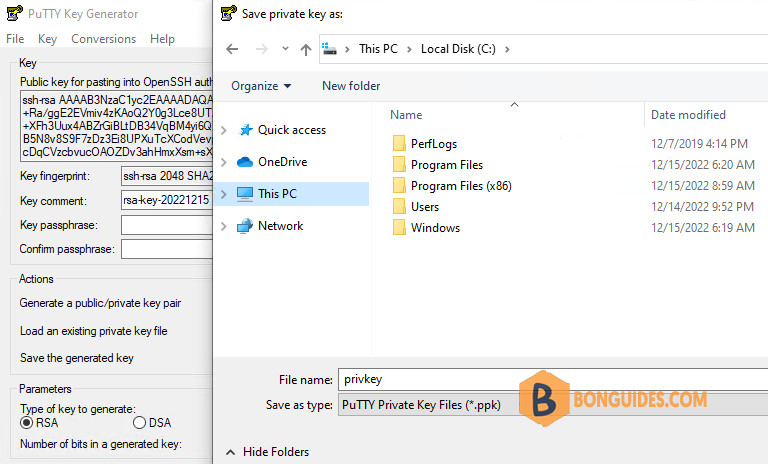
4. You don’t enter any key phrase. Let’s click on Save private Key button. Click Yes on the window asking for confirmation for saving the key without a password then save the key file to a safe location.
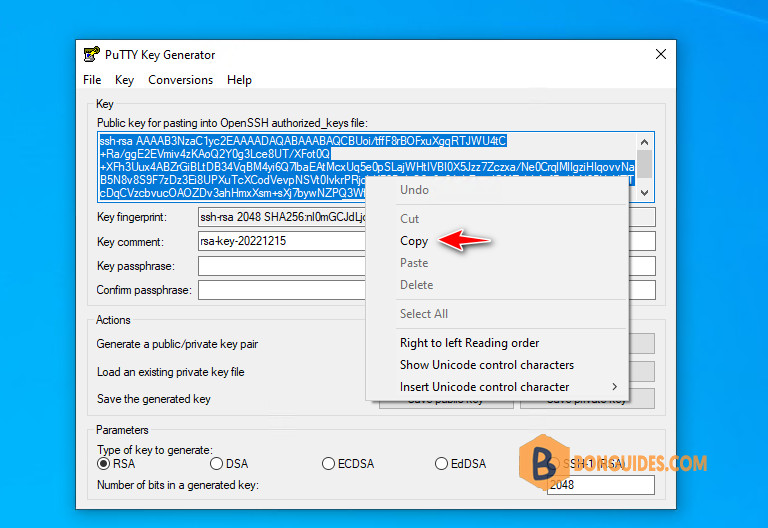
5. Now, copy the public key then save it into a text file for later uses.
Configure the Linux server
1. Close PuTTYgen and open PuTTY then connect to the remote system using the user you want to use for future with password prompt. This time when you login, you have to provide the password at the prompt. Future logins won’t require this password.
2. Under the logged in user’s home directory create a directory named ~/.ssh using the following command:
mkdir ~/.ssh3. Enter the below command to giving users (owners) read, write and execute permissions.
chmod 700 ~/.ssh4. Now, create an empty text file named authorized_keys using your favorite text editor.
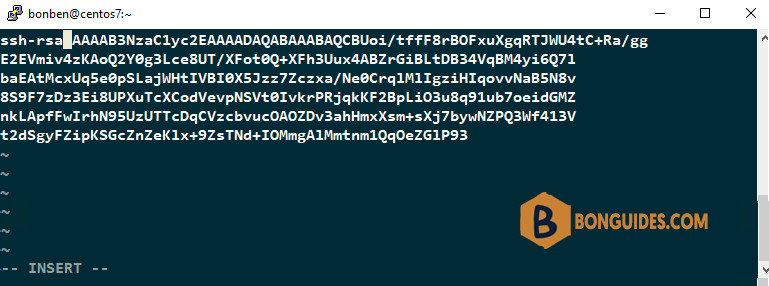
nano ~/.ssh/authorized_keys5. Paste the contents of the public key that you’ve saved in the previous step into authorized_keys file, then save and close the file.
Note
Tip: To save a file, you must first be in command mode. Press to enter command mode, and then type to write and quit the file by press .
6. Assign permissions only for the owner using the following command:
chmod 600 ~/.ssh/authorized_keys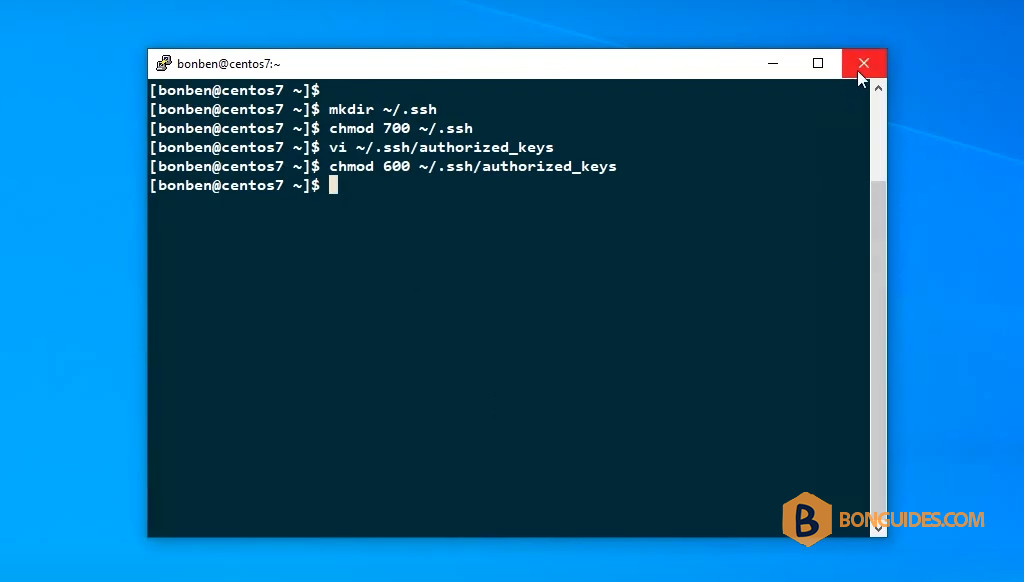
Finally, type exit to close the SSH connection.
Configure the PuTTY client
Now we have configured SSH server, it’s time to test our setup.
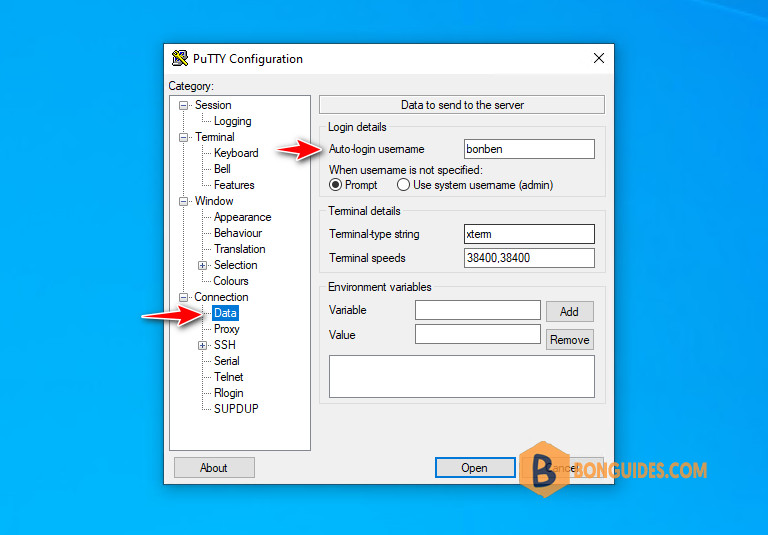
1. On the client system, open Putty. From the left navigation, select Connection > Data. Enter the username as Auto-login username on the right panel.
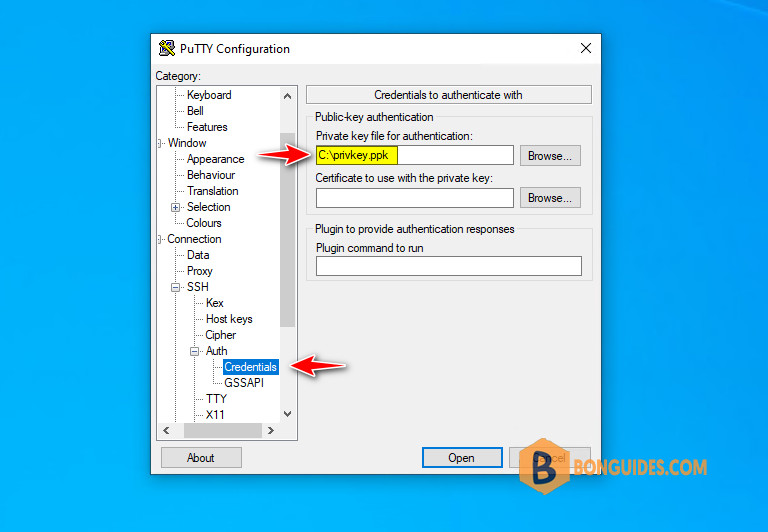
2. Again from the left navigation menu, scroll down and expand Connection > SSH > Auth. Enter the path of the saved private key file (In our case C:privkey.ppk ). Leave other defaults as such and press Open button.
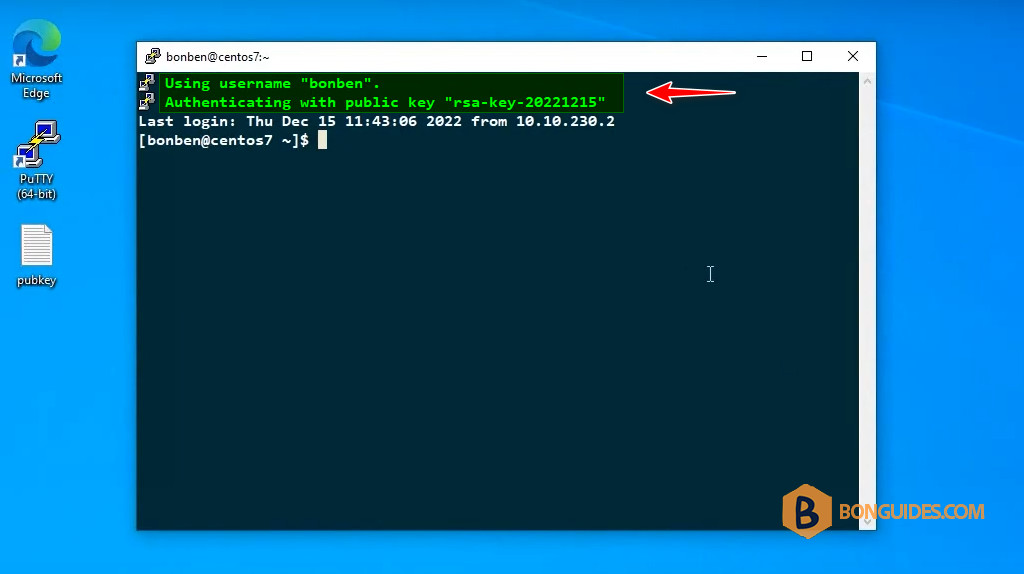
Now the PuTTY connects to the remote SSH server and there won’t be any password prompt.
Conclusion
SSH is a powerful tool and relies on password as a security. We just bypassed that security for sake of convenience. If a hacker get holds of the private key we generated, it allows a free access to your systems. So use this technique with care.


