Table of Contents
PuTTY is a freeware terminal emulator and SSH client for Windows packed with a lot of useful configuration options. Sometimes, you are mistyping your login name when logging into a server and the only solution when you do this is to close the PuTTY app, start it up again and then try again.
To make logins quicker and to save login name mistypes you can specify a auto-login username and then all you need to do is type in the password.
Note
Important: Please note that of course there may be security implications of storing your login name in the PuTTY settings so you may not want to do this.
Specifying the auto-login name with PuTTY
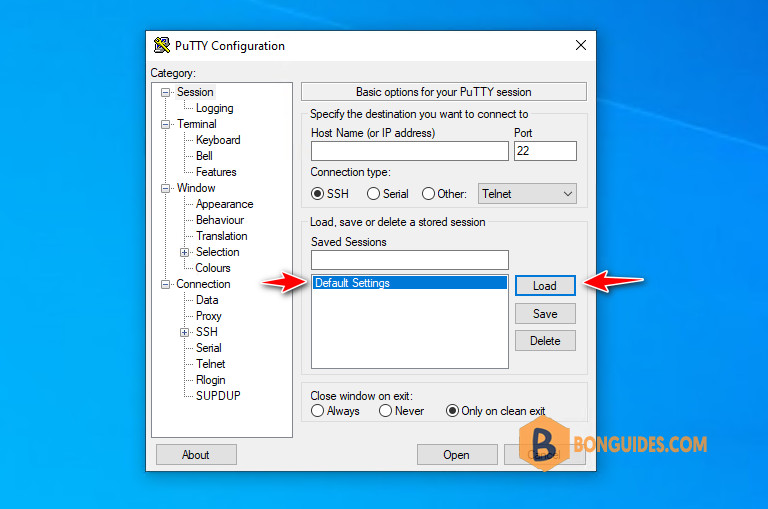
1. Open PuTTY and select Default Settings (which is usually highlighted) or any your saved session. Then click on Load.
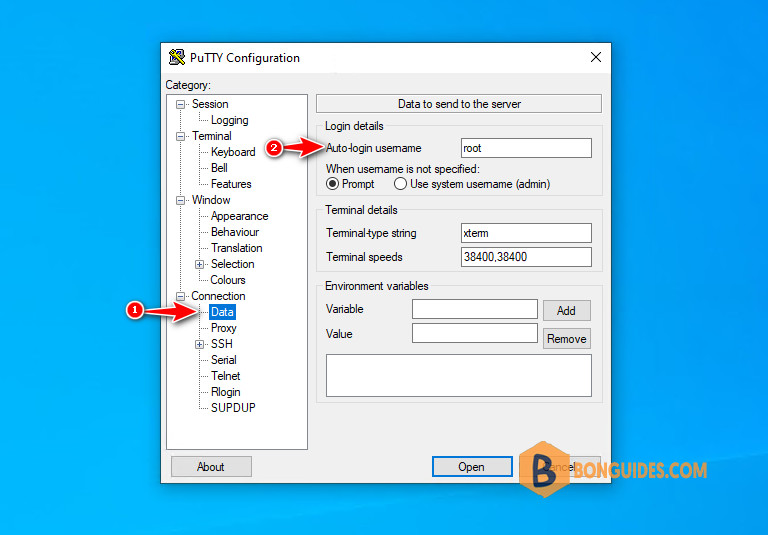
2. Click the Data option under the Connection. Then enter your auto-login name in the box. In this example the login name is root.
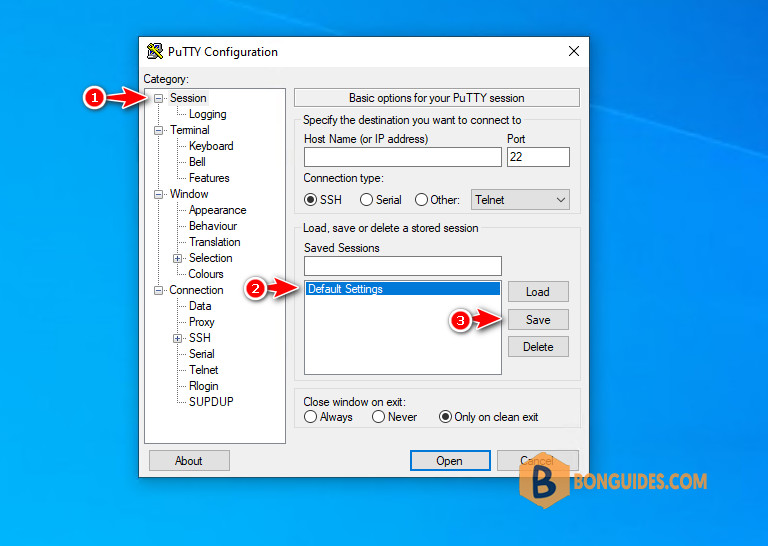
3. After configuring the login name, select Session again, then select Default Settings, then click on Save.
Note
This step is very important, if you don’t select the session and click Save. The changes won’t save and the next time when you open a remote connection, everything will be reverted by default.
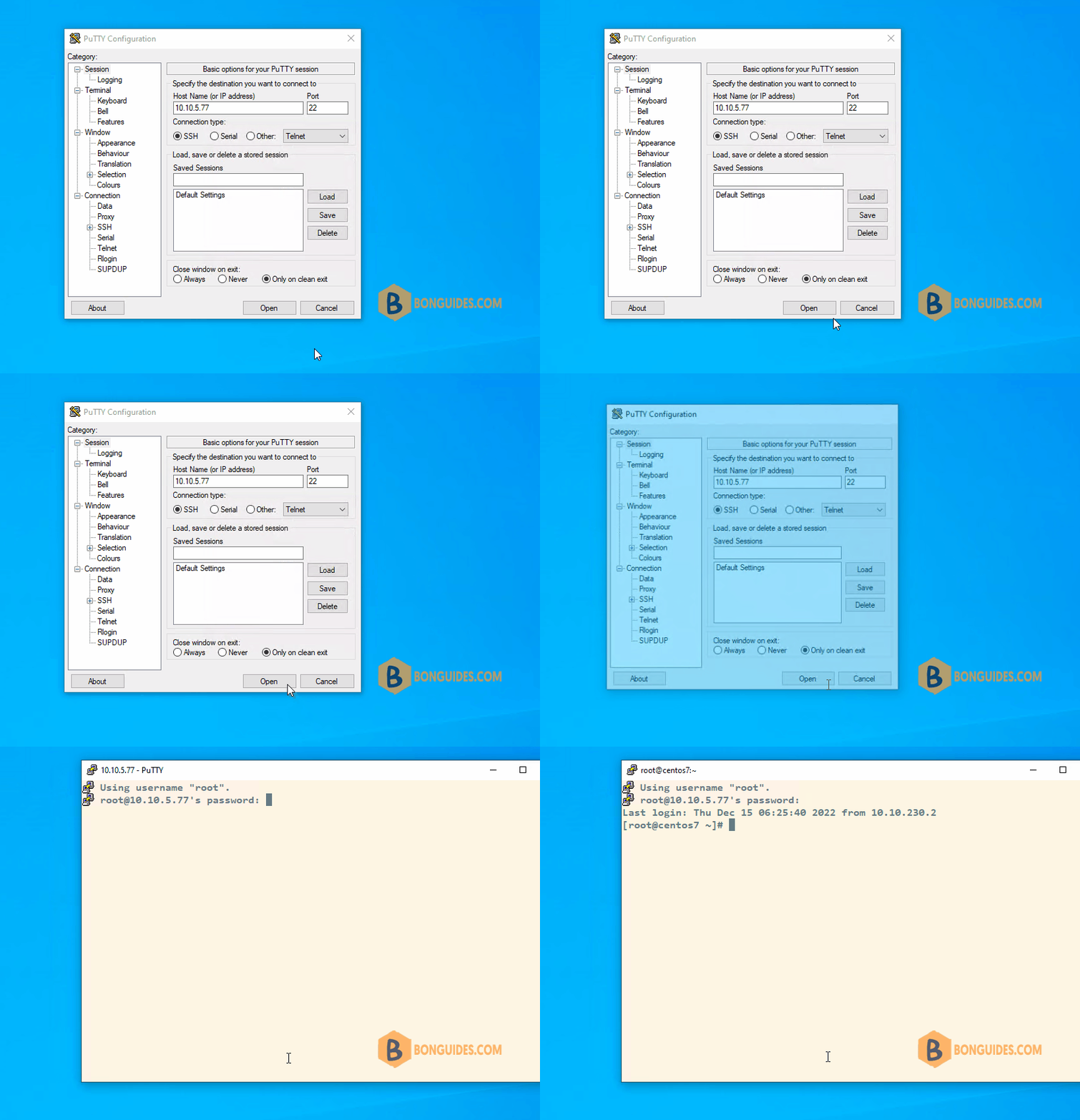
In the next times, when you connect to the server the username specified is now passed along automatically without you having to type it in. All you need to do now is to the type in the password.