Table of Contents
If you want to change PuTTY text color that are more visible to your eyes and make you understand what is written on your PuTTY console. We should always set text colors that are clear and visible to eyes.
Change PuTTY Text Color
You can see text color in my PuTTY console is very light and very difficult to read. You need to put more focus in just reading the texts, so I have decided to change putty text color.

1. Close all opening PuTTY session then reopen PuTTY.
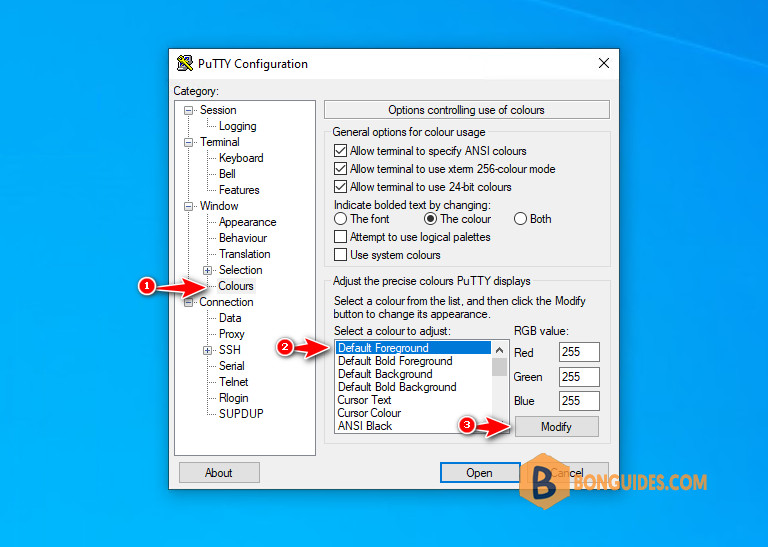
2. Click on Colours tab from left side pane and select an option from right side pane for which we must change the color. As we have to change PuTTY text color so we will select Default foreground from right side pane. Now, click on Modify button to select colors for your text.
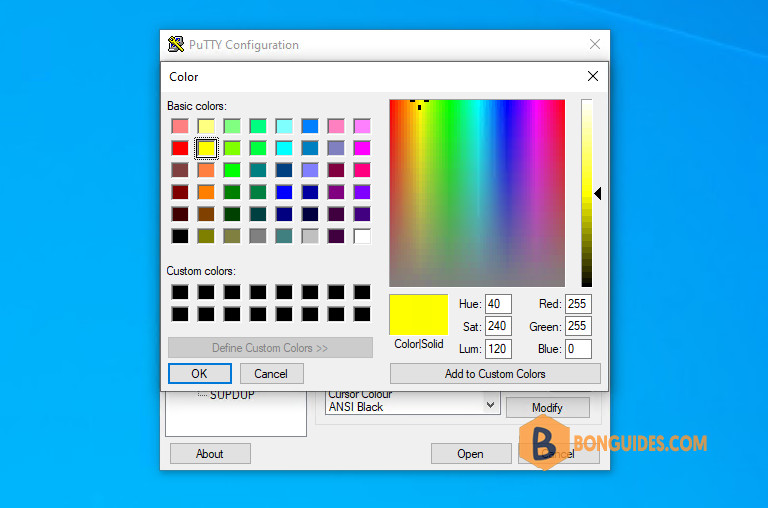
3. Choose the color that you want for the text, or you can also make a custom color by adjusting options on the right side.
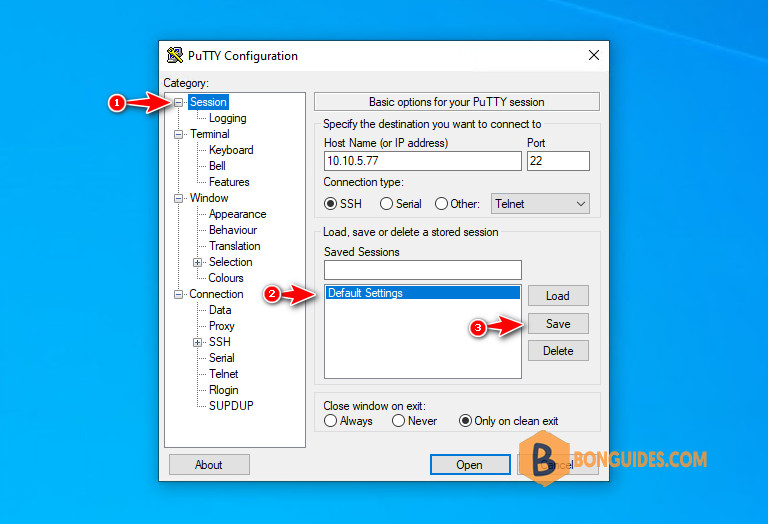
4. After configuring the colors, select Session again, then select Default Settings or any your saved session then click on Save.
Note
This step is very important, if you don’t select the session and click Save. The changes won’t save and the next time when you open a remote connection, everything will be reverted by default.
The font color will change in the command window as shown below: