
Table of Contents
Hide or Remove the WSL Linux Icon From Desktop
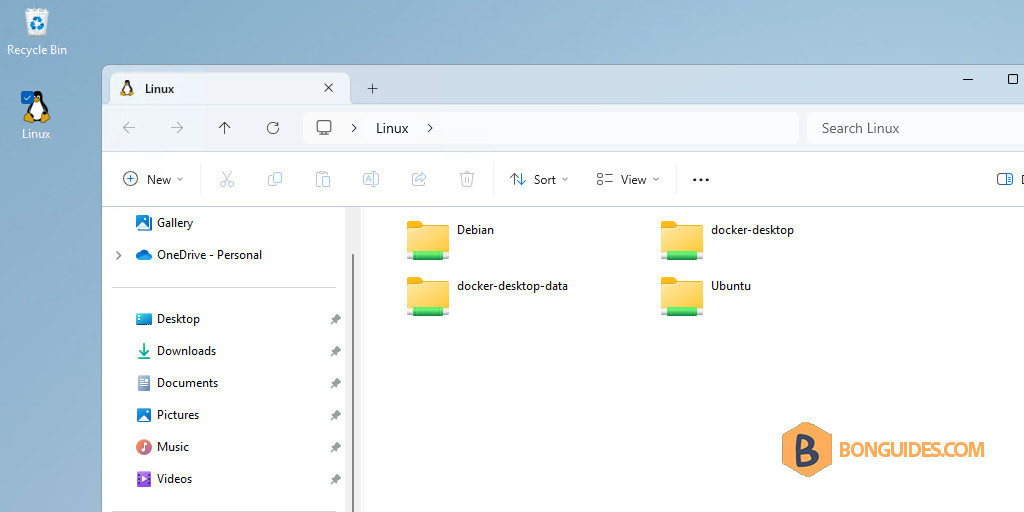
After installing WSL/Ubuntu 22.04 from the Microsoft Store on Windows 11, a Linux icon was added to the Desktop which could not be removed the usual way.

When click on the icon, it opens the home folder of all installed WSL instance. I’ve tried to remove or uninstall installed Linux distribution. But the icon still remains.
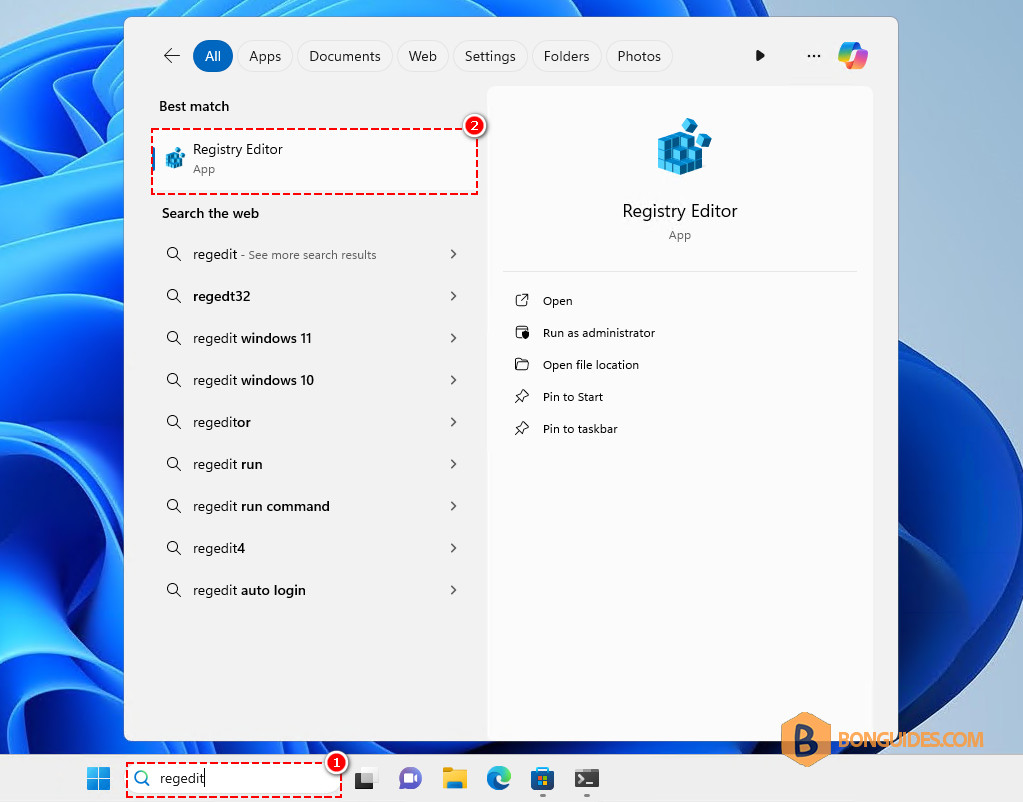
1. To fix it, in the Windows search box, type regedit to search then open the Registry Editor.
2. Navigate to the following key from the left navigation panel or you can copy the path then paste into the bar then hit Enter to go to the key directly.
HKEY_CURRENT_USER\Software\Microsoft\Windows\CurrentVersion\Explorer\HideDesktopIcons\NewStartPanel3. Right-click on the blank area then create a new DWORD (32-bit) Value.
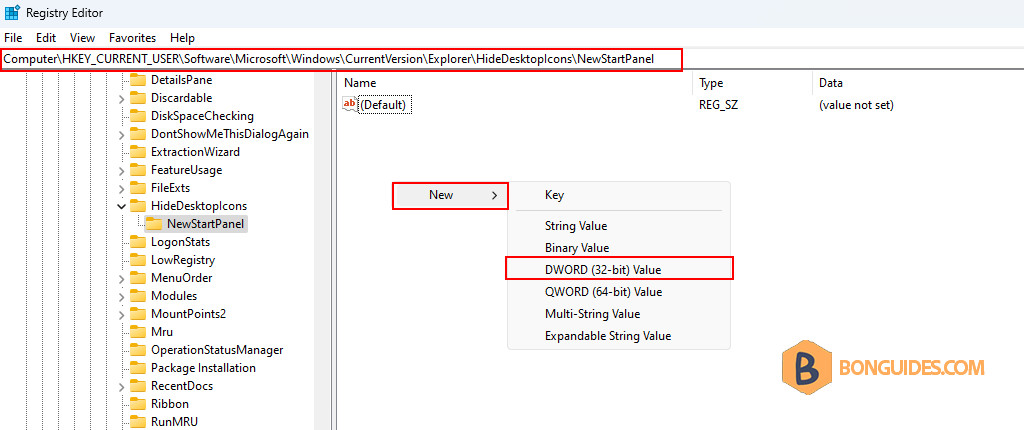
4. Name it uses the following string.
{B2B4A4D1-2754-4140-A2EB-9A76D9D7CDC6}5. Once it is created, double-click on it, set its value as 1 then close the Registry Editor.
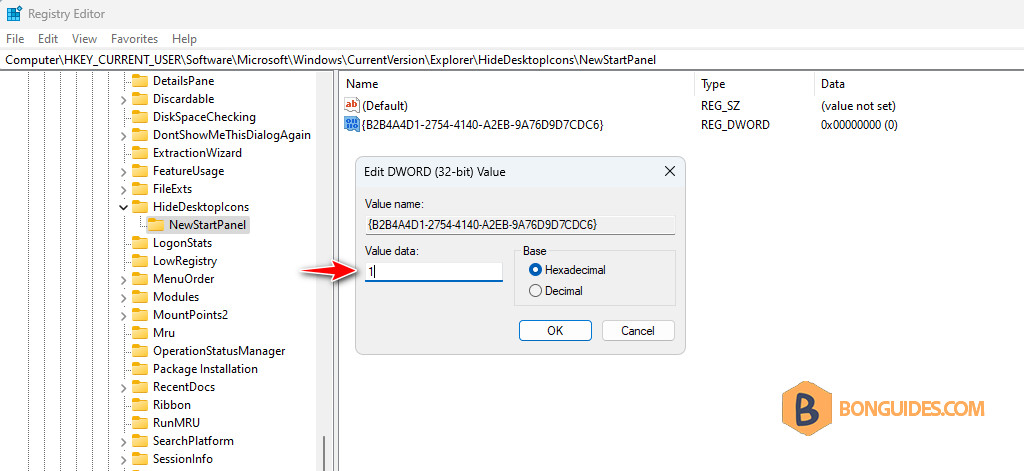
6. Restart the computer or restart the Windows Explorer to take the changes go into effect.
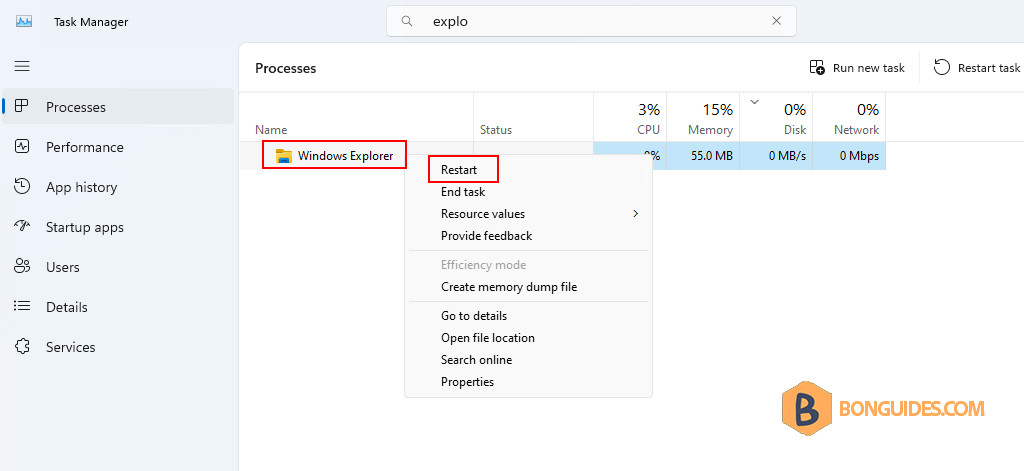
The Linux icon in your computer desktop should be gone.
Alternatively, if you don’t want to do it manually, you can open Notepad and save the following snippet to a .reg file and import it into the Registry Editor.
Windows Registry Editor Version 5.00

[HKEY_CURRENT_USER\Software\Microsoft\Windows\CurrentVersion\Explorer\HideDesktopIcons\NewStartPanel]
"{B2B4A4D1-2754-4140-A2EB-9A76D9D7CDC6}"=dword:00000001

