
Table of Contents
In some cases, you want to hide the date and time in the taskbar in Windows 11.

Update: On Windows 11 22H3 and later, we can hide the Date and time in the Taskbar natively using Windows Settings.
All you need to do is open Windows Settings | Time & Language | Date & Time | Toggle off the switch Show time and date in the System tray.
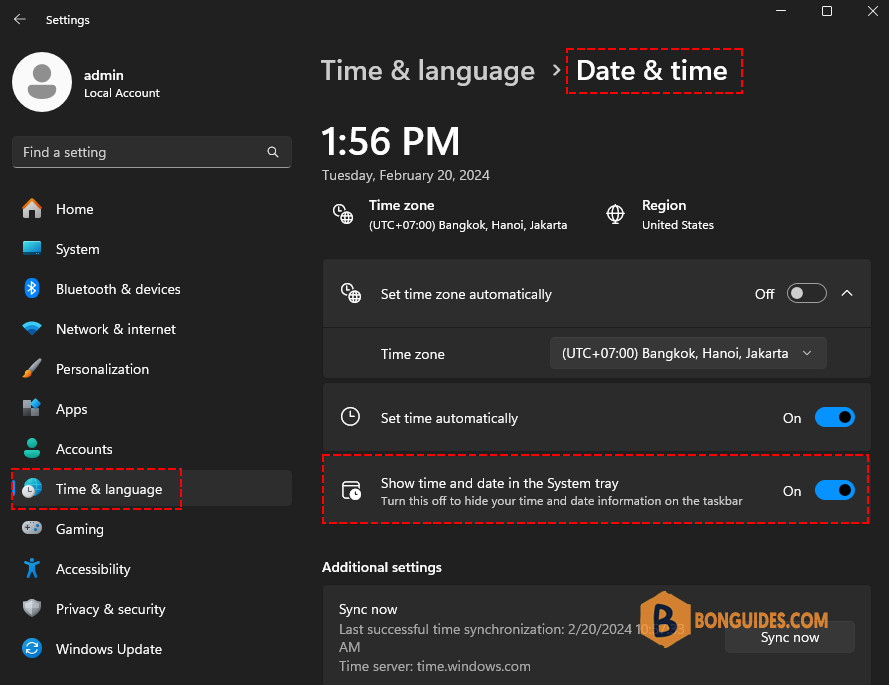
If you’re running the previous versions of Windows 11. Below are the alternative ways to disable or hide the date and time in the Taskbar in Windows 11.
Method 1: Using Win11ClockToggler
1. Download this tool from https://github.com/jmalarcon/Win11ClockToggler/releases/

2. Extract downloaded file to a folder then open the app Win11ClockTogglerGUI.exe.

3. Click on the Toggle visibility button to hide the date and time in Windows 11 taskbar.

Now, you’ve a clean taskbar without the date and time icons.

Note: To get back the date and time, let’s reopen the app then click on Restore & exit button.

Method 2: Using the Region settings
1. Open Control Panel in Windows 11 then select Change date, time or number formats under Clock and Region category.

2. In the Region window, select Additional settings button.

3. Now, select the Time tab the change the Short time format from h:mm tt to s.

4. Navigate to the Date tab then change Short date format from M/d/yyyy to dddd.

Don’t forget click on Apply button to save the changes. Then you would get the final result like the below image.


