
Table of Contents
The Intune Management Extension service is responsible for executing PowerShell scripts and Win32 apps on managed devices. When these scripts and apps fail to run or encounter errors, it’s important to have log files that can help you diagnose and troubleshoot the issues. Without proper log file settings, you might miss important details that can help you resolve issues quickly and effectively.
In this article, I’ll explain why configuring log file settings is important and show you how to configure these settings using PowerShell.
Default Log File Settings for the Intune Management Extension
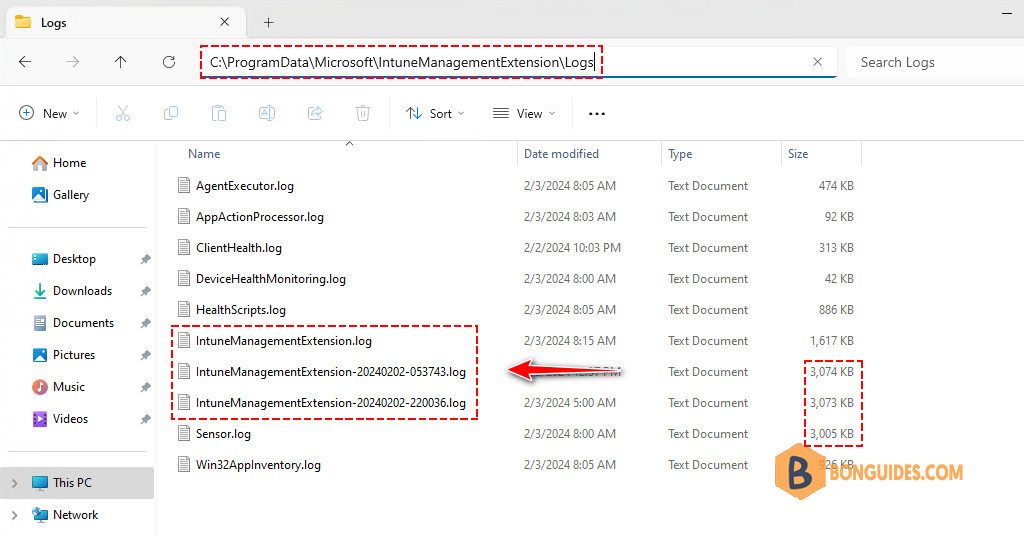
By default, the Intune Management Extension service stores log files in the following directory: C:\ProgramData\Microsoft\IntuneManagementExtension\Logs.
The service retains 3 log files:
- The file IntuneManagementExtension.log which always contains the latest information
- Two archive files IntuneManagementExtension-<timestamp>.log. Each file has a maximum size of about 3 MB. When the IntuneManagementExtension.log file reaches its maximum size (about 3MB per file), this file is renamed to IntuneManagementExtension-<timestamp>.log.
Configuring Log File Settings for the IEM
The following script configure logs settings to increase the log file size and retention for the Intune Management Extension service to enable extended log analysis for troubleshooting and monitoring purposes.
Specifically, you’ll need to set:
- LogMaxSize: the maximum log file size in bytes
- LogMaxHistory: the maximum number of log files to retain, respectively.
Note
LogMaxHistory is only for archive files. So, if you set the value to 5, there will be 6 files kept (the IntuneManagementExtension.log file and 5 archive versions).
Here’s an example PowerShell script that sets the LogMaxSize value to 10 MB (which is 10,485,760 bytes) and the LogMaxHistory value to 10, which will keep up to 10 versions of the log file with a maximum size of 10 MB each. The script then restarts the Intune Management Extension service to apply the changes.
Of course, you can deploy this script with Intune.
# Set the maximum log file size in bytes (10MB)
$maxLogSizeInBytes = 10485760

# Set the maximum number of log files to retain
$maxLogFiles = 10

# Check if the logging key exists and create it if it doesn't
$regPath = "HKLM:\SOFTWARE\Microsoft\IntuneWindowsAgent\Logging"
if (-not (Test-Path -Path $regPath)) {
    $null = New-Item -Path $regPath
}

# Set the registry values for the log file settings
Set-ItemProperty -Path $regPath -Name "LogMaxSize" -Value "$maxLogSizeInBytes"
Set-ItemProperty -Path $regPath -Name "LogMaxHistory" -Value "$maxLogFiles"

# Restart the Intune Management Extension service to apply the changes
Restart-Service -Name "IntuneManagementExtension"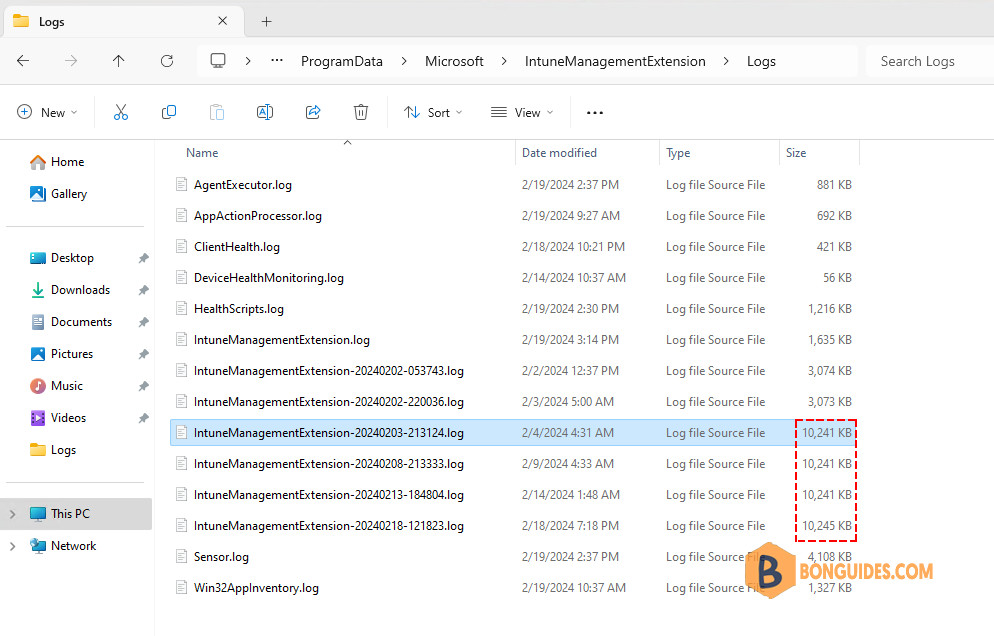
Conclusion
Deploying applications with Microsoft Intune provides a centralized, secure, and cost-effective way to manage and distribute software in an organization. With the ability to monitor the deployment progress from the Intune admin portal, IT administrators can ensure that the applications are deployed and functioning as intended on their managed devices.
Related: Below is the list of our posts that will help you to configure and manage devices
- Prepare Win32 app package for upload.
- Understanding Intune Detection Rules.
- Deploy an Win32 App with Dependencies.
- Upgrade or Replace app with Supersedence in Intune.
- Assign Apps to Groups with Microsoft Intune.
- Force sync devices in Intune.
- Access and Read Intune Management Extension Logs.
- Deploy Microsoft Store Apps Using Intune.
- Deploy PowerShell Script using Intune


