
Table of Contents
The Software Protection Service Failed to Start
In some cases, in Windows 10 and Windows 11, the Software Protection service failed to start with error code 0x80070005.

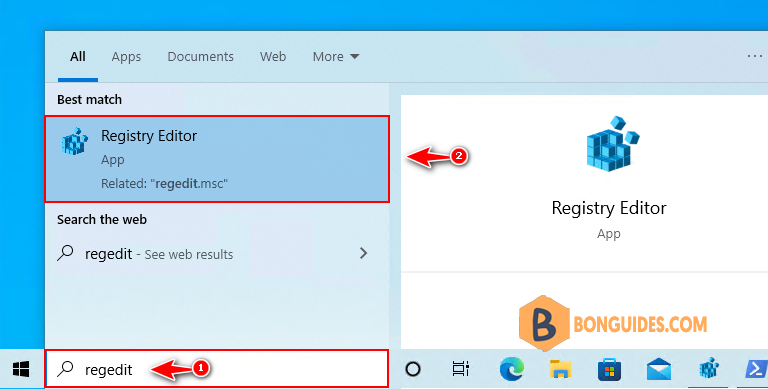
1️⃣ To fix it, from the Windows search bar, type regedit then open Registry Editor from the results.
Note
Alternatively: Press to open the Run box. Type regedit into the box then hit .
2️⃣ From the Registry Editor navigate to the following hive.
HKEY_LOCAL_MACHINE\SYSTEM\CurrentControlSet\Services\sppsvc3️⃣ Double click on ObjectName string to open it.

3️⃣ In the Edit String window, change Value data from NT AUTHORYNetworkService to LocalSystem then click to save the change.

4️⃣ Now, start the service to verify it works.


