
Table of Contents
Anydesk is a SaaS application that helps businesses manage their remote workers. It is also available as a macOS app, which you can install on your Mac computer to view and manage your Anydesk account from your desktop.
Install AnyDesk on a Mac from GUI
1. Download setup file from AnyDesk home page or direct link.
2. Open downloaded file (.dmg) from Downloads folder to install AnyDesk.
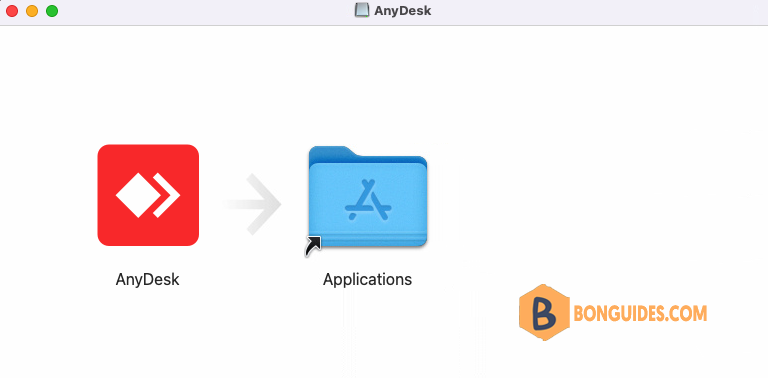
3. Drag and drop the AnyDesk application to the Applications folder to install it.
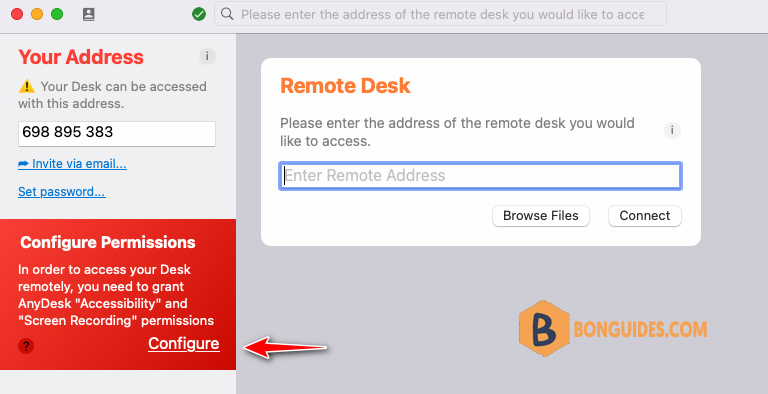
4. Open the installed app from Applications folder. Then you need configure permission to access remotely. You need grant AnyDesk Accessibility and Screen Recording permissions.
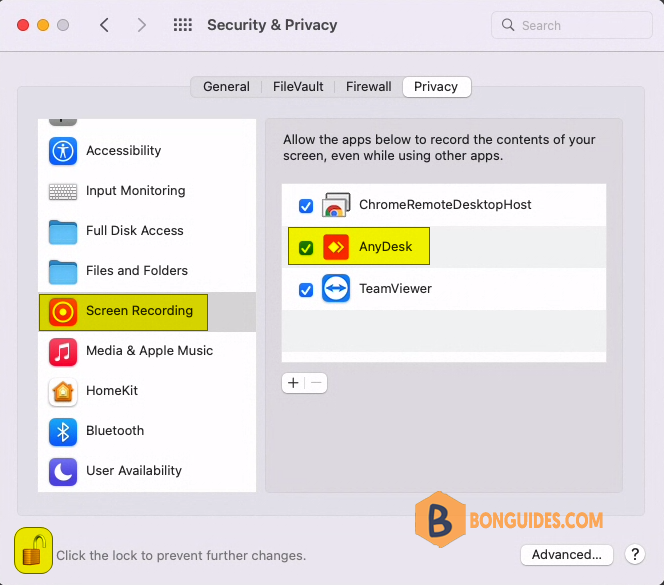
Or you can configure manually by open System Preferences | Security & Privacy | Unlock the lock icon | Select Screen Recording | Then select the AnyDesk checkbox.
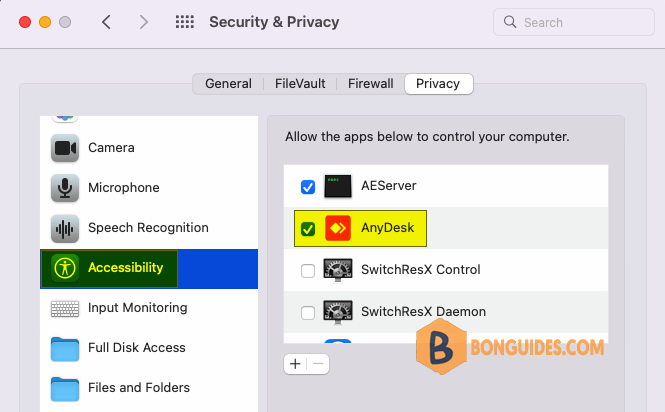
And don’t forget grant Accessibility permission for AnyDesk.
5. Now, your desk is ready, let’s share the ID with your partner.
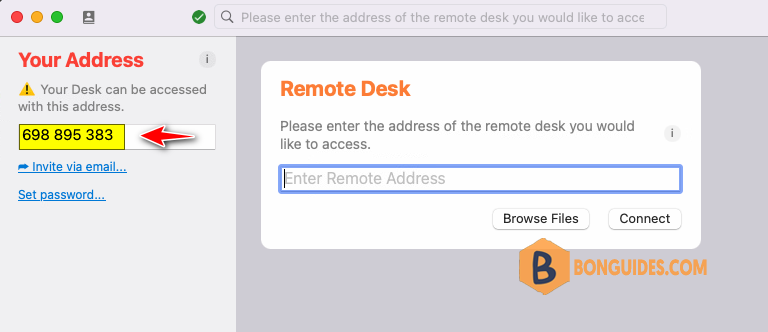
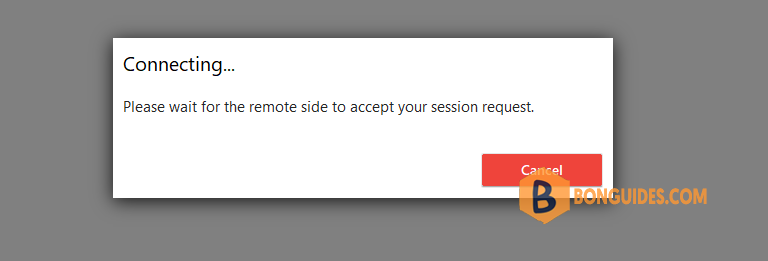
6. When the partner enters you ID into their desk, you need the acceptation from you before connect.
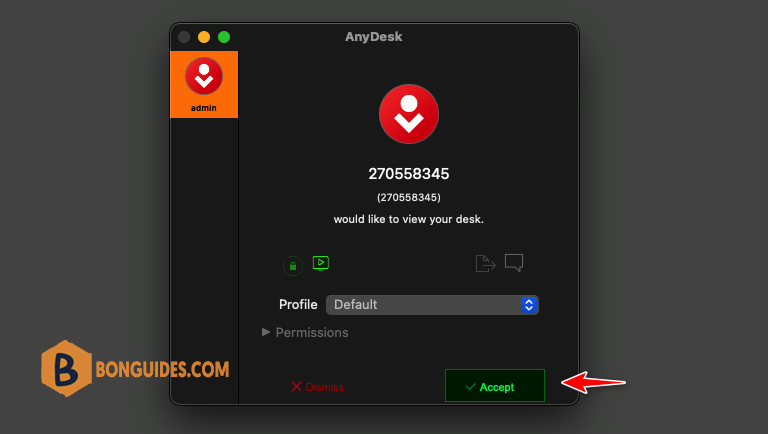
7. On the Mac, click button to allow the remote connection from the partner.
Finally, the connection is established.

Install AnyDesk using command line in Terminal
The second way, you can install AnyDesk form Terminal on macOS.
1. Download and install Homebrew on macOS.
2. Once the Homebrew is installed, run the following command to get the information of AnyDesk package.
bonben@flame01 ~ % brew info anydesk
==> anydesk: 6.6.0
https://anydesk.com/
/opt/homebrew/Caskroom/anydesk/6.6.0 (121B)
From: https://github.com/Homebrew/homebrew-cask/blob/HEAD/Casks/anydesk.rb
==> Name
AnyDesk
==> Description
Allows connection to a computer remotely
==> Artifacts
AnyDesk.app (App)
==> Analytics
install: 1,017 (30 days), 3,082 (90 days), 12,331 (365 days)
3. Finally, run the following command to download and install AnyDesk:
brew install --cask anydeskbonben@flame01 ~ % brew reinstall --cask anydesk
==> Downloading https://download.anydesk.com/anydesk.dmg
######################################################################## 100.0%
Warning: No checksum defined for cask 'anydesk', skipping verification.
/Library/LaunchDaemons/com.philandro.anydesk.Helper.plist
/Library/LaunchDaemons/com.philandro.anydesk.service.plist
/Library/PrivilegedHelperTools/com.philandro.anydesk.Helper
==> Purging files for version 6.6.0 of Cask anydesk
==> Installing Cask anydesk
==> Moving App 'AnyDesk.app' to '/Applications/AnyDesk.app'
🍺 anydesk was successfully installed!Or you can rub below commands at once to install Homebrew and AnyDesk automatically.
url='https://raw.githubusercontent.com/Homebrew/install/HEAD/install.sh'
/bin/bash -c "$(curl -fsSL $url)"
brew install --cask anydesk

