
The terminal is a Mac utility that is often overlooked because some users find it arcane. But it provides an opportunity to customize elements of your Mac by using command line prompts. This way, you can perform tasks that would otherwise require additional software.
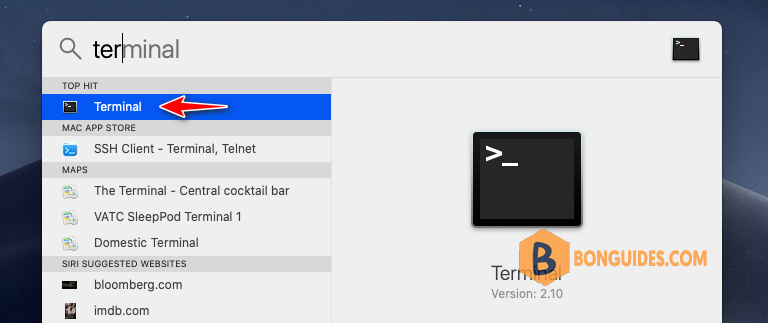
1. Search then open Terminal app from Spotlight
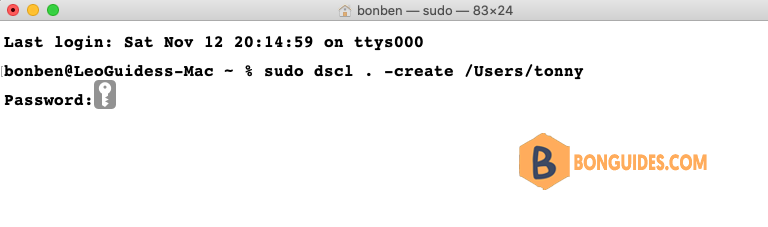
2. Type the following command to create a new user account named tonny. You should change it to any username as you need.
sudo dscl . -create /Users/tonny Usershell /bin/bashNote
When you type the password, it is invisible. So, type slowly and ensure correct then press enter at the end.
The password you type in this step is your account password. It’s not password for the new account. We’ll create the password for the new account in next step.
3. Now run the following command, to create the disaplay name for the new account:
sudo dscl . -create /Users/tonny RealName "Tonny CK"sudo dscl . -create /Users/tonny NFSHomeDirectory /Users/tonnysudo dscl . -passwd /Users/tonny "NewP@ssword"To give the user administrative privileges, type in “sudo dscl . -append /Groups/admin GroupMembership username” and hit “enter.”
sudo dscl . -create /Users/tonny
sudo dscl . -create /Users/tonny RealName "Tony Brown"
sudo dscl . -create /Users/tonny NFSHomeDirectory /Users/tonny
sudo dscl . -passwd /Users/tonny mySecretPassword

