
Table of Contents
Notepad is a basic text editor in all Windows editions, it’s extremely useful when you want to edit text files quickly. By default, when you want to open a file with Notepad, you right-click on the file > Open with > Notepad. But going through the steps and then opening the file can be tiresome.
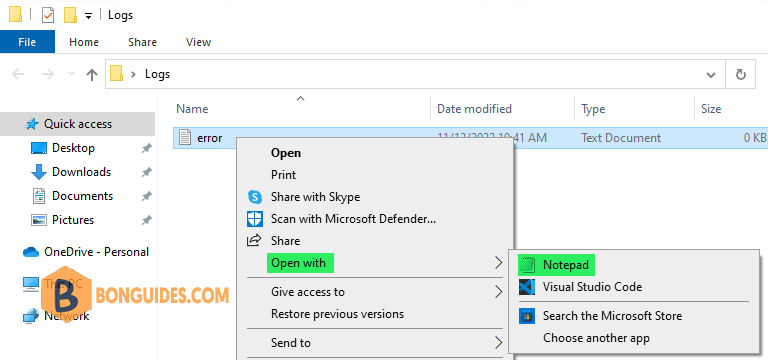
Add Open with Notepad to the Context Menu Using Registry
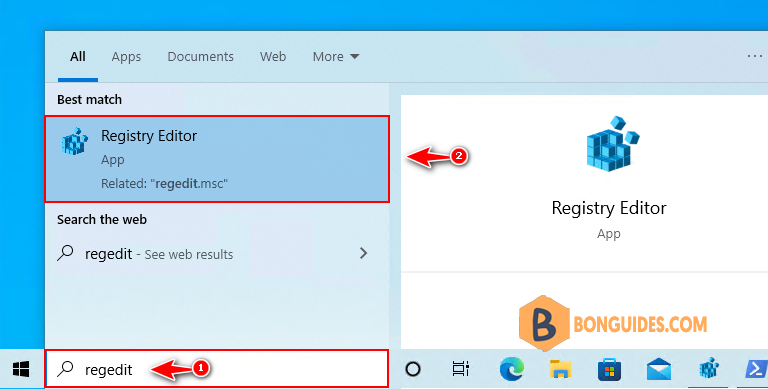
1. Type regedit into the Windows search box then click Registry Editor from the result to open it.
Note
Alternatively: Press to open the Run box. Type regedit into the box then hit .
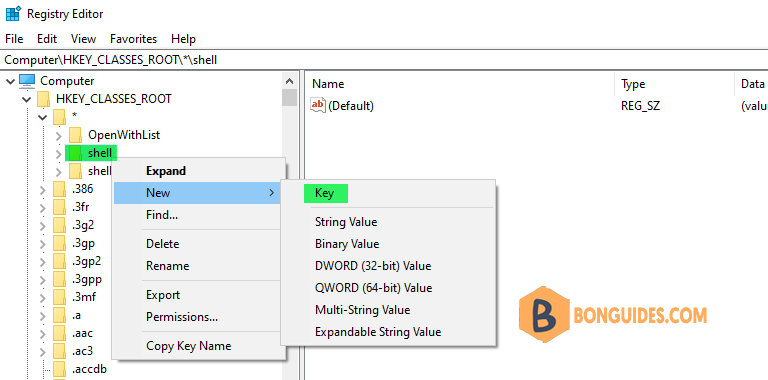
2. In the Registry Editor, expand . Then, right-click the shell key on the left panel and select New > Key.
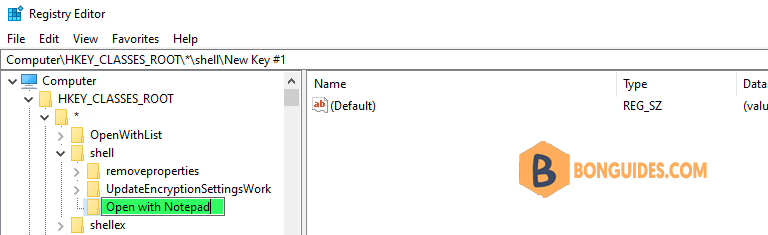
3. Name this key Open with Notepad.
4. Now, right-click on the Open with Notepad key you just created and select New > Key. Then, name that key command.
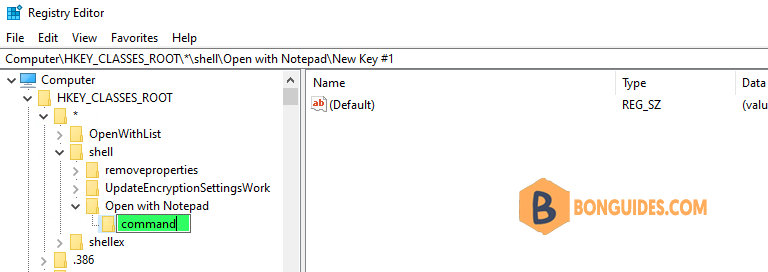
5. Select the command key then on the left panel and double-click the Default entry on the right panel to open the Edit String dialog box.
6. In the Value data text box, enter the following string value and then click on OK to close the dialog box.
notepad.exe %1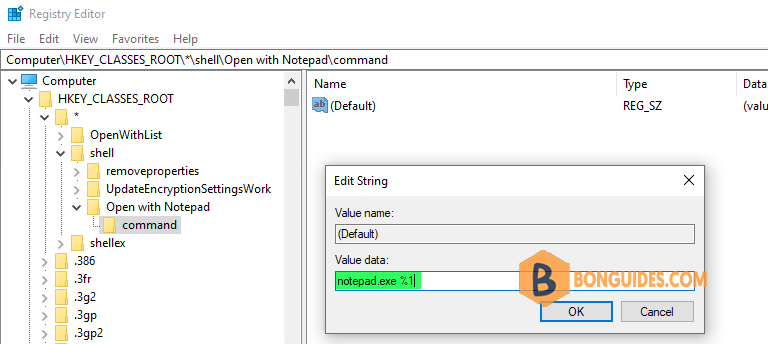
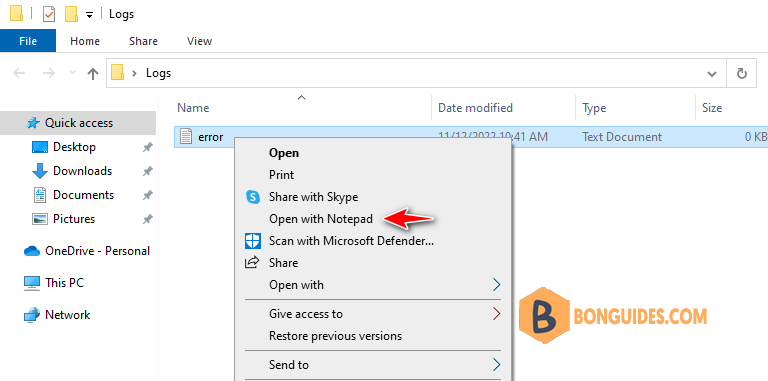
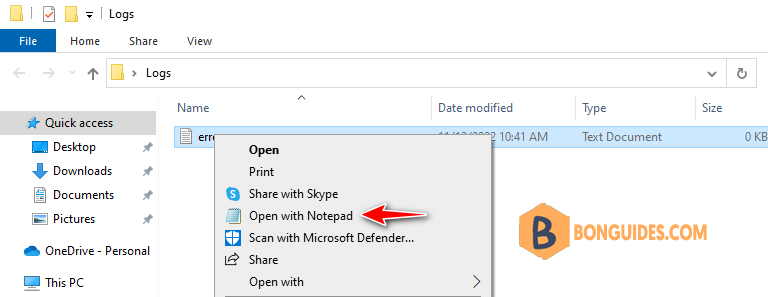
Now, when you right-click on a file, you should see the option Open with Notepad. But has no icon next to that option. To add it, let’s move to the next step.
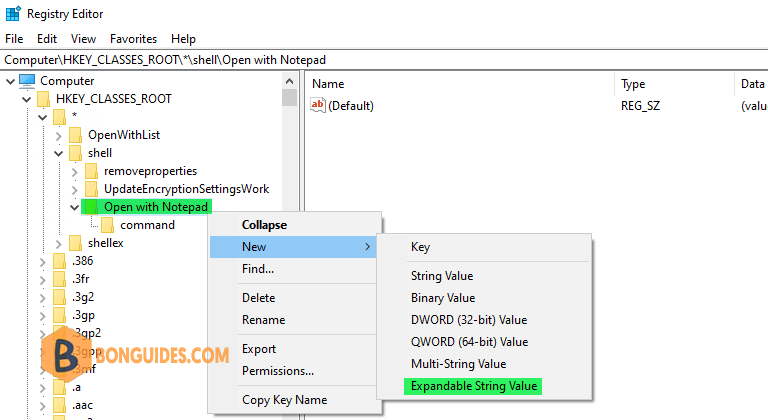
7. Right-click on the Open with Notepad key that you previously created in the Registry Editor. Then, select New > Expandable String Value.
8. Name it Icon then on the right panel, double-click the newly created Icon entry and paste the following string value in the text box for Value data:
C:\Windows\System32\notepad.exe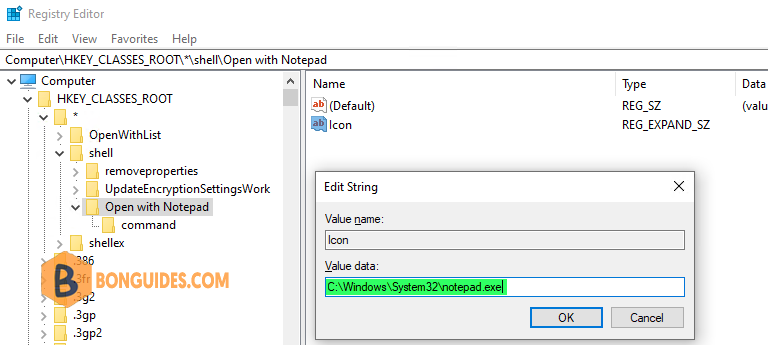
Now when you right-click a file, you’ll see the Open with Notepad option with the Notepad icon appear right beside it, which just makes it look nicer.
Add Open with Notepad to the Context Menu Using Commands
If you don’t want to do it manually, you can execute the below commands in an elevated Command Prompt window to add Open with Notepad into the right-click context menu in Windows 10/11.
Add Open with Notepad to the Context Menu
reg add "HKEY_CLASSES_ROOT\*\shell\Open with Notepad\command" /ve /d "notepad.exe %1" /f
reg add "HKEY_CLASSES_ROOT\*\shell\Open with Notepad" /v Icon /t REG_SZ /d "C:\Windows\System32\notepad.exe" /f
taskkill /im explorer.exe /f & explorer.exe
Remove Open with Notepad to the Context Menu
reg delete "HKEY_CLASSES_ROOT\*\shell\Open with Notepad" /f
taskkill /im explorer.exe /f & explorer.exe
Add Open with Notepad to the Context Menu Using Batch File
Alternatively, you can create a batch file to add Open with Notepad into the right-click context menu automatically.
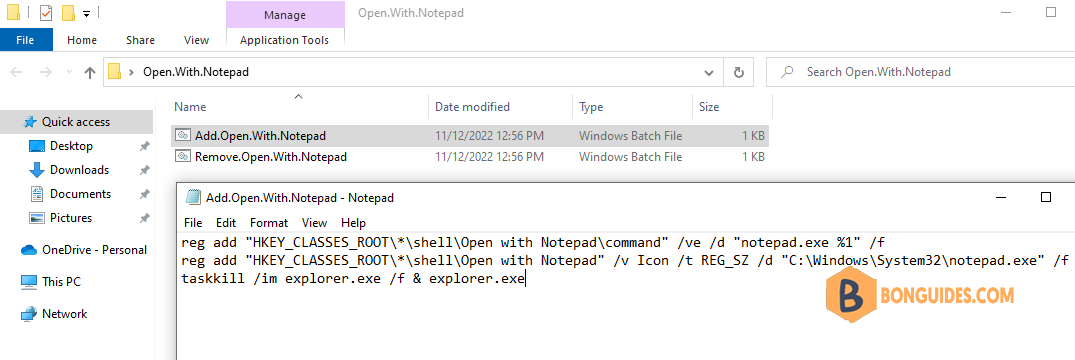
If you even don’t want to create the batch files 😁. You can download them from this link.

