Table of Contents
Execute SSH with Password Authentication in Windows
The SSH binary (OpenSSH) doesn’t have a native way to pass a password through the command line. So, you need to type the password every time you are connecting using ssh.
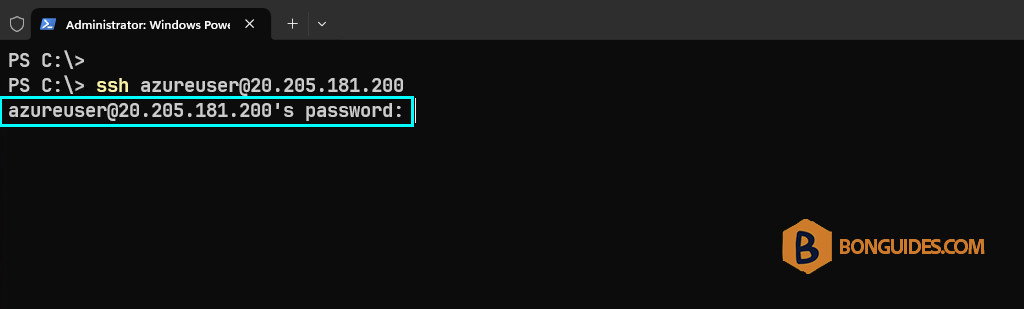
In case you want to ssh automatically without any prompt. You can use the key-based authentication method. It’s natively supports by OpenSSH.
PS C:\> ssh
usage: ssh [-46AaCfGgKkMNnqsTtVvXxYy] [-B bind_interface]
           [-b bind_address] [-c cipher_spec] [-D [bind_address:]port]
           [-E log_file] [-e escape_char] [-F configfile] [-I pkcs11]
           [-i identity_file] [-J [user@]host[:port]] [-L address]
           [-l login_name] [-m mac_spec] [-O ctl_cmd] [-o option] [-p port]
           [-Q query_option] [-R address] [-S ctl_path] [-W host:port]
           [-w local_tun[:remote_tun]] destination [command]
By default, there’s no option or argument to bypass the password prompt with OpenSSH. If you need to automatically enter the password when connecting to a machine on Windows system, you can use Plink (a part of PuTTY).
If you’ve installed PuTTY on your computer, you can find it in the below location.
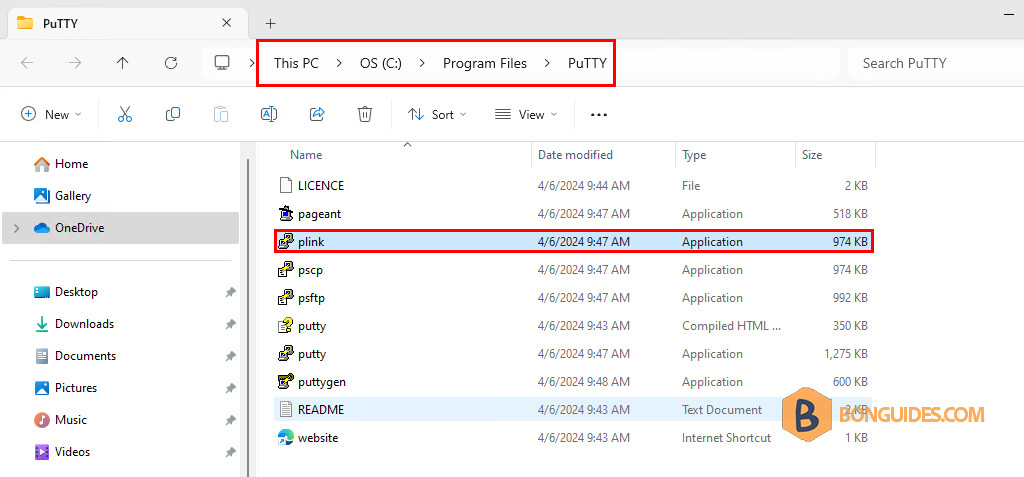
Otherwise, it can be download it separately from https://the.earth.li/~sgtatham/putty/latest/w64/plink.exe

Now, from PowerShell or Command Prompt, you can use the below command to execute SSH (OpenSSH) with password authentication:
- C:plink.exe: Path to the plink tool.
- [email protected]: Username@ip-or-hostname-of-server.
- -pw 6ETv5R3wYpK9119: Password of the azureuzer.
powershell -Command "C:\plink.exe [email protected] -pw 6ETv5R3wYpK9119"As you can see, access granted, and we can SSH to the Linux server successfully.
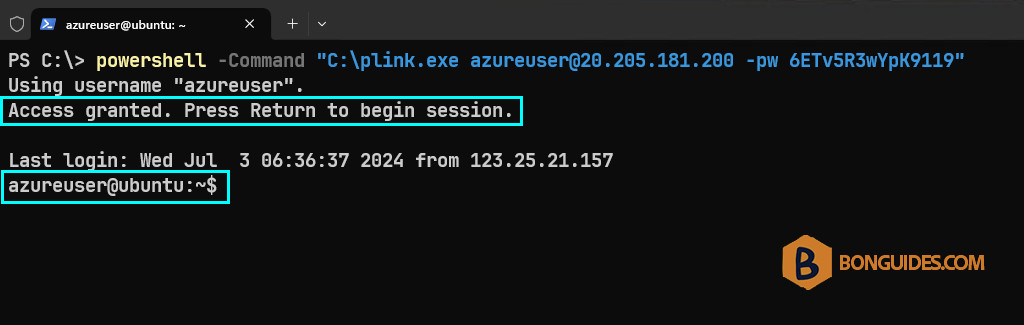
By default, you need to press Enter to begin session. To bypass this, add the -batch parameter in the command as below:
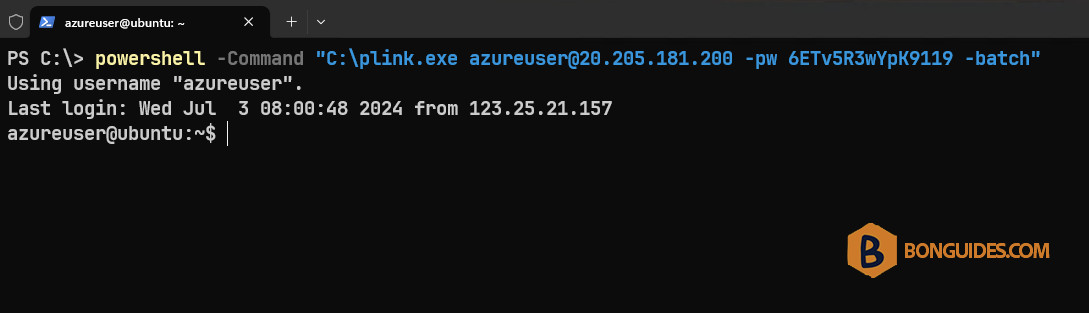
powershell -Command "C:\plink.exe [email protected] -pw 6ETv5R3wYpK9119 -batch"As you can see, this time, you can login into the server directly without pressing the Enter key.