
Table of Contents
For many admins, the use of Scopes is a new addition to Office 365 PowerShell. The Scopes parameter was introduced with the Microsoft Graph PowerShell API, but the concept of Scopes is actually part of the OAuth2 specification.
The use of Scopes limits the user permissions available to an application or session.
By configuring Scopes when connecting to the Microsoft Graph PowerShell API, you effectively limit what permissions are available for the execution of commands. We’ll see this in a live example further down. But first, let’s consider the following:
Why Use Scopes?
For example, you want to run a script that exports some user information from the Microsoft 365 Graph. Since you’ll only be reading user information, it makes good sense to limit your permissions to read-only (principle of least privilege).
Connect-MgGraph -Scopes "User.Read.All"This will ensure that you don’t accidentally make updates to user accounts. Also, it protects you from a rogue application trying to make changes when it should only be reading information.
Connecting to MS Graph With Scopes
To establish a connection with the Microsoft Graph PowerShell API to read user information, you can use the following command:
Connect-MgGraph -Scopes "User.Read.All"This will cause OAuth2 authentication to kick in (unless you have already consented to the permissions requested in the Scopes parameter):
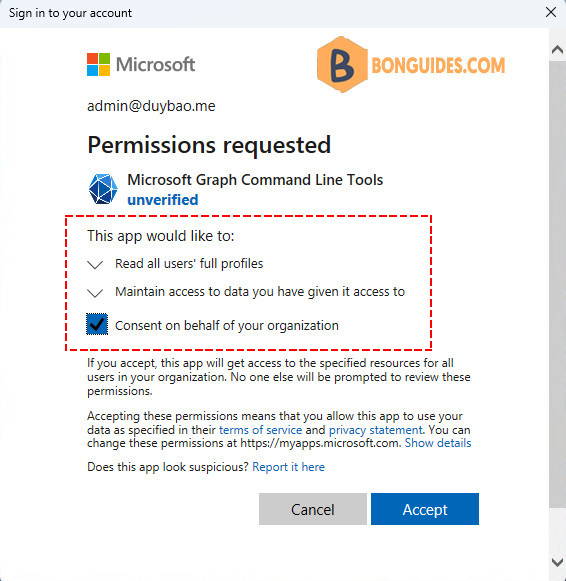
Notice that you can clearly see what permissions you’re allowing the Microsoft Graph PowerShell application to use. In this case, the app only has read permissions to all accounts.
Additionally, you can consent on behalf of your organization. Granting consent will spare your coworkers from seeing the above permission request and allow Microsoft Graph PowerShell to immediately run commands on behalf of your coworkers.
Note
Keep in mind: Consent does not grant any new permissions to users in your organization. Consent only allows the application (in this case, Microsoft Graph PowerShell) to use permissions already assigned to users. Read more about consent here.
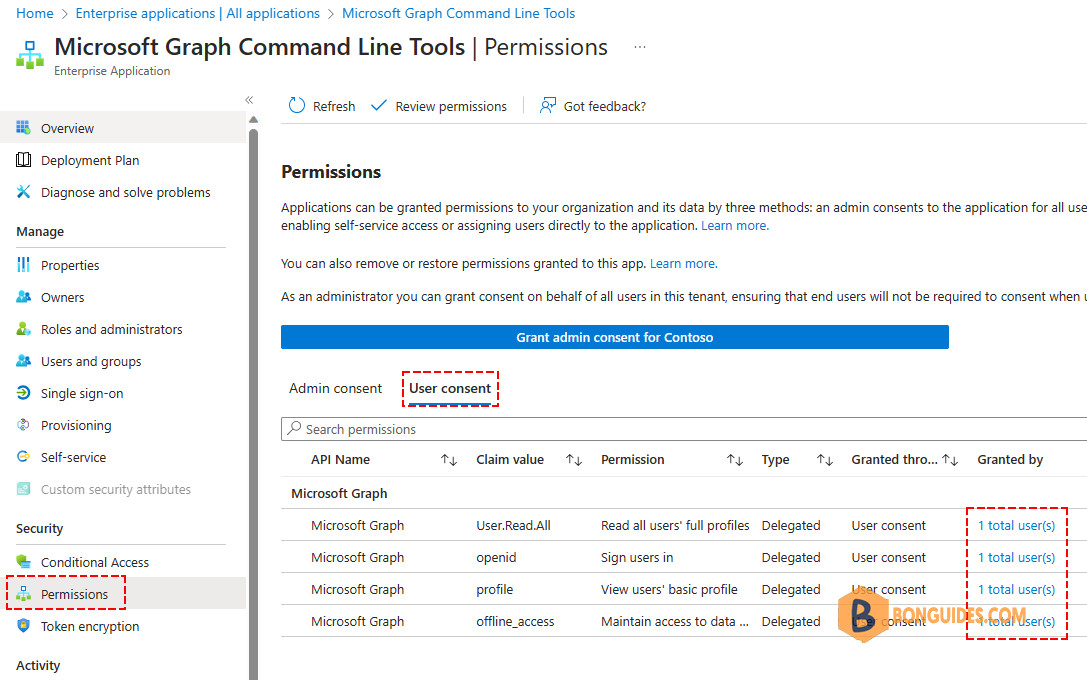
After you accept the permissions request, the Microsoft Graph PowerShell application is configured with the new consent. Go to Enterprise Applications > Microsoft Graph Command Line Tools > Permissions > User consent to see it:
Testing Scope Settings on MS Graph PowerShell
When you’ve connected to Microsoft Graph, you can check the current permission is granted for the current session by using the Get-MgContext cmdlet:
PS C:\> (Get-MgContext).scopes
openid
profile
User.Read.All
email
To illustrate the protection received by using scopes configuration, let’s try to update an Entra ID user account by setting the UsageLocation attribute. We connect with Scopes set to User.Read.All and as expected, this fails:
PS C:\> Get-MgUser -UserId [email protected] -Property DisplayName,UsageLocation | ft DisplayName,UsageLocation

DisplayName UsageLocation
----------- -------------
Alex Wilber US

PS C:\> Update-MgUser -UserId [email protected] -UsageLocation "UK"

Update-MgUser : Insufficient privileges to complete the operation.
Status: 403 (Forbidden)
ErrorCode: Authorization_RequestDenied
Date: 2023-08-21T00:26:06
Headers:
Transfer-Encoding             : chunked
...
To fix this we have to reconnect using a more extensive scope. With the new scope, you can now the write permission on all user accounts on your tenant.
Connect-MgGraph -Scopes "User.ReadWrite.All"Assuming we haven’t previously consented to this, we receive a new OAuth2 authentication dialog stating the new level of consent. This time, the app requires the read and write permission.
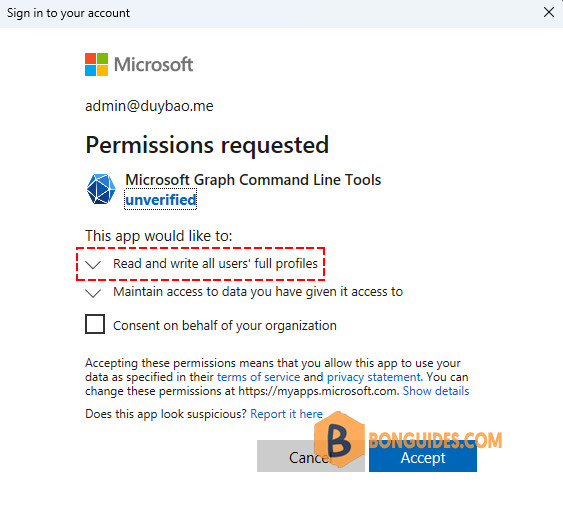
Once connected, when you check the MgContext, the new permission should be added.
PS C:\> (Get-MgContext).Scopes
openid
profile
User.Read.All
email
User.ReadWrite.All
After accepting this, the User consent of the Microsoft Graph PowerShell Enterprise Application is updated with the new consent which we can verify in the Azure Portal:
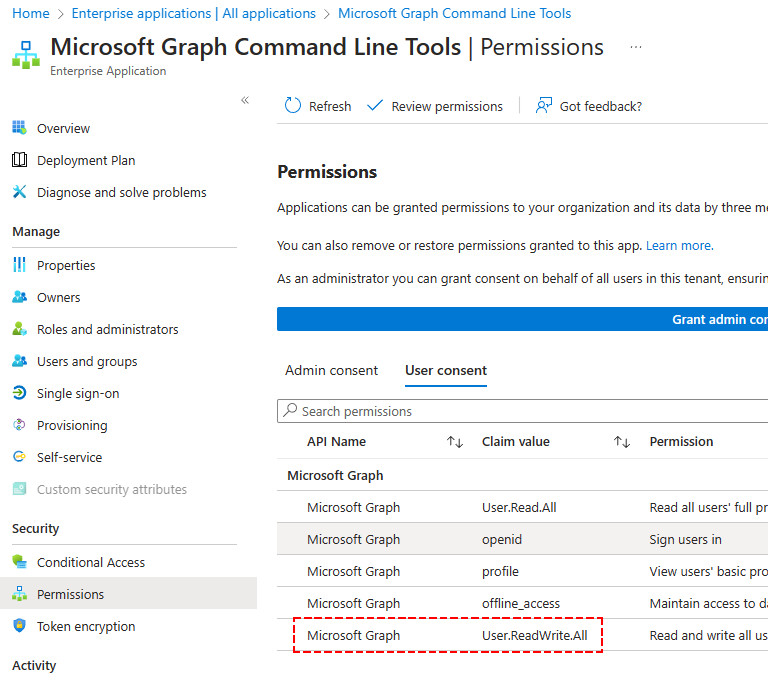
With the new scope in place, we are now able to write new information to user objects in Entra ID:
PS C:\> Update-MgUser -UserId [email protected] -UsageLocation "VN"

PS C:\> Get-MgUser -UserId [email protected] -Property DisplayName,UsageLocation | ft DisplayName,UsageLocation

DisplayName UsageLocation
----------- -------------
Alex Wilber VN
Finding Microsoft Graph Scopes
Finding the right scope can be a bit challenging at the beginning. But there are two good sources that you can use to determine which scopes you will need to specify:
- Microsoft Graph Explorer: https://developer.microsoft.com/en-us/graph/graph-explorer
- Microsoft Graph Rest API Reference: https://docs.microsoft.com/en-us/graph/api/overview
Microsoft Graph Explorer
The Microsoft Graph Explorer is a great tool to test out API calls to Microsoft Graph. It comes with a lot of examples calls to help you get started. But it will also list the required permission for the call.
Open the Graph Explorer | Select an Sample Query on the left side | Click Modify Permissions tab.

Microsoft Graph Rest API Reference
The other option is to use the Rest API Reference. You can select in the left menu one of the entities that you want to work with and then view the required permissions. You don’t need to add all scope, they are listed from least to most privileged.
An example, we find the scope to get OneDrive for Business for users.

Find-MgGraphCommand
Our favorite way to find the right scopes to connect to Microsoft Graph PowerShell is using Find-MgGraphCommand cmdlet.
For example, we found the right permission to update users information with Update-MgUser cmdlet.
(Find-MgGraphCommand -Command 'Update-MgUser').PermissionsName IsAdmin Description
---- ------- -----------
DeviceManagementApps.ReadWrite.All True Read and write Microsoft Intune apps
DeviceManagementConfiguration.ReadWrite.All True Read and write Microsoft Intune Device
DeviceManagementManagedDevices.ReadWrite.All True Read and write Microsoft Intune devices
DeviceManagementServiceConfig.ReadWrite.All True Read and write Microsoft Intune configuration
Directory.ReadWrite.All True Read and write directory data
User.EnableDisableAccount.All True Enable and disable user accounts
User.ManageIdentities.All True Manage user identities
User.ReadWrite False Read and update your profile
User.ReadWrite.All False Read and write all users' full profiles

