Table of Contents
Unable to Use Key File OpenSSH SSH-2 Private Key
In some cases, you get the following error when trying to connect to a Linux system using PuTTY with private key authentication.
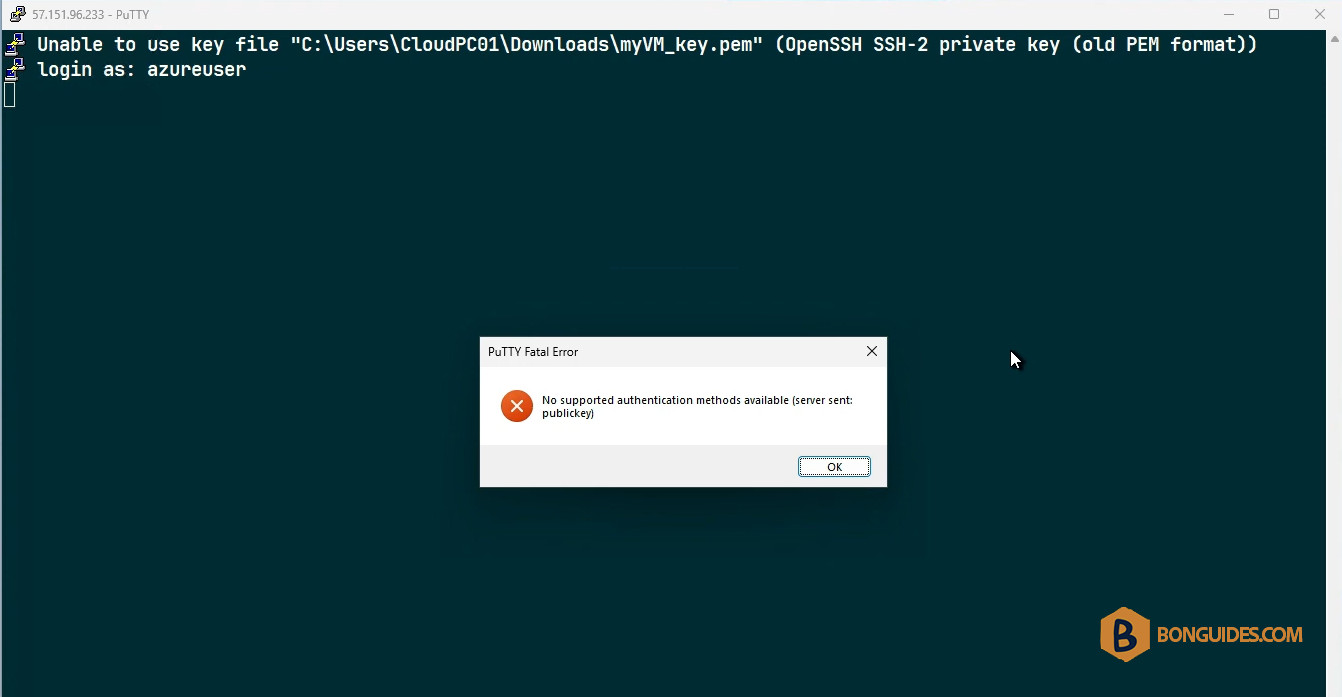
You got this because you use a private key with OpenSSH format. To fix it, you need to convert the OpenSSH private key to PuTTY format.
1. Visit the PuTTY official website then download the PuTTYGen.
Download: https://www.chiark.greenend.org.uk/~sgtatham/putty/latest.html
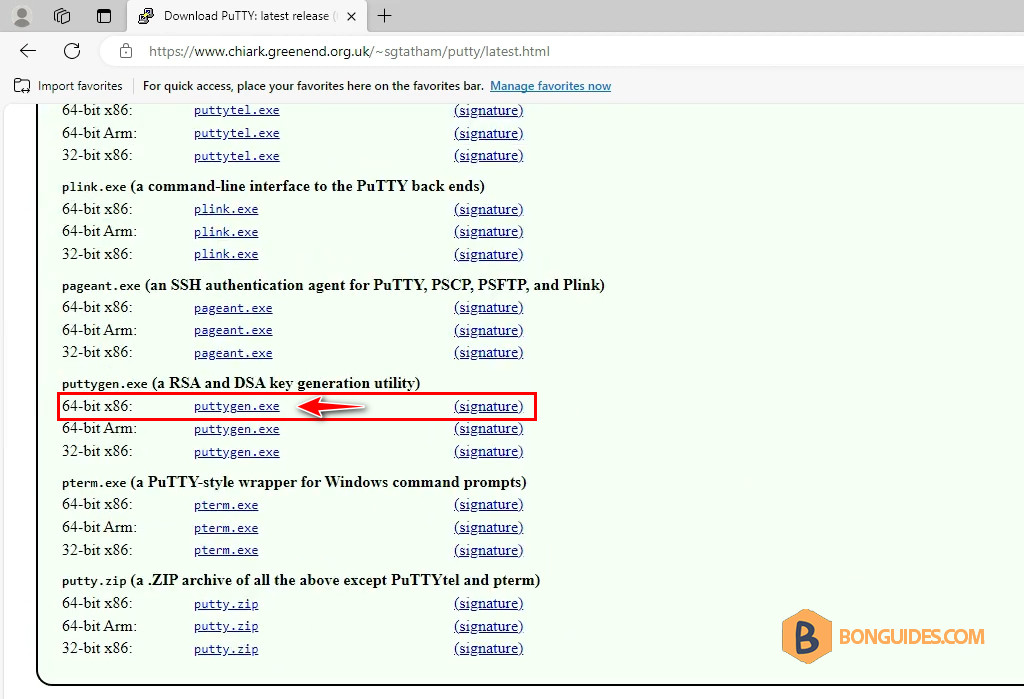
2. Open the downloaded file to run the PuTTY Key Generator.
3. Go to Conversions | Import key.
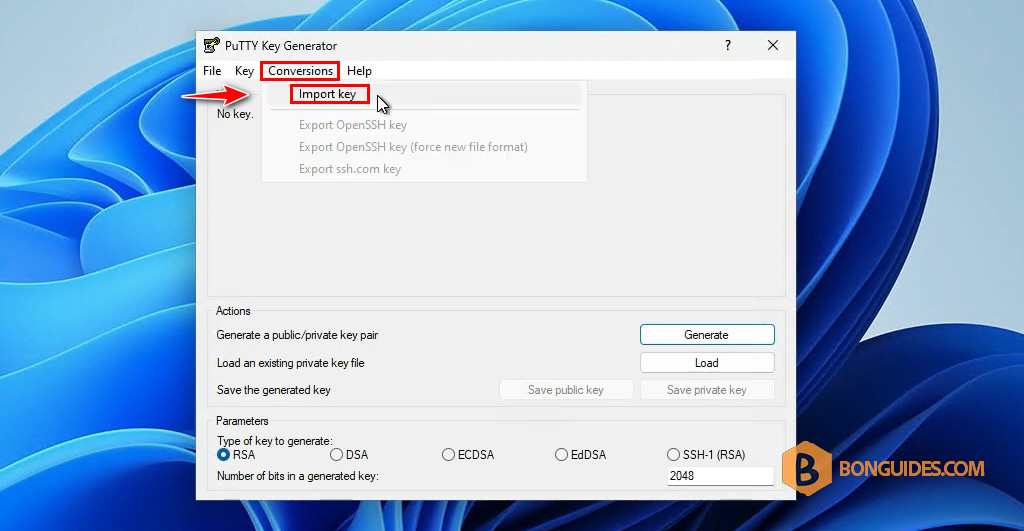
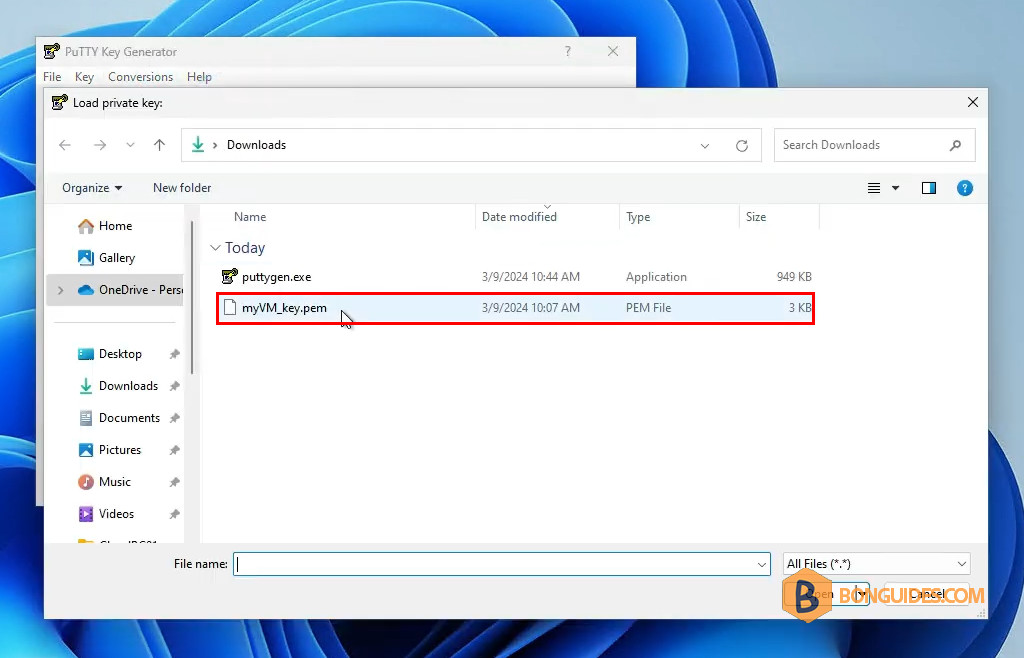
4. Browse then select the OpenSSH private key.
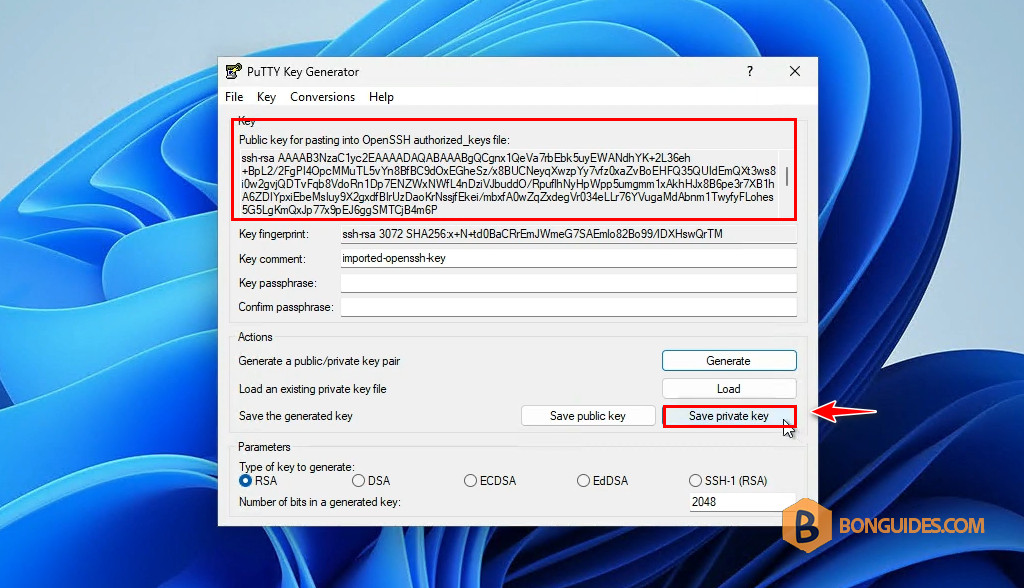
5. The private key is converted to PuTTY format. Click on the Save private key button to save it to a file.
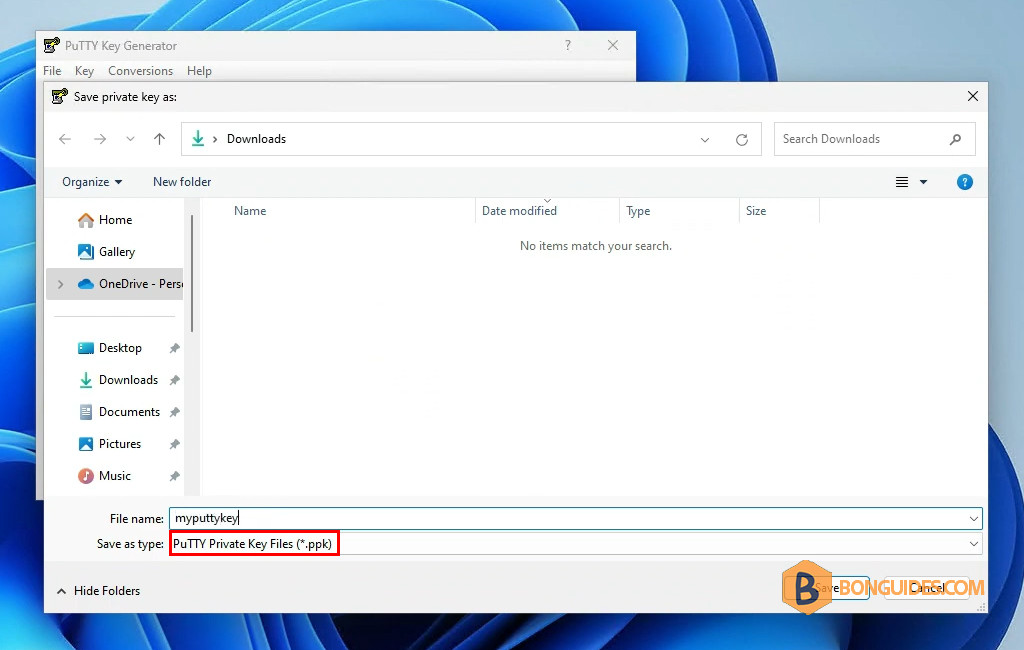
6. Save the file to a safe location. As you can see, the PuTTY private key format is .ppk.
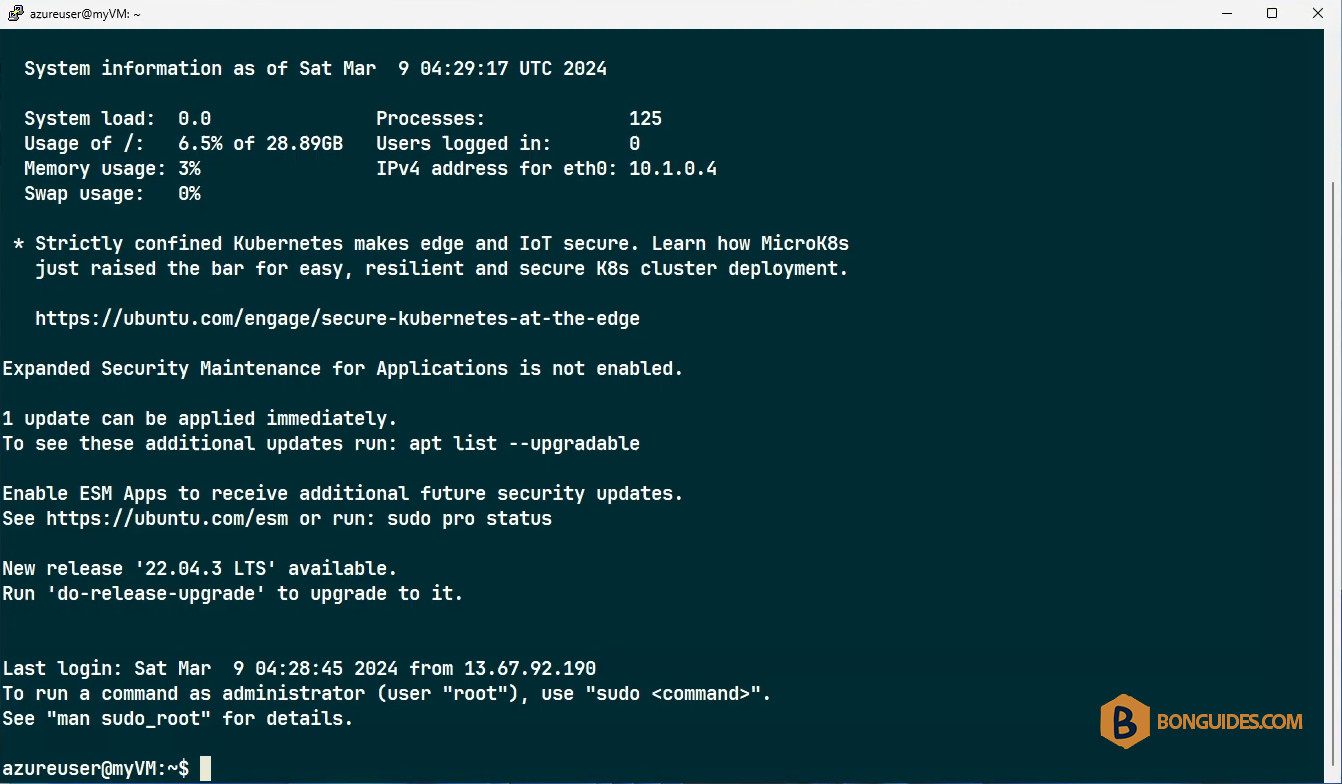
Finally, open PuTTY, change the private key authentication from OpenSSH format to the PuTTY format then trying to connect to a remote Linux system.
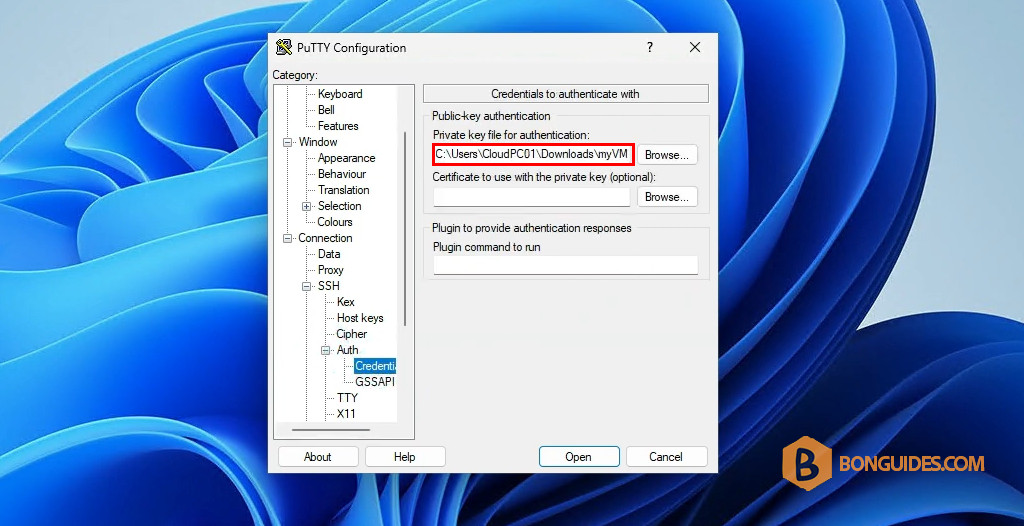
The connection should be established without any issue.