Table of Contents
Fix Cannot Install New Microsoft Teams on Windows
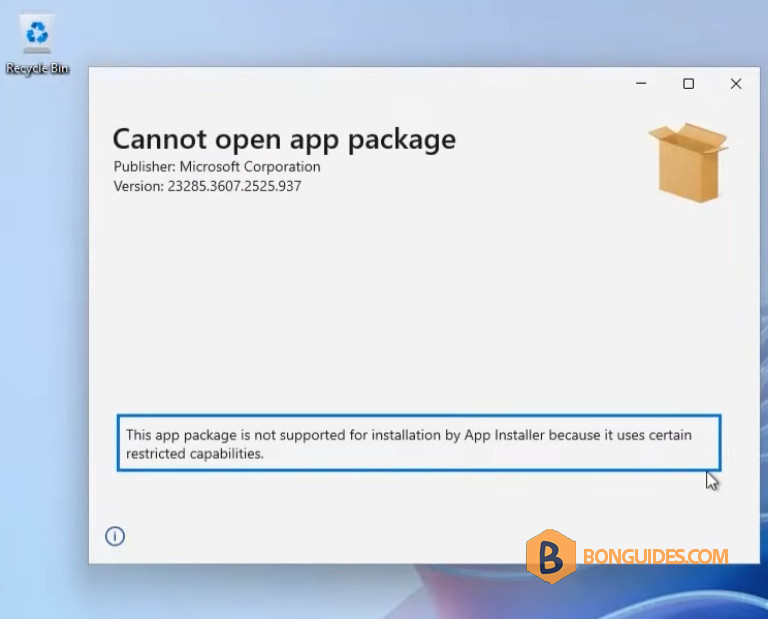
In some cases, you got the below error when trying to install the new Microsoft Teams app on your Windows 11 computer.
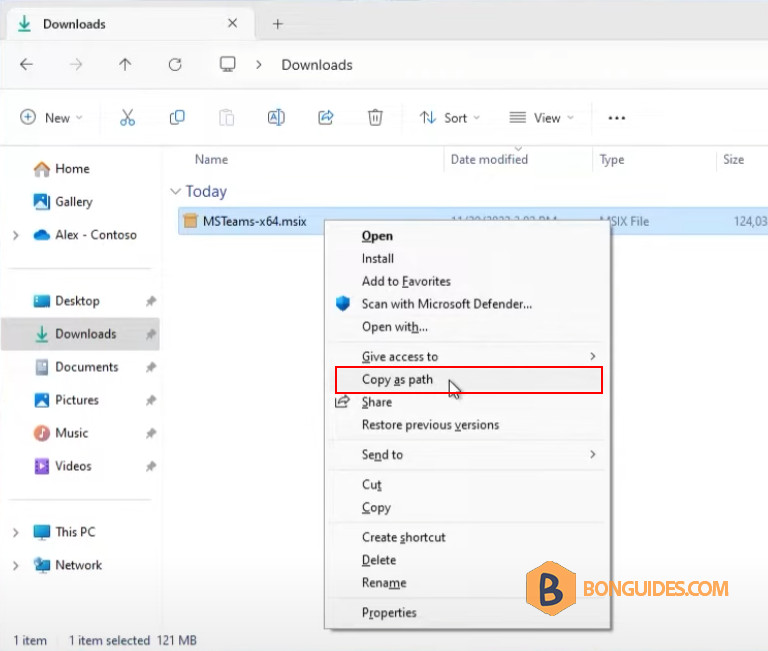
To fix this, let’s hold the Shift key on keyboard and right-click on the downloaded msix package then select Copy as path to copy the path of the file to the clipboard.
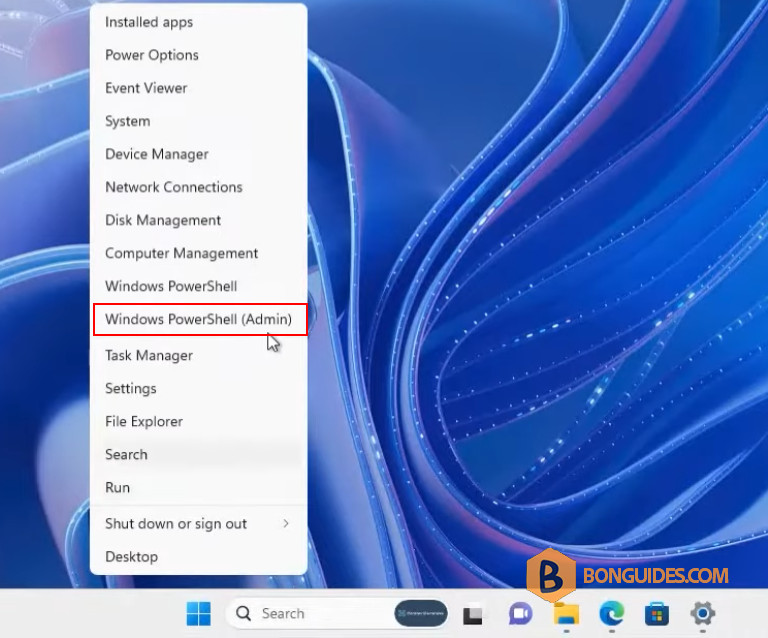
Next, right click on the Windows Start icon then open an elevated PowerShell window.
Now, run the following command to install the new Microsoft Teams app. You can right click to paste the path of the file that you’ve copied in the previous step.
Add-AppxPackage -Path "Path of the msix package"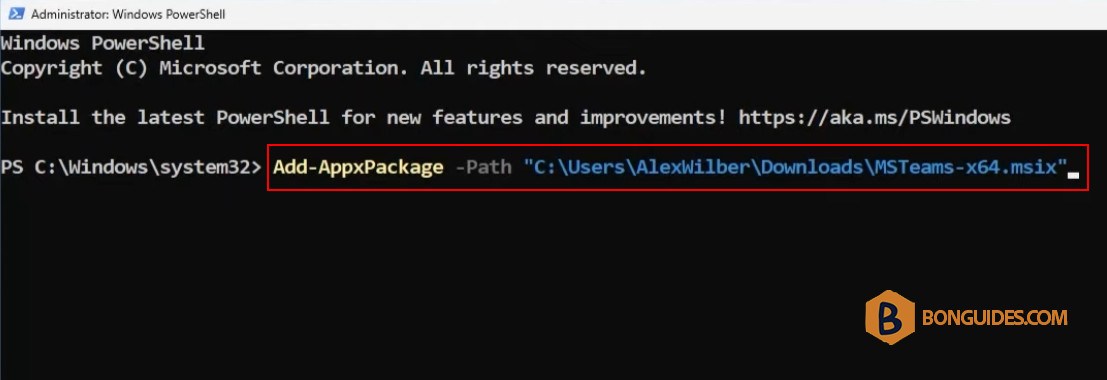
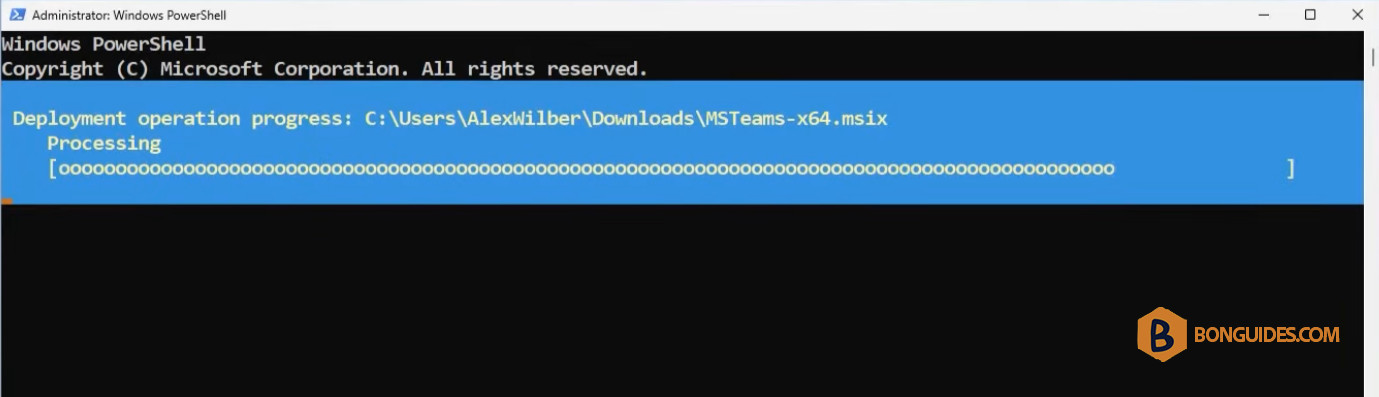
The installation starts automatically without any user prompts.
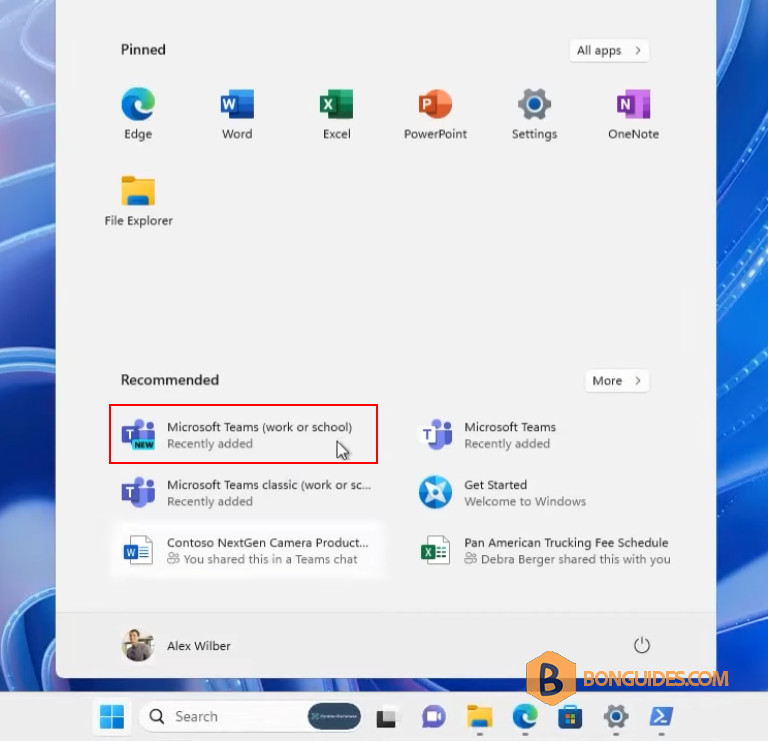
After installation, open the newly installed Microsoft Teams app to ensure it is functioning properly.