
Table of Contents
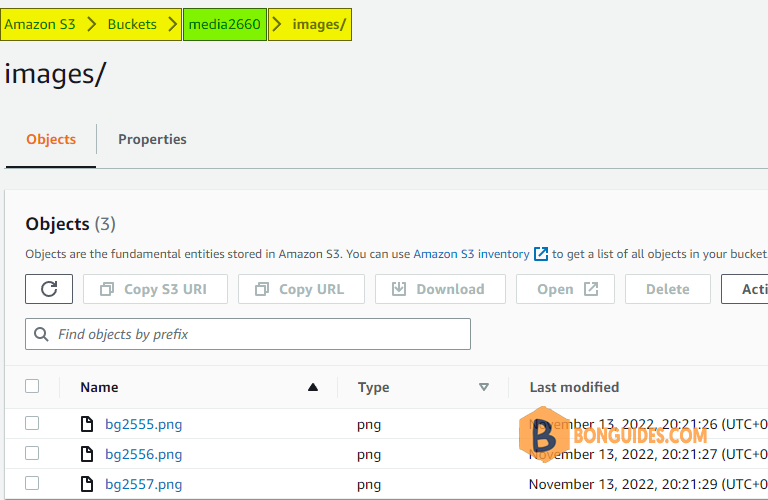
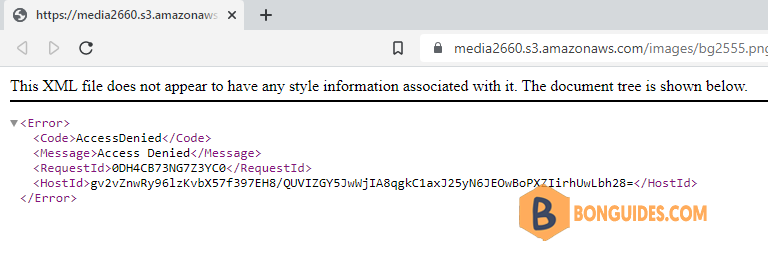
After created a bucket in Amazon S3 storage, when you access a file through the direct link. You got the following error:
This XML file does not appear to have any style information associated with it.
The document tree is shown below.
<Error>
<Code>AccessDenied</Code>
<Message>Access Denied</Message>
<RequestId>0DH4CB73NG7Z3YC0</RequestId>
<HostId>gv2vZnwRy96lzKvbX57f397EH8/QUVIZGY5JwWjIA8qgkC1axJ25yN6JEOwBoPXZIirhUwLbh28=</HostId>
</Error>
The object link: https://media2660.s3.amazonaws.com/images/bg2555.png
You are getting this error because the file is set to private, and you don’t have the permission to download it. As you can see in the below image, everyone (public access) has no access right for this object.
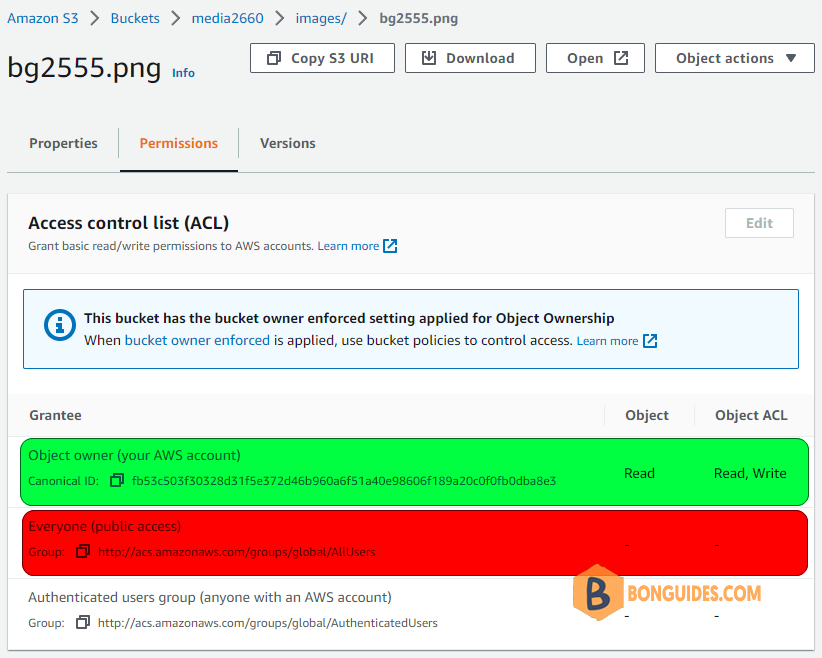
To fix it, you need to enable public access on the object itself or on the entire bucket.
Note
If the entire bucket is public, that error will go away but everyone would be able to see all objects in your S3 bucket.
Grant access on the object level
1. Login into your Amazon S3 bucket then select the tab.
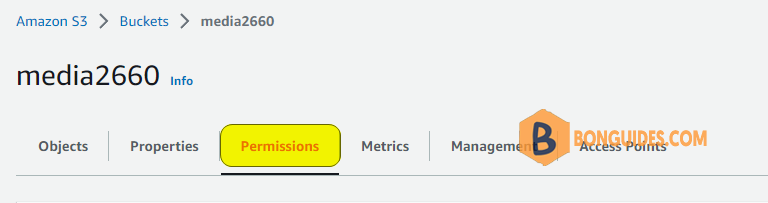
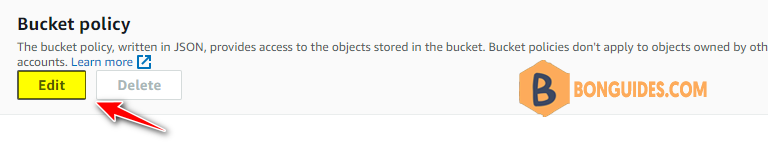
2. Scroll down then click on button under Bucket policy section.
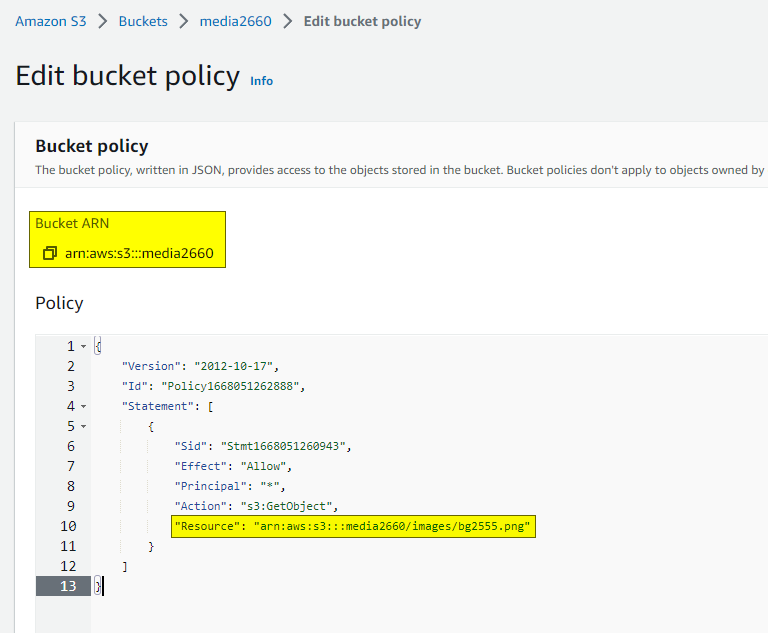
For example, we’ll create a bucket policy to allow public access for the file named bg2555.png. The location of this file is /mybucket/images/bg2555.png.
{"Version":"2012-10-17","Id":"Policy1668051262888","Statement":[{"Sid":"Stmt1668051260943","Effect":"Allow","Principal":"*","Action":"s3:GetObject","Resource":"arn:aws:s3:::media2660\/images\/bg2555.png"}]}The bucket policy written in JSON, provides access to the objects stored in the bucket. You can visit Policy examples and Policy generator to learn how to create a bucket policy.
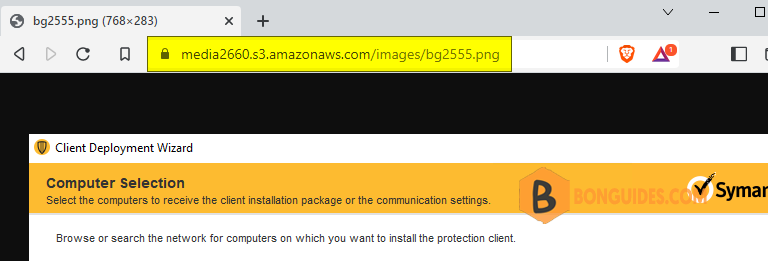
Don’t forget save the changes then try to access the object. As you can see, the object now available for public access. You can attach it to a website or using it as direct download link.
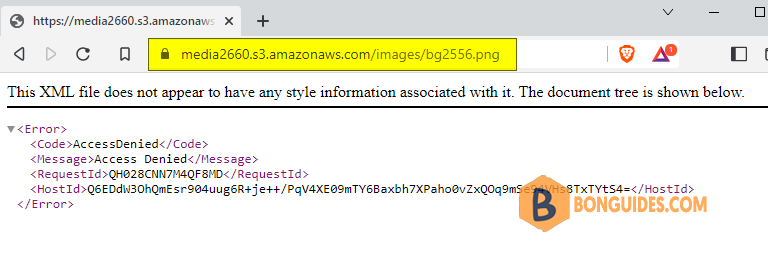
Because the bucket policy allows public access for the file named bg2555.png only. So, when you access another file in the same folder in your bucket, you would get the access denied error.
Grant access on a folder or entire bucket
If you’re planning to use S3 to host upload files for a website. You must create a bucket policy to allows public access on the upload folder instead of creating policies for individual files.
For example, I need create a bucket policy to allows public access for images folder.
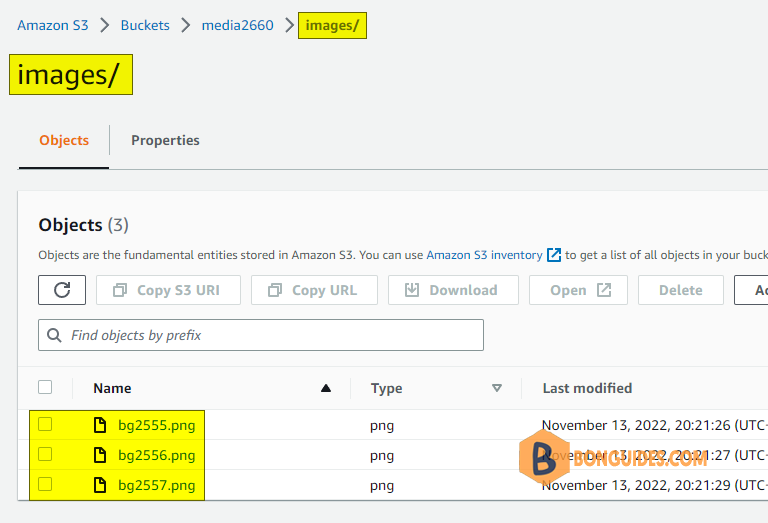
{"Version":"2012-10-17","Id":"Policy1668051262888","Statement":[{"Sid":"Stmt1668051260943","Effect":"Allow","Principal":"*","Action":"s3:GetObject","Resource":"arn:aws:s3:::media2660\/images\/*"}]}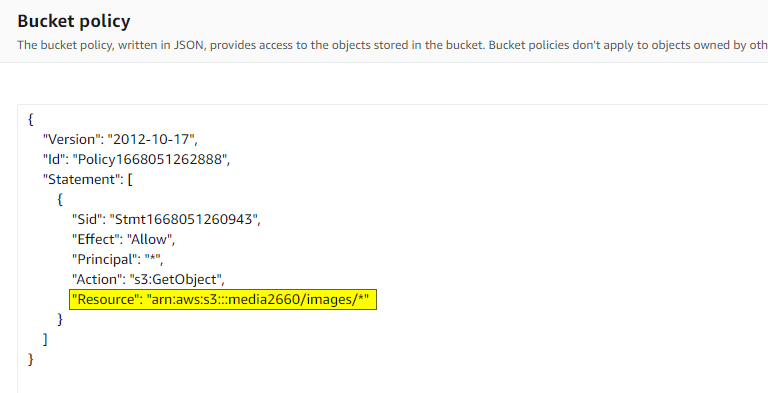
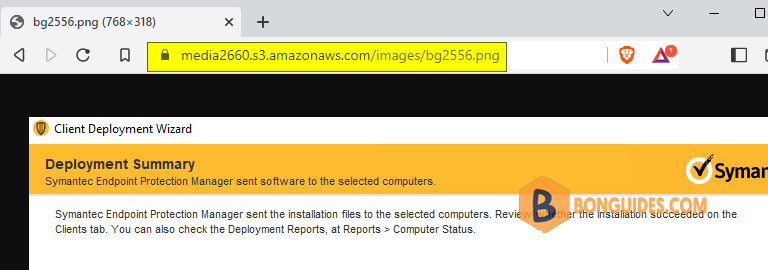
As you can see, now all files in images folder in my S3 bucket can be access by everyone.
Note
If the entire bucket is public, everyone would be able to see all objects in your S3 bucket.
Bucket policy to publish everything in your S3 bucket:
{"Version":"2012-10-17","Id":"Policy1668051262888","Statement":[{"Sid":"Stmt1668051260943","Effect":"Allow","Principal":"*","Action":"s3:GetObject","Resource":"arn:aws:s3:::media2660\/*"}]}

