
Table of Contents
Prevent Office Apps From Saving Files to OneDrive
Although syncing your Office files to OneDrive lets you access them across multiple devices, you may want to avoid doing so for various reasons. Thankfully, it’s fairly simple to accomplish that.
1. Open any Office app, such as Word or Excel.
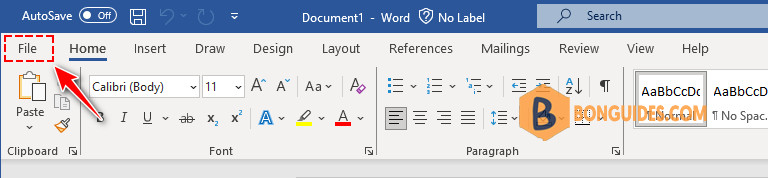
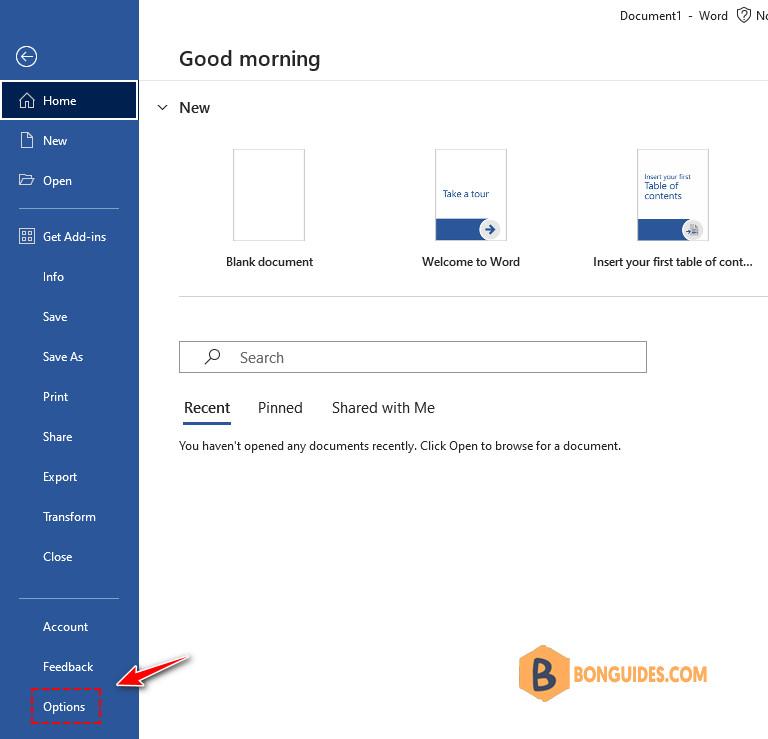
2. Click the File menu in the top left corner then select Options.
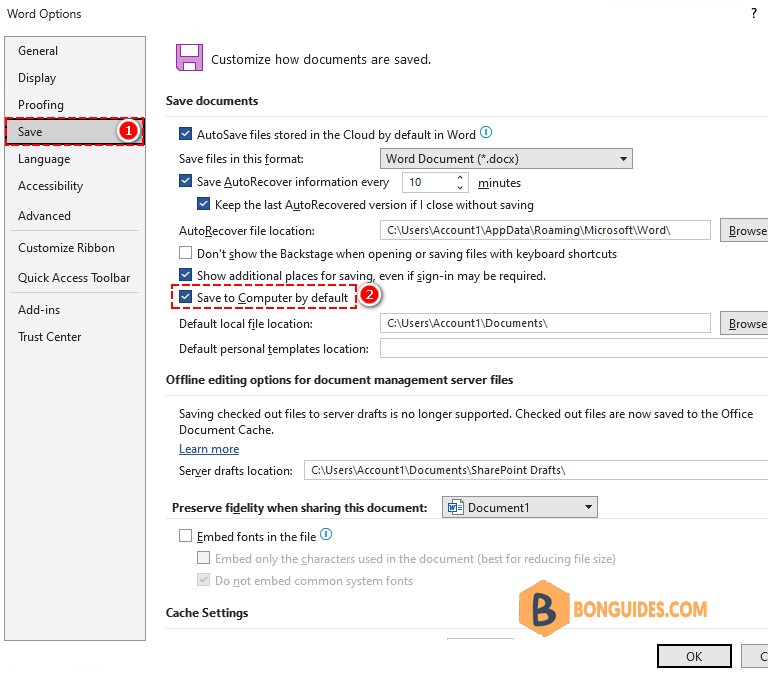
3. In the Save tab, select the checkbox Save to Computer by default option. In the Default local file location box, specify where you want to save your Office files.
4. Click OK to save the changes.
The above changes will be applied to all Office apps. Don’t worry, you can still manually save files to OneDrive if you want.
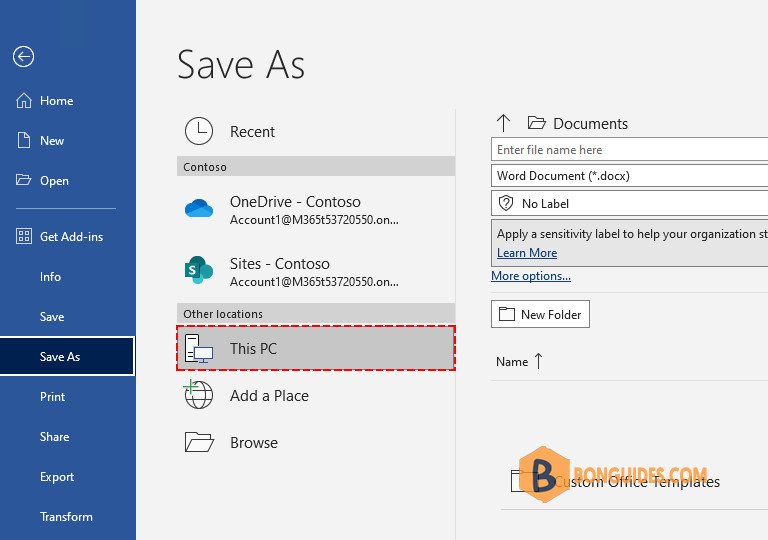
Use Registry to Stop Windows From Saving Files to OneDrive
Another method to stop Windows from saving files to OneDrive is to use the Registry Editor. Using this method, we can configure that setting on multiple computers using Group Policy.
1. Type regedit into the Windows search box then click Registry Editor from the result to open it.
Note
Alternatively: Press to open the Run box. Type regedit into the box then hit .
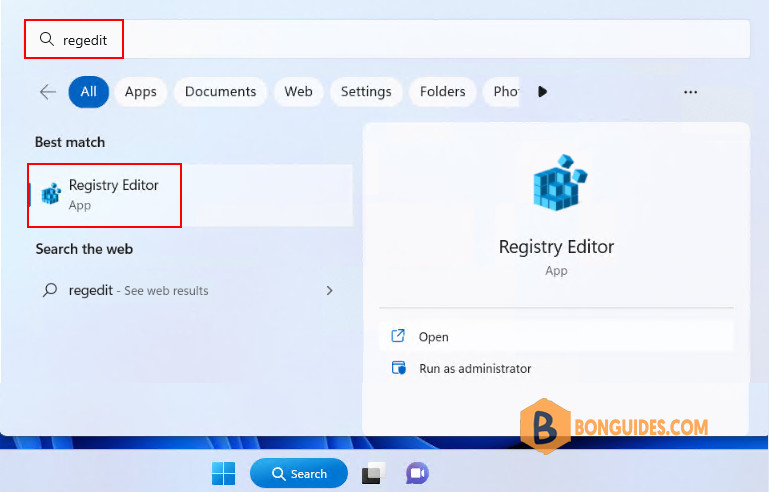
2. Navigate to the following key in the left sidebar or you can paste it directly into the address bar and then hit Enter.
HKEY_CURRENT_USER\Software\Microsoft\office\16.0\Common\General
3. Create a new DWORD (32-bit) Value. Set its name as PreferCloudSaveLocations.
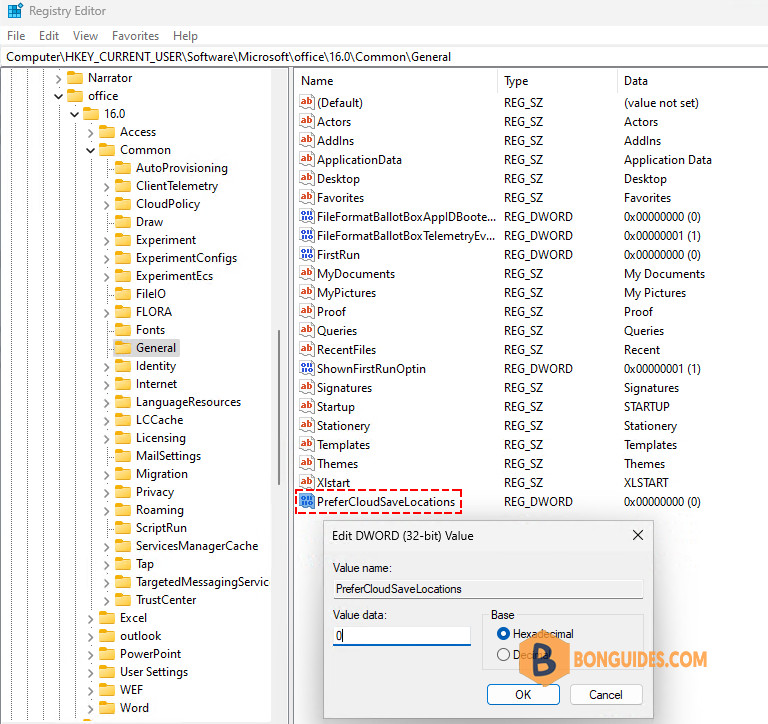
4. Double click on it then set its value as 0 then close the Registry Editor.


