Table of Contents
OneDrive and SharePoint Save Option in Microsoft Office Apps
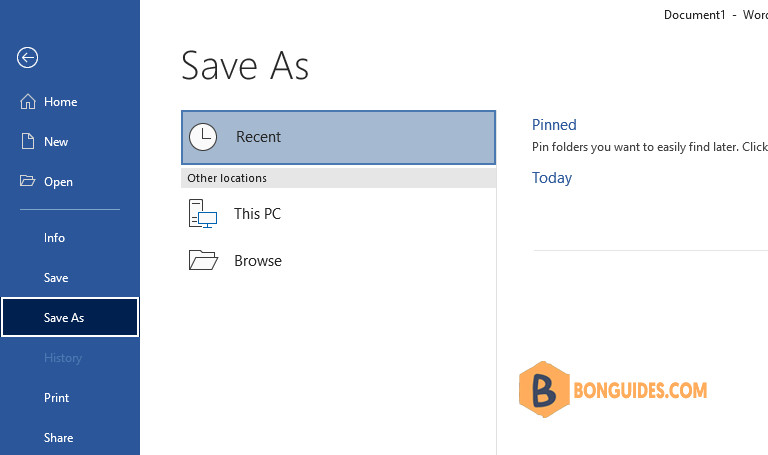
If you find yourself accidentally saving your Word documents or Excel spreadsheets to your OneDrive account, then you might want to consider removing the OneDrive option as a save or save as location.
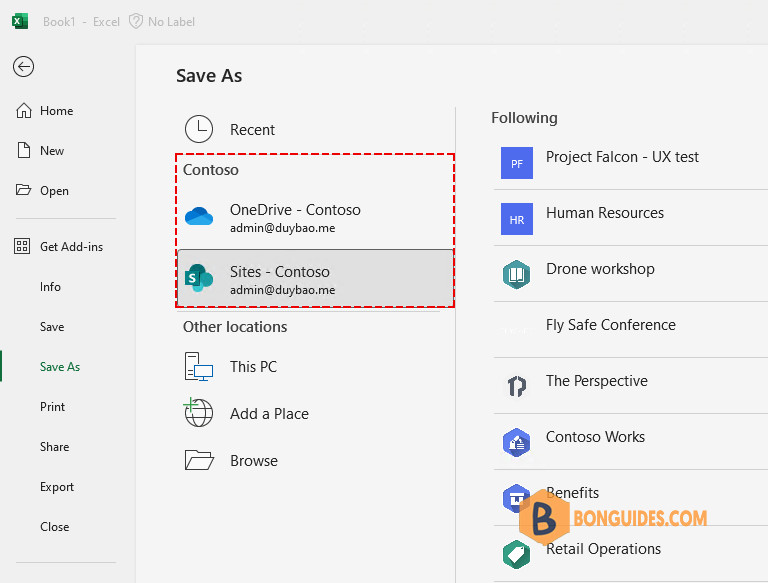
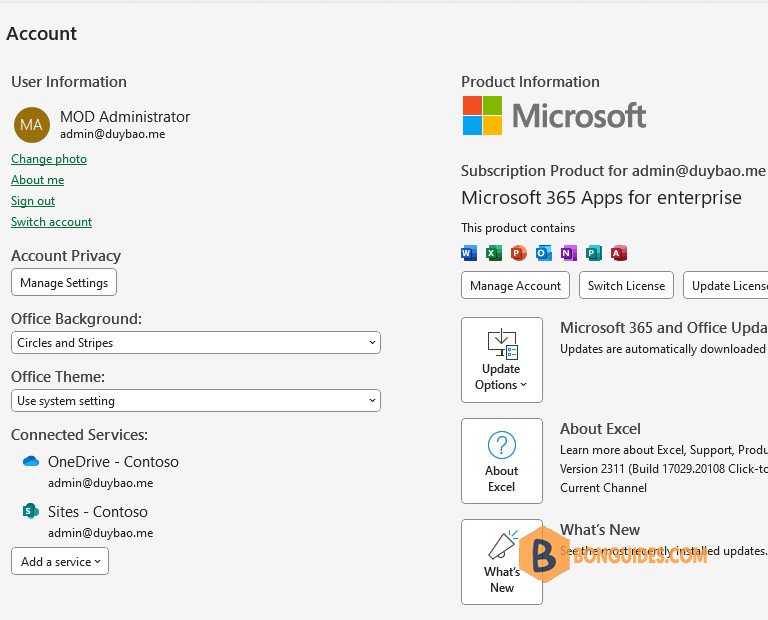
Changing the Connected Experiences setting in your Office account settings will remove the OneDrive option from your save locations for all of your Microsoft Office programs.
Note
There is a setting that allows you turn off these connected experiences, and which will also turn off other connected experiences, such as document co-authoring and online file storage.
Remove OneDrive and SharePoint from Save As option
We can use the Registry to remove or hide the OneDrive and SharePoint save option. Using this way, you can configure this setting for multiple computers using Group Policy in a domain environment.
1️⃣ Type regedit into the Windows search box then click Registry Editor from the result to open it.
Note
Alternatively: Press to open the Run box. Type regedit into the box then hit .
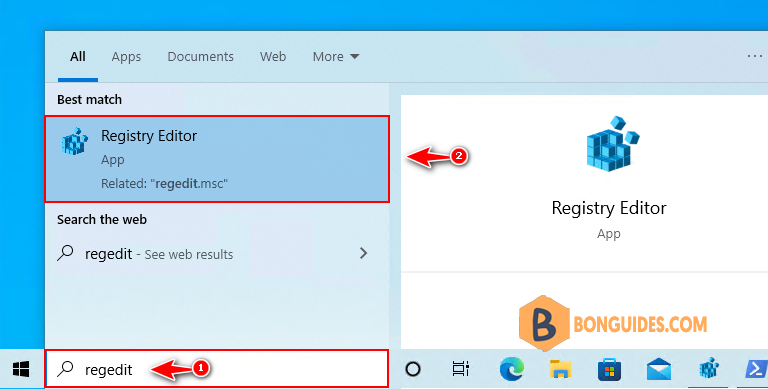
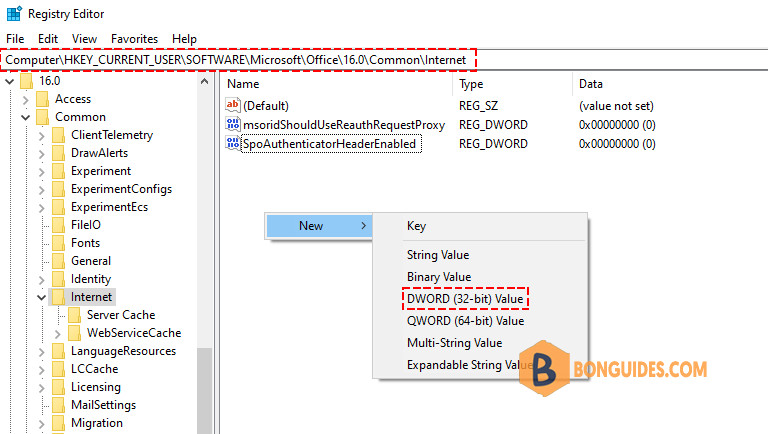
2️⃣ Navigate to the following key in the left sidebar or you can copy then paste the below line directly into the Registry Editor’s address bar then hit Enter.
HKEY_CURRENT_USER\Software\Microsoft\Office\16.0\Common\Internet3️⃣ Right click on the blank area then create a new DWORD (32-bit) Value.
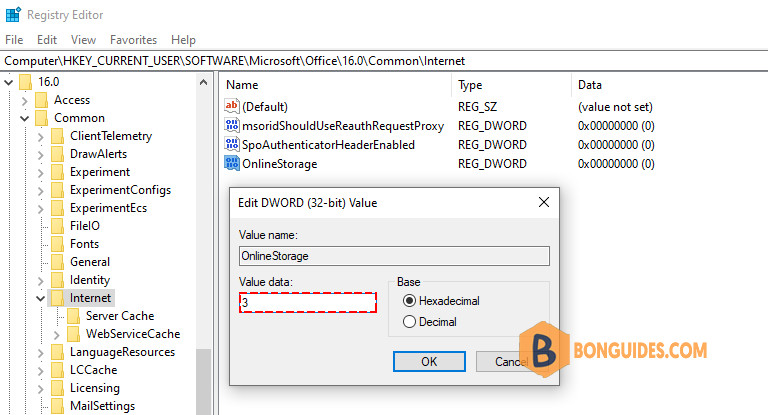
4️⃣ Name it as OnlineStorage, double-click on it then set its value to 3 as below.
Close Registry Editor, close then reopen the Office app to verify it works.