Table of Contents
Enable the Microsoft Store on Windows 10 LTSC Systems
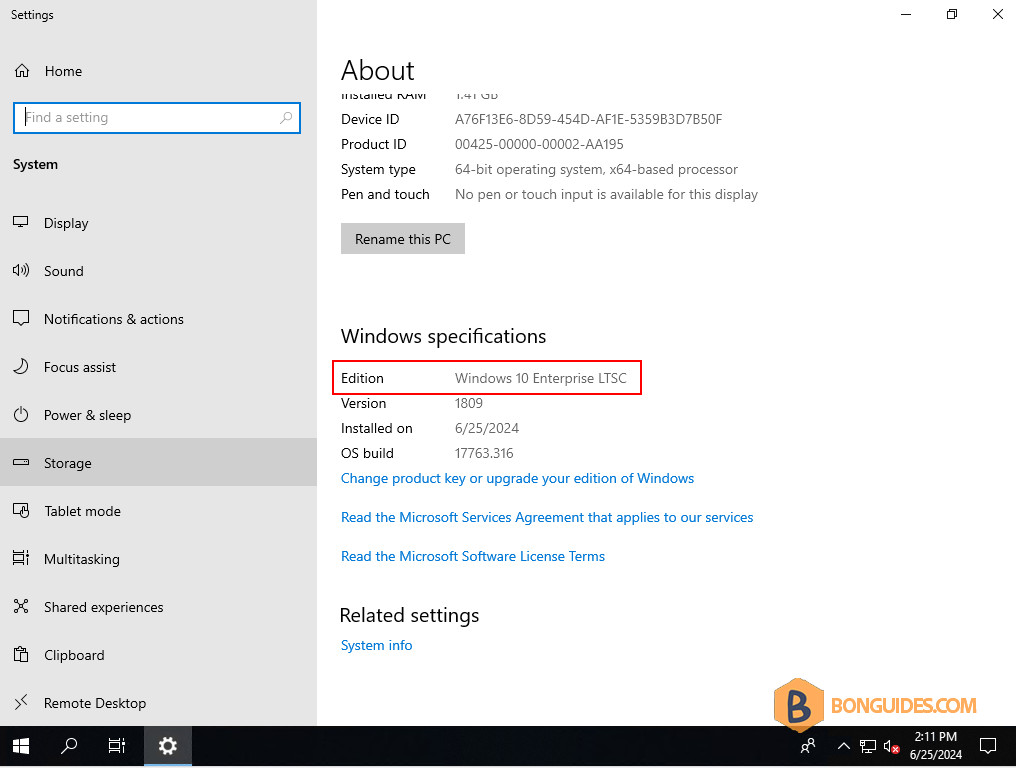
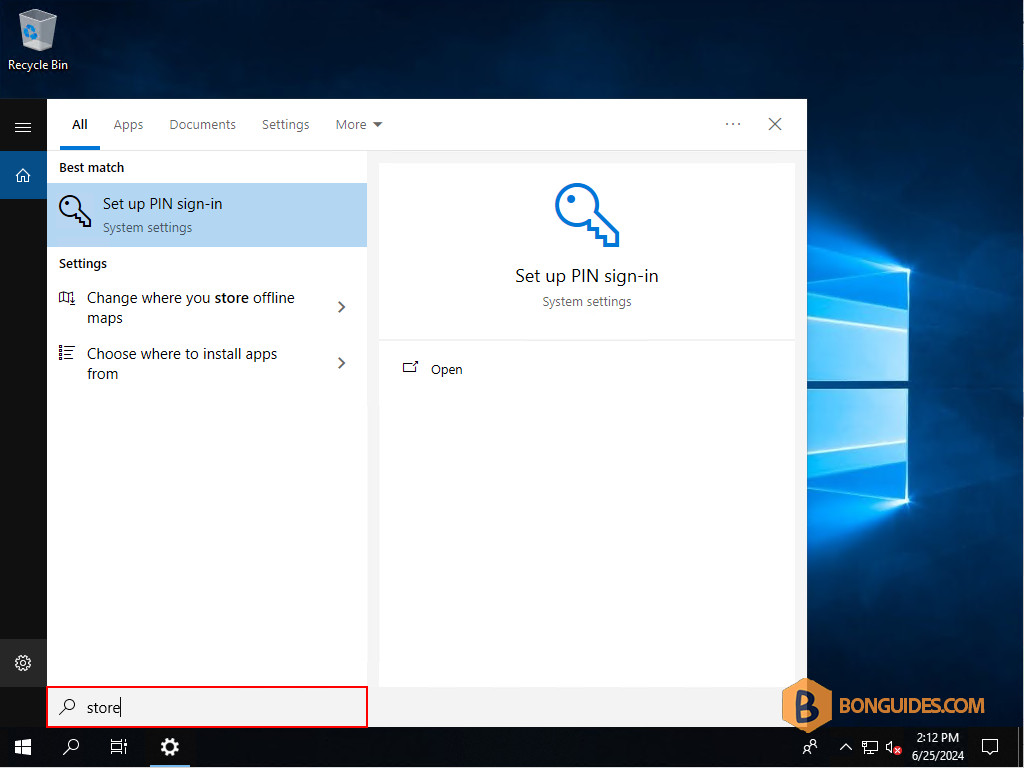
By default, the Microsoft Store is not available on Windows LTSC editions. You cannot find it from the Windows Search. So, we need to enable it manually.
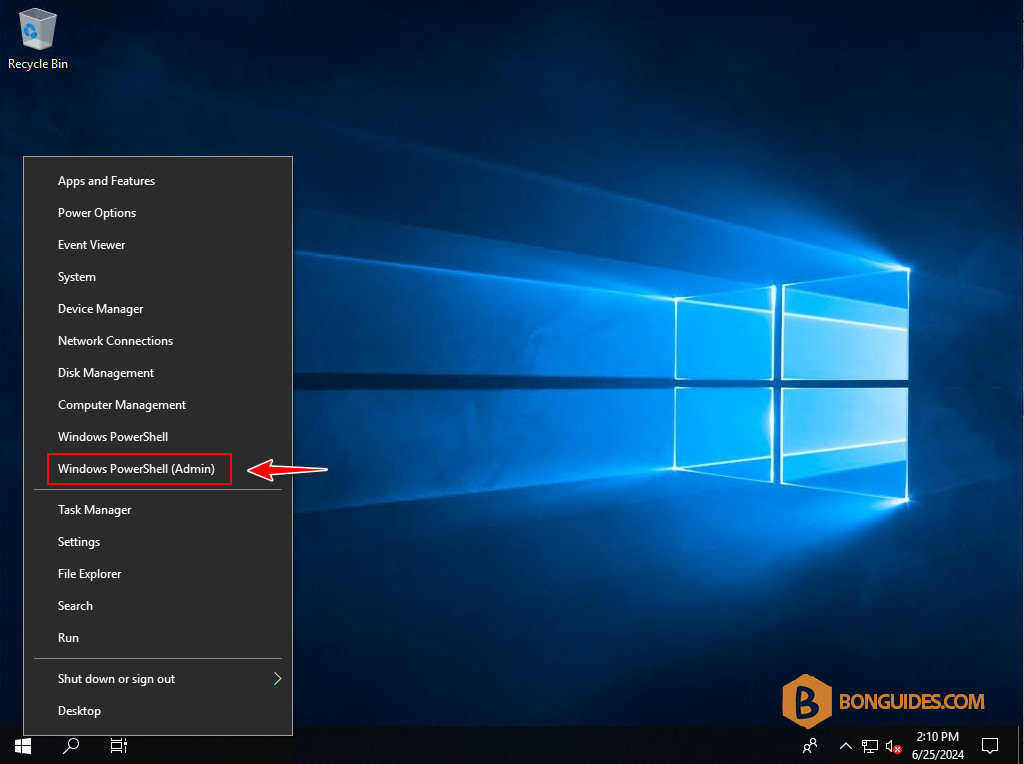
1. First, right-click on the Windows Start icon then open an elevated PowerShell window.
2. Run the following command to enable the Microsoft Store on Windows LTSC.
wsreset -i3. There’s nothing show in the console, but it’s running in the background. Wait a few minutes to complete.
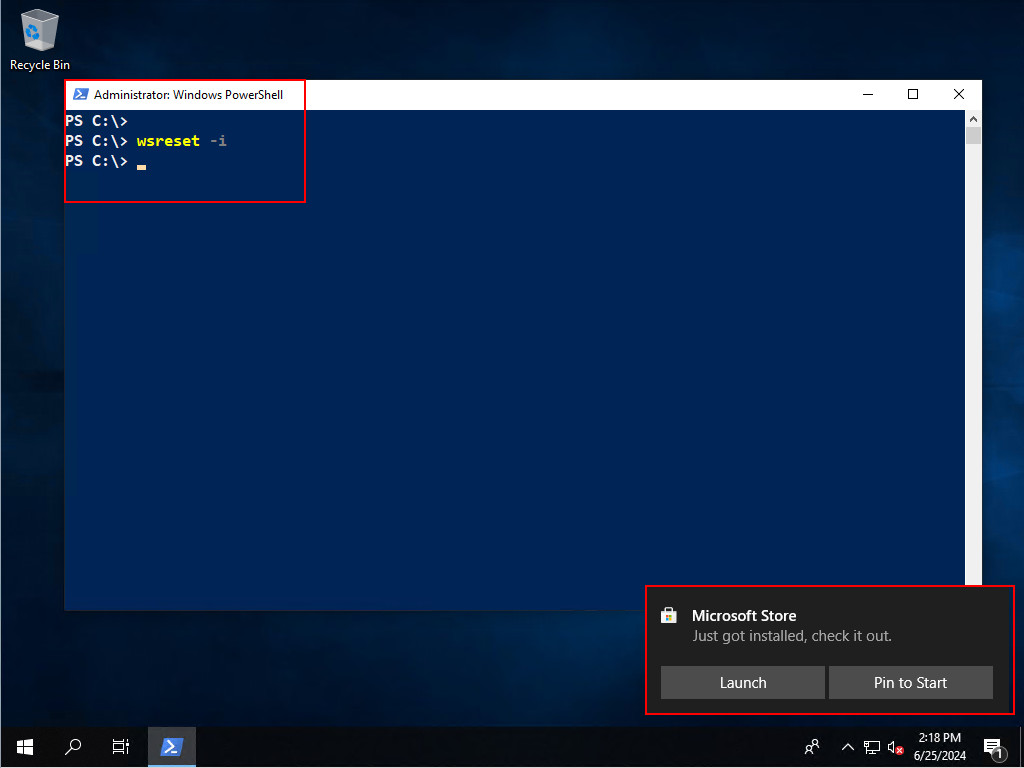
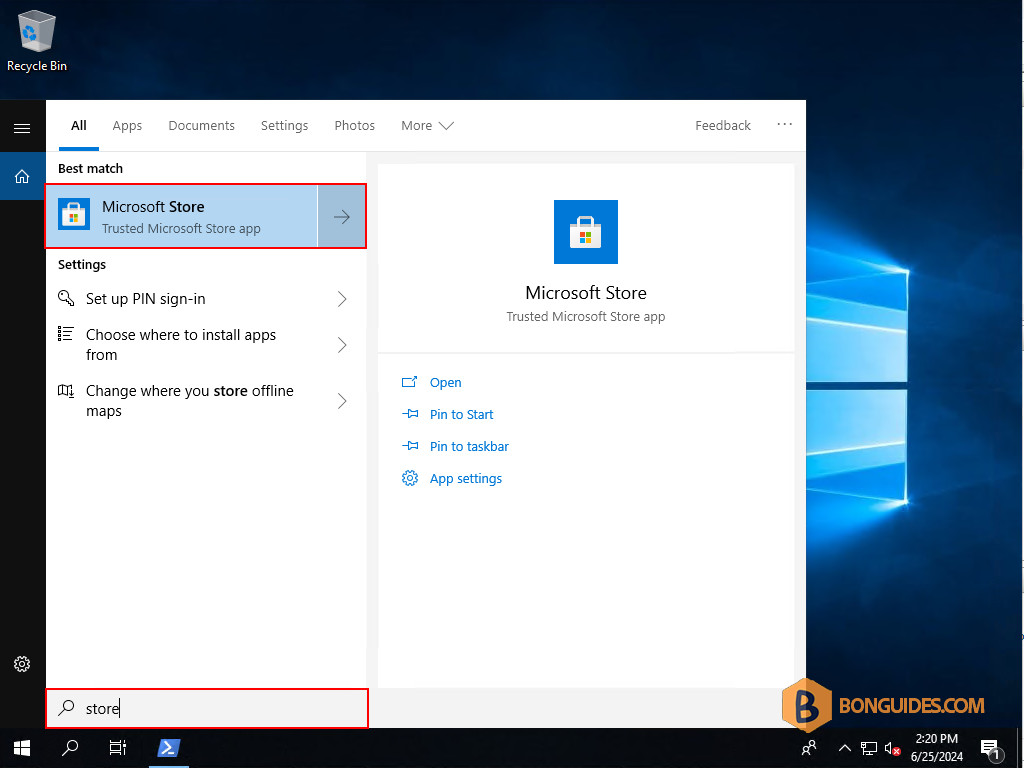
4. Once done, open the Microsoft Store to verify it works.
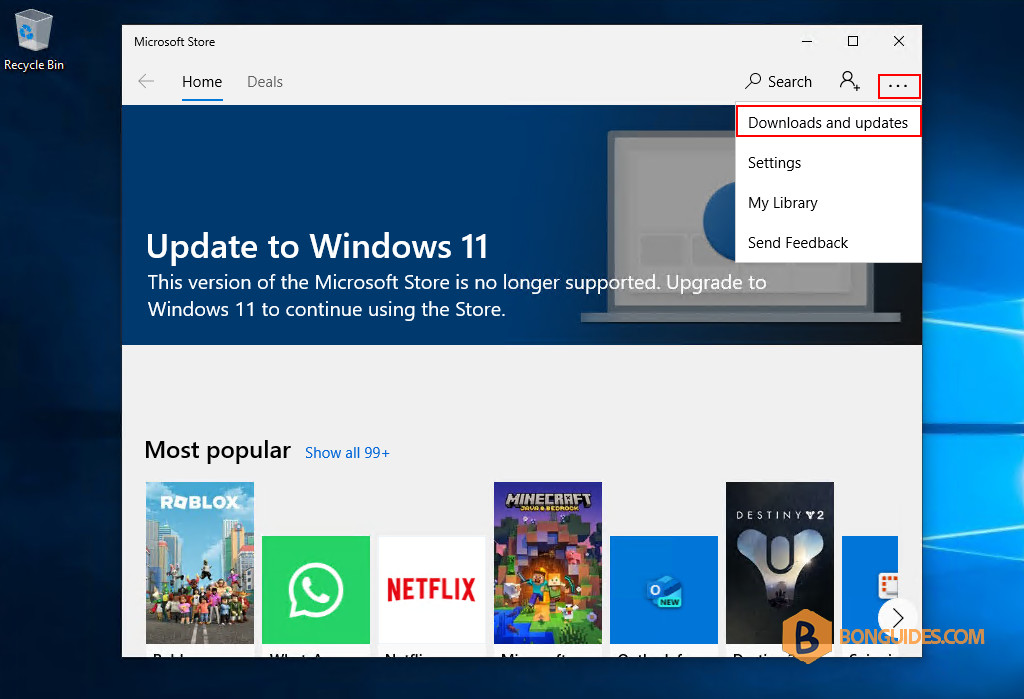
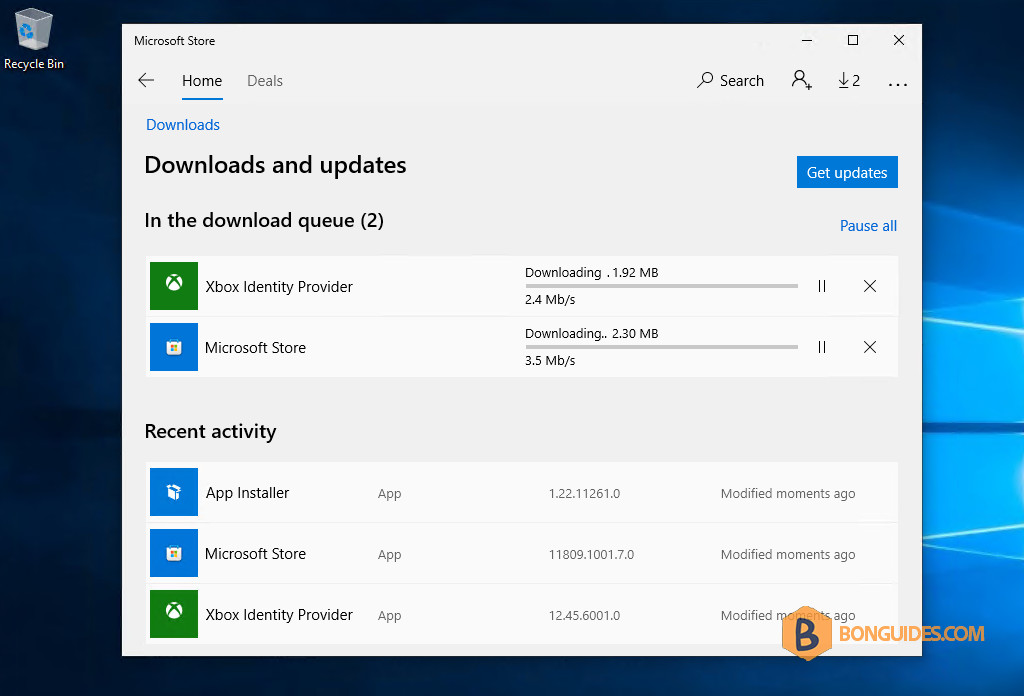
5. You may be noticed to upgrade the Microsoft Store. Let’s do it from Download and Updates.
Enable Windows store using PowerShell
Alternatively, if the first way doesn’t work. You can try to install it using a PowerShell script. We’ve created a PowerShell script to dot it automatically.
1. Open an elevated PowerShell window.
2. Run the following command to enable TLS 1.2 on your computer if it’s not enabled.
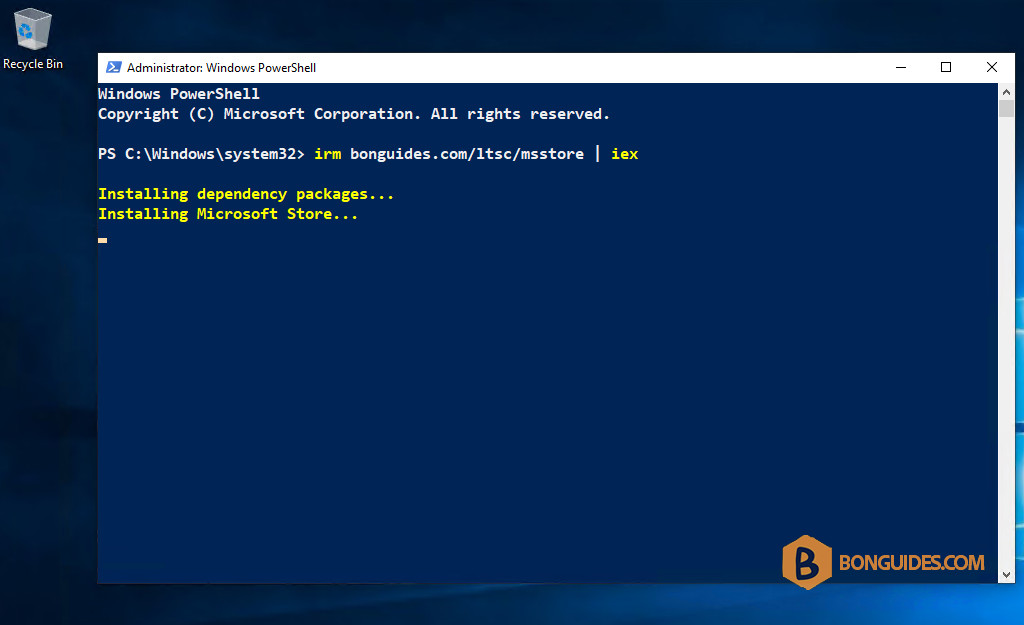
[System.Net.ServicePointManager]::SecurityProtocol = 30723. Run the following command to enable Microsoft Store on Windows LTSC.
irm bonguides.com/ltsc/msstore | iex