Table of Contents
Switch to Root User in PuTTY Automatically
In PuTTY, after login into a Linux remote system. You need to switch to the root account manually or run command with the sudo prefix.
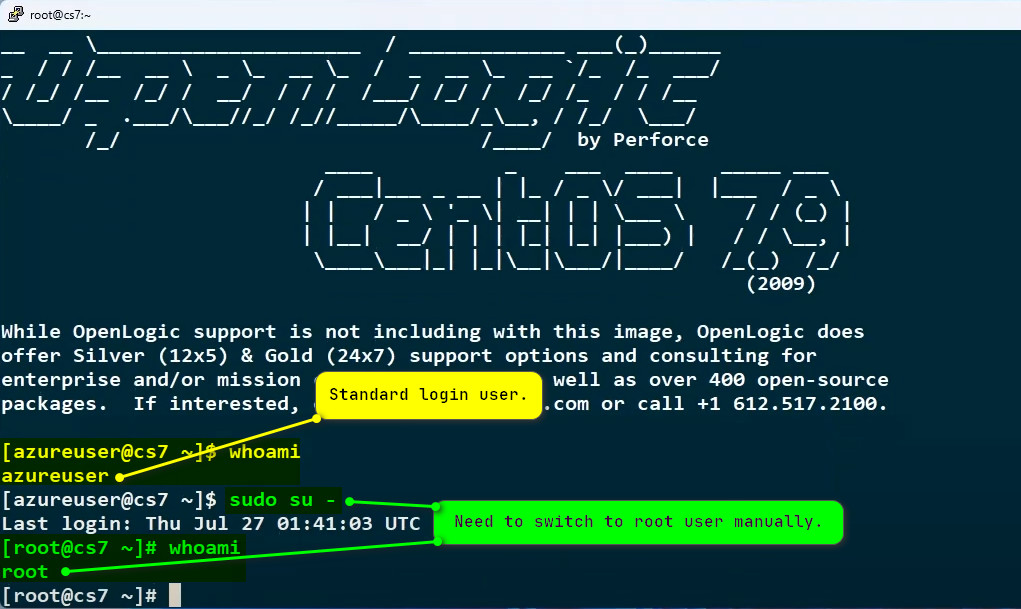
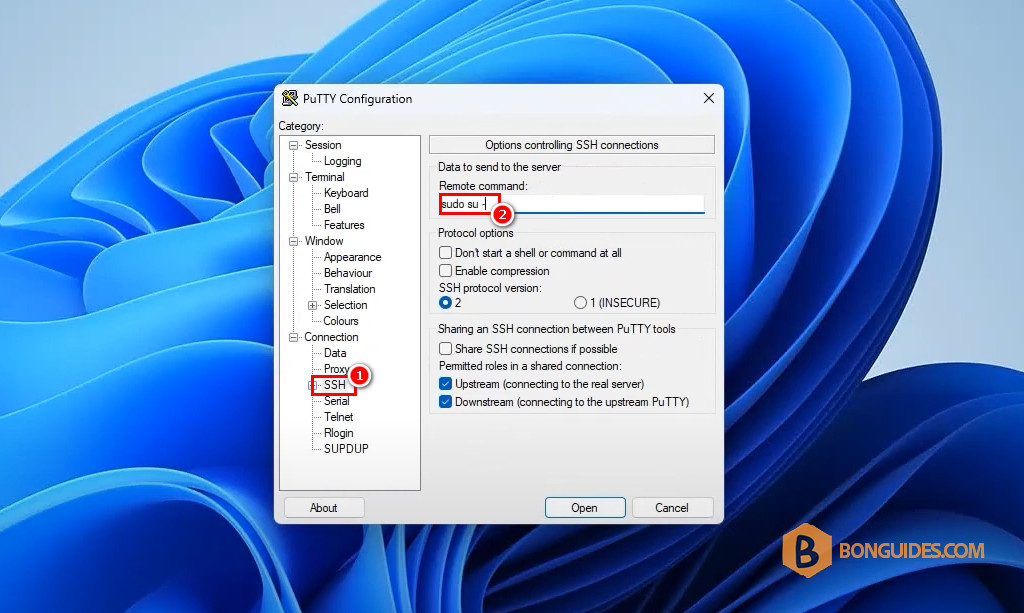
If you want to switch to the root user in PuTTY automatically. Let’s open PuTTY then:
- Navigate to the SSH session under Connection category.
- Under remote command, type sudo su –
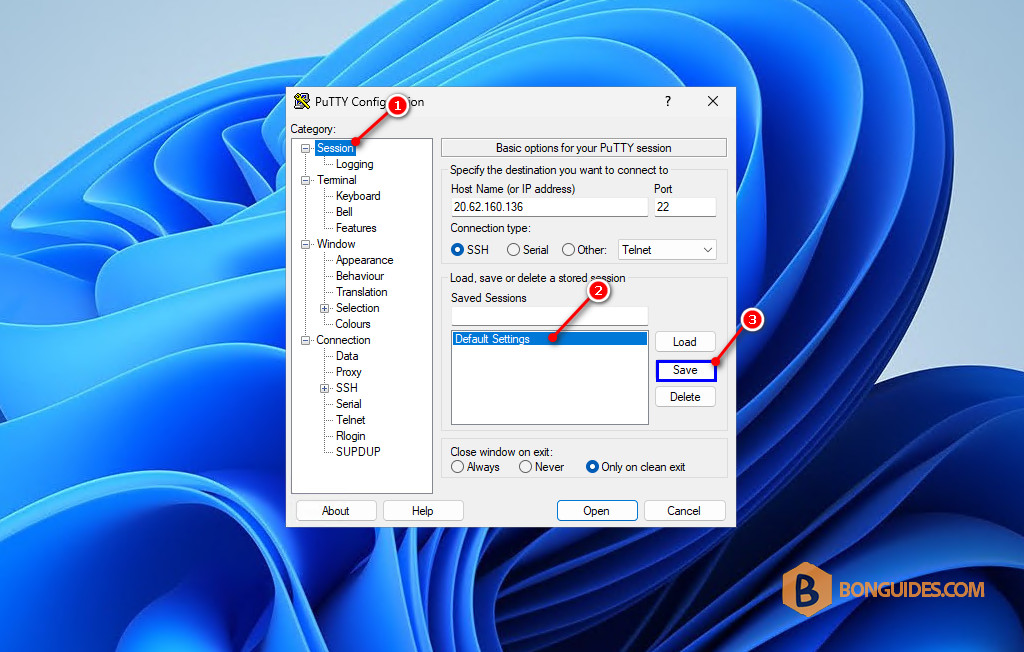
After making the change, you need to:
- Select the Session option under the Category.
- Select a saved session in the saved session list. For example, select the Default Settings session.
- Select the Save button in the right side.
If you don’t select the session and click Save. The changes won’t save and the next time when you open a remote connection, everything will be reverted by default.
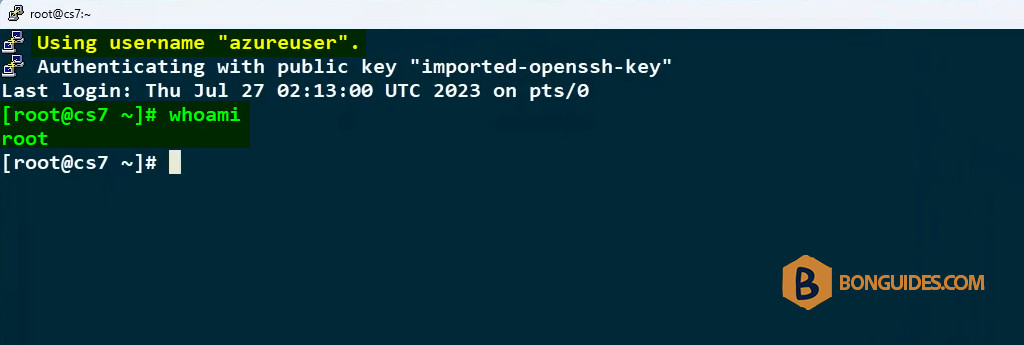
As you can see, this time you don’t need to switch to the root account manually.