
Table of Contents
Newer versions of Microsoft Edge web browser come with a new flyout UI for the built-in Download Manager. When you start a file download, Microsoft Edge automatically displays a new Downloads button or icon (near to 3-dots menu) in its toolbar.
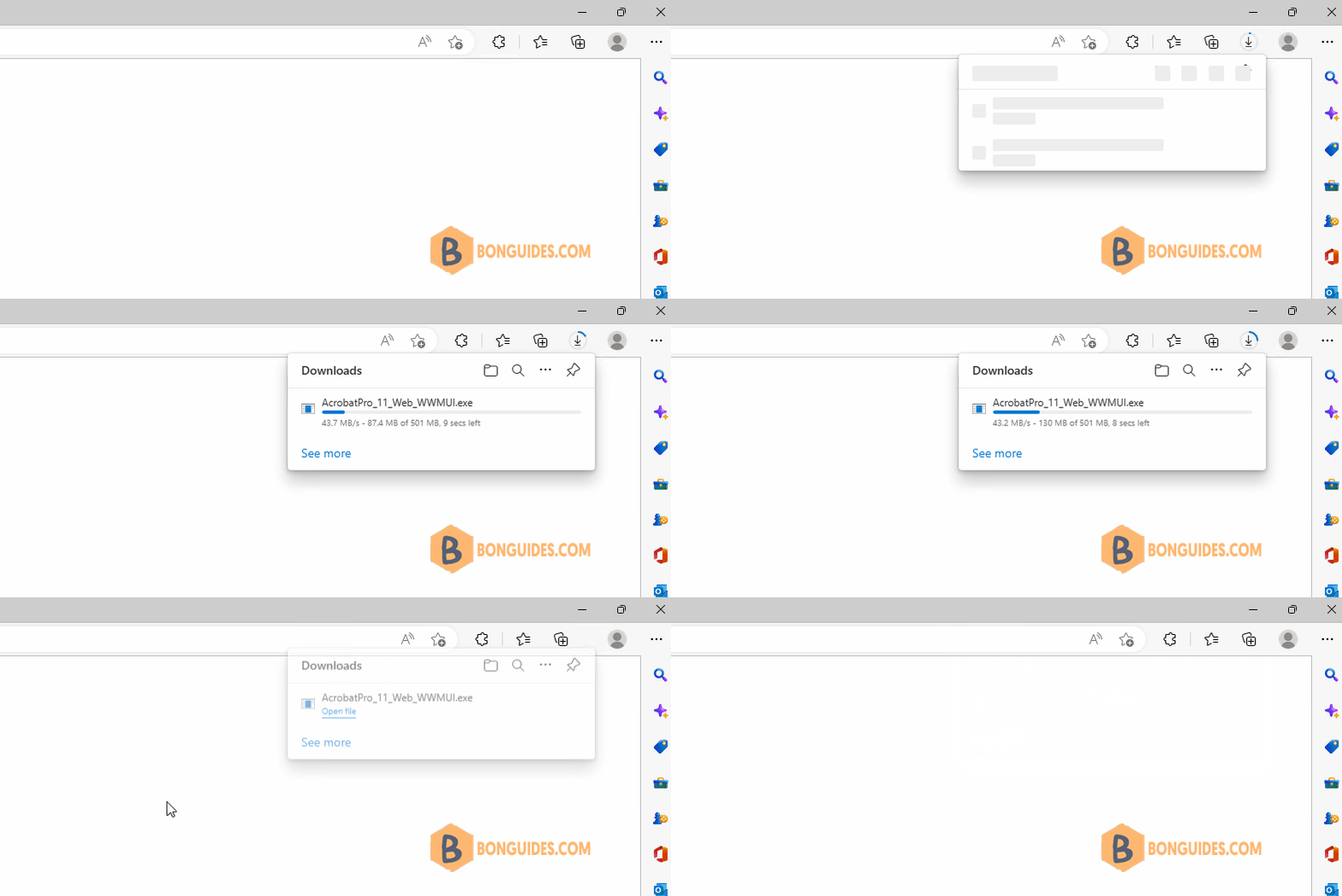
As soon as the download completes and you click on the Downloads icon, it automatically disappears from the toolbar. Actually, the Downloads icon is set to auto-hide by default which means the icon only appears when a file is being downloaded by the browser to show the download status to user.
Note
Tip: You can quickly launch Downloads Manager in Firefox by pressing keys together
In this tutorial, we’ll share some methods to pin and always show Downloads icon in Microsoft Edge toolbar.
Method 1: Using the new Downloads Flyout Menu
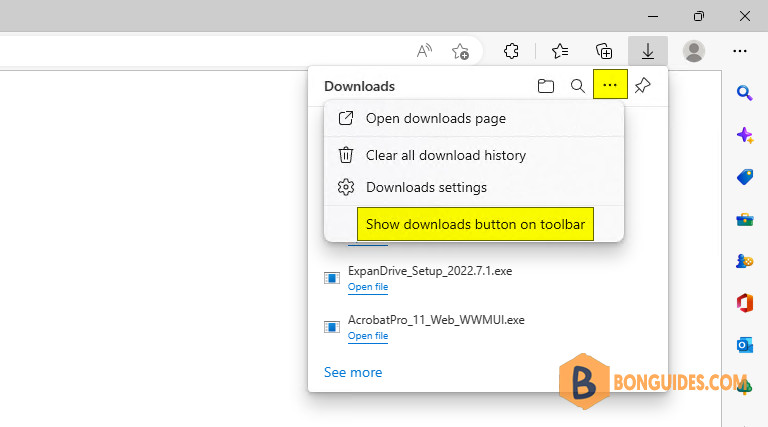
1. If you are downloading a file in Microsoft Edge and the Downloads icon is currently showing in the toolbar, you can click on the 3-dots icon showing inside the flyout menu. It’ll open a few options list.
Now select “Show downloads button on toolbar” option. It’ll permanently add Downloads icon to Microsoft Edge toolbar.
Method 2: Using Microsoft Edge Main Menu
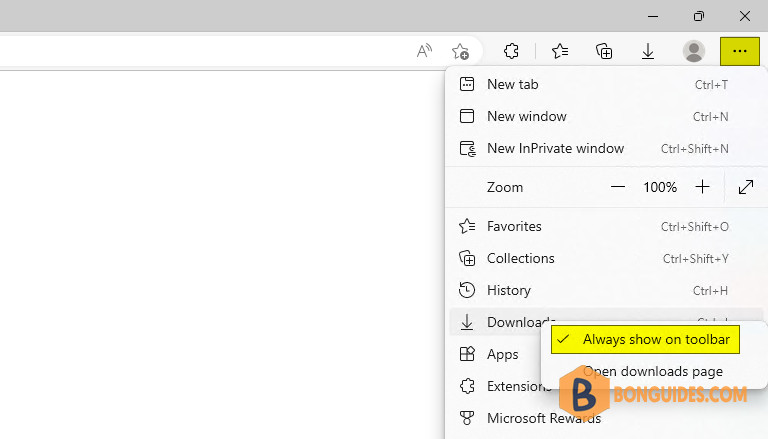
1. You can also click on Main Microsoft Edge 3-dots Menu (or press keys) and you’ll see Downloads option present in the list.
2. Right-click on Downloads option and you’ll get Always show on toolbar option as follows. Click on it to show the Downloads icon to Microsoft Edge toolbar.
Method 3: Using Microsoft Edge Settings Page
You can also show or hide Downloads button on Microsoft Edge toolbar using its Settings page as mentioned in following steps:
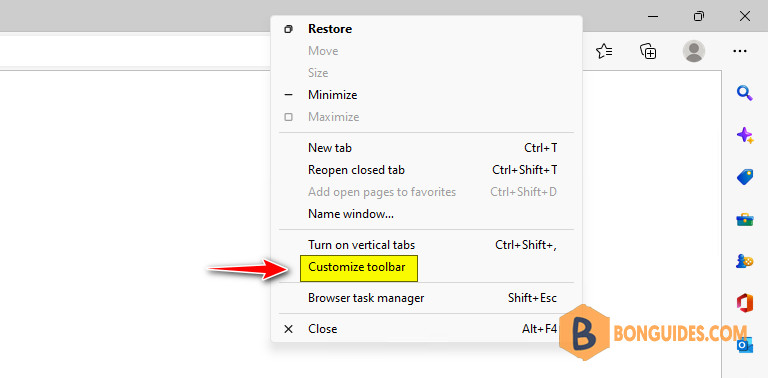
1. Open Microsoft Edge browser and by right-clicking on Edge title bar and selecting Customize toolbar option.
Note
Tip: Alternatively, you can press keys together to show Edge Menu and then press S key to open Settings page. You can also directly open Edge Settings page using edge://settings/ URL in address bar.
2. In right-side pane, you’ll see Show downloads button option present under Customize toolbar section.
3. Toggle button to On to enable the option to show the Download button.
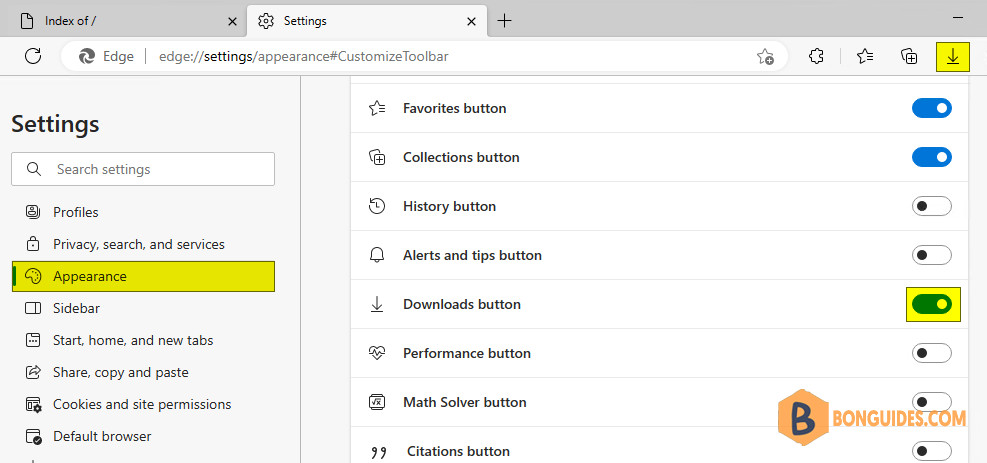
That’s it. It’ll immediately add missing Downloads button to Edge toolbar permanently.


