Table of Contents
Windows PowerShell is mostly known as a command-line shell used to solve some administration tasks in Windows and apps running on this OS. At the same time, it is a scripting language that allows you to tailor cmdlets – lightweight commands to perform specific functions.
In this post, we’ll talk about Send-MailMessage, a cmdlet to send emails from PowerShell, as well as other ways to handle this.
Script to send an email with PowerShell
Let’s start with simple things. Here is a one-line script based on the Send-MailMessage cmdlet you can use right now to send an email from PowerShell using SMTP protocol.
Send-MailMessage `
    -To "[email protected]" `
    -From "[email protected]" `
    -Subject "This is a test message from PowerShell" `
    -Body "Hello World!" `
    -Credential (Get-Credential) `
    -SmtpServer "smtp.office365.com" `
    -Port 587 `
    -UseSsl    #If mail server not support SSL/TLS, let remove this parameter
All you need is to replace the email address of a sender and a recipient, as well as specify the SMTP server you’re going to use. Then copy-paste this script to your PowerShell and press Enter.
Note
Some mail servers allow using port 25. So, you can use -Port 25 instead of -Port 587
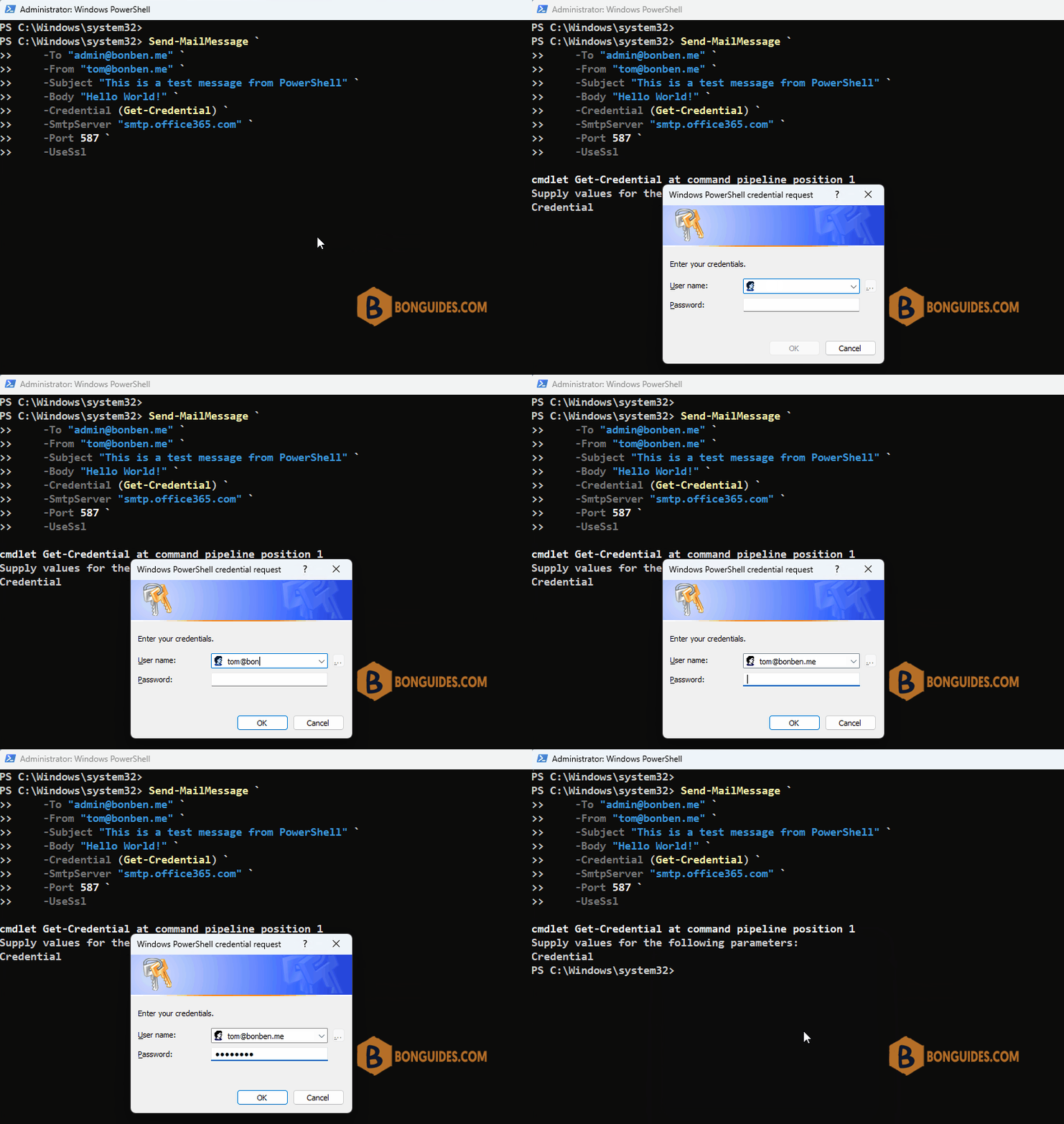
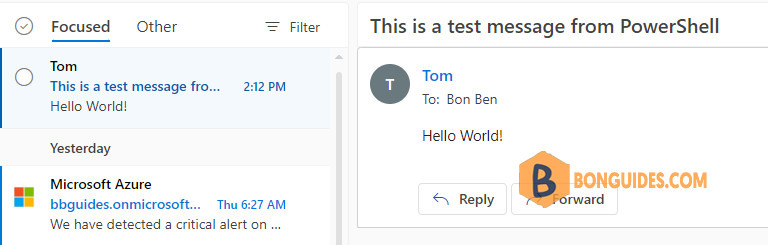
As you can see, the email was sent from Tom to admin using PowerShell commands.
Send an HTML email or an email with attachments from PowerShell
Send-MailMessage lets you pump up your email with many parameters, including HTML content, priority, and so on. Also, you can send emails to multiple recipients by specifying them in the corresponding parameter. Here is what you can make use of:
| Parameter | Description |
|---|---|
| -To | Email address of a recipient or recipients |
| -Bcc | Email address of a BCC recipient or recipients |
| -Cc | Email address of a CC recipient or recipients |
| -From | Sender’s email address |
| -Subject | Email subject |
| -Body | Email body text |
| -BodyAsHtml | Defines that email body text contains HTML |
| -Attachments | Filenames to be attached and the path to them |
| -Credential | Authentication to send the email from the account |
| -SmtpServer | Name of the SMTP server |
| -Port | Port of the SMTP server |
| -Encoding | The encoding for the body and subject |
| -Priority | Defines the level of priority of the message. Valid options are: Normal (default parameter) Low High |
| -UseSsl | Connection to the SMTP server will be established using the Secure Sockets Layer (SSL) protocol |
So, let’s make a script that will send an email containing HTML text and an attachment. This time, we’ll define the parameters in advance and then refer to them in the Send-MailMessage cmdlet:
$From = "[email protected]"
$To = "[email protected]", "[email protected]"
$Cc = "[email protected]"
$Attachment = "C:\Temp\pj2022.zip"
$Subject = "New updated avata"
$Body = "<h2>Guys, This is new project!</h2><br><br>"
$Body += "Give me the feedbacks!"
$SMTPServer = "smtp.office365.com"
$SMTPPort = "587"

Send-MailMessage -From $From -to $To -Cc $Cc `
    -Subject $Subject -Body $Body -BodyAsHtml `
    -SmtpServer $SMTPServer -Port $SMTPPort -UseSsl `
    -Credential (Get-Credential) `
    -Attachments $Attachment
Note
Tip: As you noticed, we used to add a new line to the body text of the message.
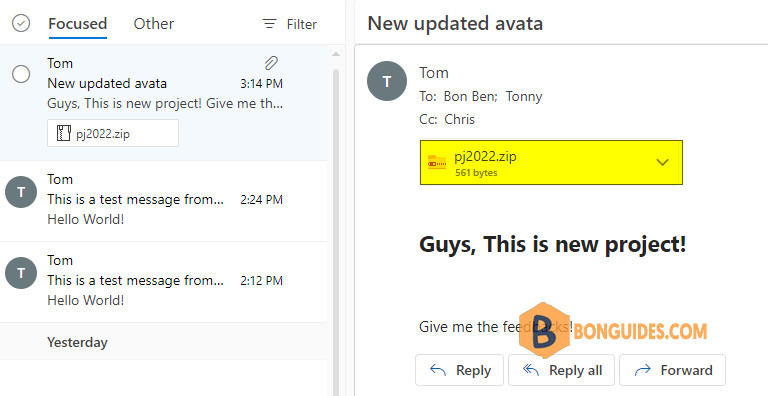
As you can see, the email was sent with the formatted texts and an attachment.
Send an email from PowerShell using the other SMTP servers
In case you want to send emails via Gmail’s SMTP server, simply add smtp.gmail.com as the SMTP host.
In some cases, you would get the error – 551 Authentication Required. To fix this issue, you need to turn on the Less secure app access in the Security tab of your Google Account.
Send-MailMessage `
    -To "[email protected]" `
    -From "[email protected]" `
    -Subject "This is a test message from PowerShell" `
    -Body "Hello World!" `
    -Credential (Get-Credential) `
    -SmtpServer "smtp.gmail.com" `
    -Port 587 `
    -UseSsl
Using the below example to send email from Office 365 using PowerShell.
Send-MailMessage `
    -To "[email protected]" `
    -From "[email protected]" `
    -Subject "This is a test message from PowerShell" `
    -Body "Hello World!" `
    -Credential (Get-Credential) `
    -SmtpServer "smtp.office365.com" `
    -Port 587 `
    -UseSsl
The SMTP settings for popular email providers:
| Service | SMTP server | Port | Connection |
|---|---|---|---|
| Gmail | smtp.gmail.com | 587, 25, 465 | TLS, TLS, SSL |
| Office 365 | smtp.office365.com | 25, 587 | TLS |
| Outlook.com | smtp-mail.outlook.com | 25, 587 | TLS |
| Yahoo mail | smtp.mail.yahoo.com | 25, 465, 587 | SSL, TLS |
| Windows Live Hotmail | smtp.live.com | 25, 587 | SSL, TLS |
| Zoho | smtp.zoho.com | 465, 587 | SSL, TLS |
Send emails from PowerShell using System.Net.Mail API
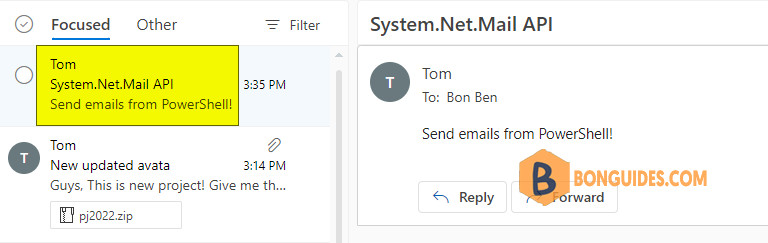
Send-MailMessage cmdlet is the most common option for sending emails from PowerShell. But this was not always the case. It became available starting from PowerShell 3.0 and was based on System.Net.Mail API.
$EmailFrom = "[email protected]"
$EmailTo = "[email protected]"
$Subject = "System.Net.Mail API"
$Body = "Send emails from PowerShell!"
$SMTPServer = "smtp.office365.com"
$SMTPClient = New-Object Net.Mail.SmtpClient($SmtpServer, 587)
$SMTPClient.EnableSsl = $true
$SMTPClient.Credentials = New-Object System.Net.NetworkCredential("[email protected]", "PassW0rd");
$SMTPClient.Send($EmailFrom, $EmailTo, $Subject, $Body)