
Table of Contents
Restart Windows Explorer using PowerShell
Sometimes, you may face issues like windows desktop freeze, and you can’t use the start menu, quick access pinned programs, or switch between windows.
When this happens the quick resolution is to restart Windows Explorer. There are many ways to restart Windows Explorer. In this article, we are going to see how to Restart Windows Explorer using PowerShell.
1. Right-click on the Windows Start icon then select Windows PowerShell (Admin).
Note
In Windows 11, select instead of Windows PowerShell (Admin)
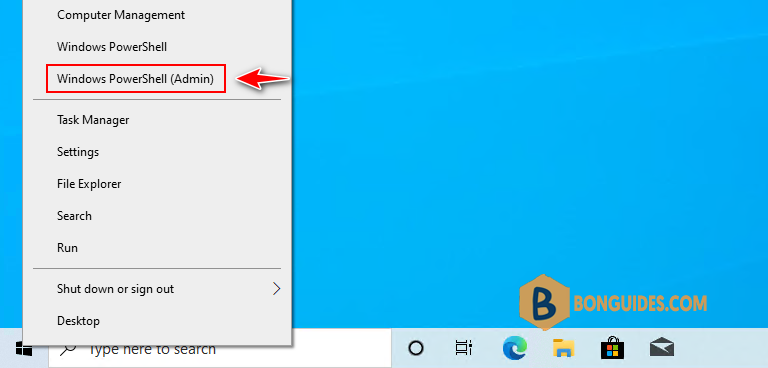
2. Execute the following command to restart Windows Explorer using PowerShell.
Stop-Process -Name "explorer" -ForceOnce you enter the command the Windows Explorer will restart automatically. Be patient this will take some time. When finished, explorer.exe has been refreshed, you should be able to use your PC normally.
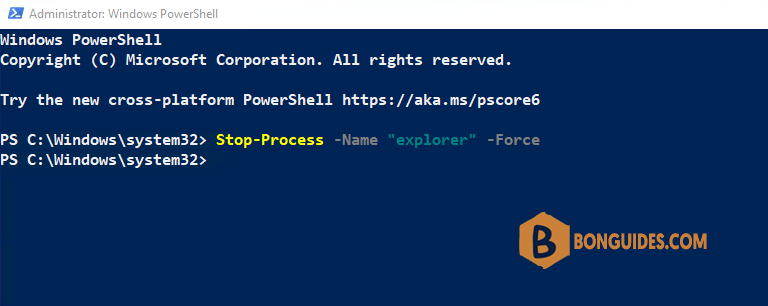
Restart Windows Explorer using command line
In case the PowerShell cannot be opened because everything is frozen. It must be opened from the Run box or Task Manager using the keyboard shortcuts.
Using the Run box
1. Open the Run box by pressing the Windows + R combination keys.
2. Type powershell then hit Enter to open it from the Run box.
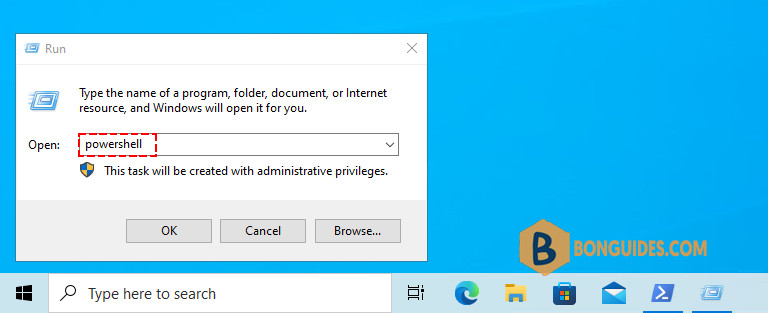
3. Run the below command to restart the File Explorer.
Stop-Process -Name "explorer" -ForceUsing the Task Manager.
1. Open the Task Manager by pressing the Ctrl + Shift + Esc combination keys.
2. Navigate to the File menu | Run new task.
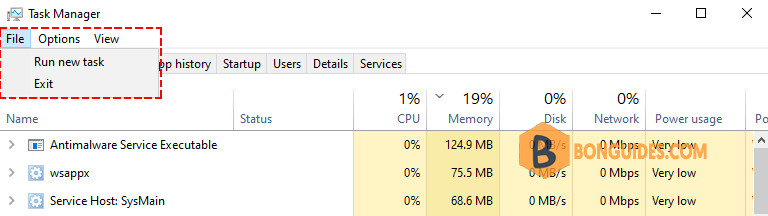
3. Type powershell then hit Enter to open it from the Run box.
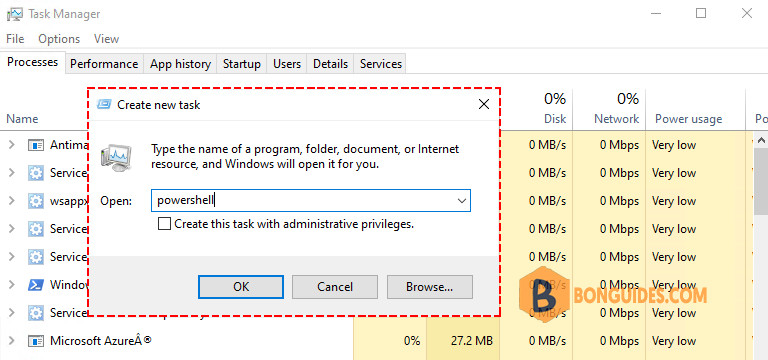
4. Run the corresponding command to restart the File Explorer.
Conclusion
With that done, you should have all you need to restart explorer.exe in Windows using command line to fix common issues like a frozen taskbar, desktop, or Start Menu.

