
Table of Contents
File Explorer is an interface provided to the users to navigate and access the files and folders stored on the computer. In Windows 10, the File Explorer has a ribbon that consists of buttons and commands for most of the common tasks like copying and moving files and folders, renaming files, creating folders, compressing folders, emailing files, and also changing the way your files and folders are displayed by Windows.
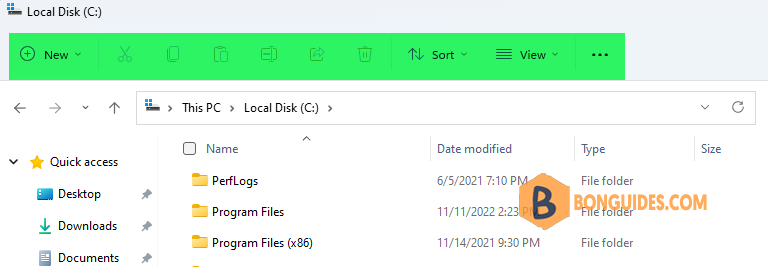
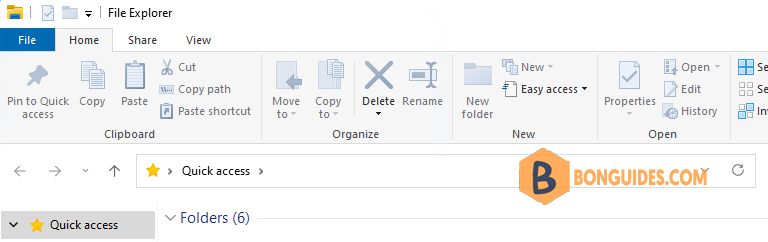
But, with Windows 11, the File Explorer has changed from the ribbon interface to a simpler command bar with a modern and neat look. But you can restore the File Explorer in Windows 11 to the classic File Explorer with the ribbon that they were enjoying using on Windows 10.
Restore the Classic File Explorer Ribbon in Windows 11 Using Registry
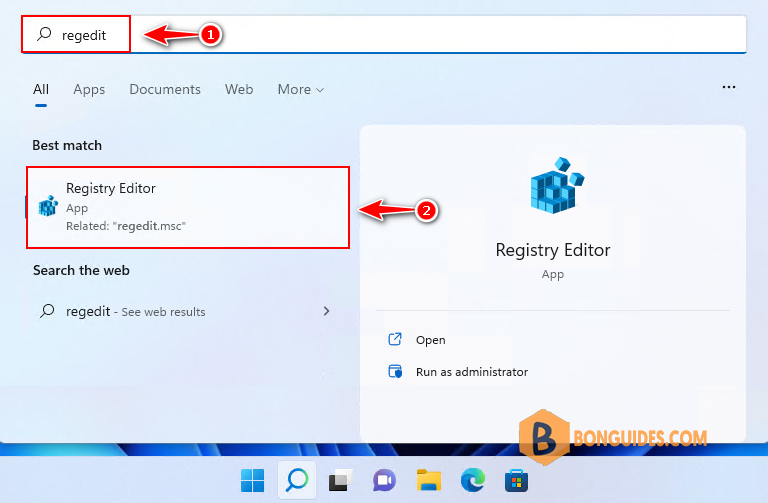
1. The only way to get back the classic ribbon in windows 11 is through the Registry. Let’s search then open it in your Windows 11.
2. Navigate to the following key in the left sidebar or you can paste it directly into the address bar then hit Enter.
Computer\HKEY_LOCAL_MACHINE\SOFTWARE\Microsoft\Windows\CurrentVersion\Shell Extensions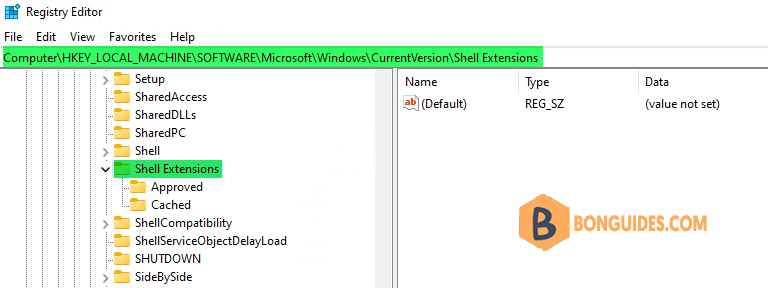
3. You need to create a new key under the Shell Extensions registry key. To do so, right-click on the Shell Extensions folder in the left pane and select New –> Key.
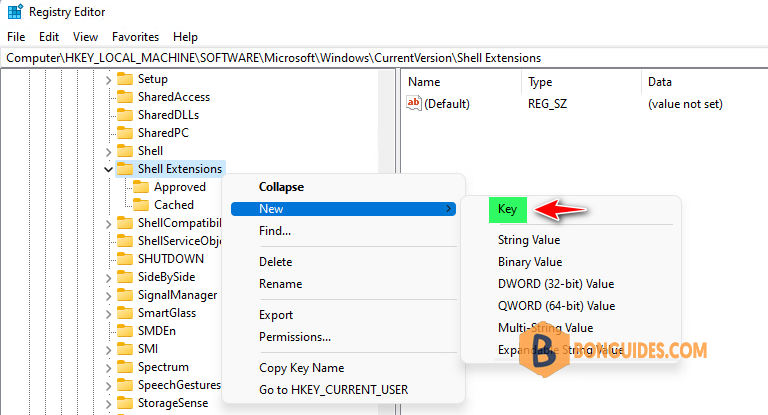
4. Rename the new created key to Blocked.
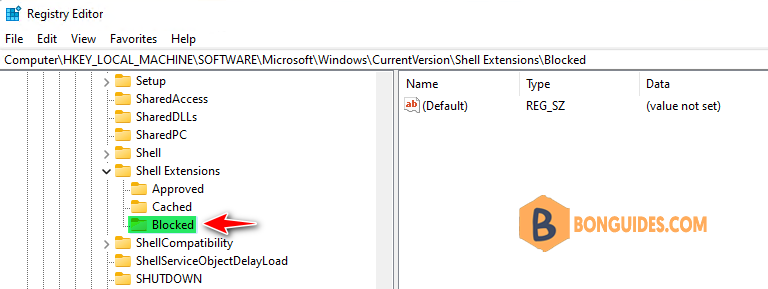
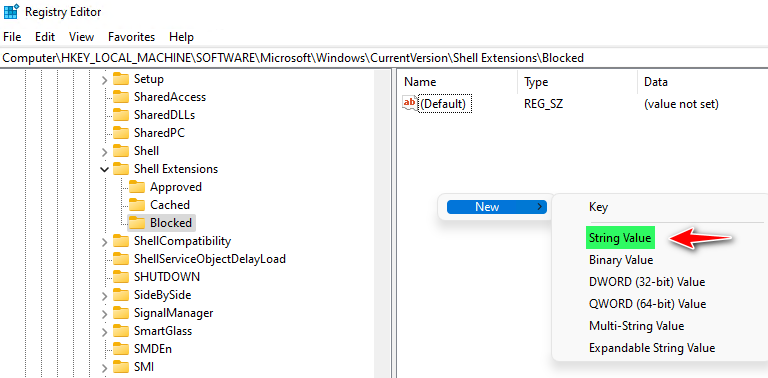
5. Select the newly created key Blocked. Right-click on any empty space in the right side and choose New –> String Value to create a new one.
6. Name this new String as {e2bf9676-5f8f-435c-97eb-11607a5bedf7}.
Note
You should copy and paste the above string value rather than typing it again.
{e2bf9676-5f8f-435c-97eb-11607a5bedf7}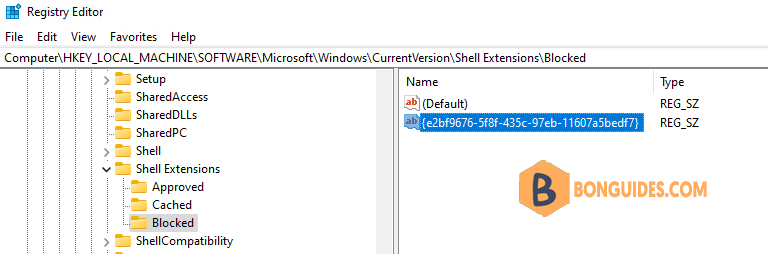
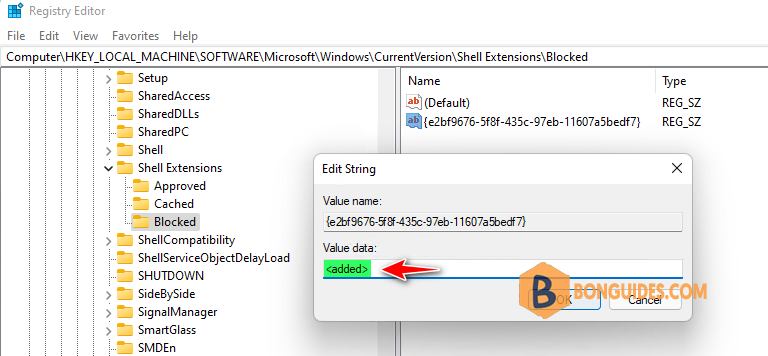
7. Double-click on this newly created string to open the Edit String window. Type in the Value data field to restore to the classic Windows 10 File Explorer with a ribbon in Windows 11 then click on OK.
8. Restart Windows Explorer or you can restart your computer to take the changes go into effect. Once your computer reboots, the old menu should be available again.
Note
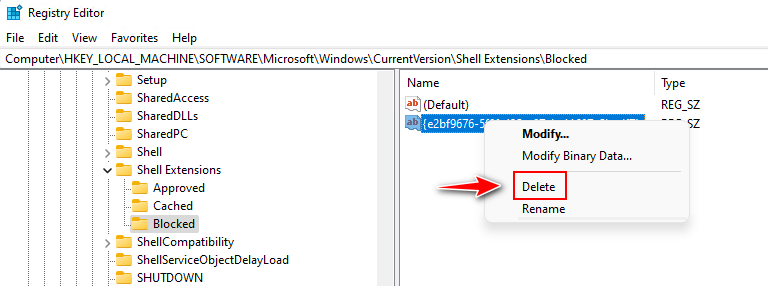
To get back the modern menu in Windows 11. Let’s delete the string {e2bf9676-5f8f-435c-97eb-11607a5bedf7} that you’ve created in the previous step.
Classic File Explorer Ribbon in Windows 11 Using Command Line
If you don’t want to do it manually, you can execute the below commands in an elevated Command Prompt (cmd) window to enable or disable the Windows 10 classic menu in Windows 11.
Enable the classic Windows 10 File Explorer on your Windows 11
reg add "HKLM\SOFTWARE\Microsoft\Windows\CurrentVersion\Shell Extensions\Blocked"
reg add "HKLM\SOFTWARE\Microsoft\Windows\CurrentVersion\Shell Extensions\Blocked" /v {e2bf9676-5f8f-435c-97eb-11607a5bedf7} /t REG_SZ /d "<added>" /f
taskkill /im explorer.exe /f & explorer.exe
Disable the classic Windows 10 File Explorer on your Windows 11
reg delete "HKLM\SOFTWARE\Microsoft\Windows\CurrentVersion\Shell Extensions\Blocked" /f
taskkill /im explorer.exe /f & explorer.exe
Classic File Explorer Ribbon in Windows 11 Using Batch File
If you want to switch between the modern and classic ribbon constantly. The above two method are not good. So, you need create a batch file to switch the mode quicker.
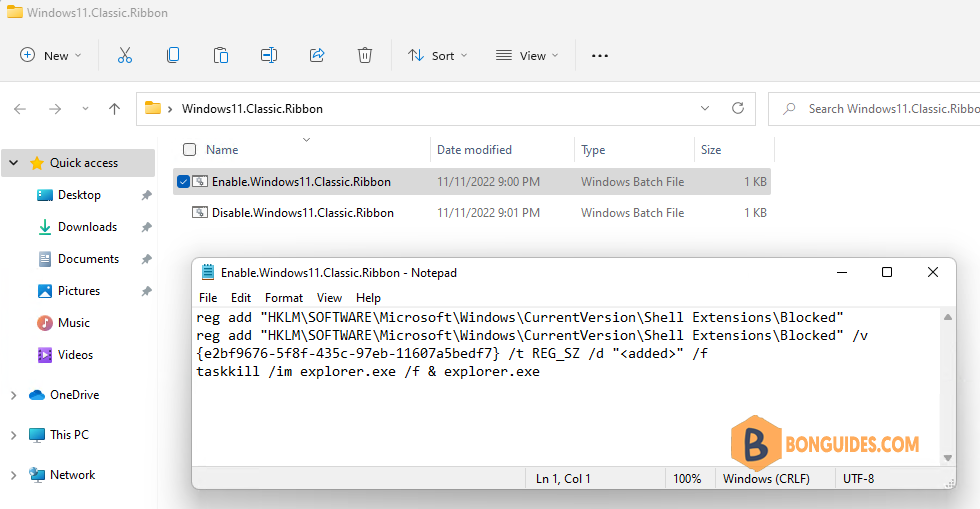
If you even don’t want to create the batch files 😁. You can download them from this link.


