
Table of Contents
The UEFI Interactive Shell Opens Instead of Booting Windows 11
A problem that you may encounter when opening this virtual machine is getting the UEFI interactive shell window instead of booting the system.

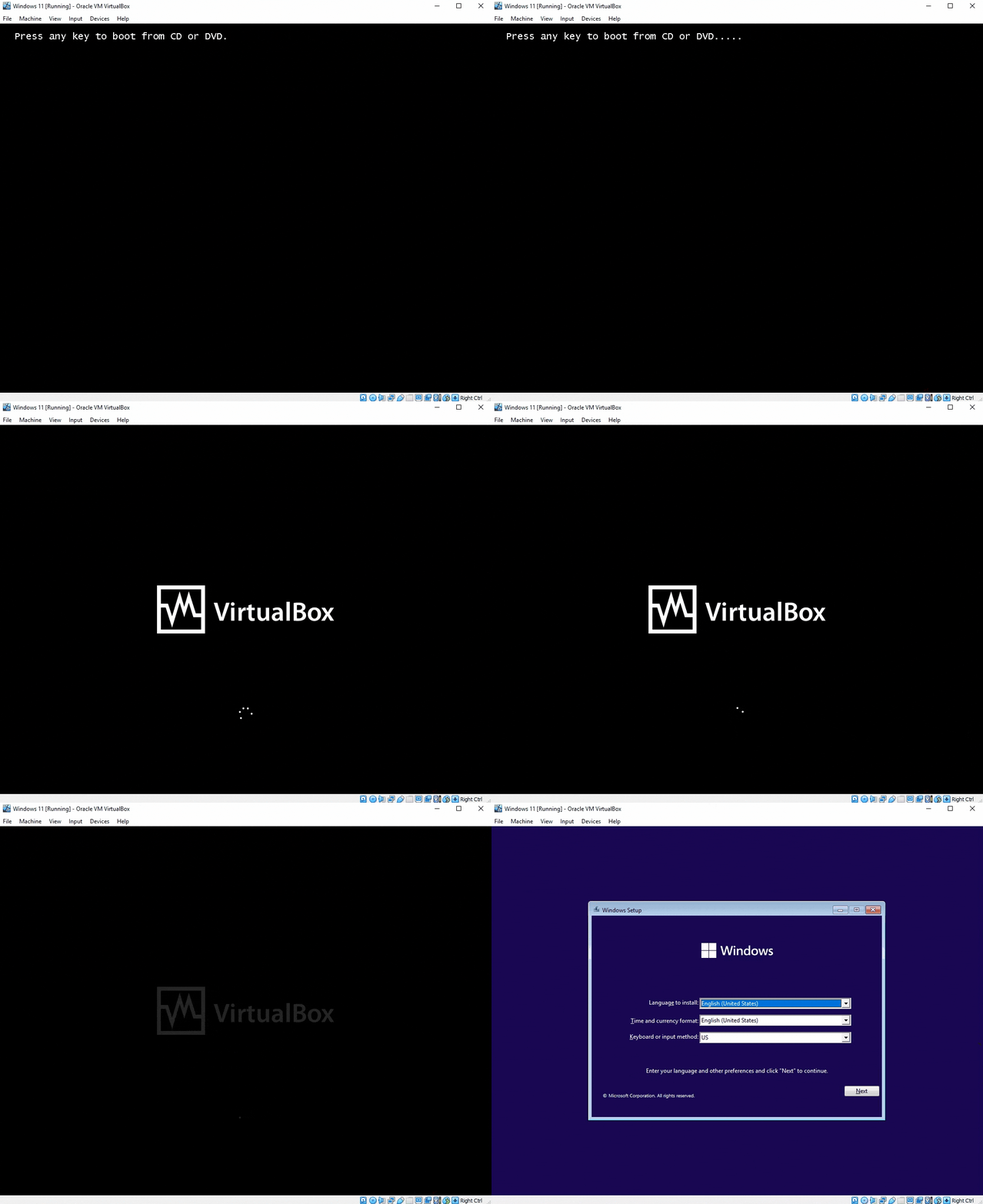
The first thing happens is that you have a few seconds to hit a key to boot from the CD. If I don’t do this, it goes to the UEFI interactive shell and I have to manually go into the CD rom and run the bootx64.efi file.
Then, I see the VirtualBox logo and nothing happens for any period of time. Sometimes the logo spins a bit, other times not.
Disable EFI for the VM
You might have accidentally enabled the EFI setting in your machine. To fix this issue, follow the steps below:
1. In the Oracle VM VirtualBox Manager, select the VM then open Settings. Or just right-click on it & open the Settings.
Note
Turn off the virtual machine before open VM’s settings.

2. In the Settings, go to System | Extended features | Enable EFI. Now simply Uncheck “Enable EFI(special OSes only)” then save the change.

Conclusion
This is How you can fix “VirtualBox Guest suddenly boots only into UEFI Interactive Shell”.


