
Table of Contents
If you have MacBook air or MacBook pro, then probably you would have faced this issue (if not, definitely you will face it someday) where your Wi-Fi gets disconnected when MacBook goes into the sleep mode.
Few days ago, when I started downloading a big file of 7GB and then went for dinner. When I came back, I saw download was at 2 GB, interrupted due to request time out (No internet connectivity). I again started download and same thing happened when my MacBook went into the sleep mode. Now I realized that Wi-Fi is getting disconnected when the Mac goes into the sleep mode.
Keep Your Mac Connected to WiFi While Sleeping
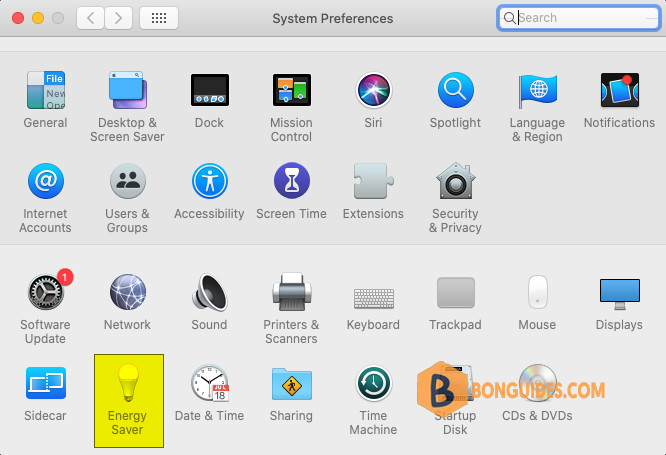
1. To fix it, let’s open System Preferences form the Apple icon menu.

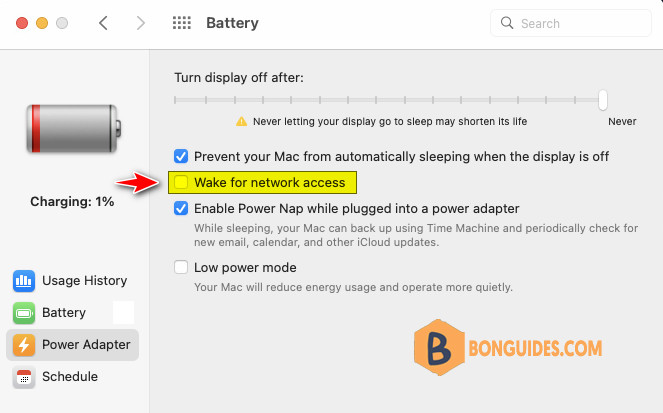
2. Select Energy Saver > Power Adapter then uncheck the option Wake for Wi-Fi network access.
This option really sounds confusing, and it feels like this option must be checked in order to Keep system wake for the network access but actually it means that Your system must be awake for the network access. So, uncheck it to have network access even with sleep mode and not just when system is awake.
Note
On macOS Monterey and higher, Power Adapter option is available under “Battery”
Conclusion
Basically, under energy saving option, apple disconnects Wi-Fi network to save the battery and it is checked by default. Once you uncheck this option, your MacBook will stay connected to Wi-Fi network even in sleep mode.
You don’t need to put your MacBook on “Never sleep” mode as it will severely affect your battery performance and really not good option to go for.
So, this setting has saved me from the hell and thought to share with you. If you find this article useful, feel free to comment below and share with your friends.

